.png)
Why use In-Call Controls
The in-call controls give you everything you need to run an effective, interactive, and fully collaborative meeting. From communication tools to content sharing to AI assistance, every button is designed to help you stay organized, engaged, and in control of your session.
Use In-Call Controls to:
Manage your audio & video:
Toggle your microphone, camera, background, and device settings with a single click.
Share your content:
Use Screen Share, Whiteboard, Media Viewer, or File Sharing to present ideas and guide conversations.
Communicate clearly:
Open the Chat panel, raise your hand, or run a poll to keep discussions structured and interactive.
1. Reset Connection - Disconnects and Reconnects Audio & Video
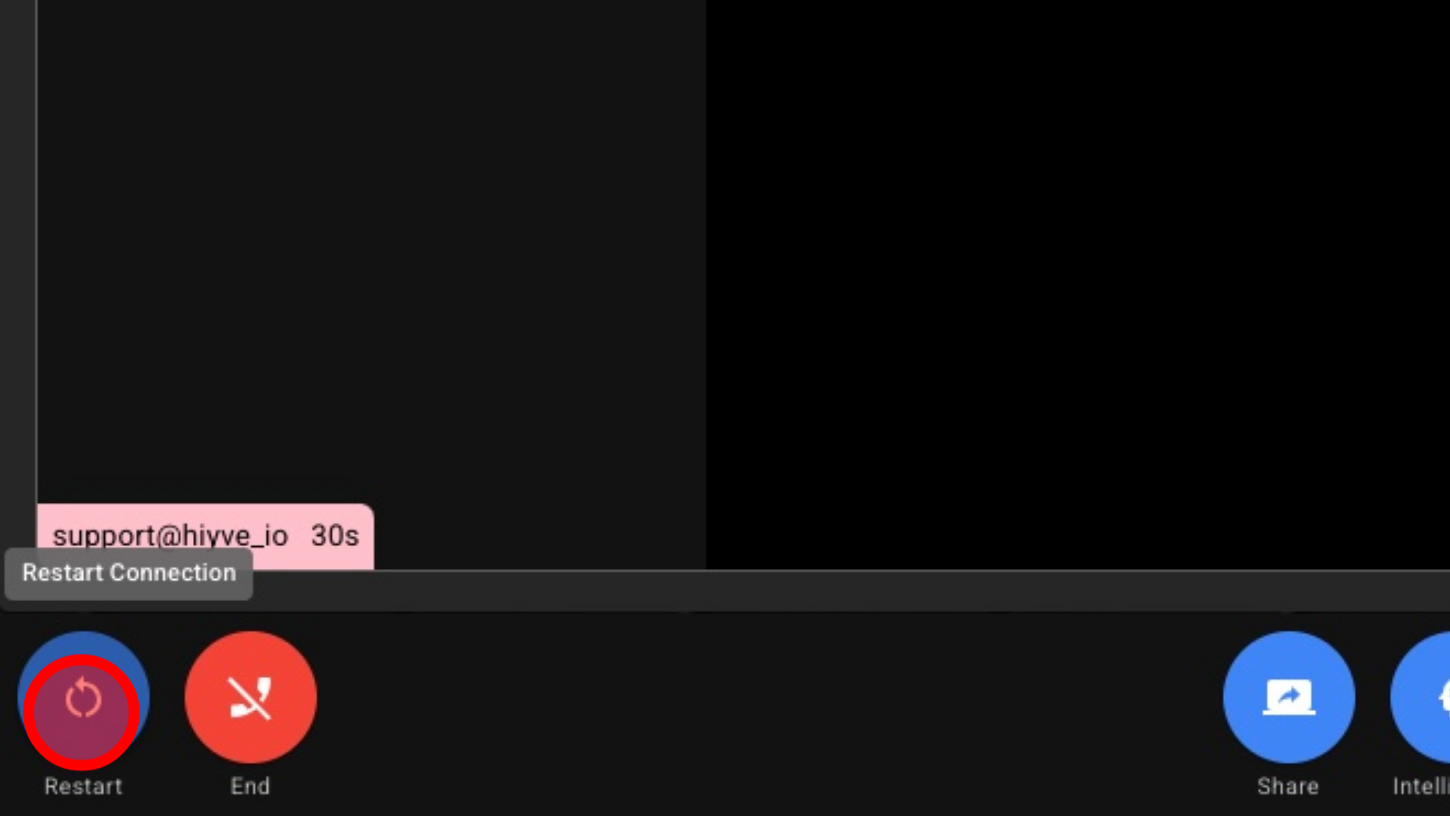
2. Share Your Computer Screen, Tab or Window
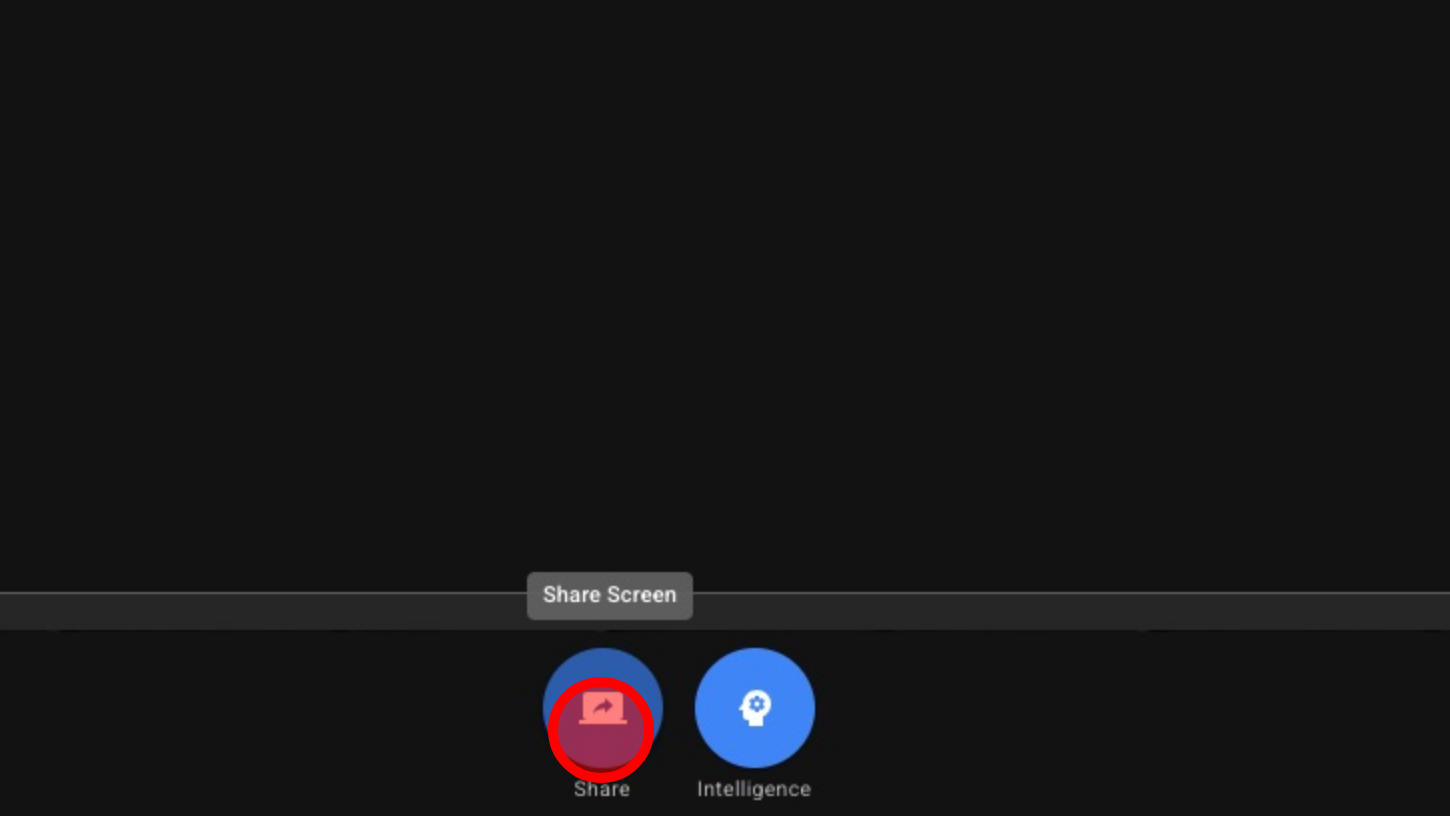
3. Disable Screen Sharing

4. Intelligence Options
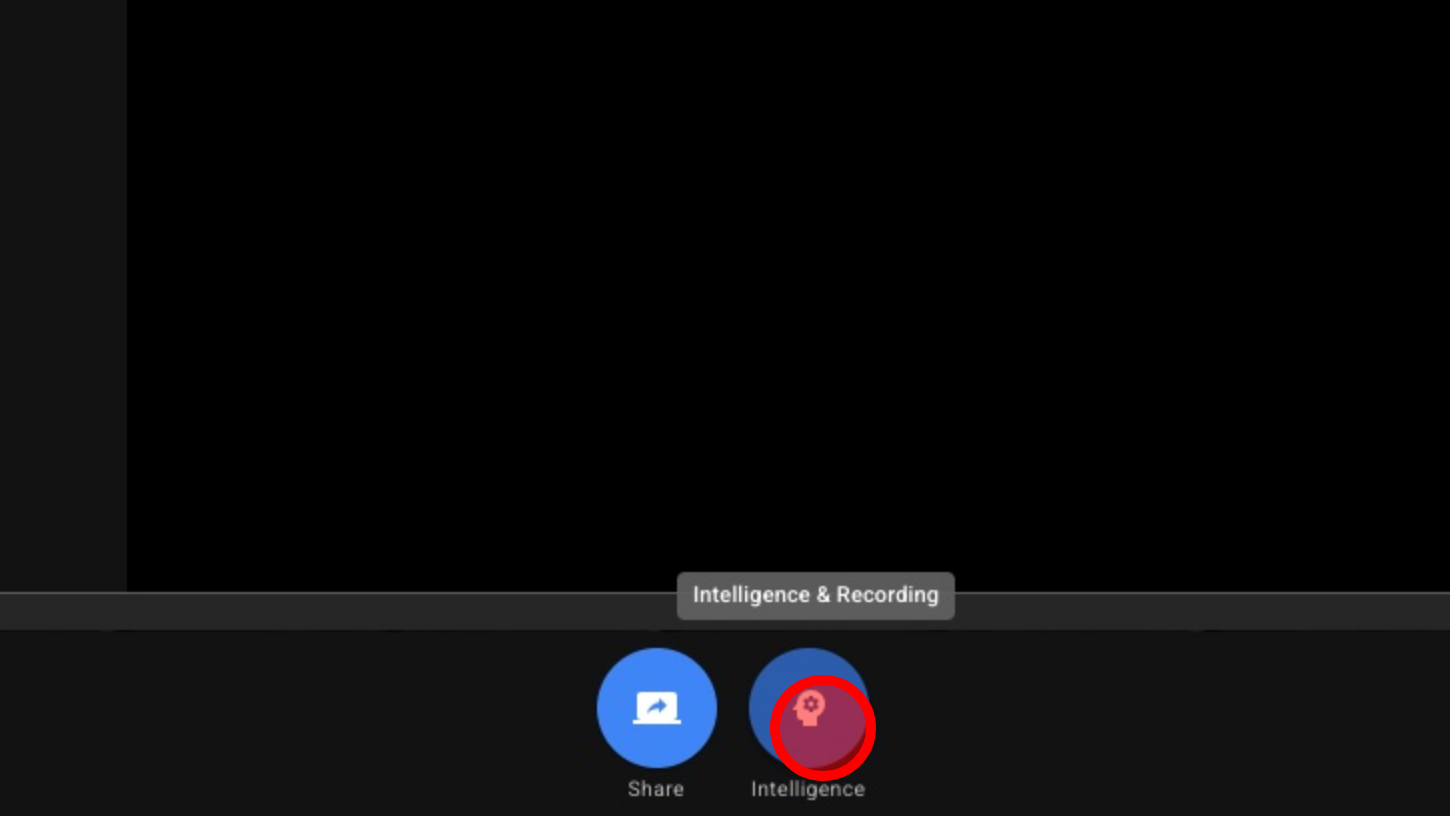
5. Intelligence Mode
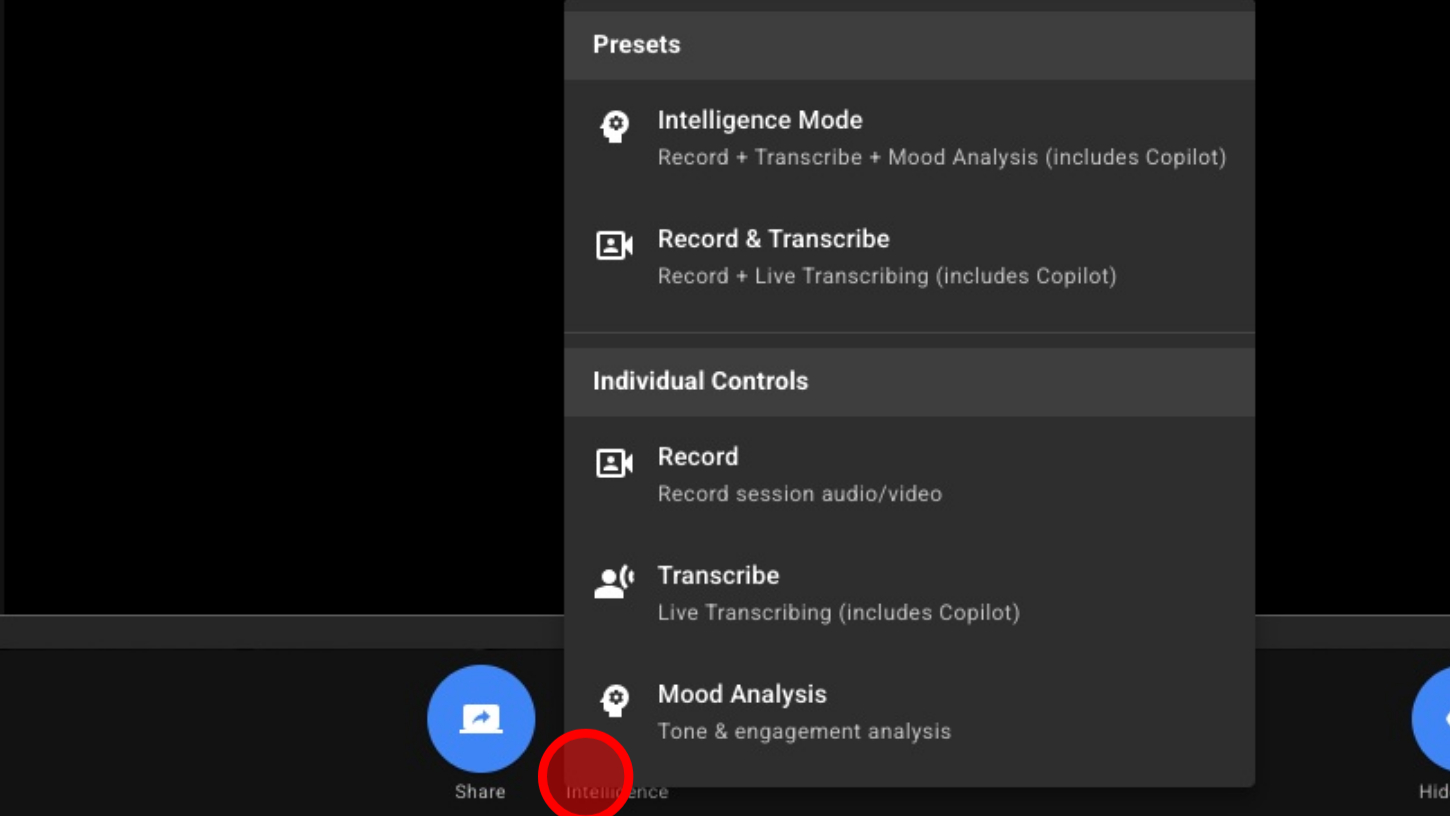
1. Record + Transcribe + Mood Analysis (includes Copilot)
2. Record & Transcribe
3. Record + Live Transcribing (includes Copilot)
4. Record
5. Transcribe
6. Mood Analysis
6. Hide Local Camera - Stops user from seeing their own video windows
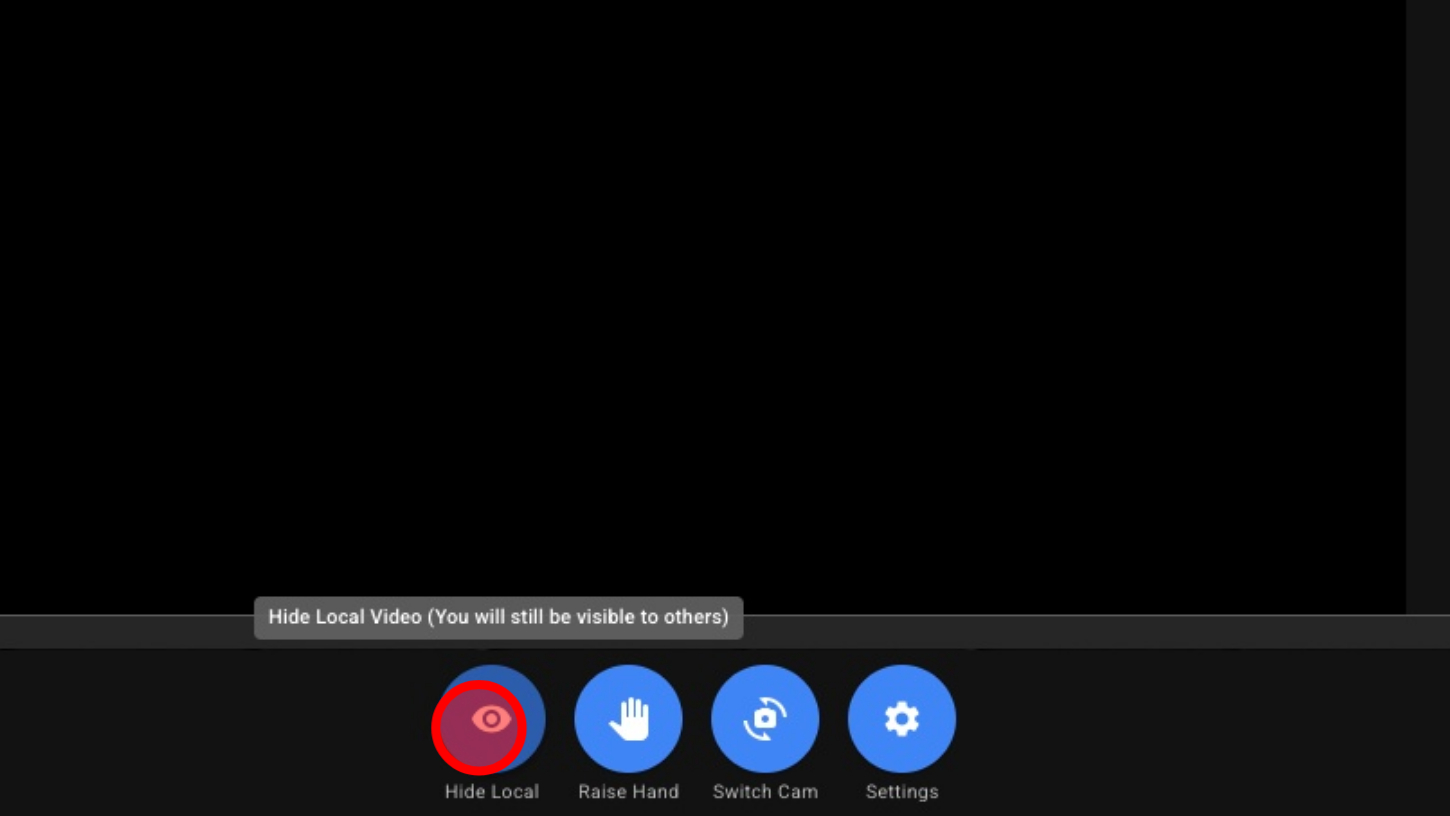
7. Hand Raising - Alerts Host If User Has a Question
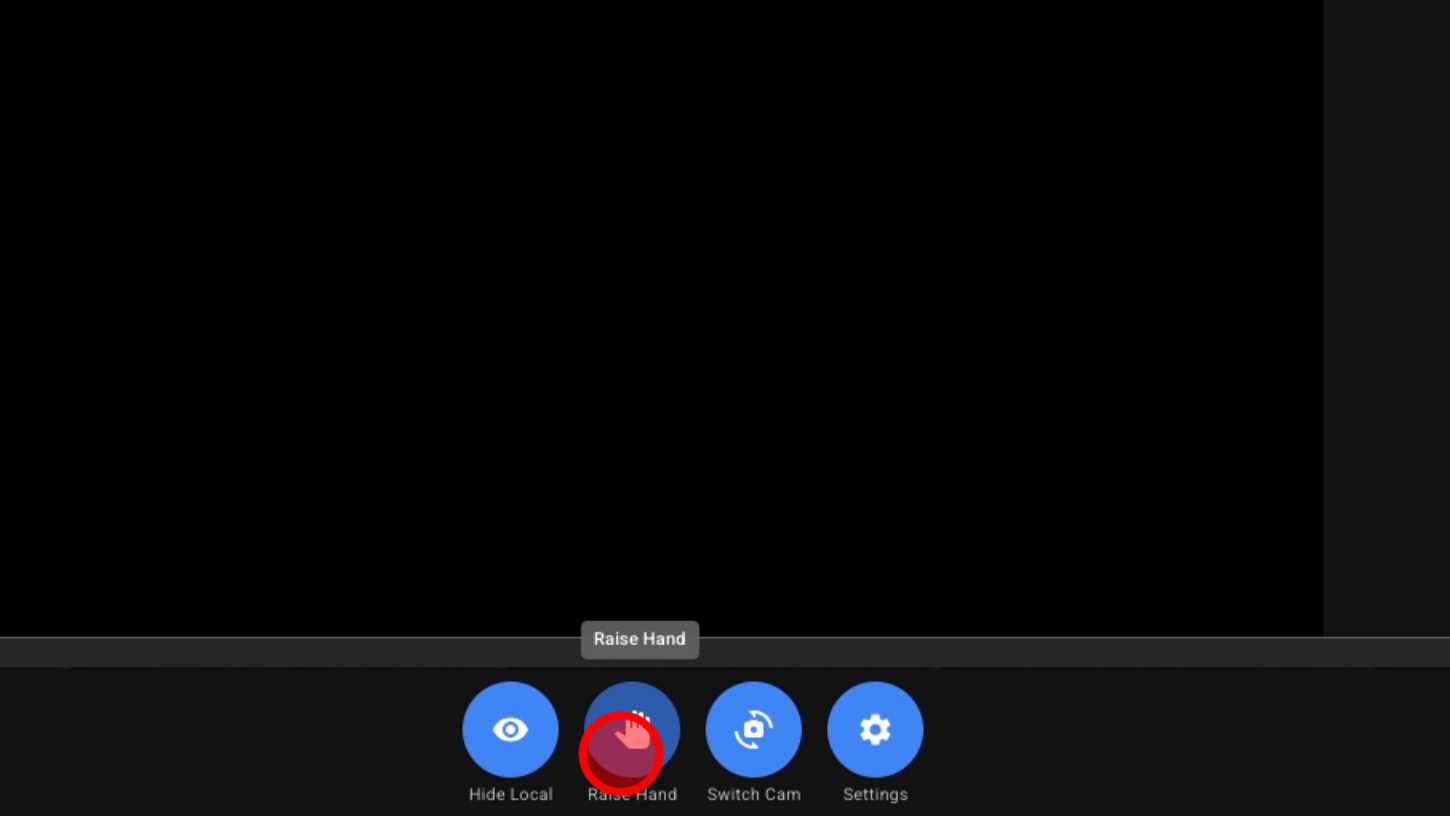
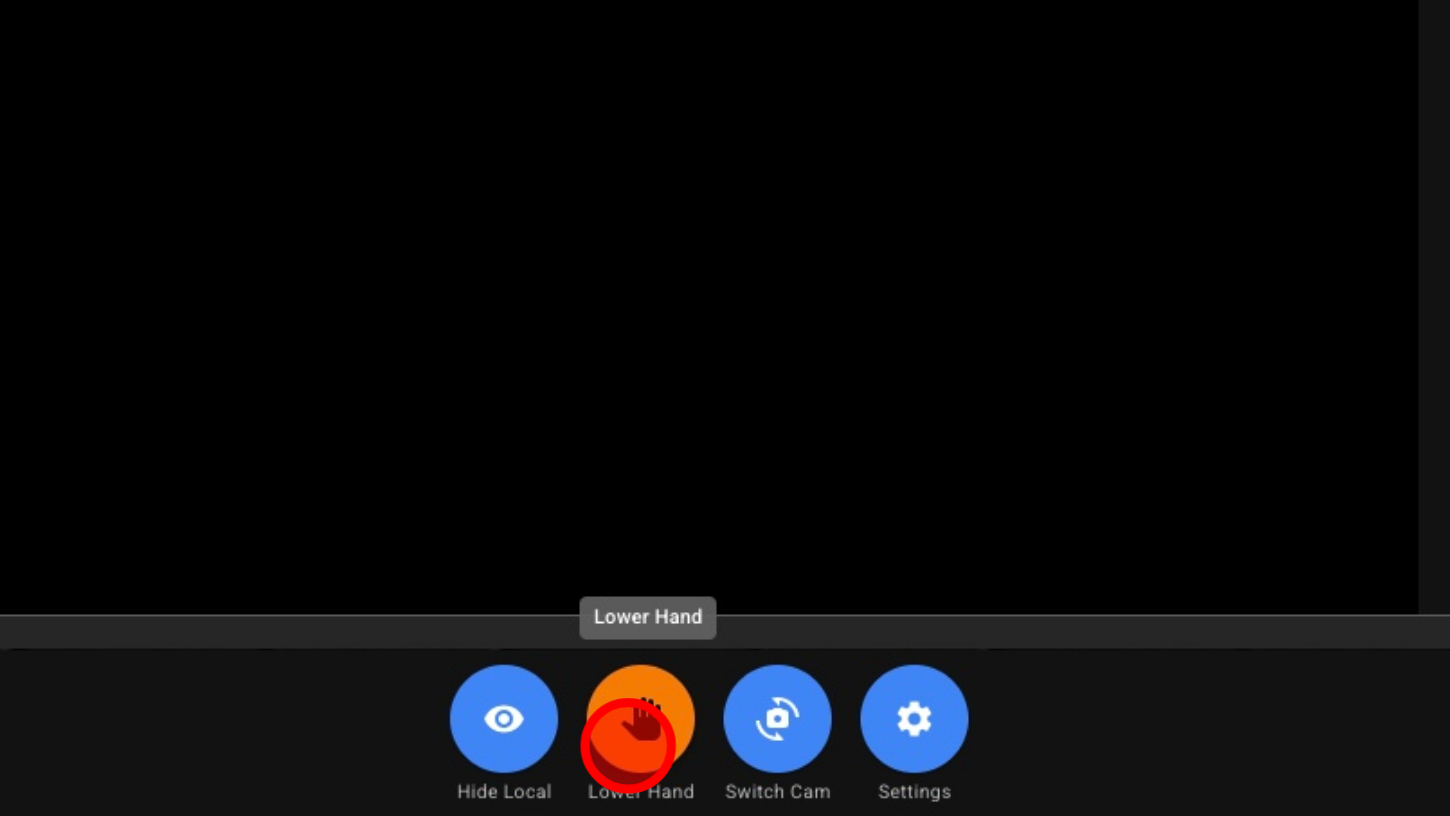
8. Disable Hand Raise
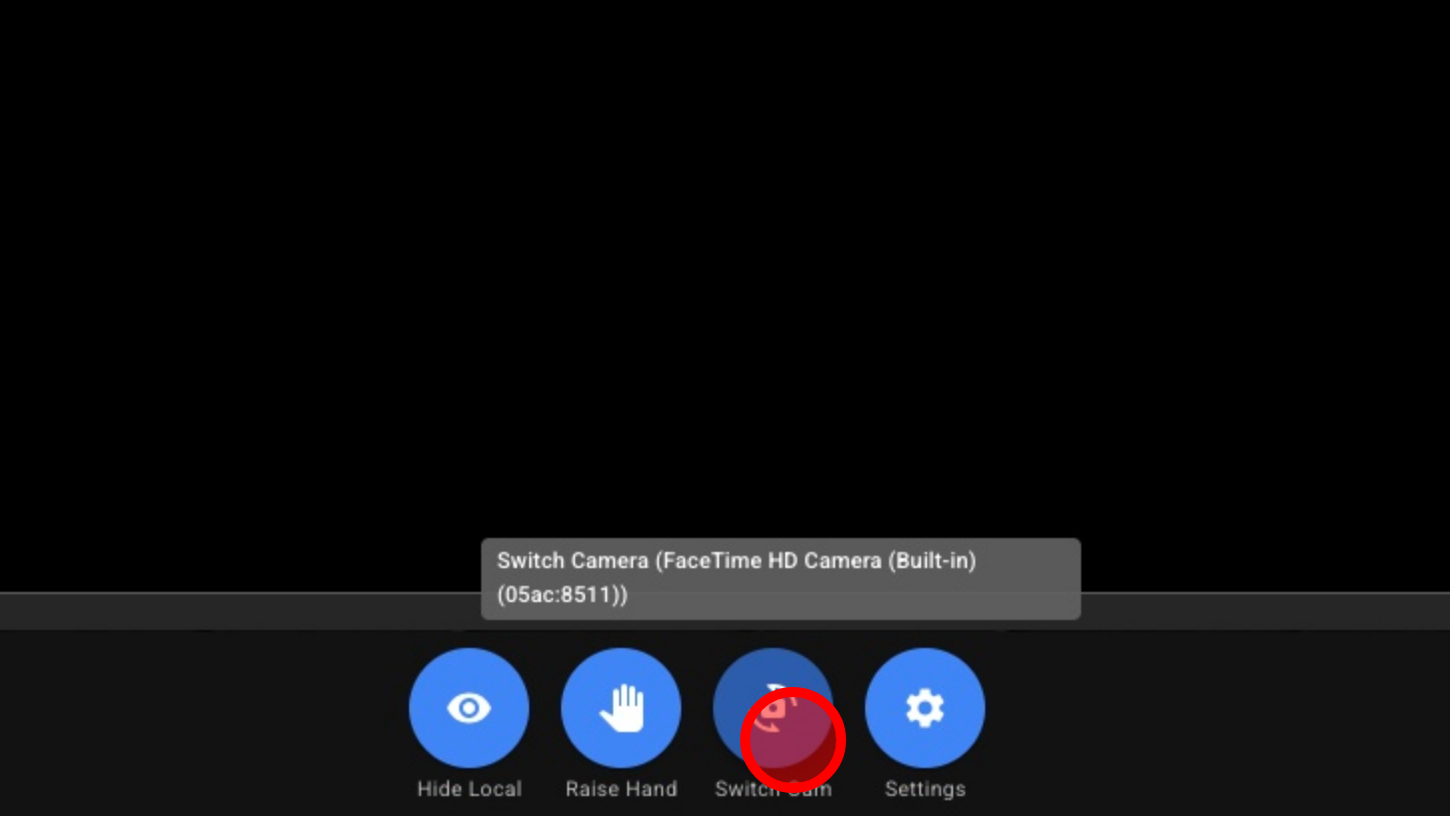
9. Switch Camera
10. Audio Video Settings
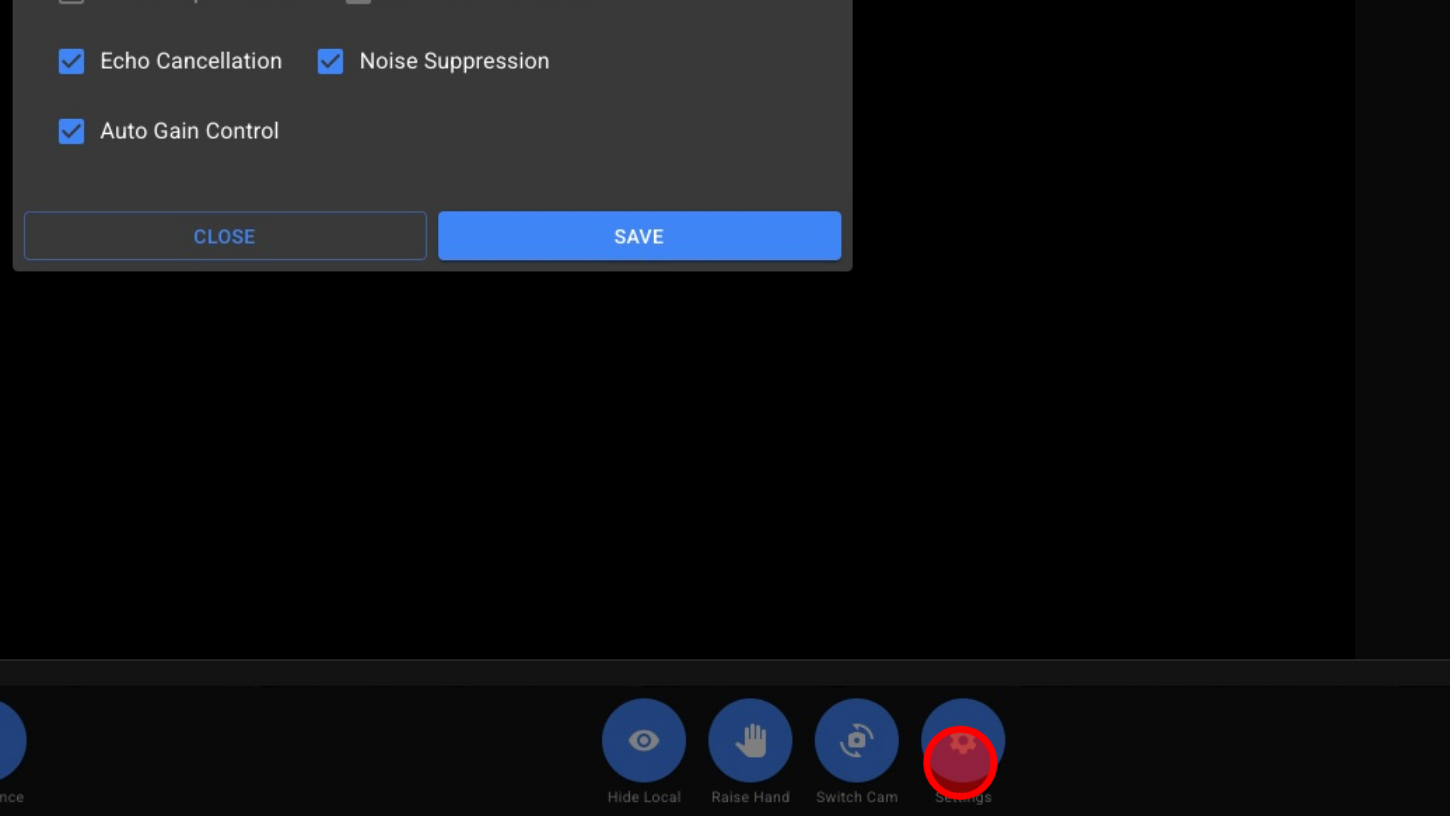
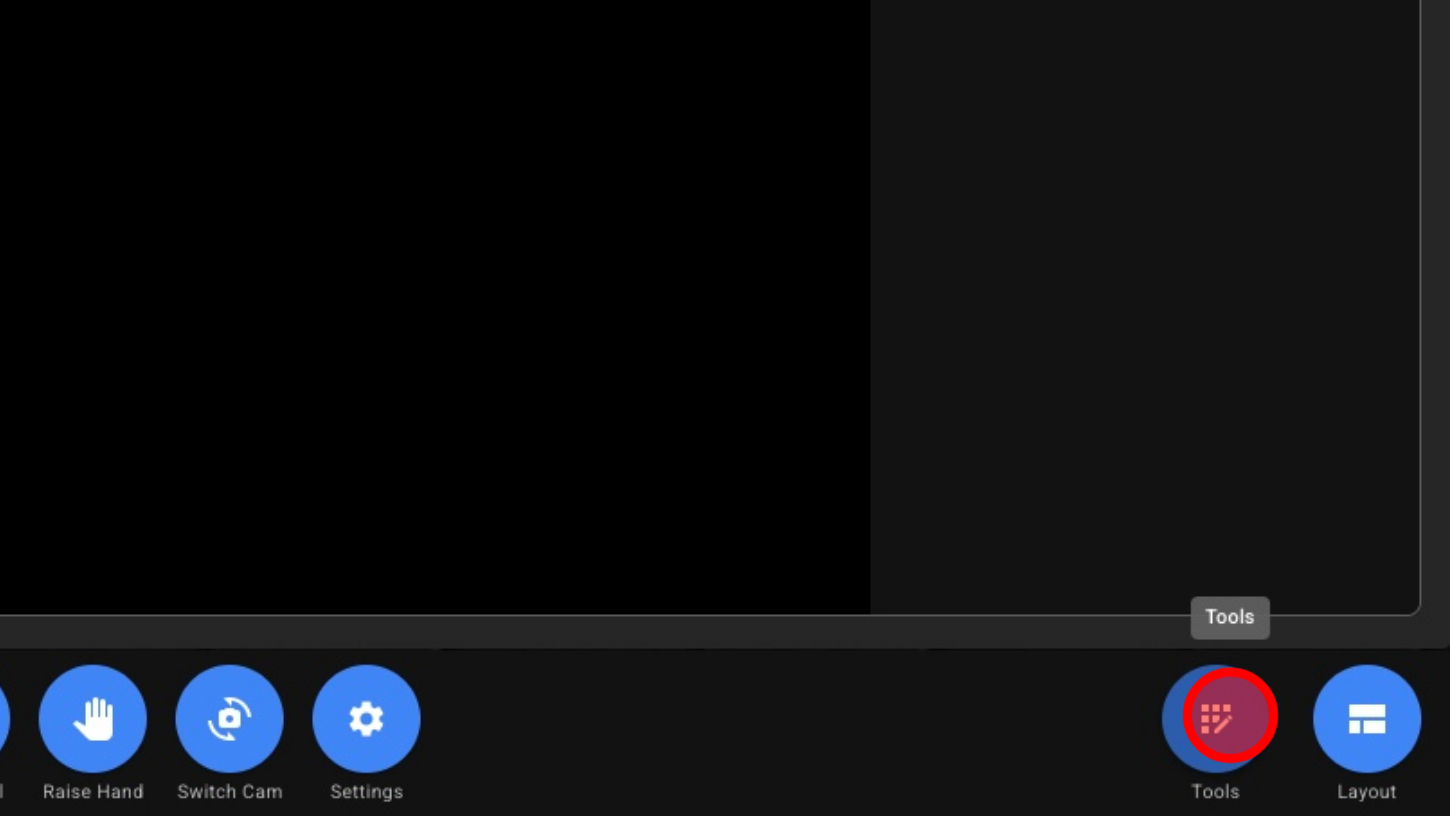
11. Opens/Close Tools Menu
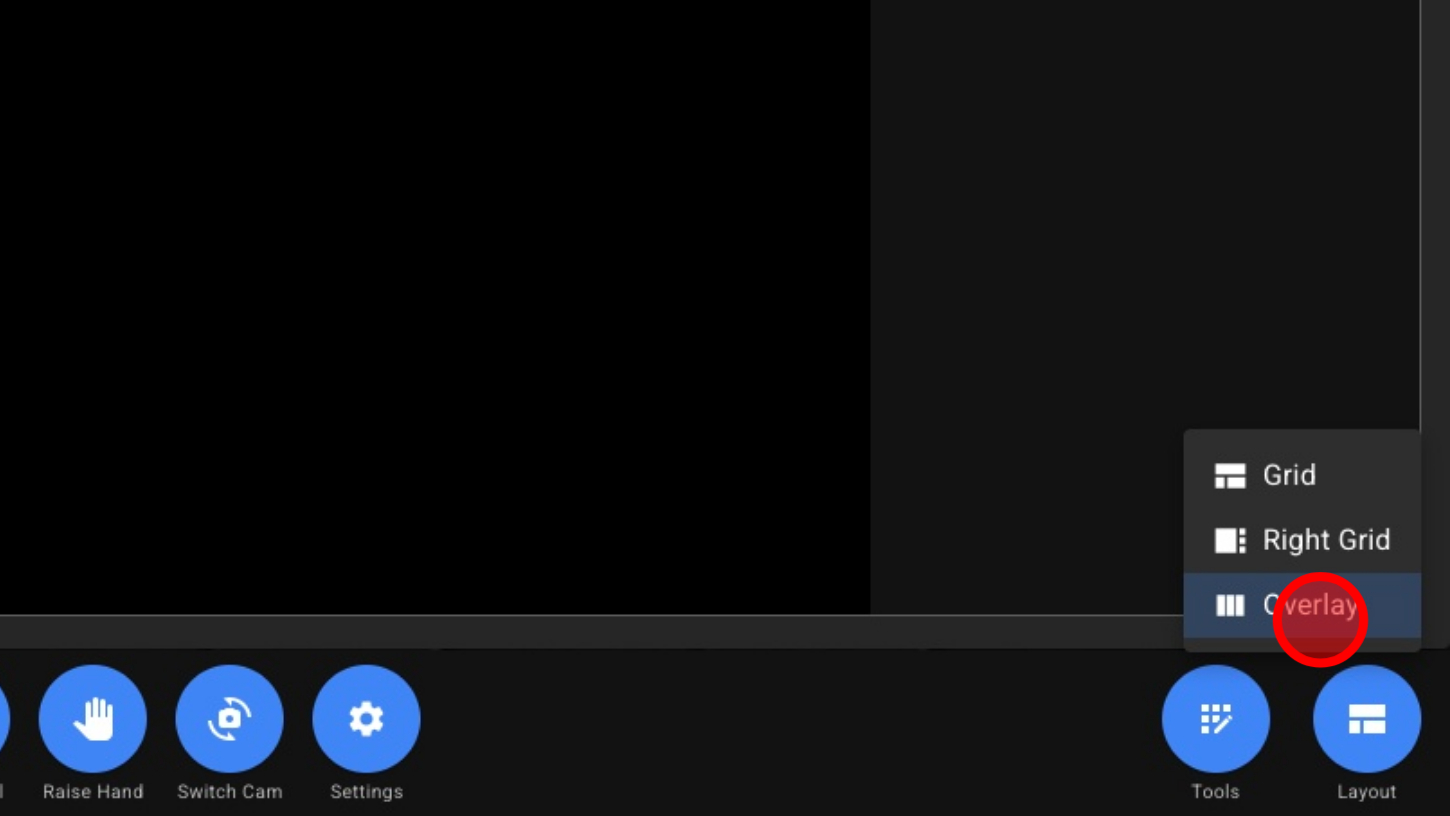
12. Video Layouts - Grid, Right Grid, Overlay
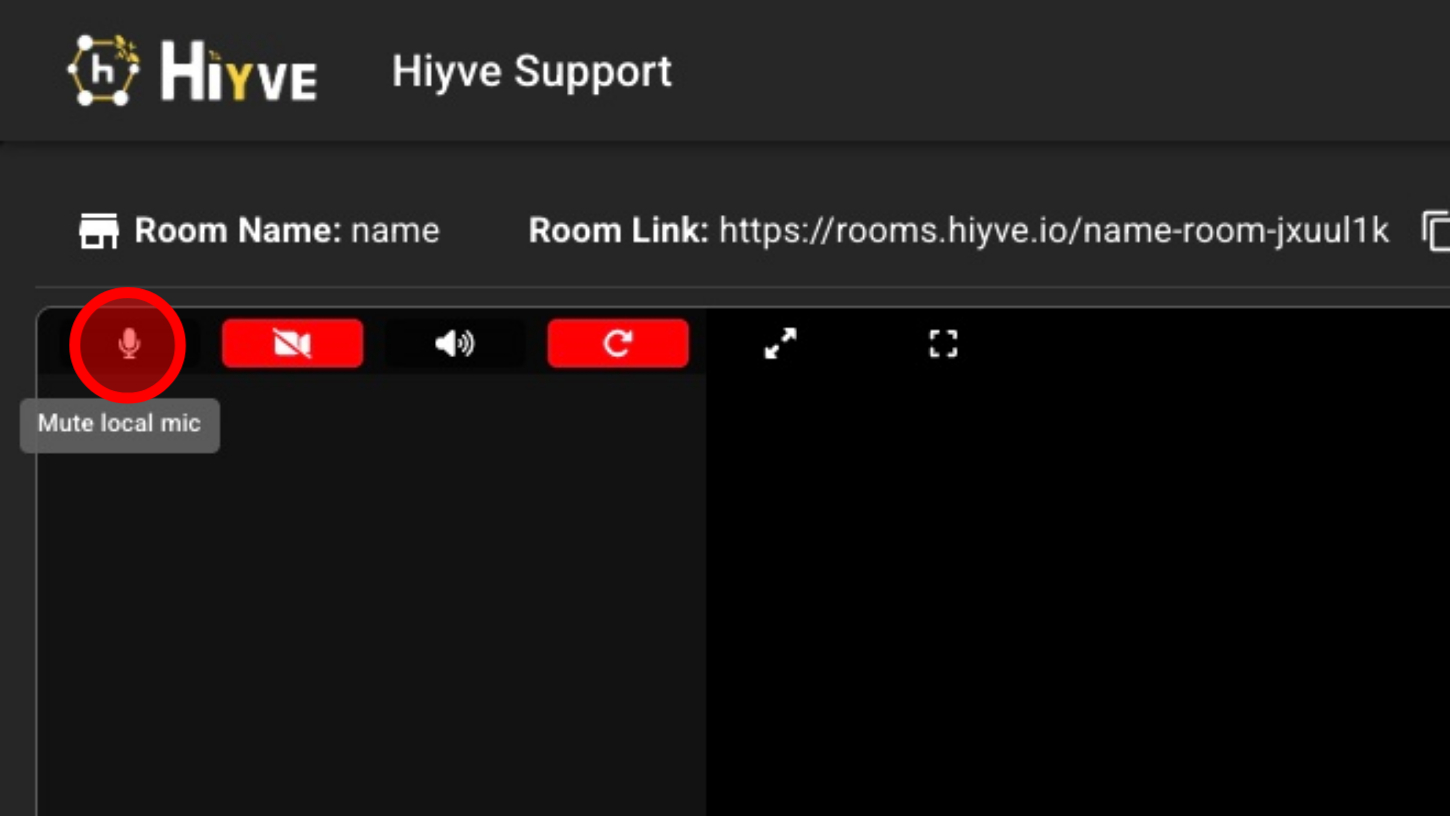
13. Mute/Unmute Your Mic
14. Enable/Disable Your Camera
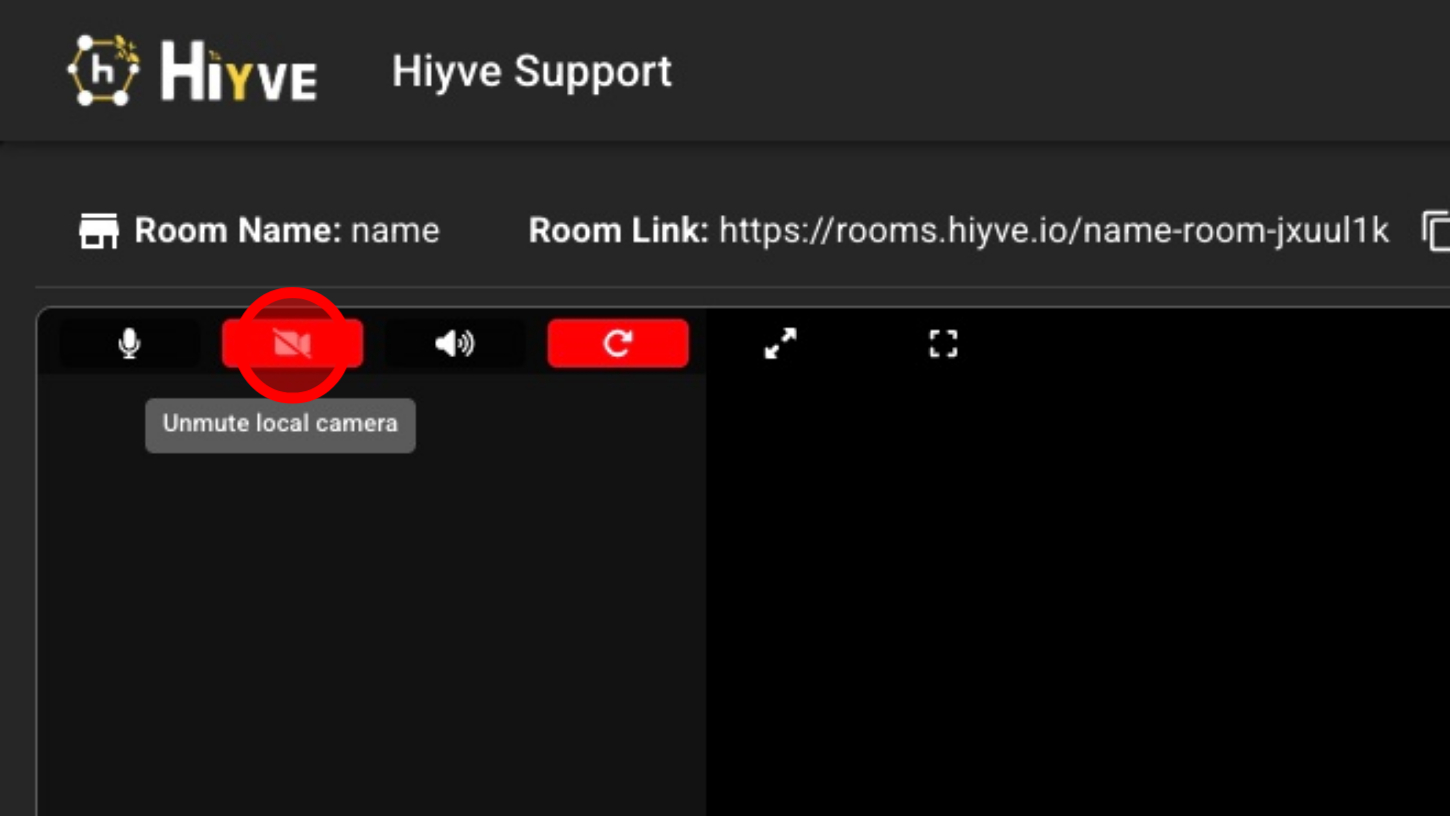
15. Enable/Disable Your Speakers
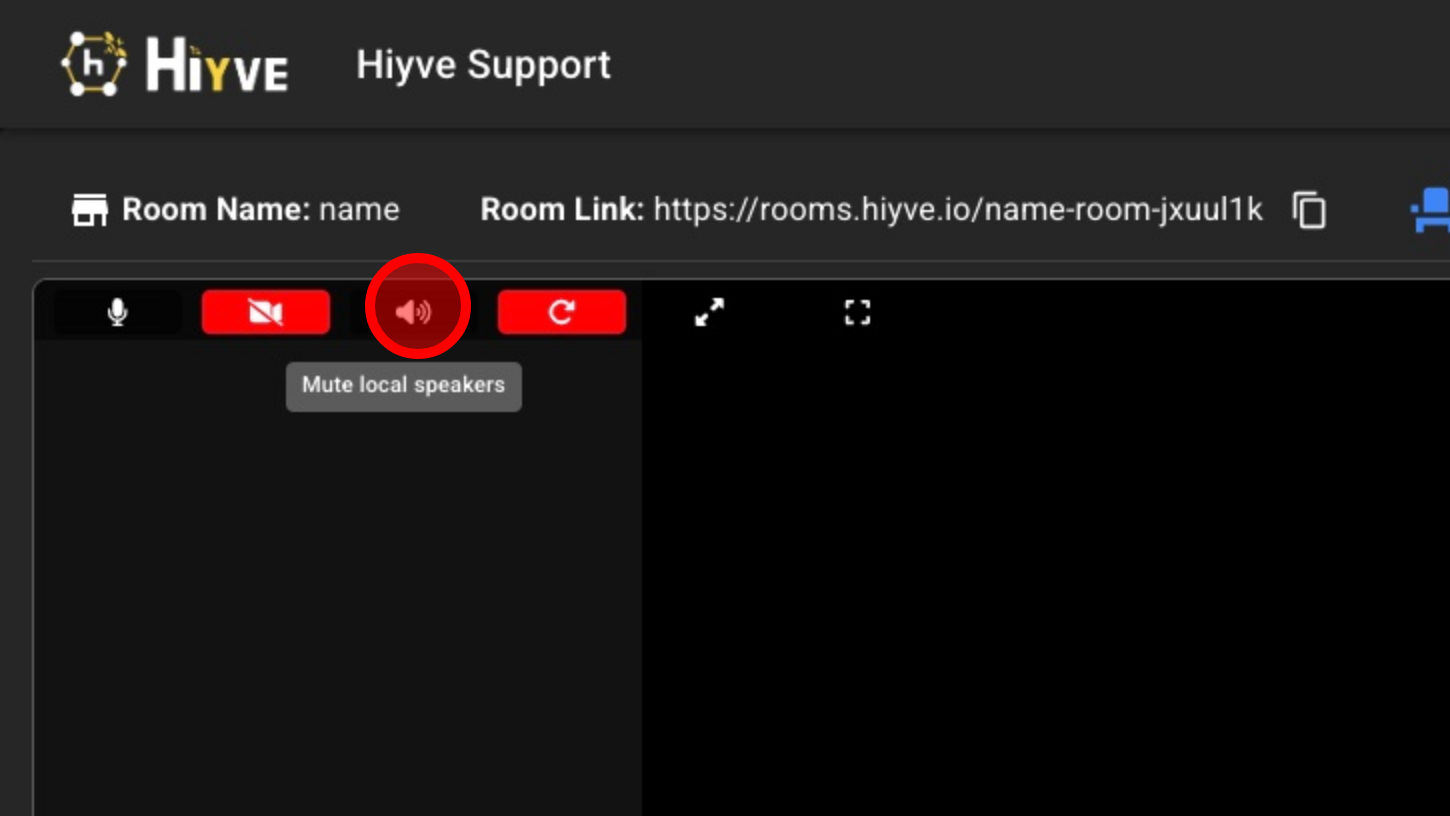
16. Rotate Your Video Feed
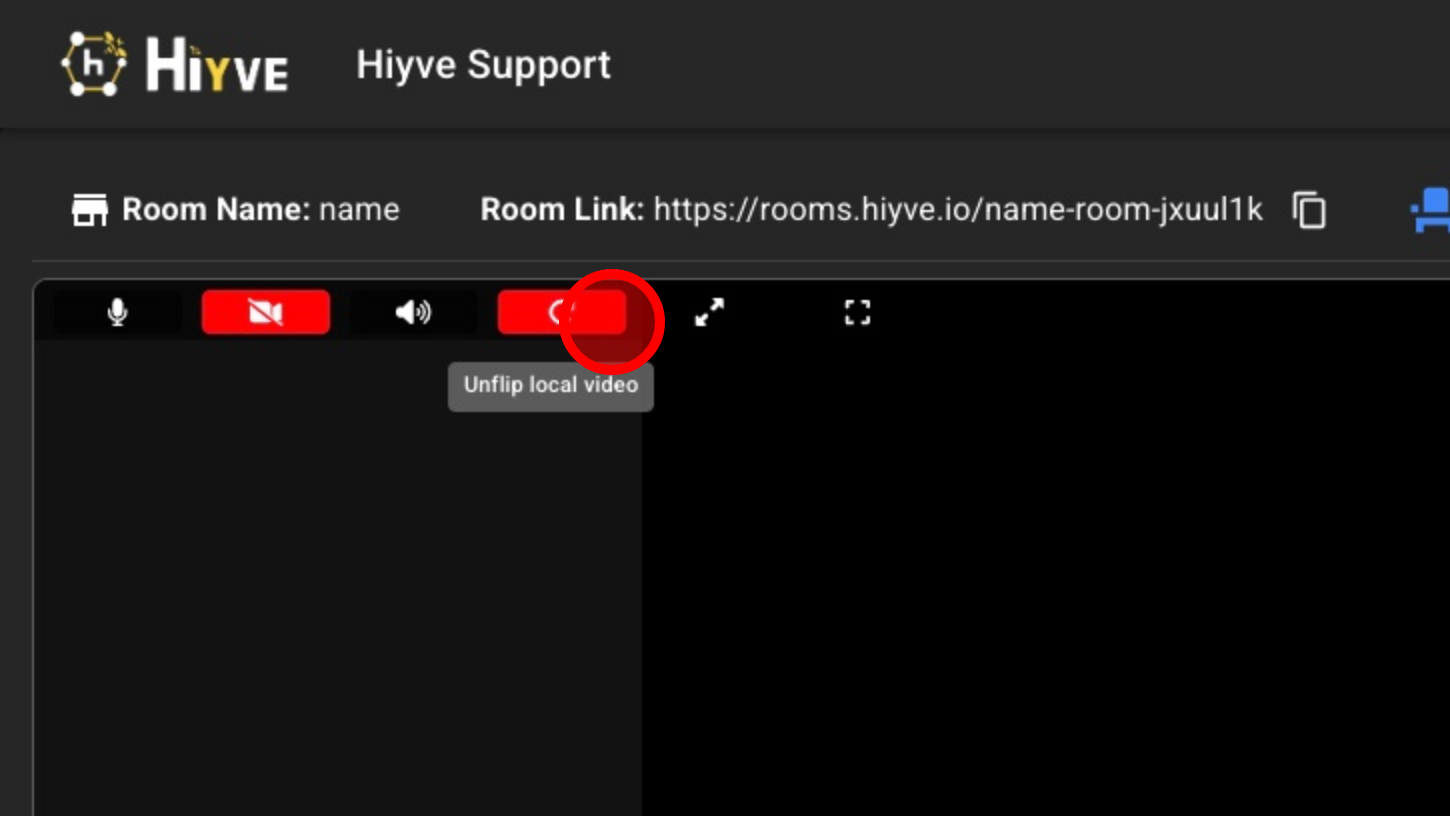
17. Zoom Video To Full Screen
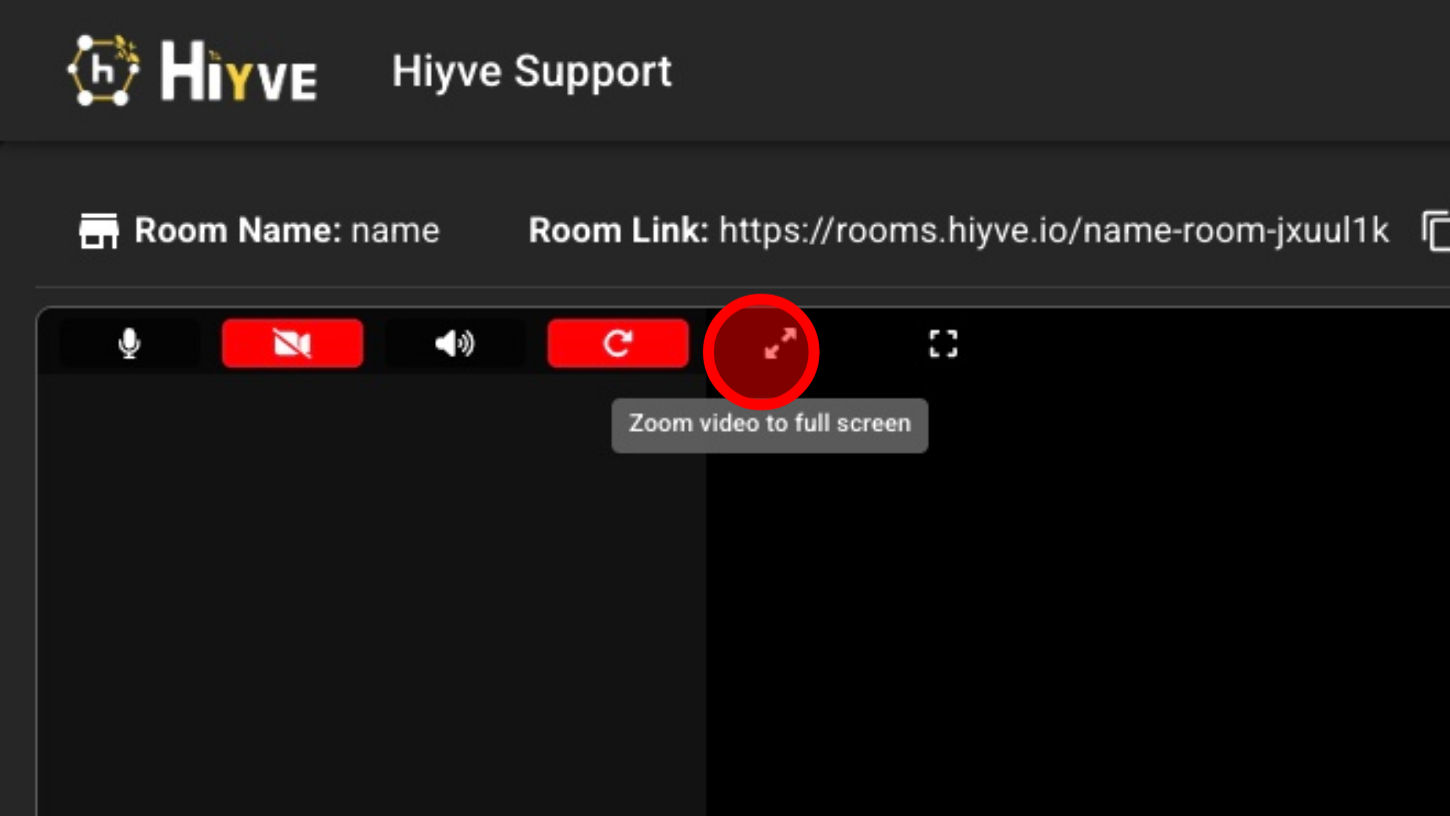
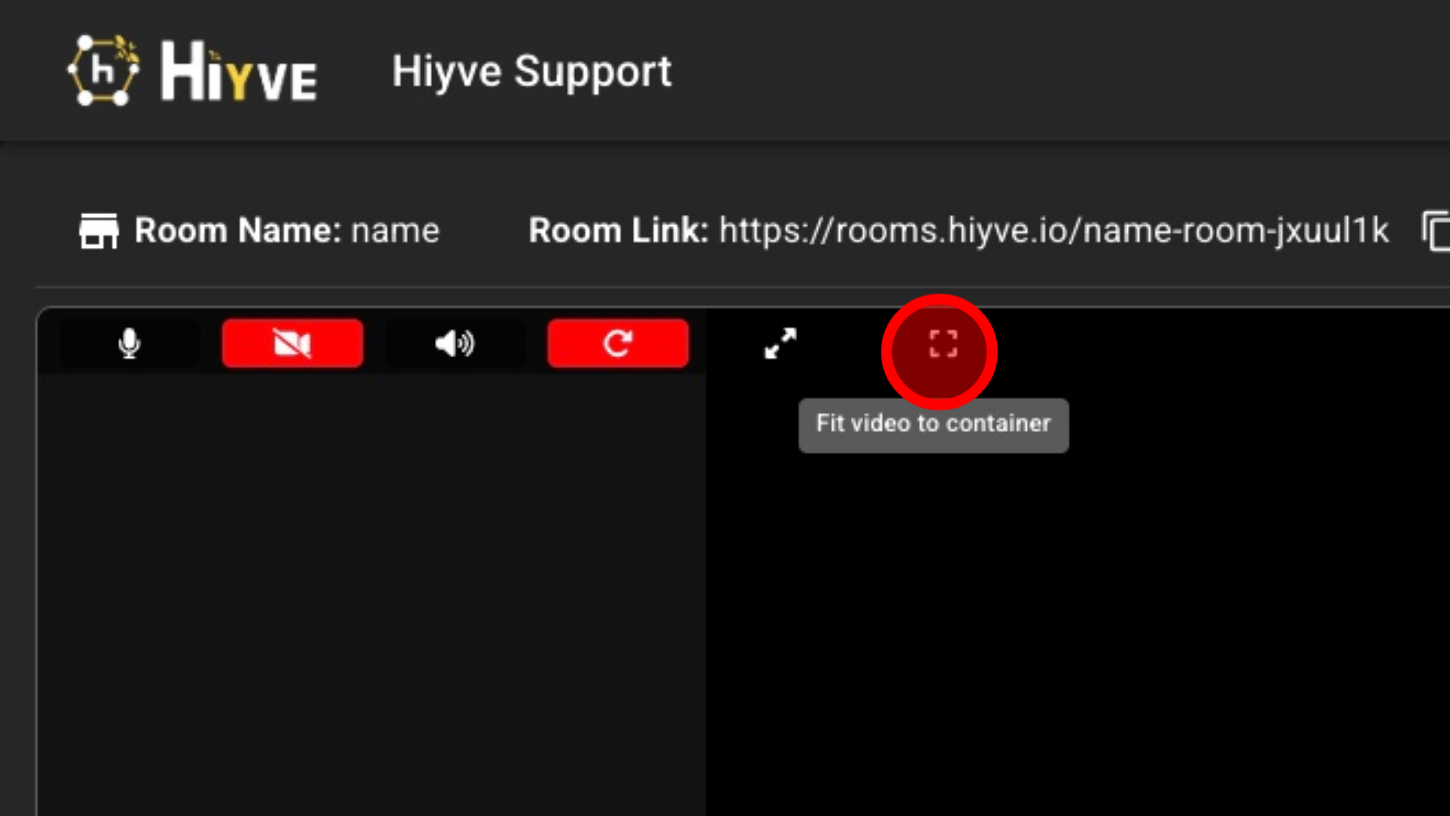
18. Fit Video To Screen
19. End Call
