.png)
Why use Assignments
The Assignments tool allows you to create, share, and track tasks or exercises directly within your session or room. It helps keep everyone aligned and ensures that follow-up work is clear and easy to manage.
Use Assignments to:
-
Create tasks instantly: Assign work or follow-up activities during or after a call.
-
Track progress: Monitor who has viewed, started, or completed each assignment.
-
Centralize materials: Attach files, links, or instructions so all resources stay in one place.
-
Support accountability: Make sure action items from meetings or lessons are completed on time.
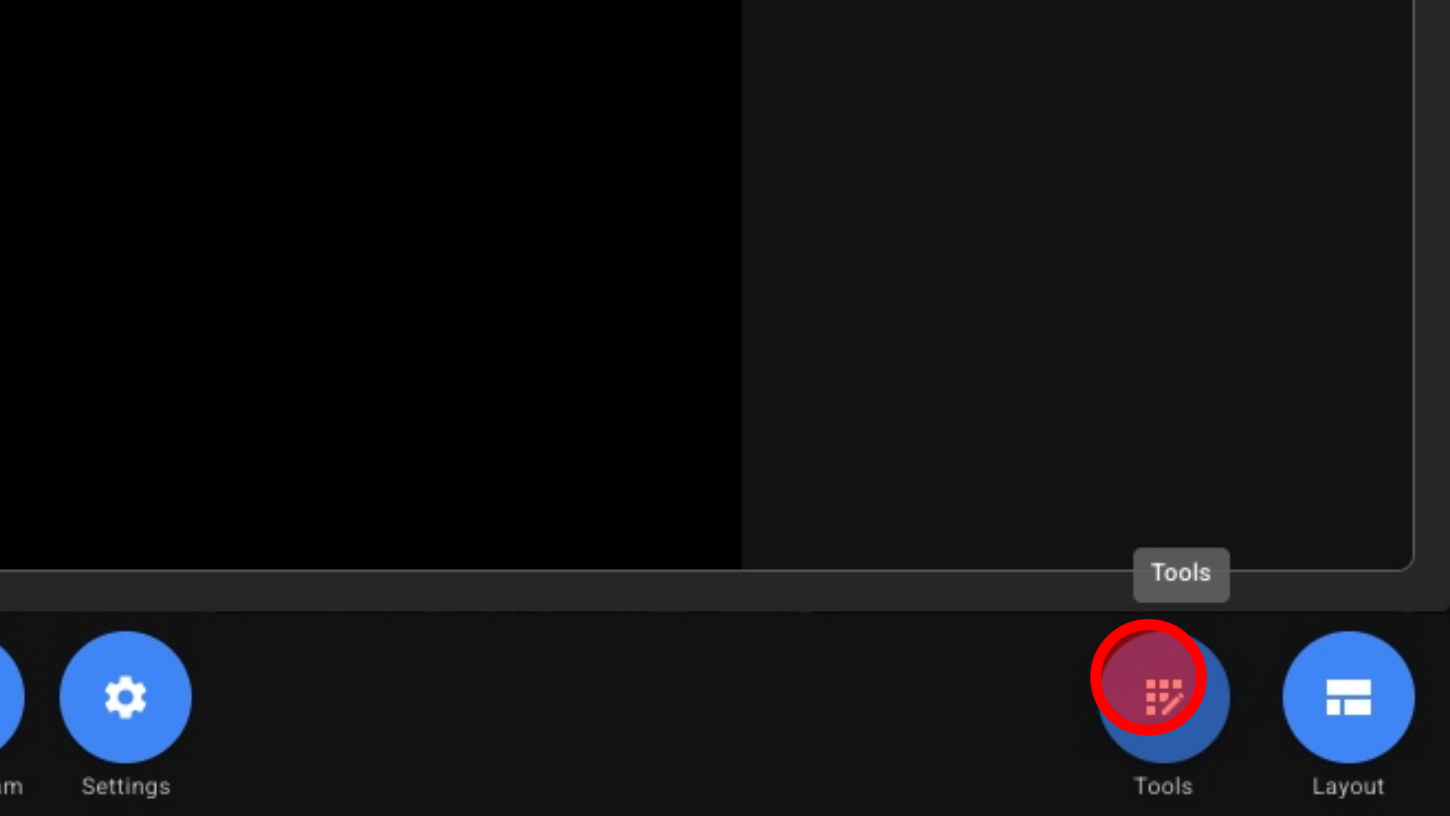
1. Open Tools
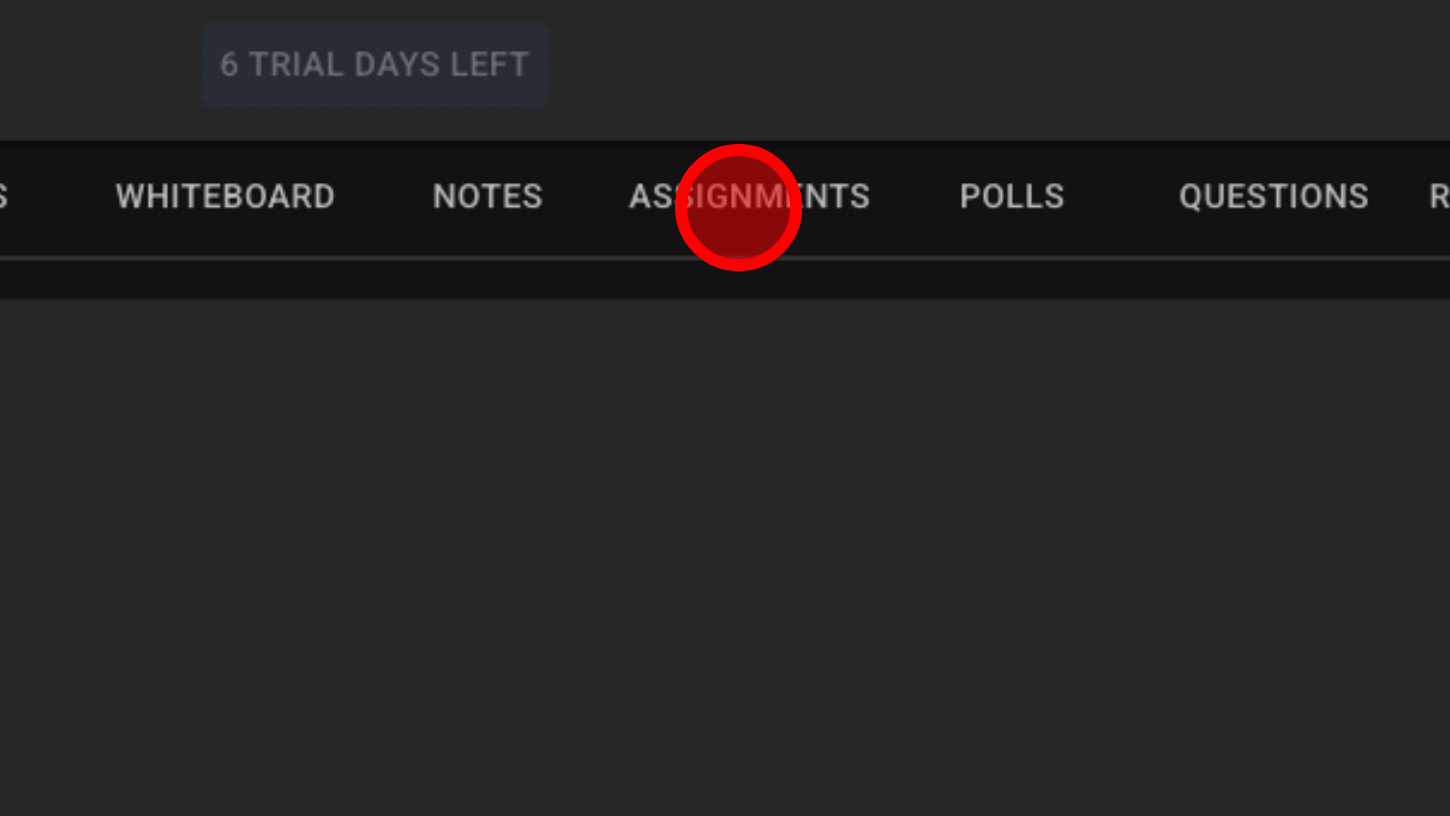
2. Click 'ASSIGNMENTS'
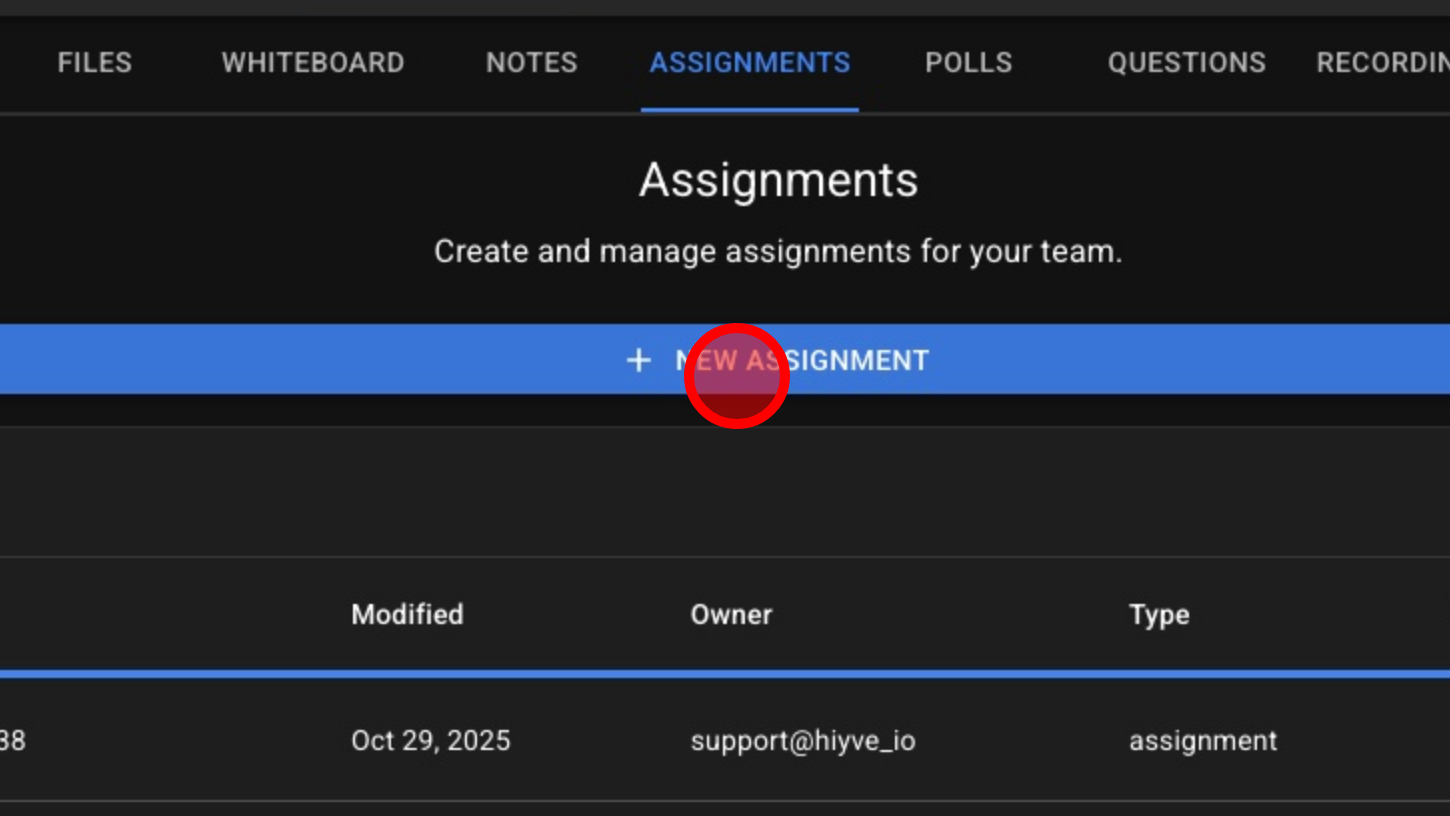
3. Click 'NEW ASSIGNMENT' button
4. Name Assignment
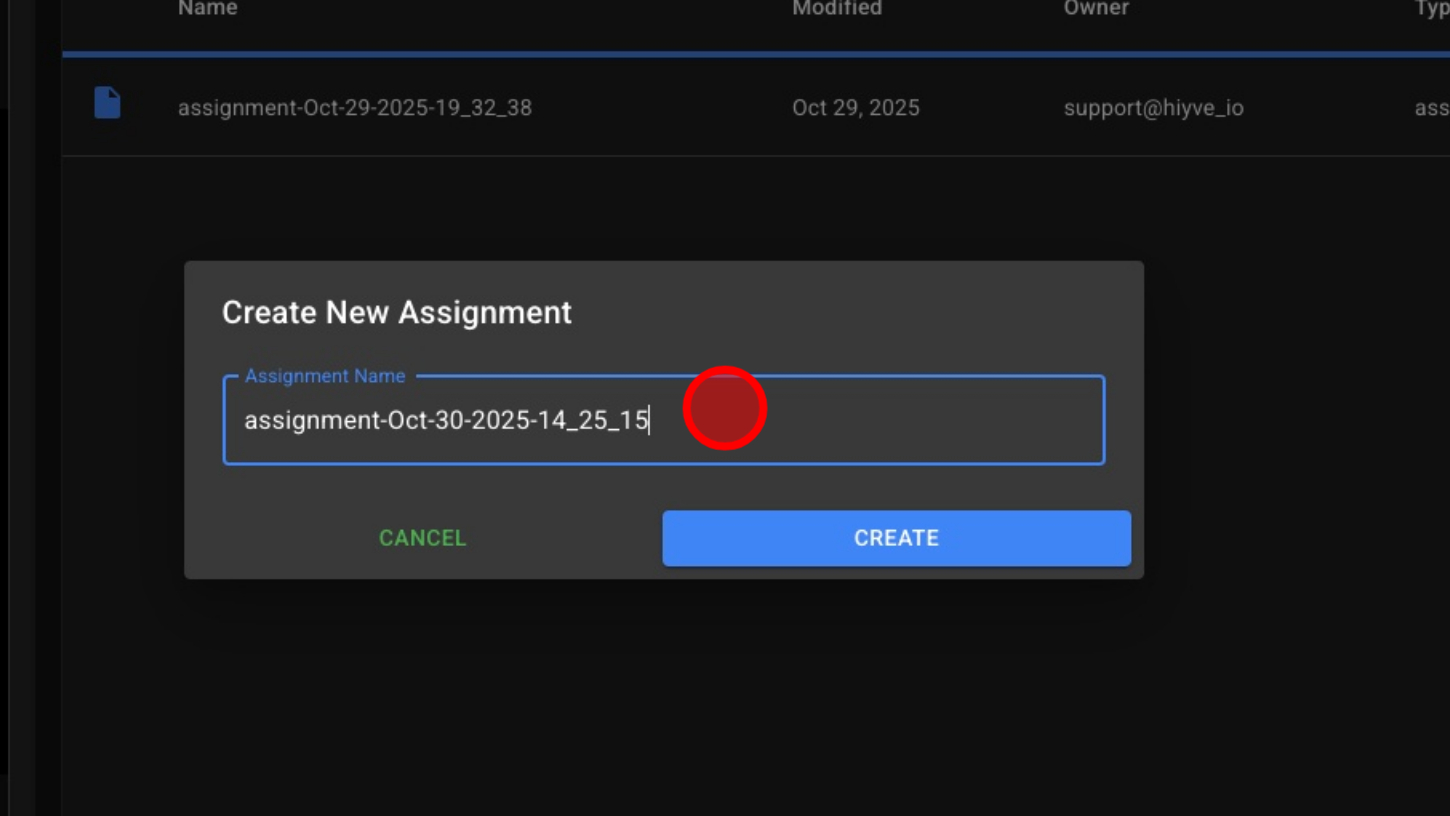
5. Click 'CREATE' button
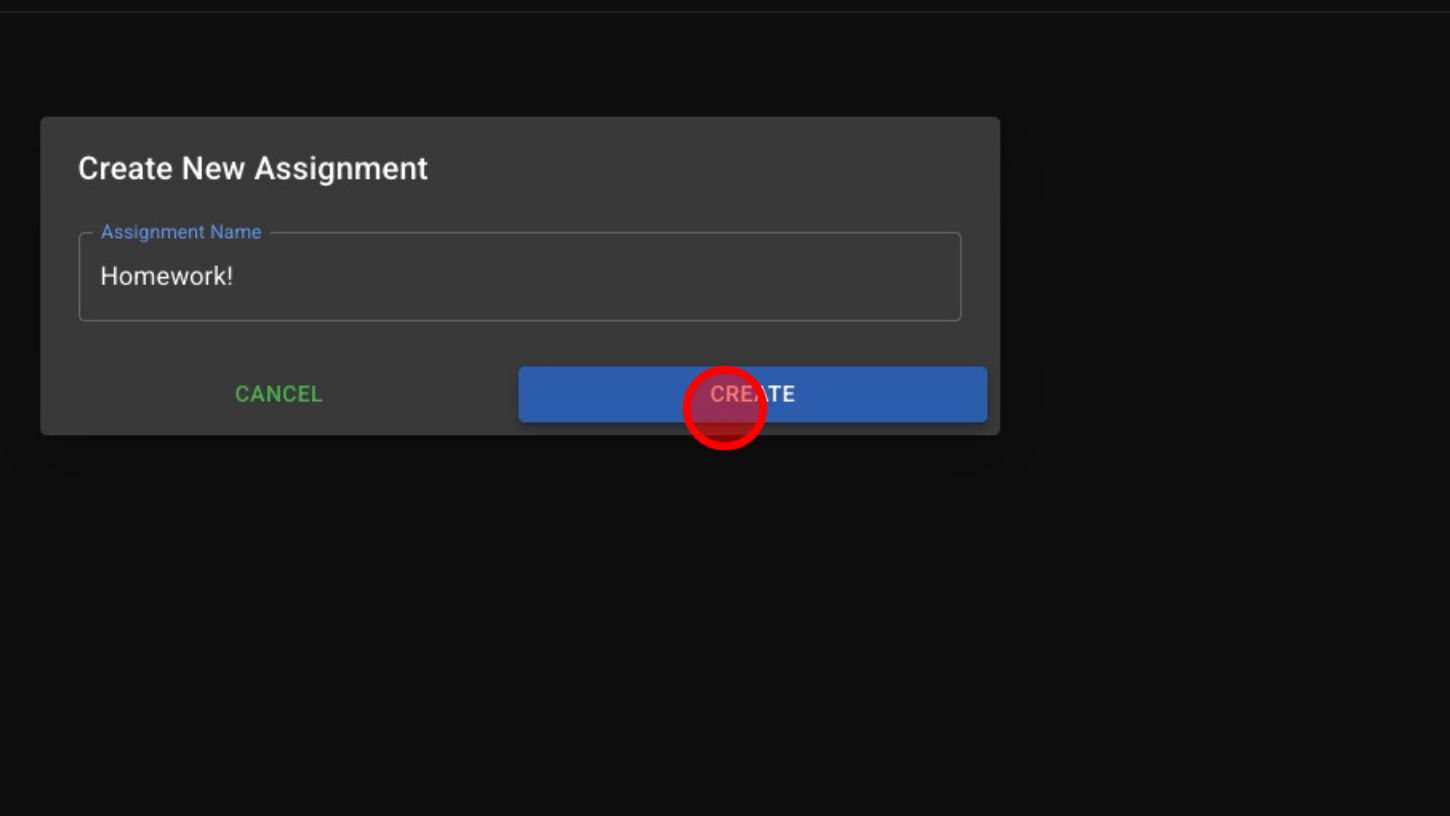
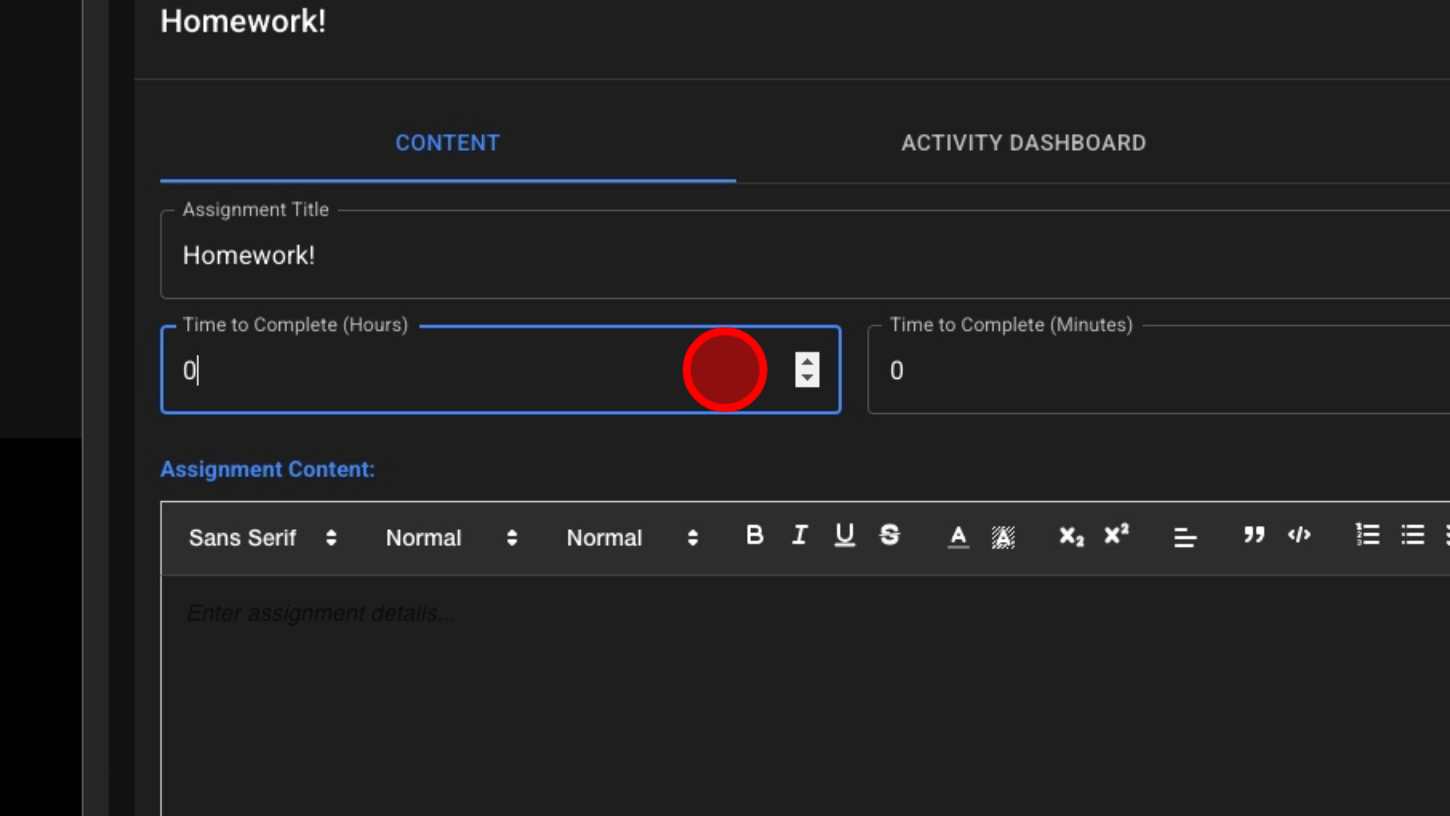
6. Enter Assignment Goal Time – Hours to Completion
7. Enter Assignment Goal Time – Minutes to Completion
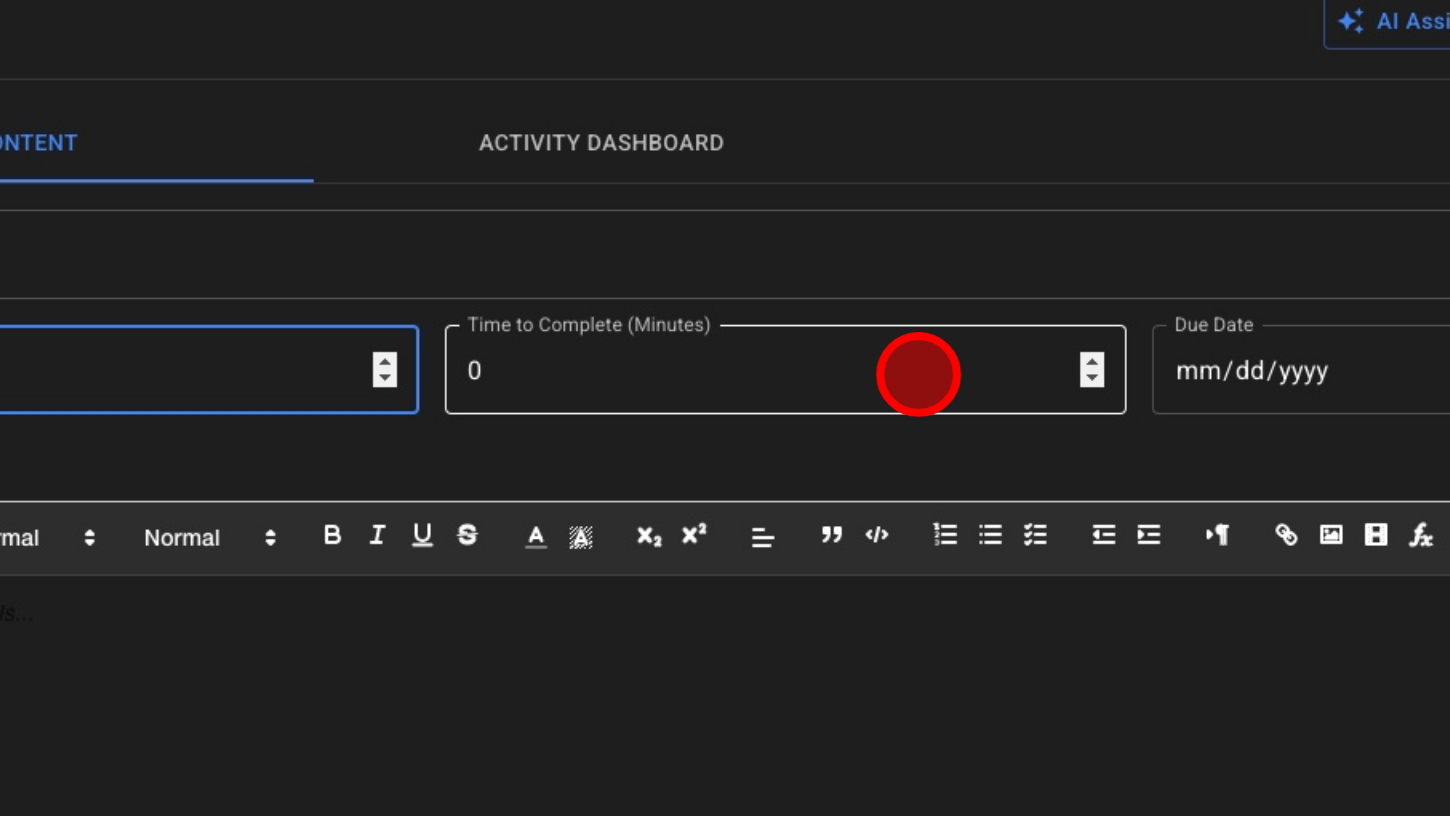
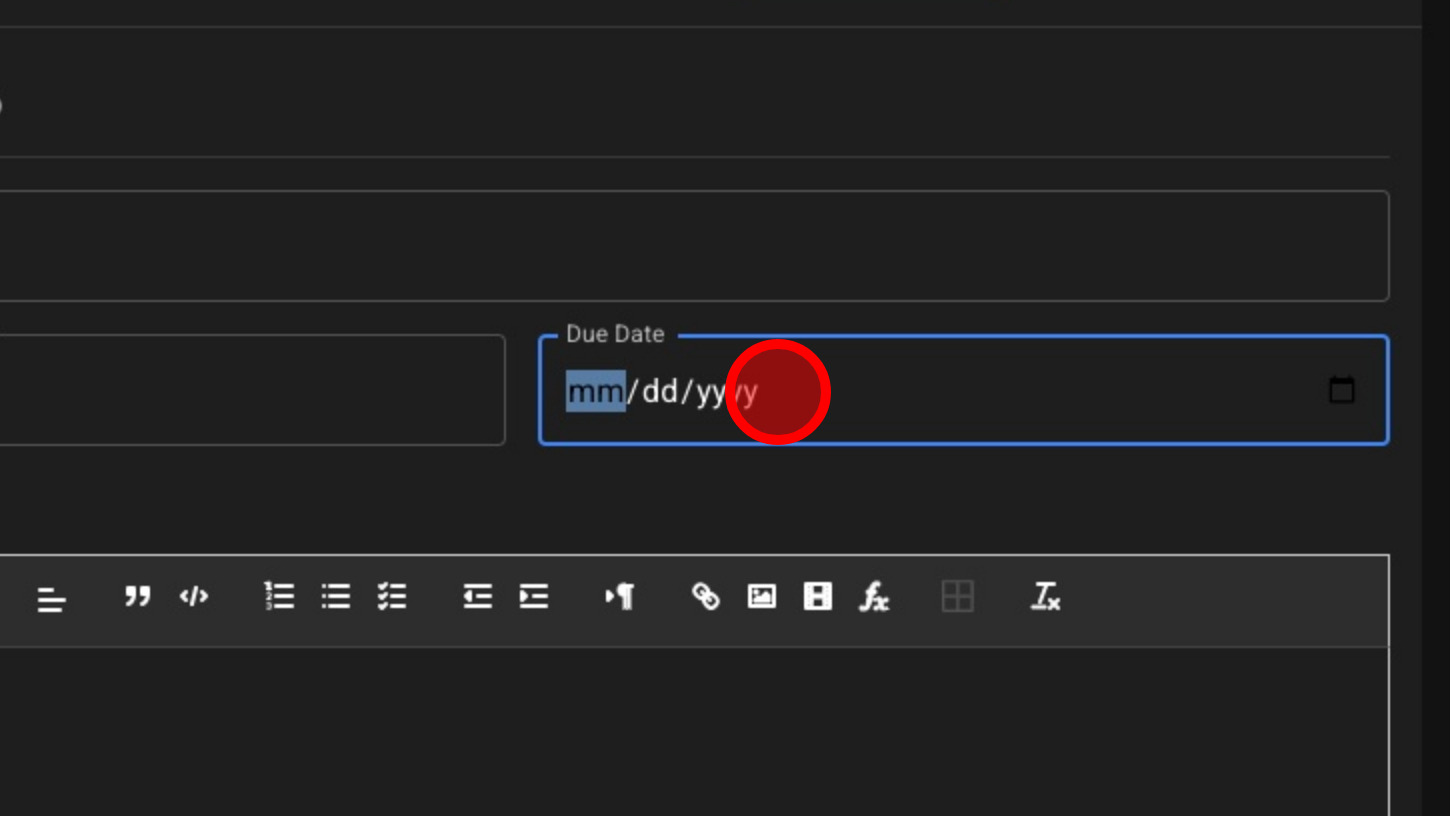
8. Select Due Date
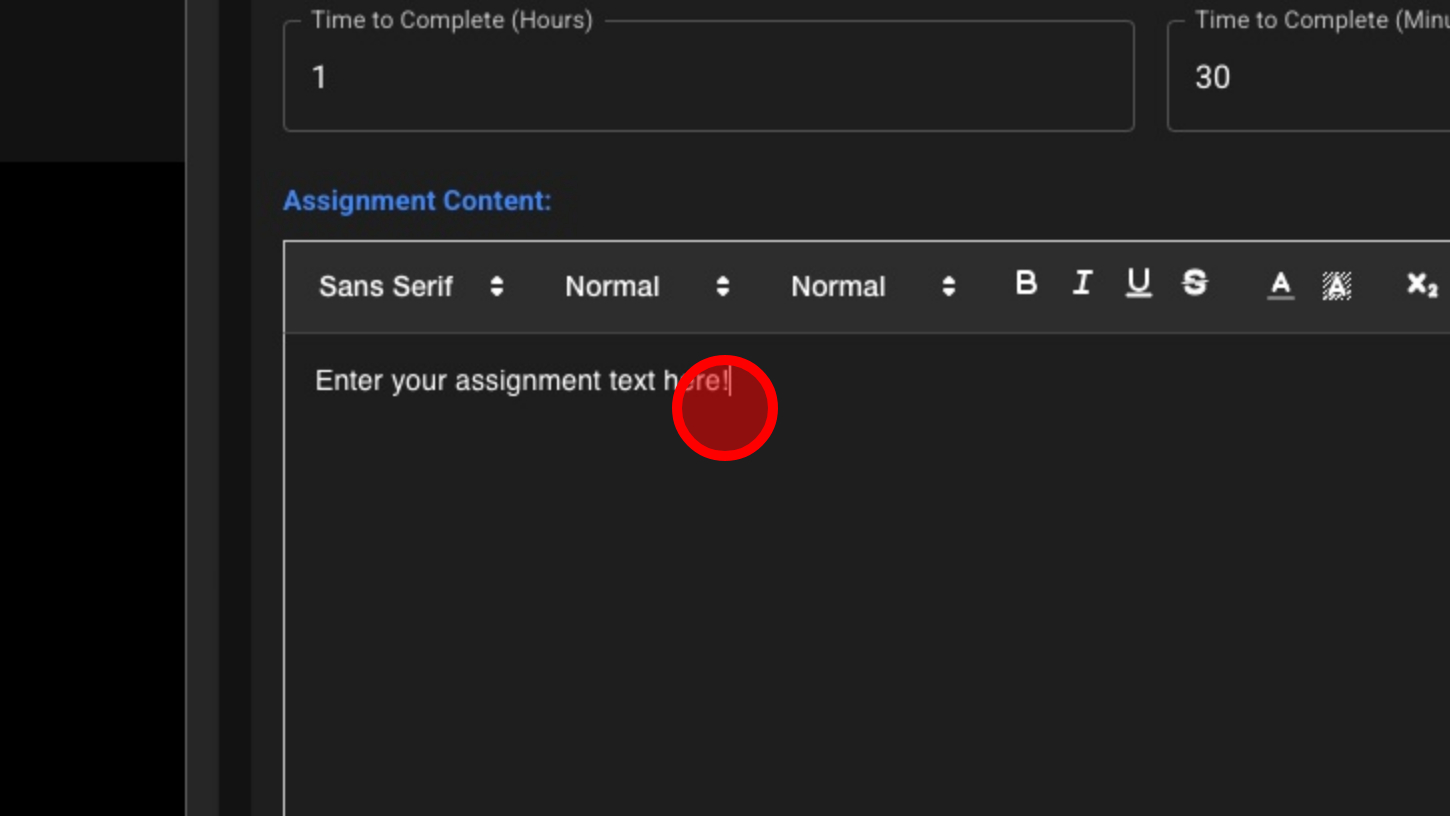
9. Click Inside Text Box To Type Assignment Details
10. Click 'ADD FILES' button

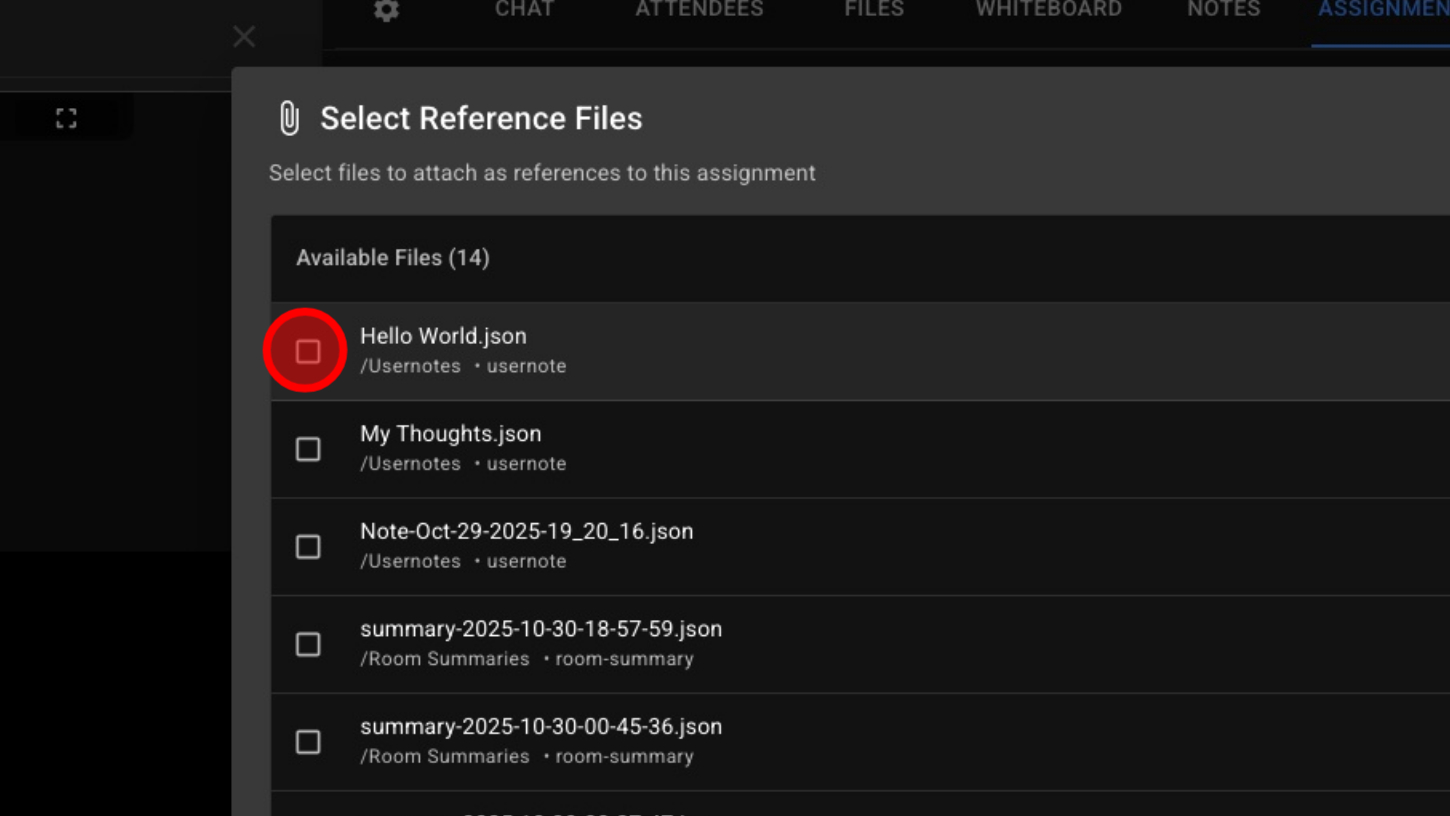
11. Select Files To Attach To Assignment
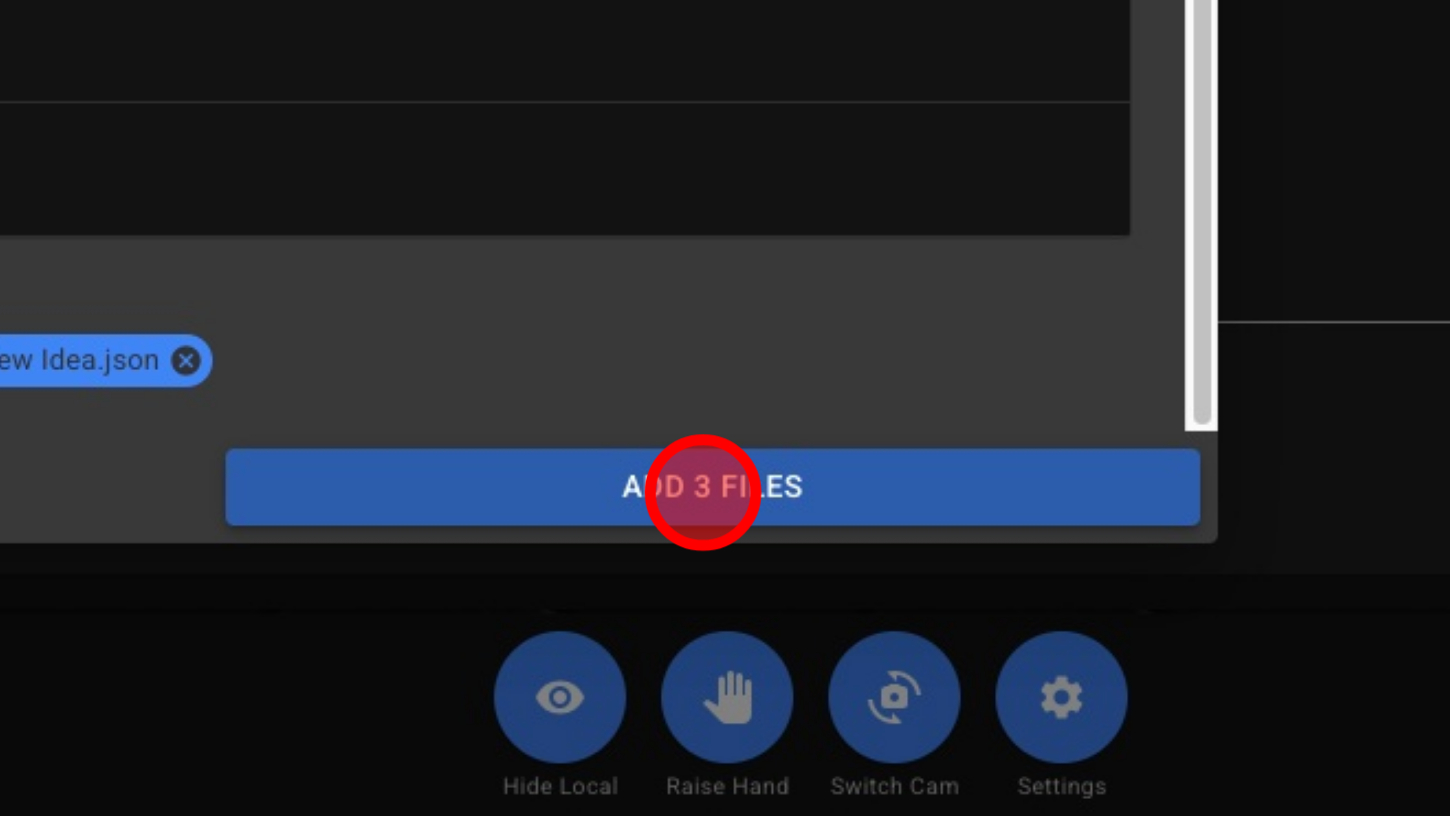
12. Click 'ADD FILES' button
13. Click 'AI Assist' button
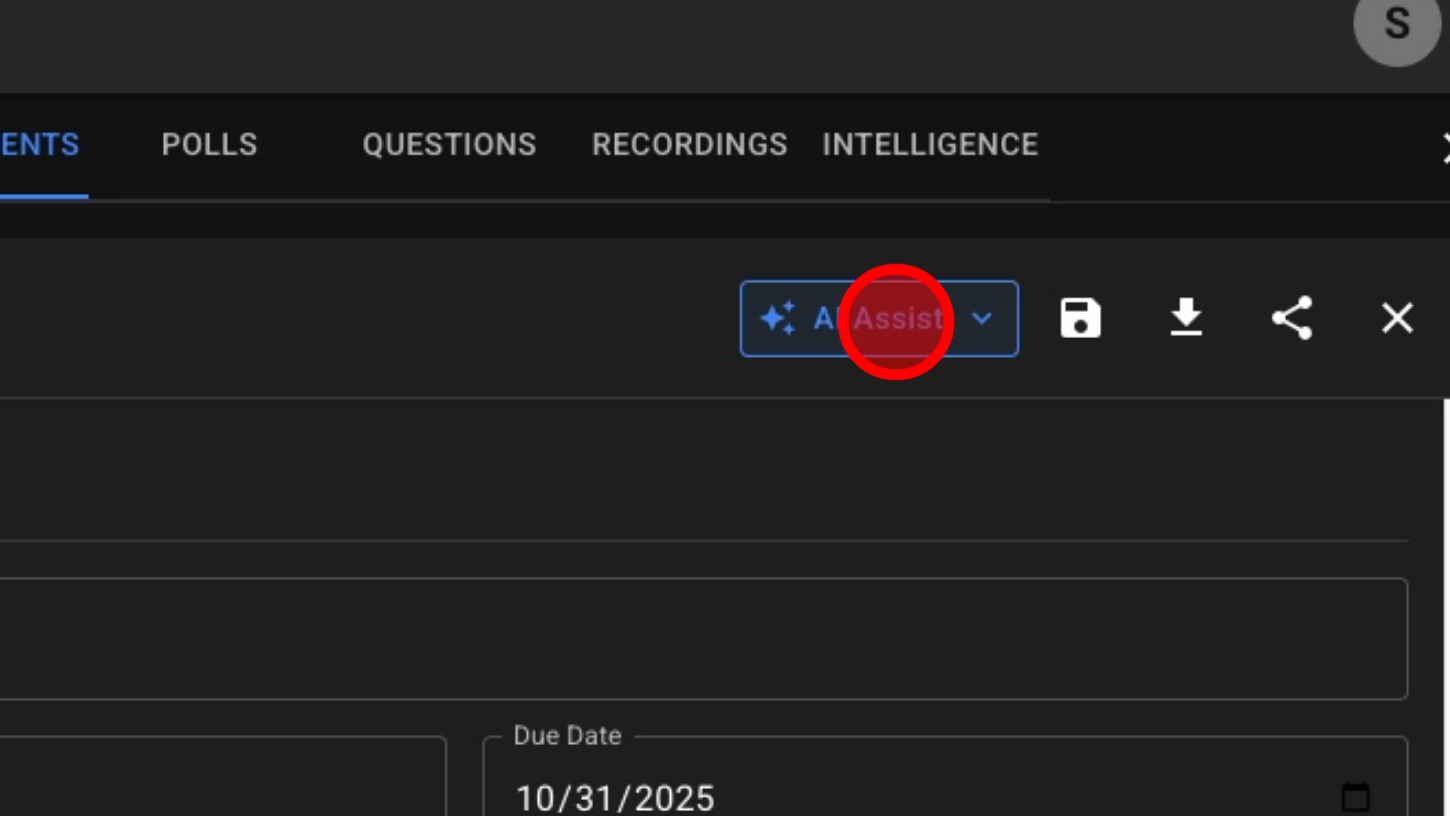
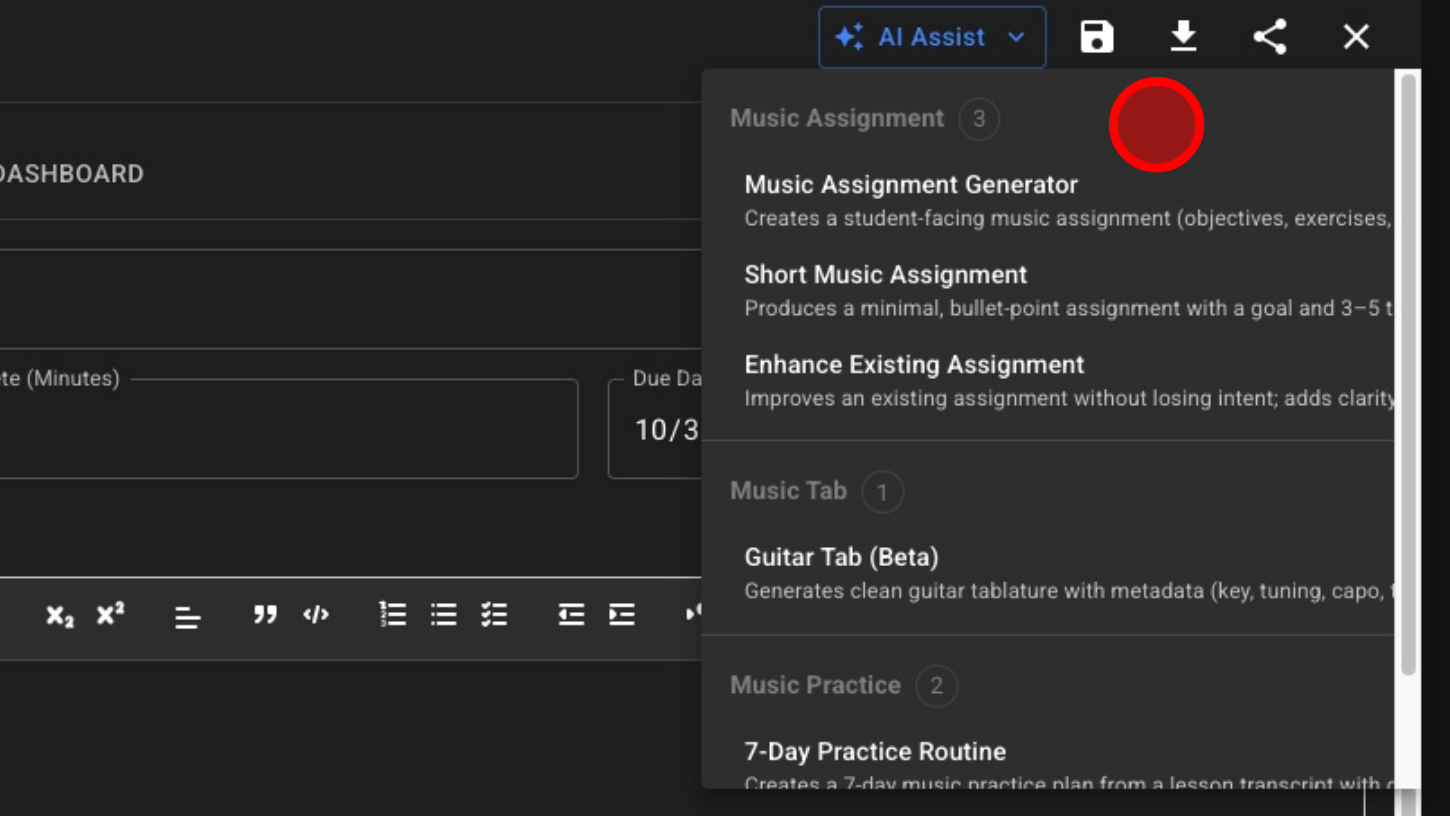
14. Select AI Assignment Prompt
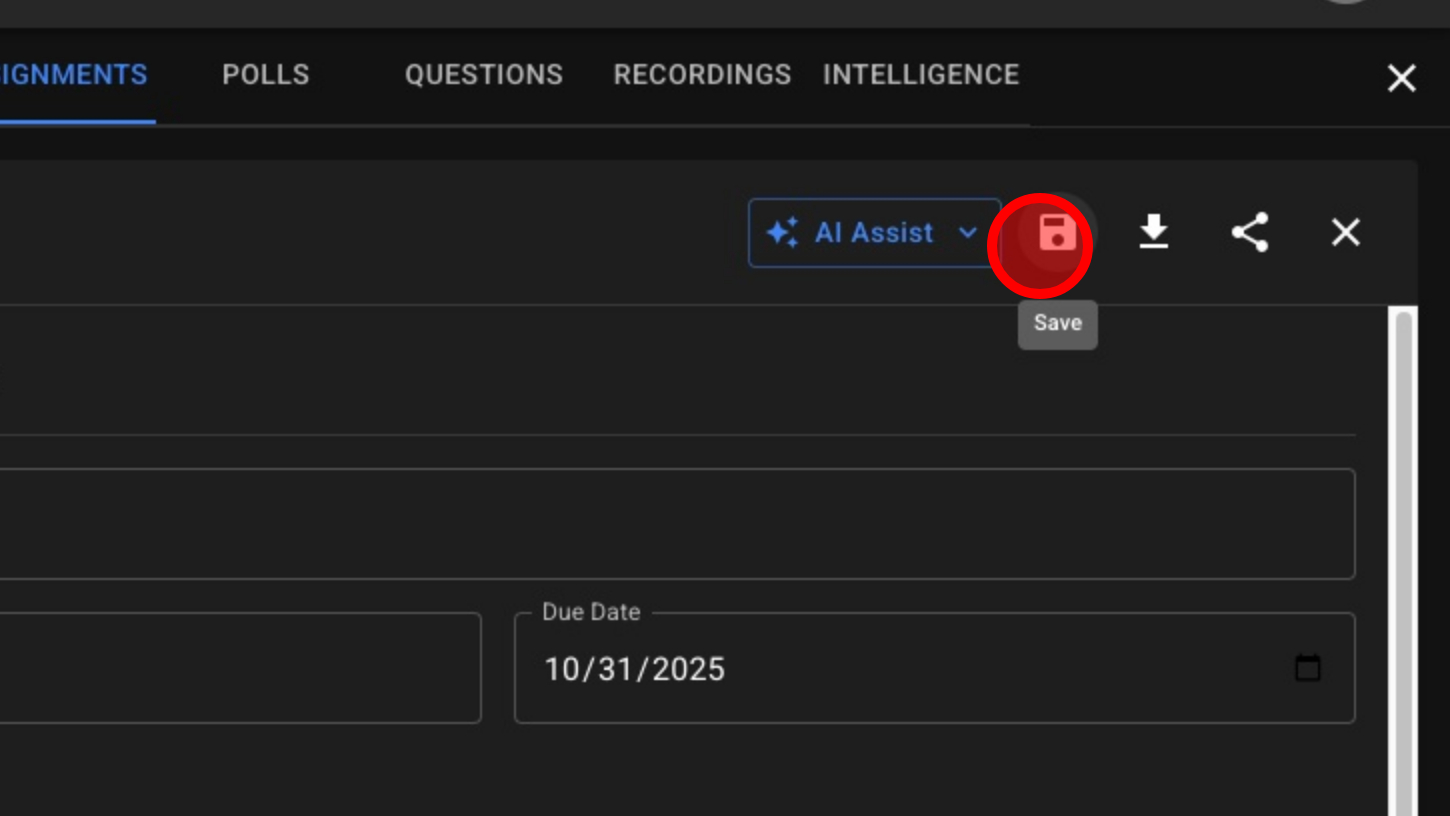
15. Save Assignment (Assignments Autosave)
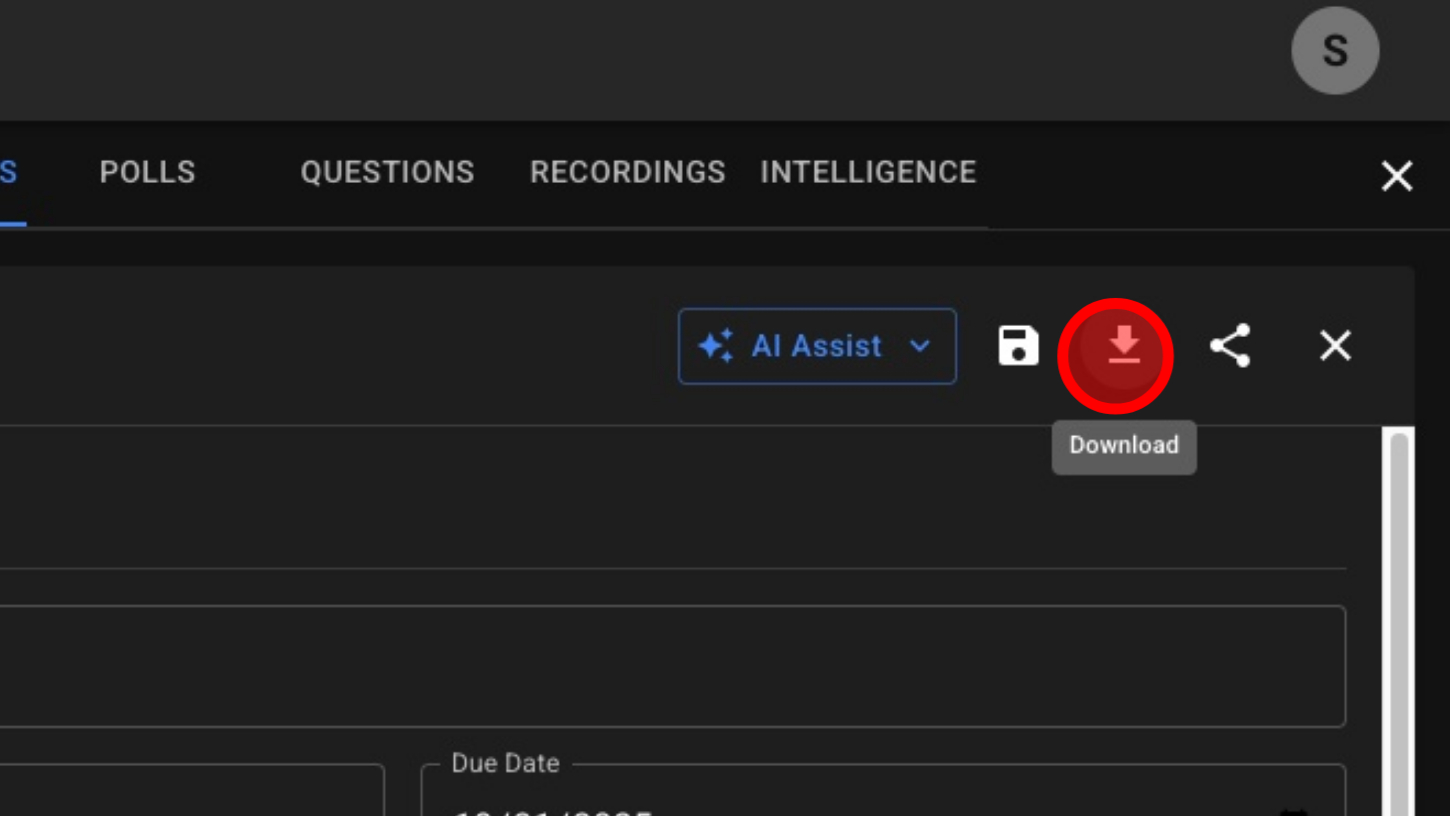
16. Download Assignment
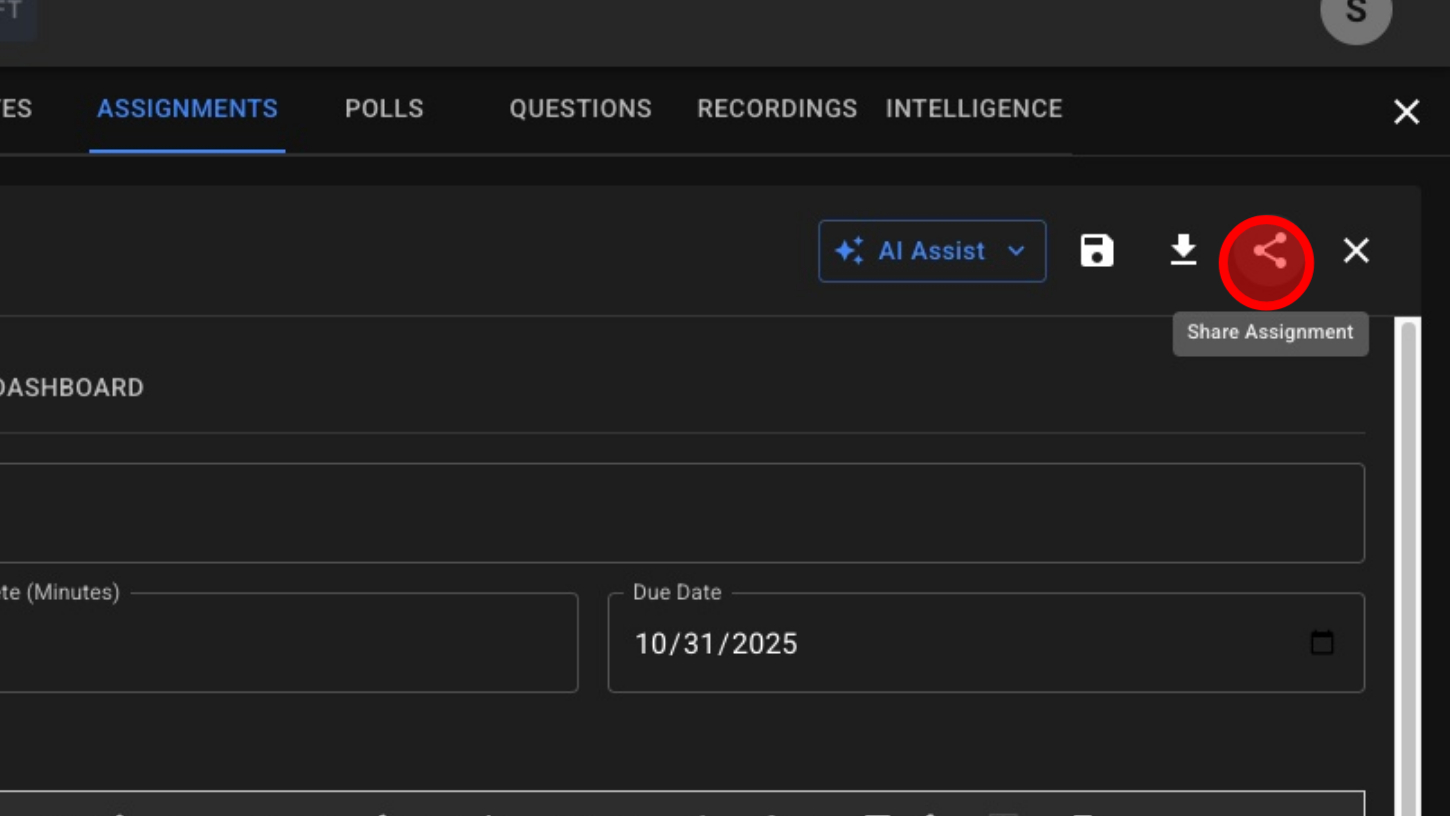
17. Share Assignment With Guests
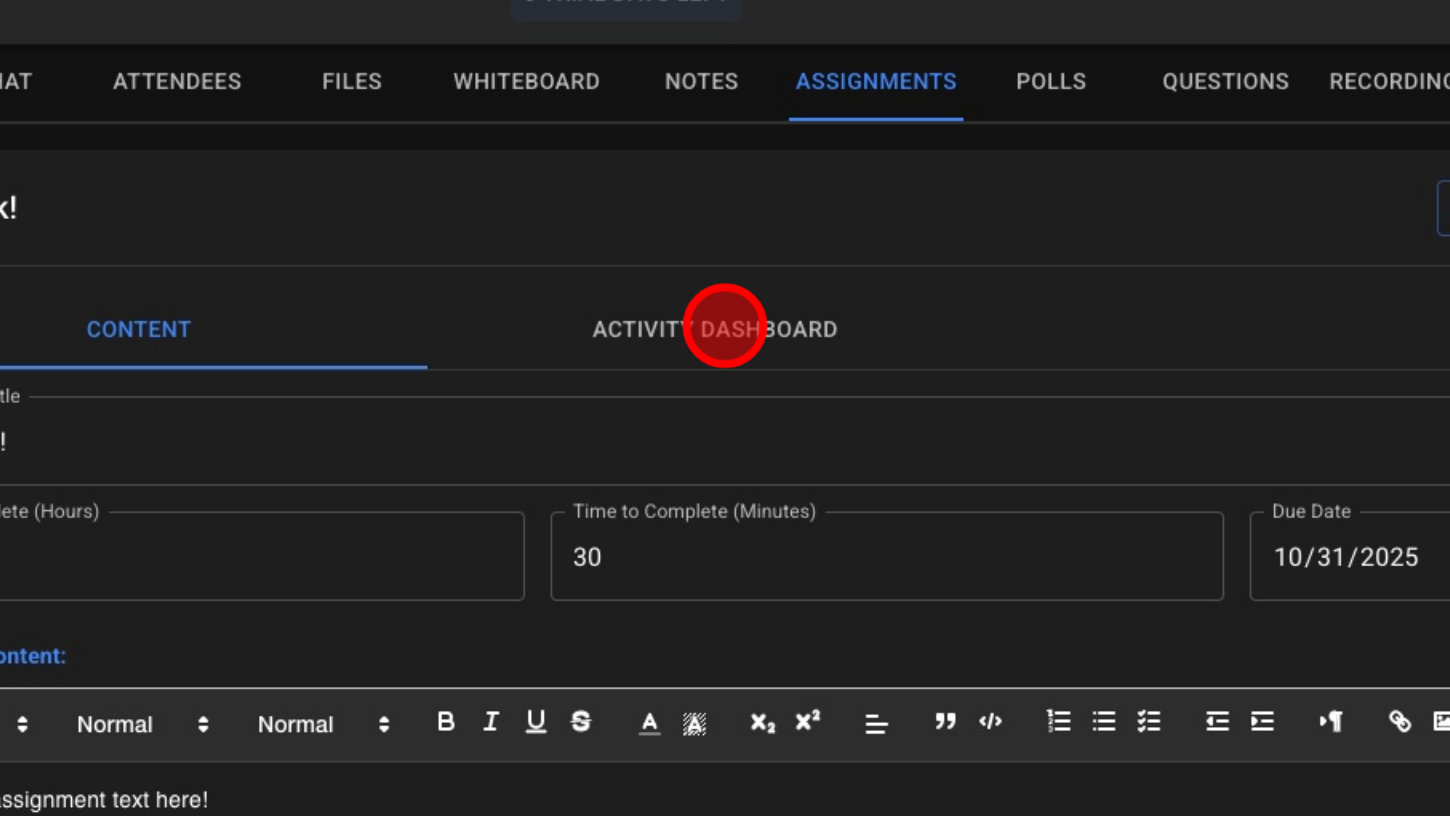
18. View 'ACTIVITY DASHBOARD'
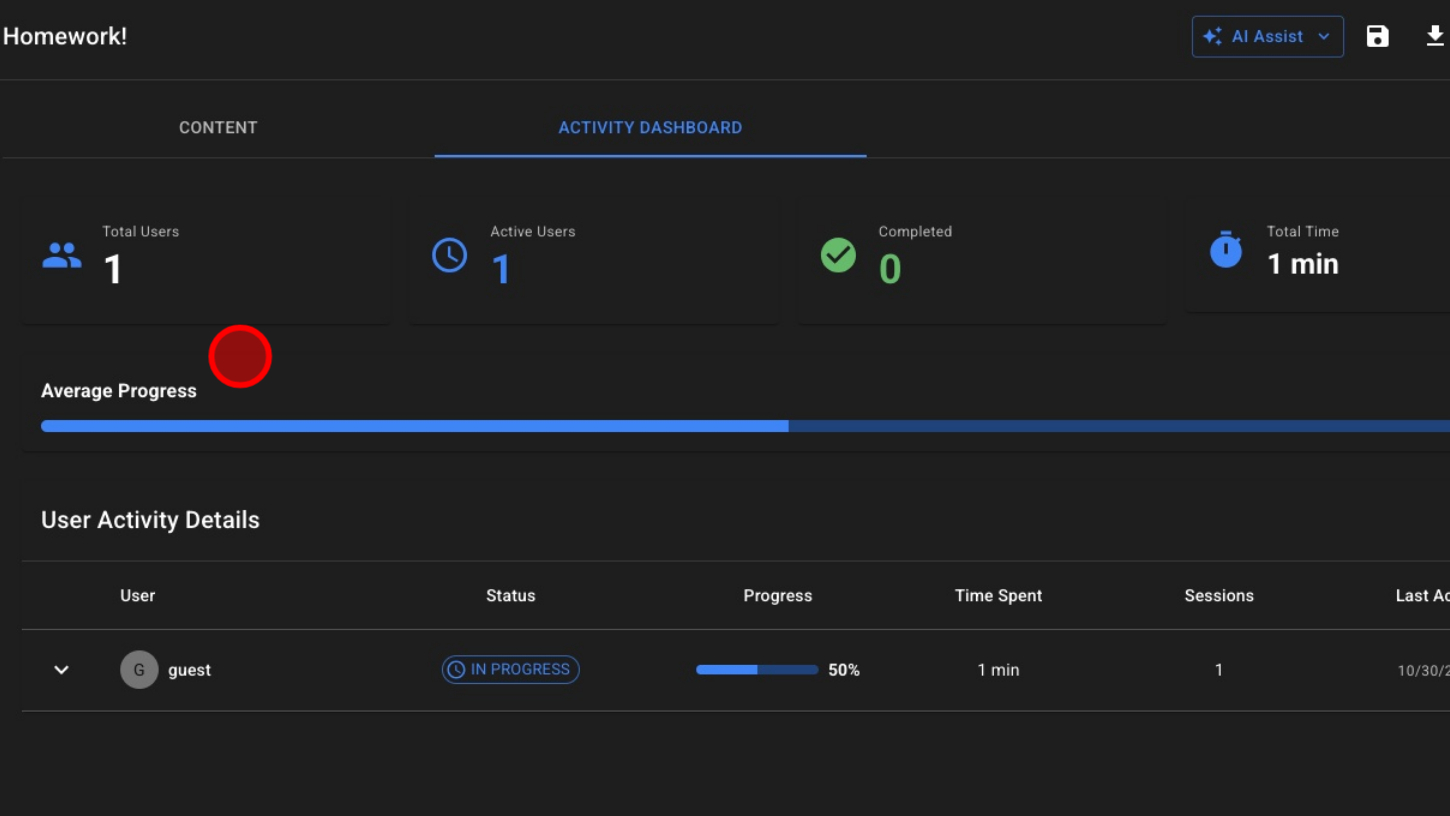
19. View User Activity
20. View Specific User Activity

21. View Each User Session – Start Time
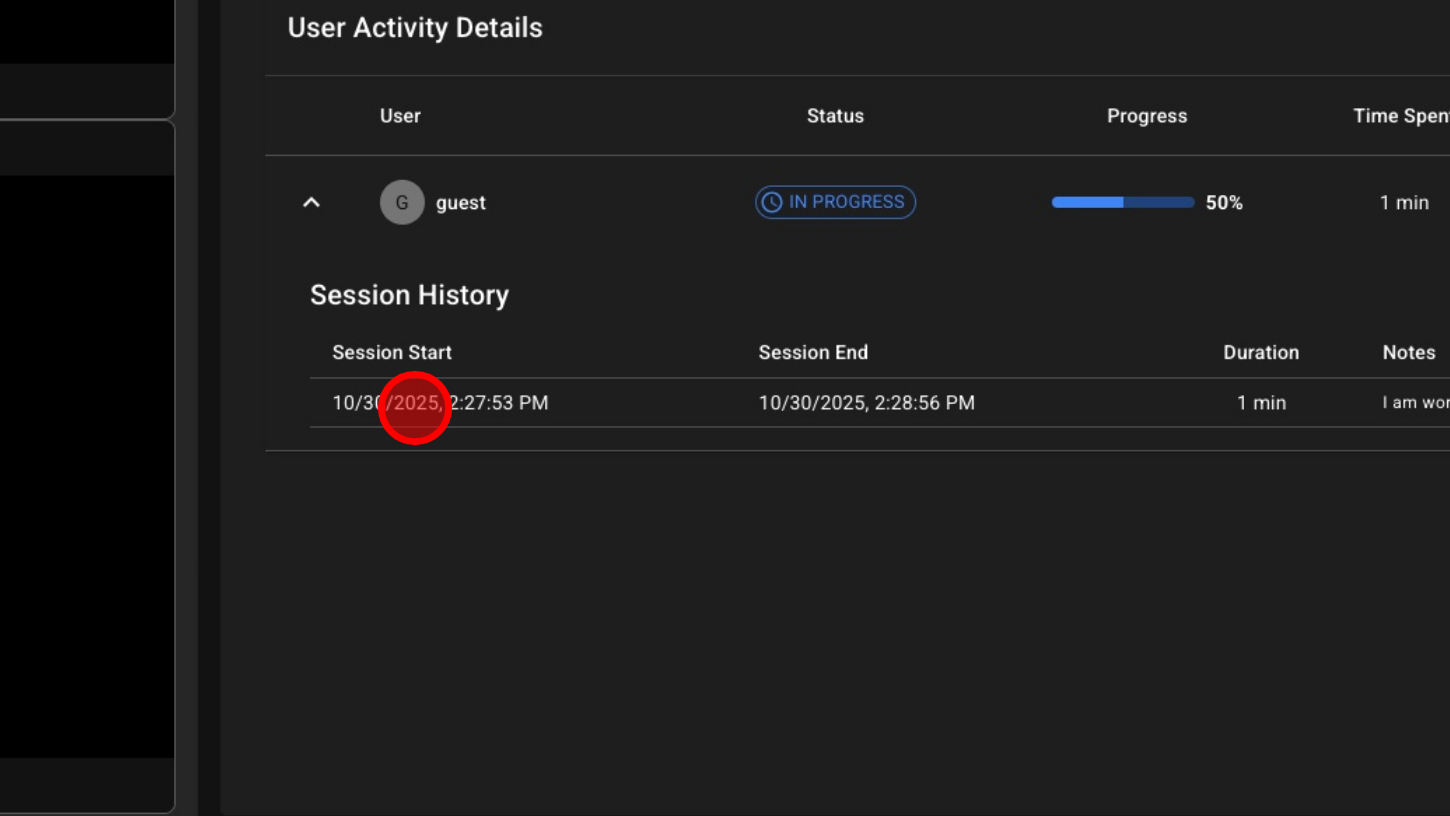
22. View Each User Session – End Time
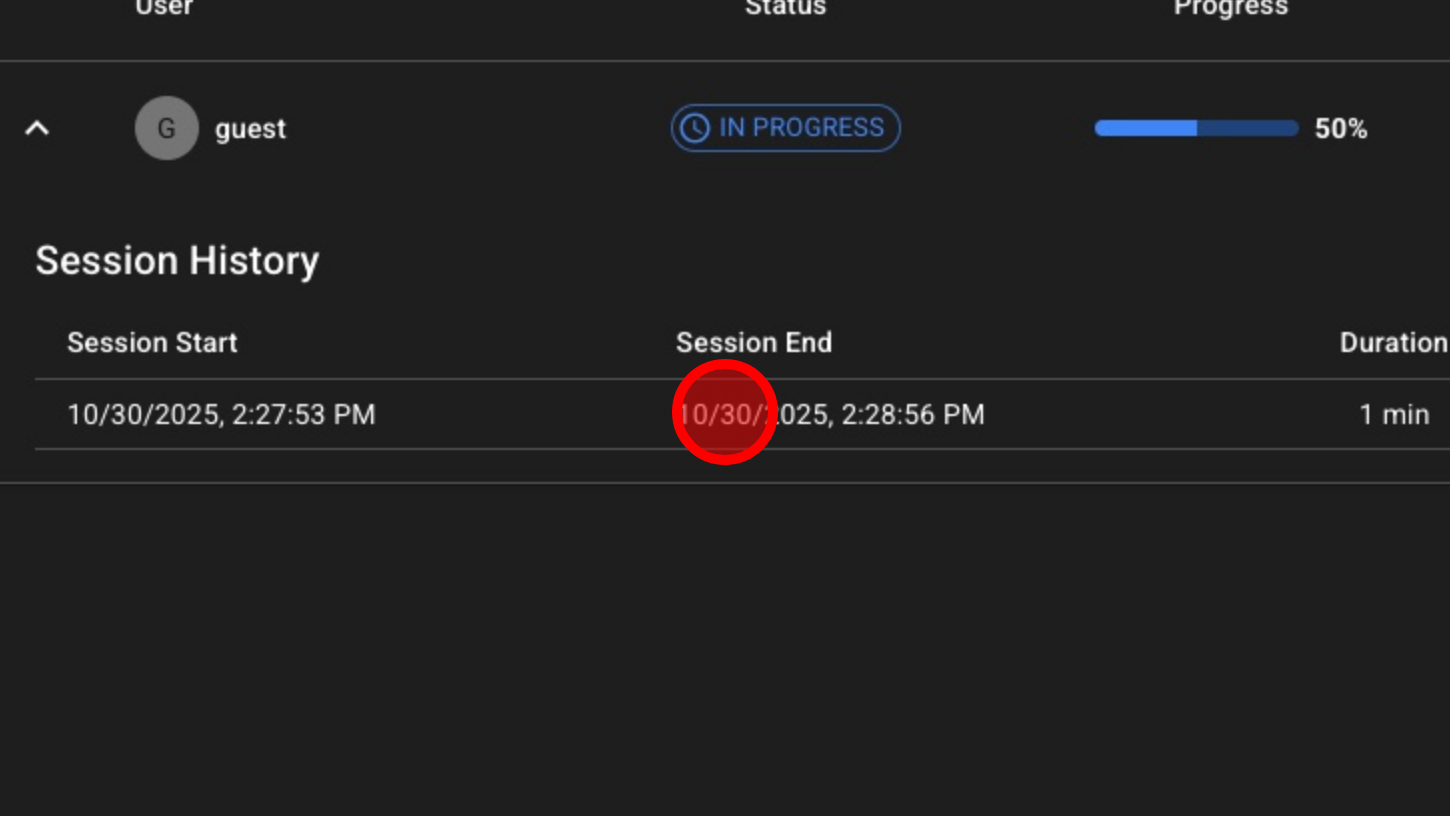
23. Session Duration
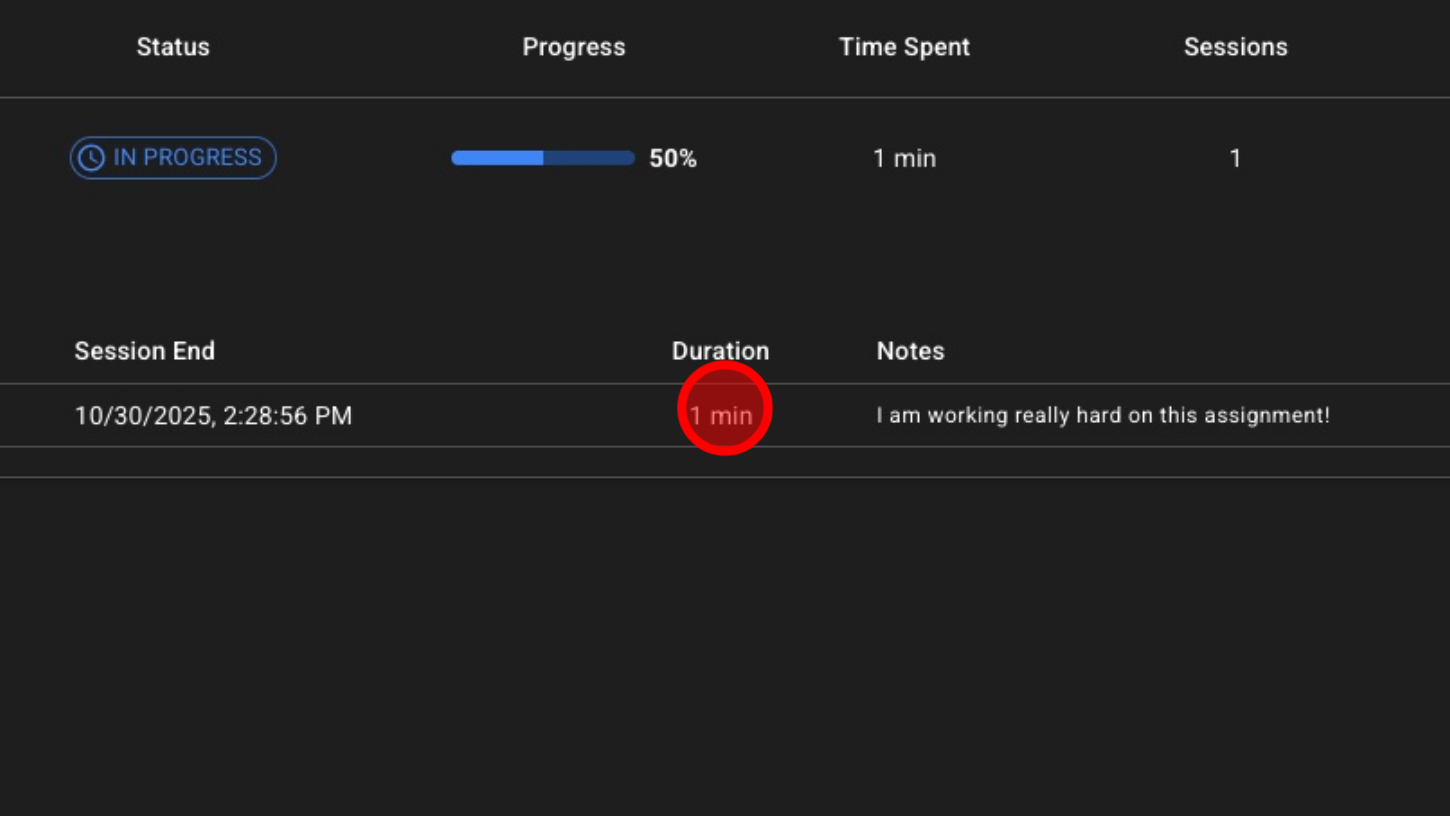
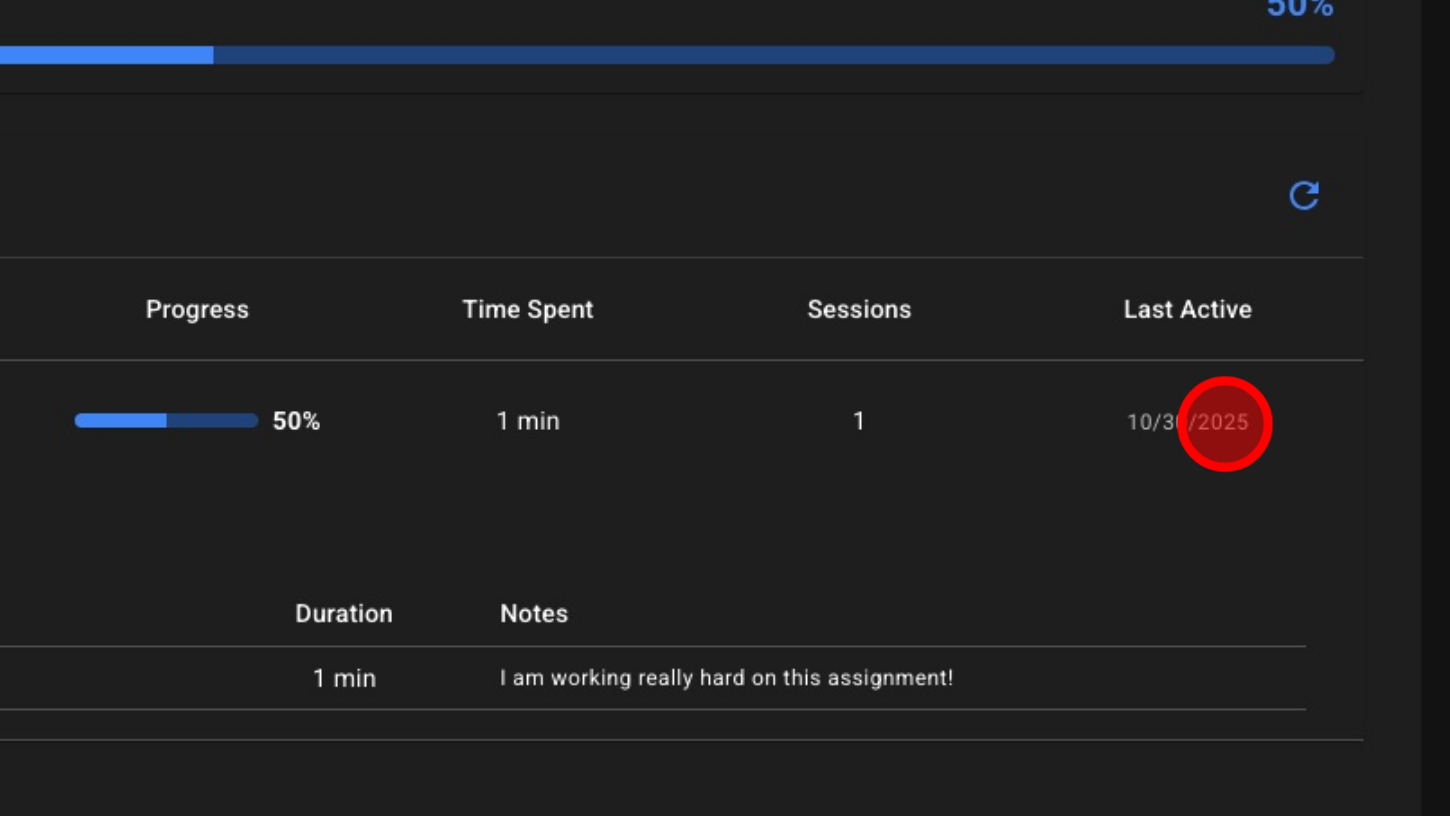
24. User Notes – Created When Working On Assignments
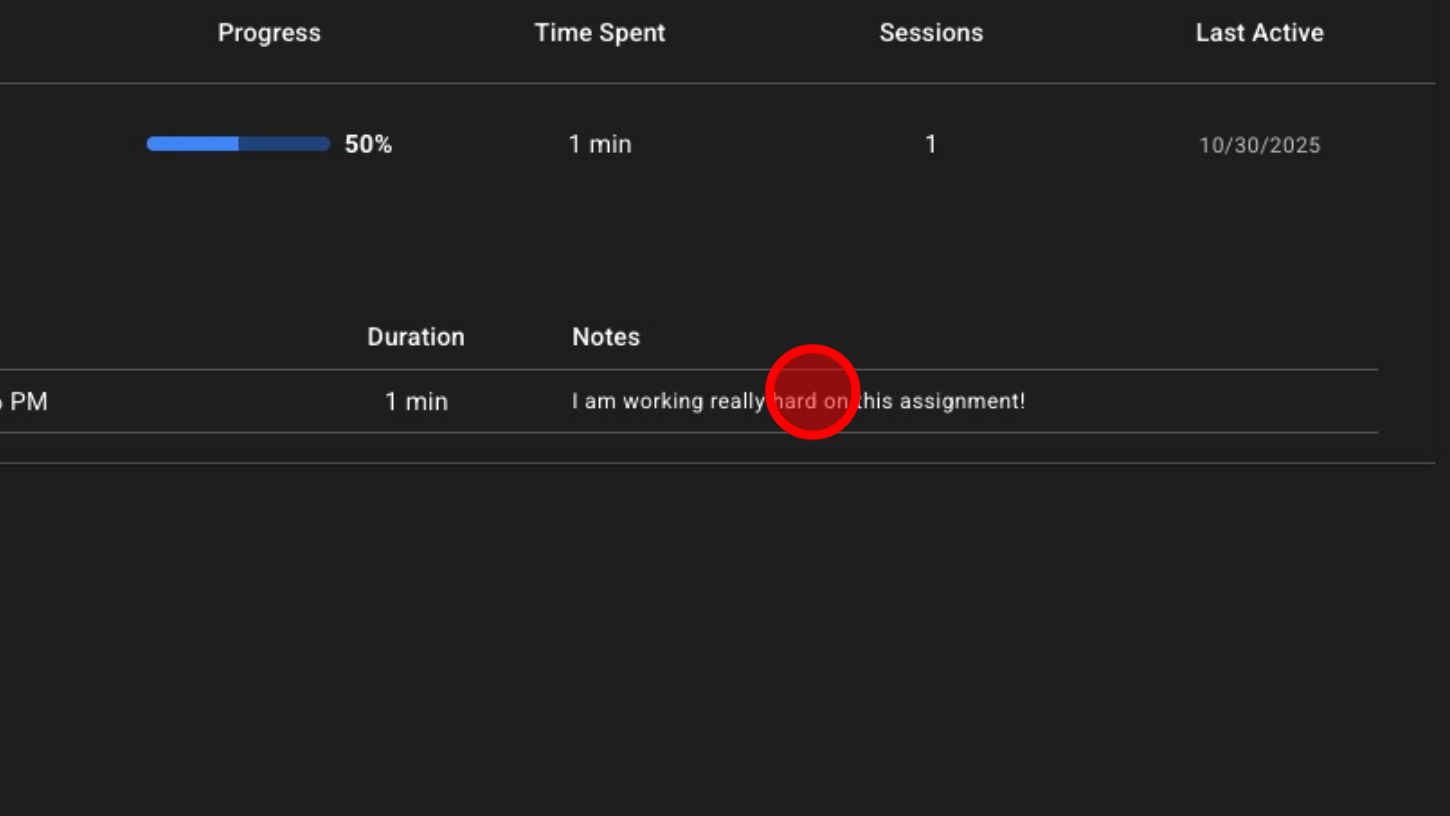
25. View User Progress
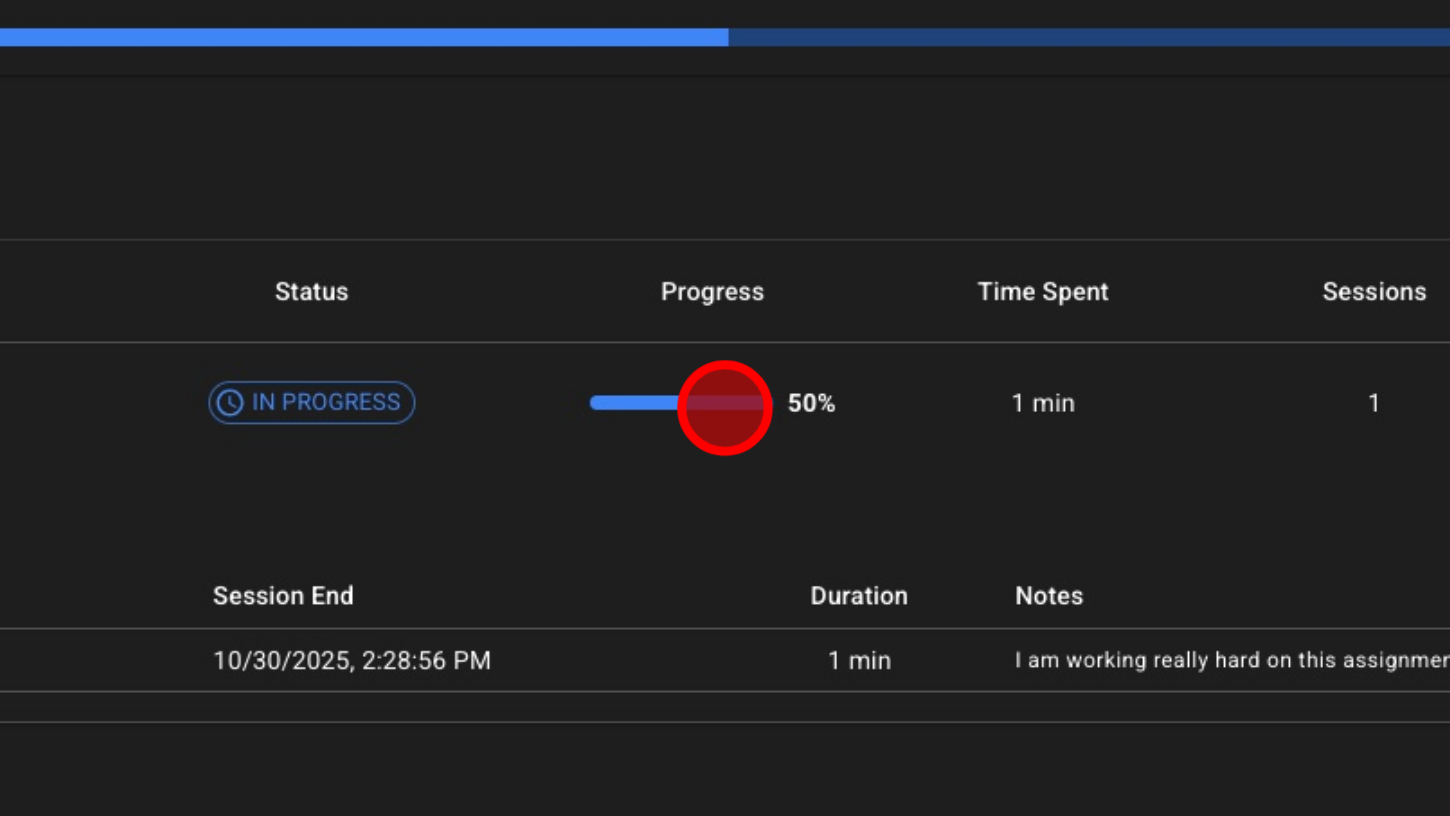
26. View Assignment Status
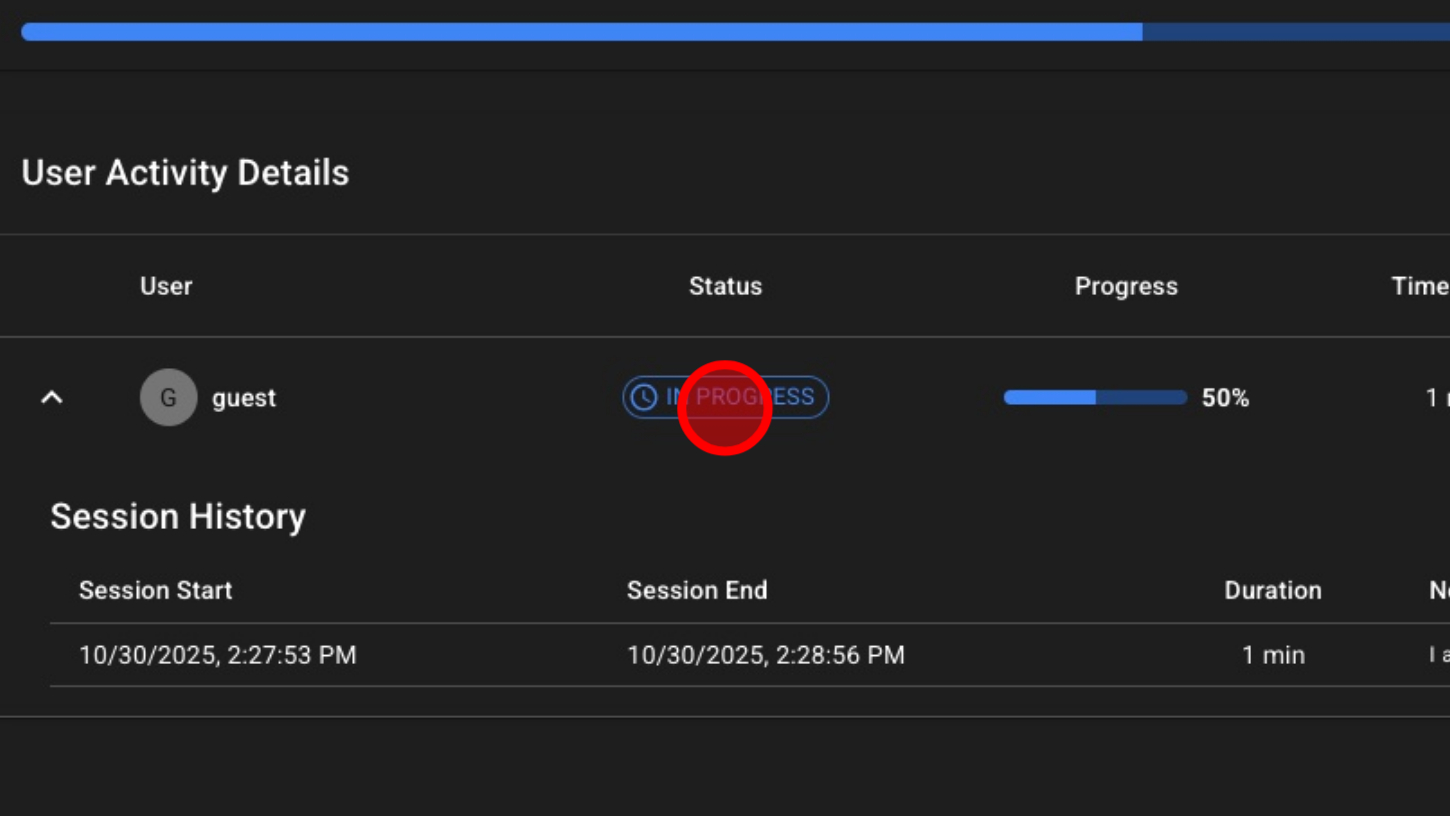
27. Number Of Sessions
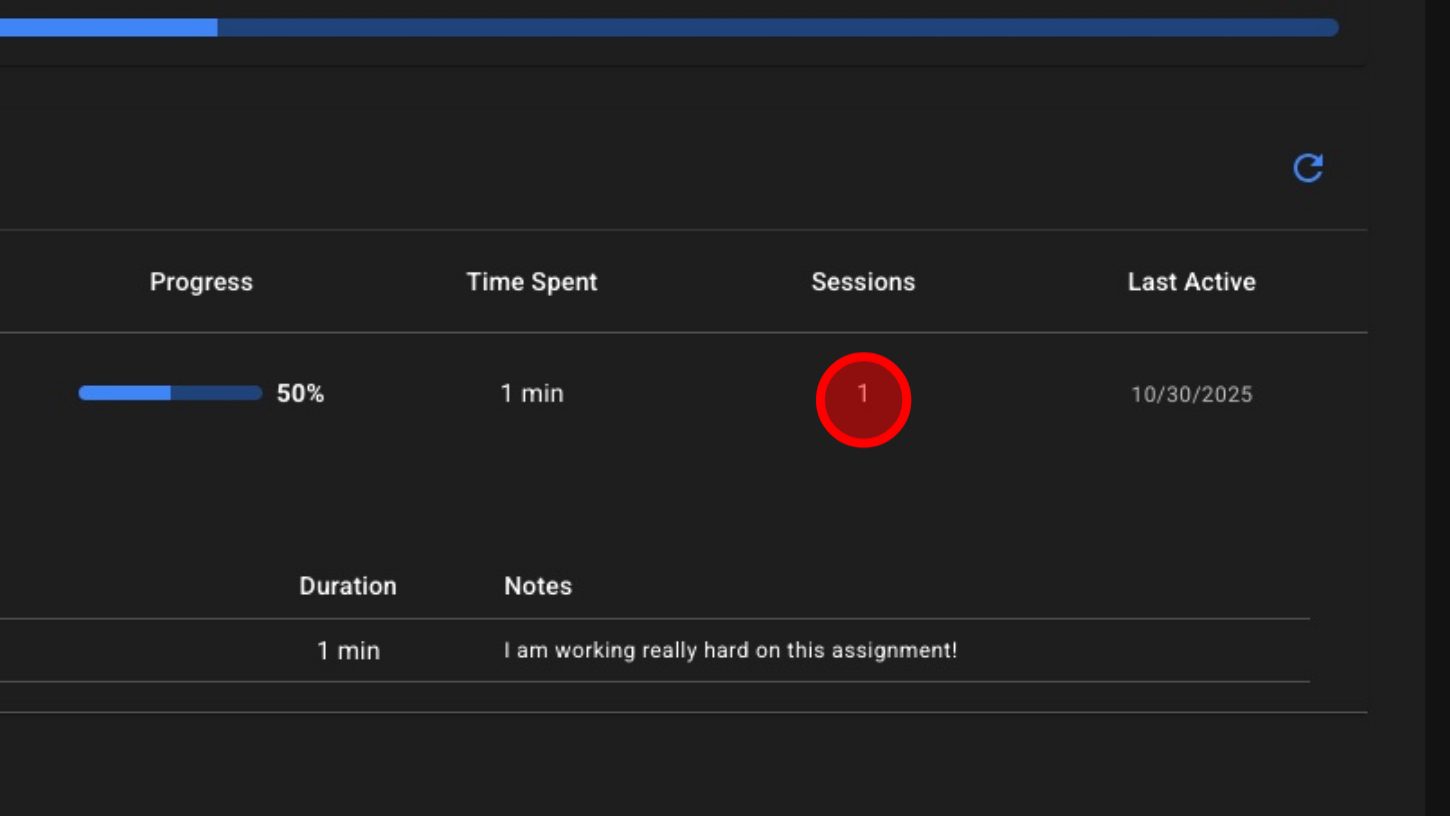
28. Last Active Session