.png)
Why use Customized Setup
The Account customization section allows you to personalize your Hiyve experience and align it with your brand or workflow. From custom colors and logos to tool preferences and default room settings, you can configure your account to look and feel exactly how you want.
Use Account Setup to:
-
Add your branding: Upload your company logo, choose brand colors, and apply them across your rooms and invites.
-
Customize layouts: Set default views and tool arrangements for meetings or lessons..
-
Save time: Apply your preferred setup once and use it automatically across all future meetings.
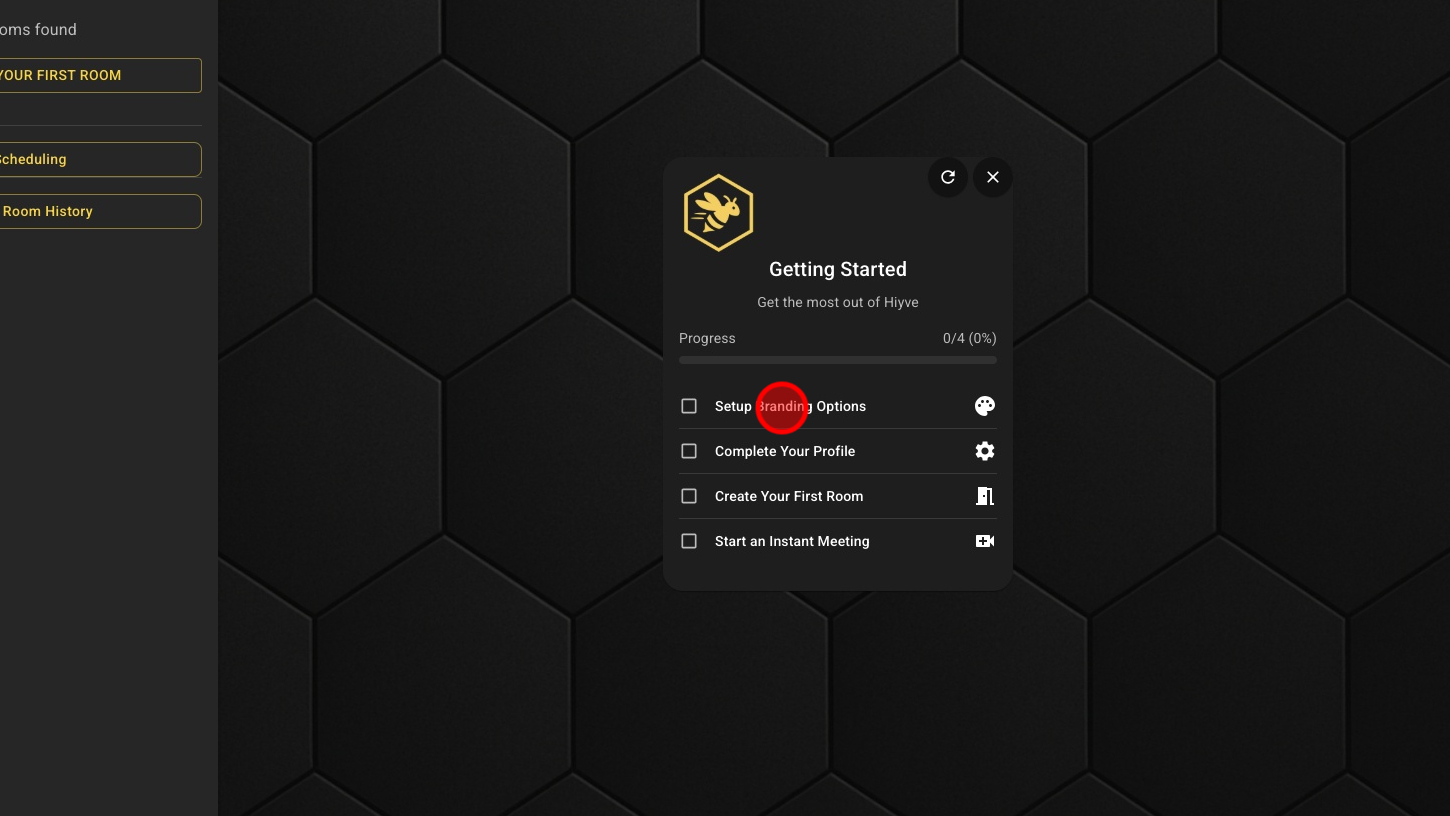
1. Click 'Setup Branding Options'
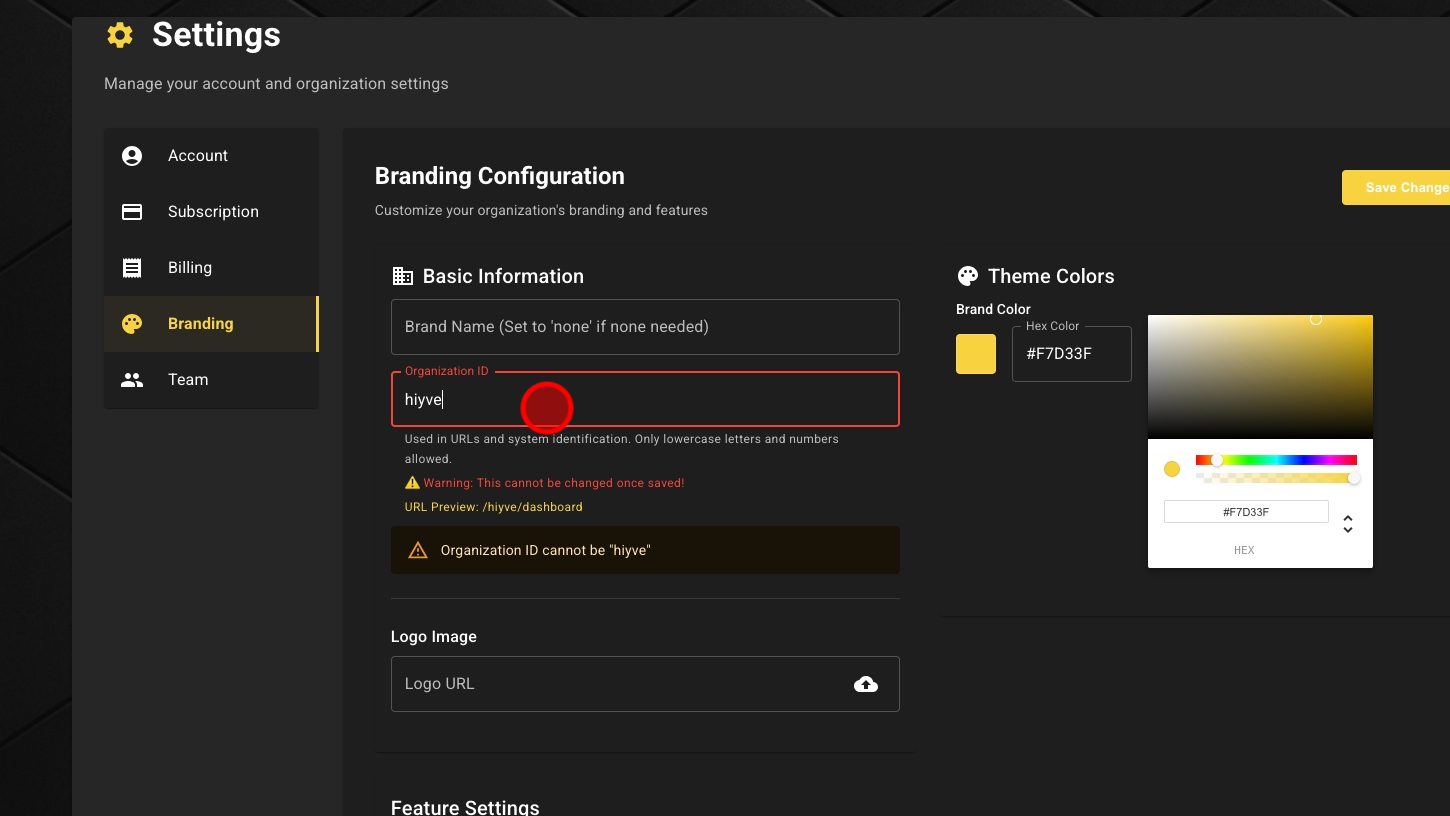
2. Choose An Org ID
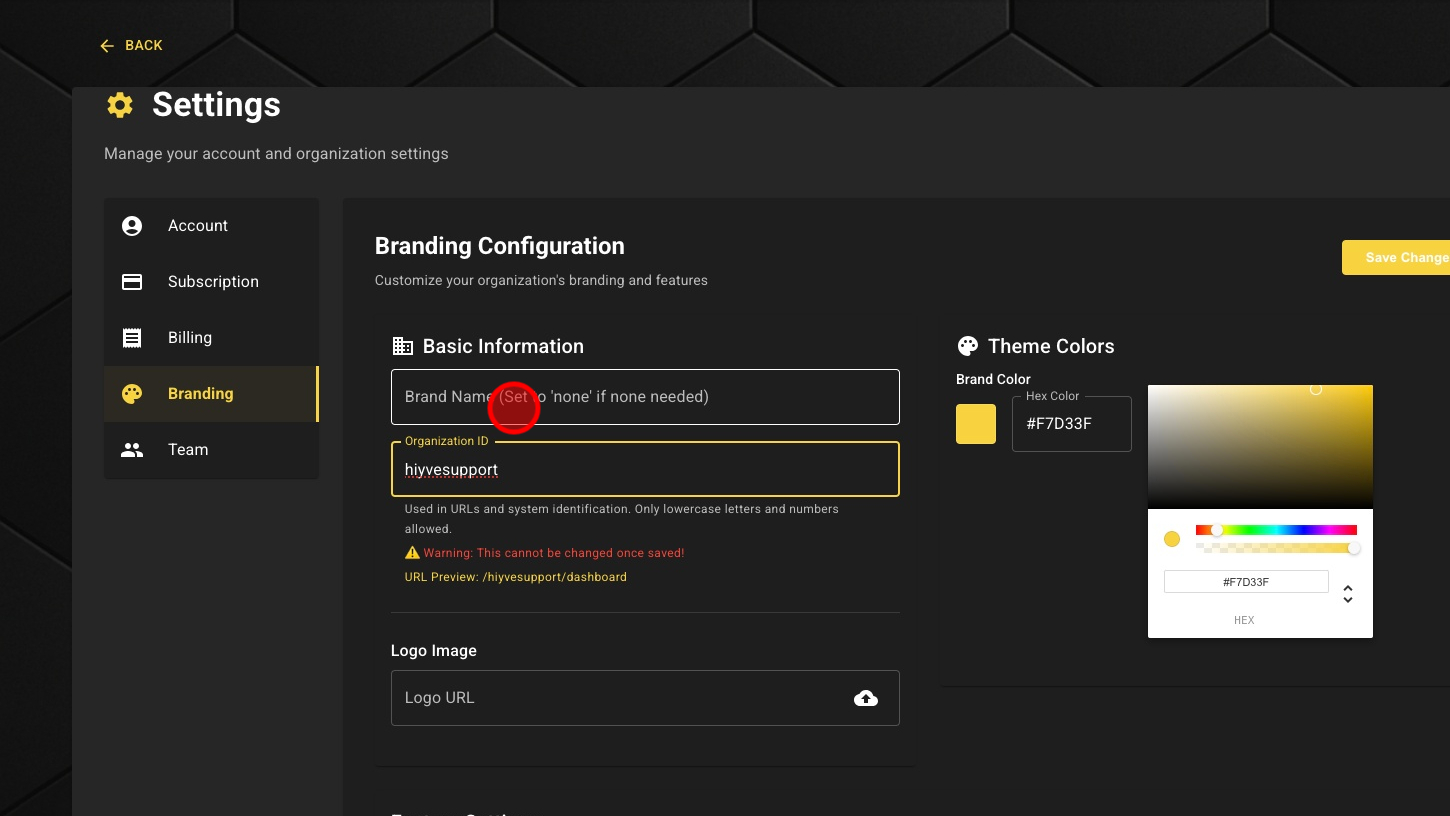
3. Enter a Brand Name - (This Name is displayed to users and guests)
4. Upload a Custom Logo
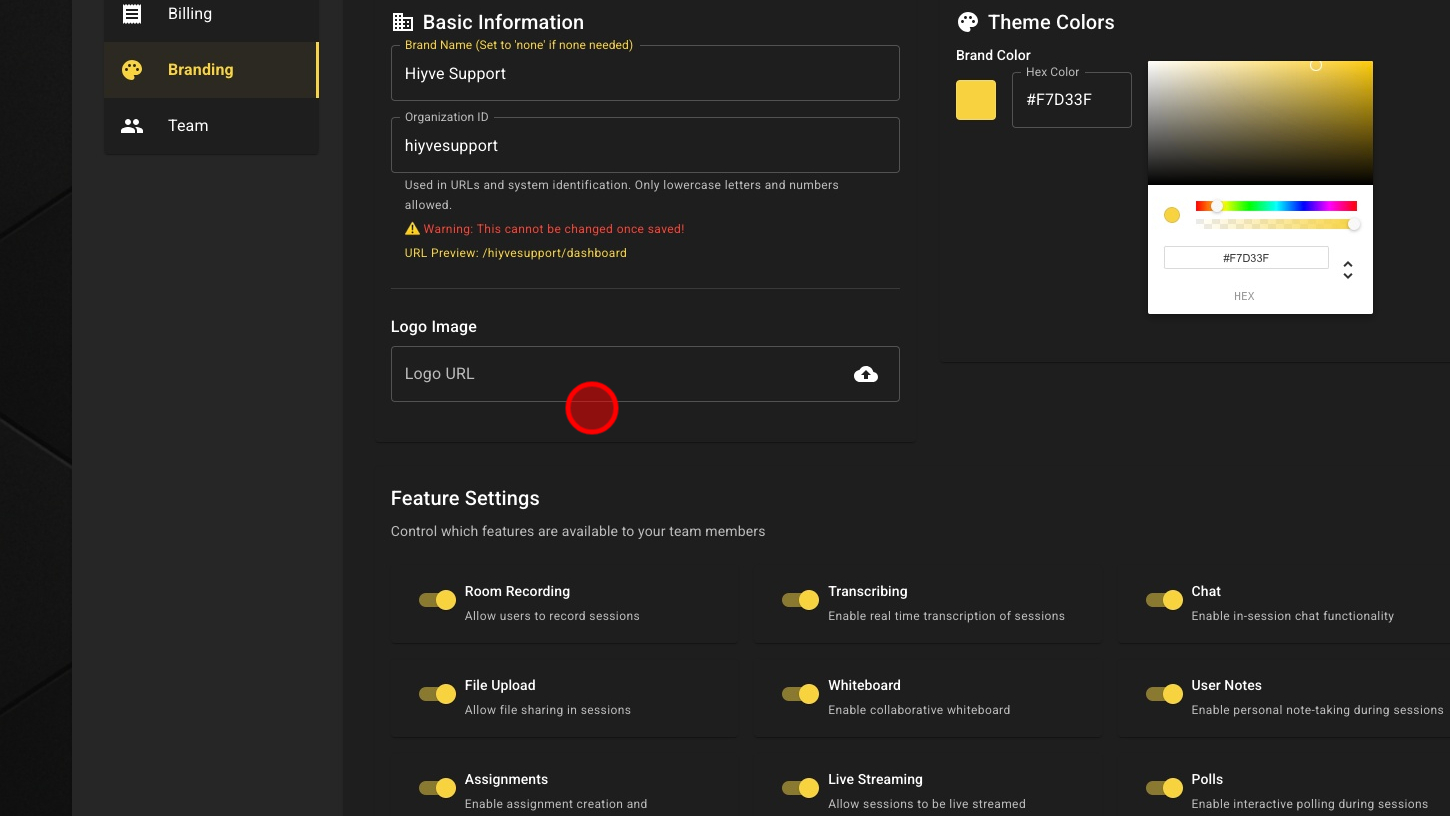
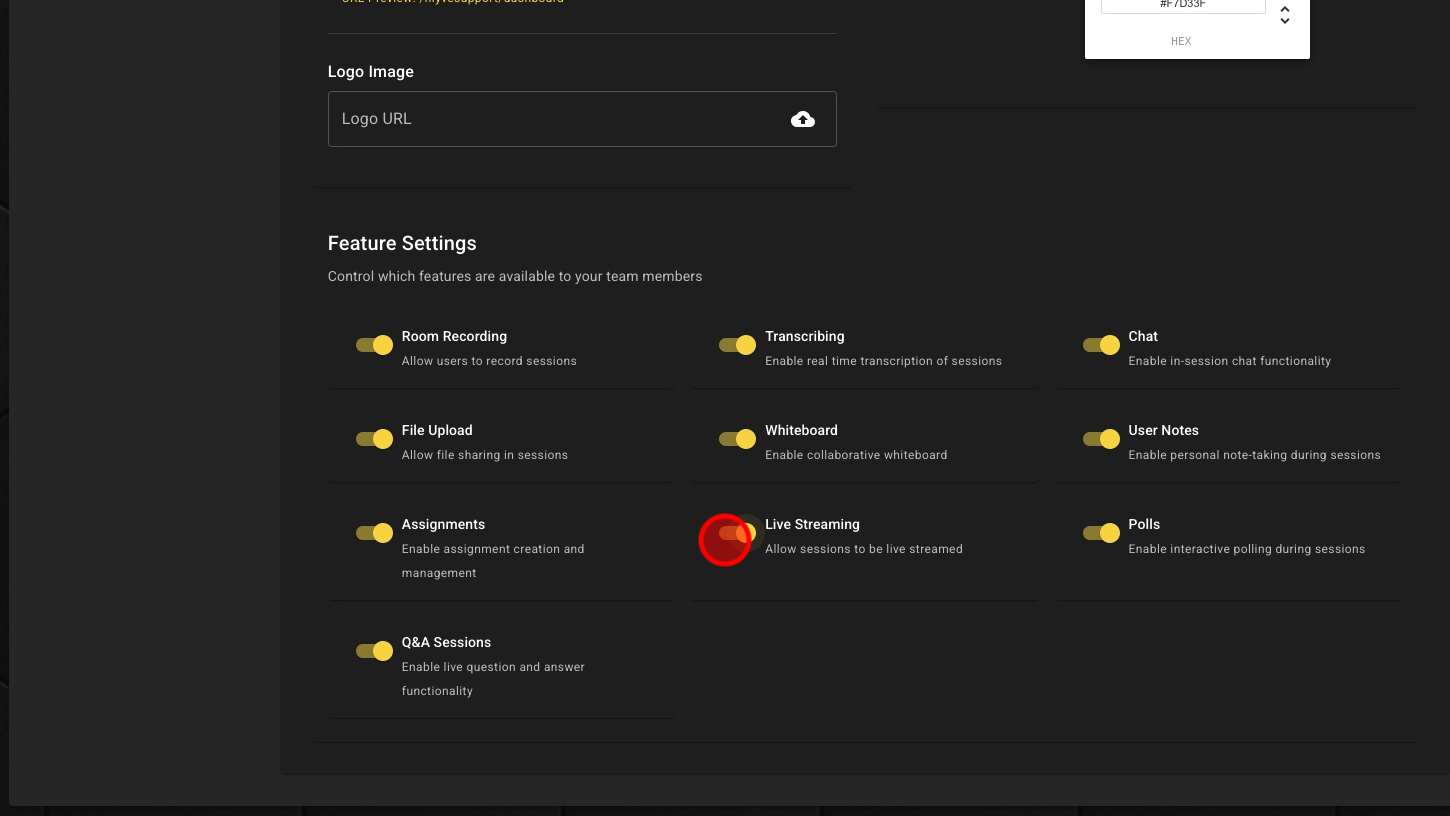
5. Choose Which Features To Enable (or disable)
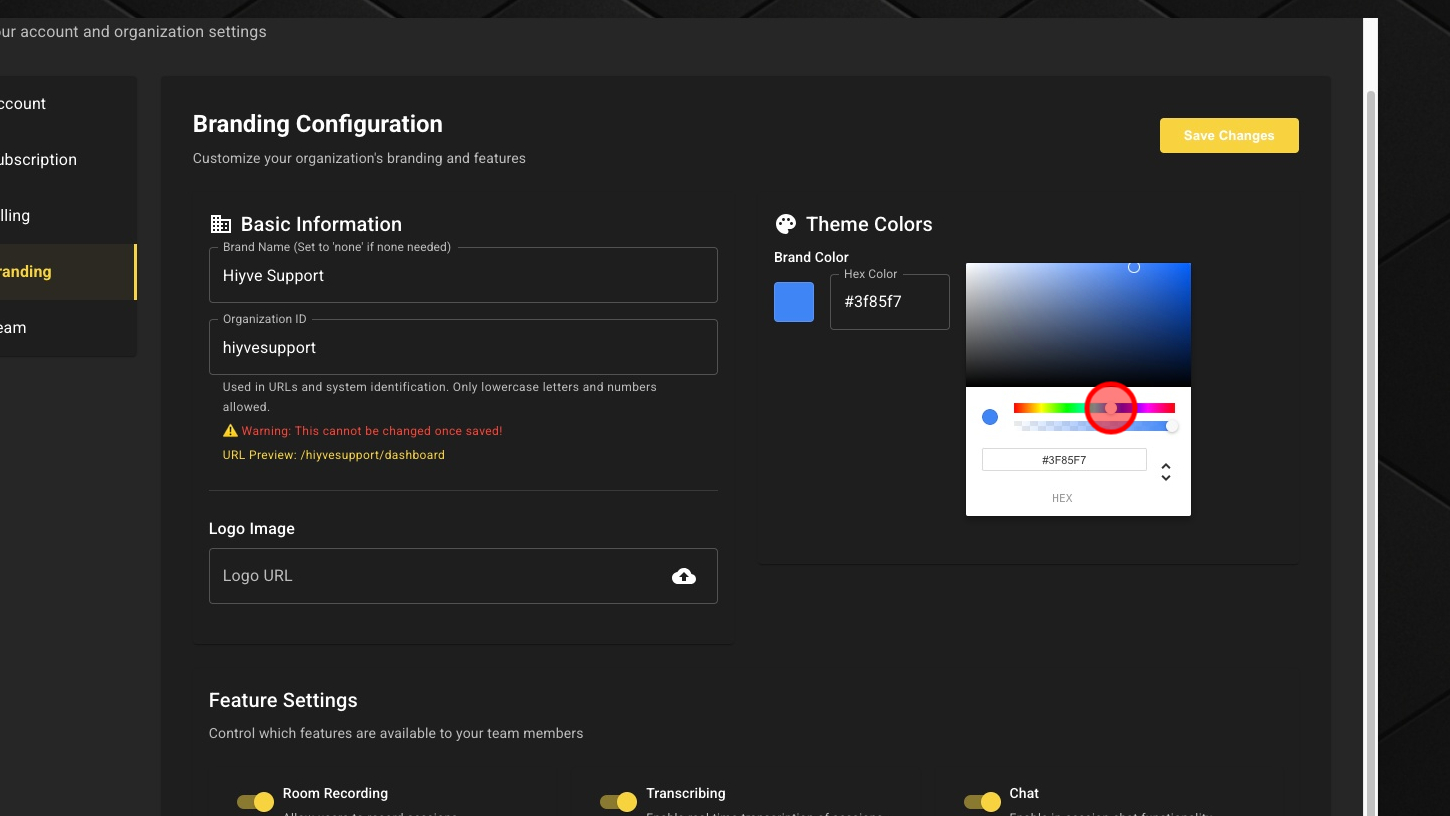
6. Set Brand Color
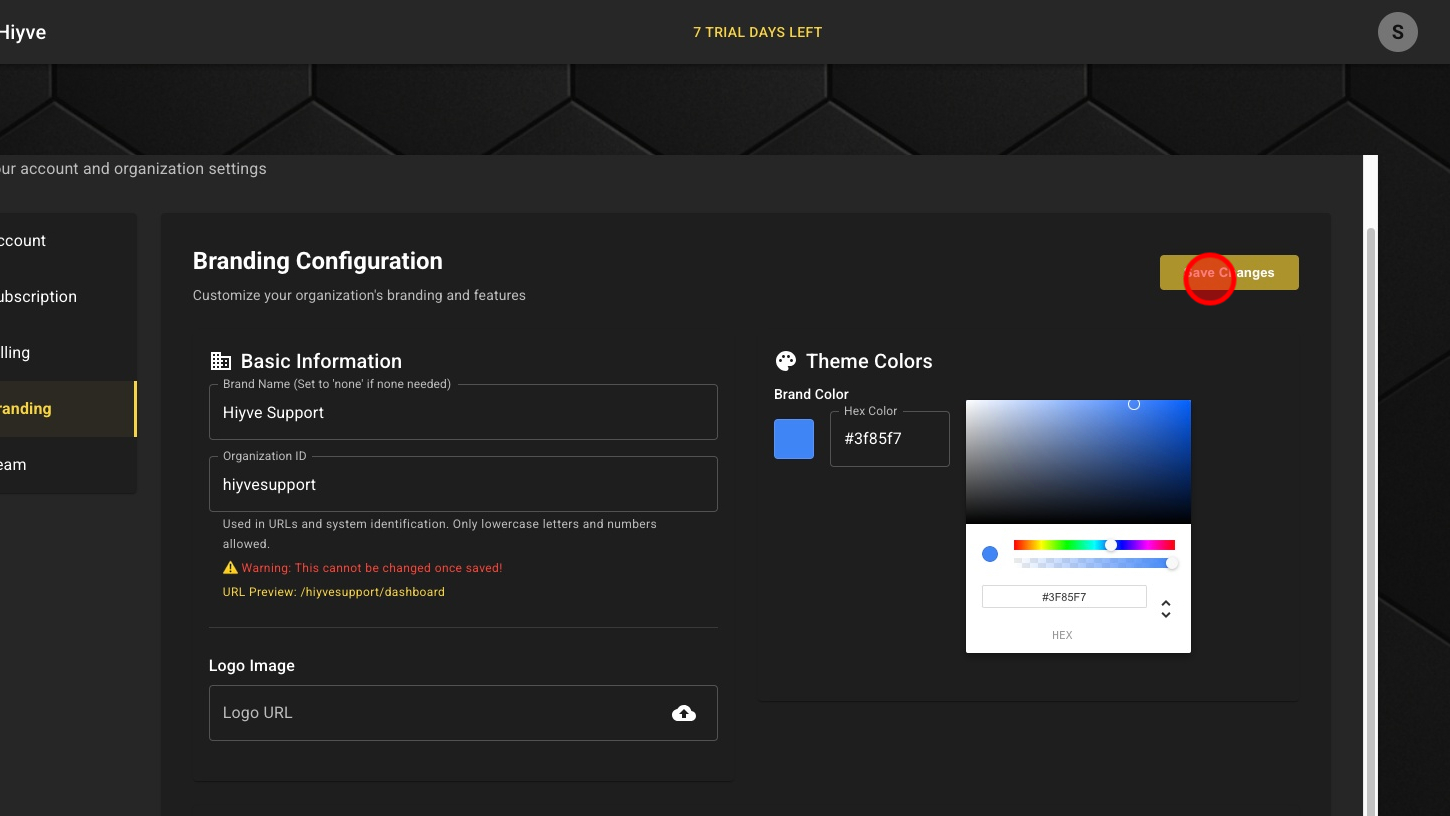
7. Click 'Save Changes' button
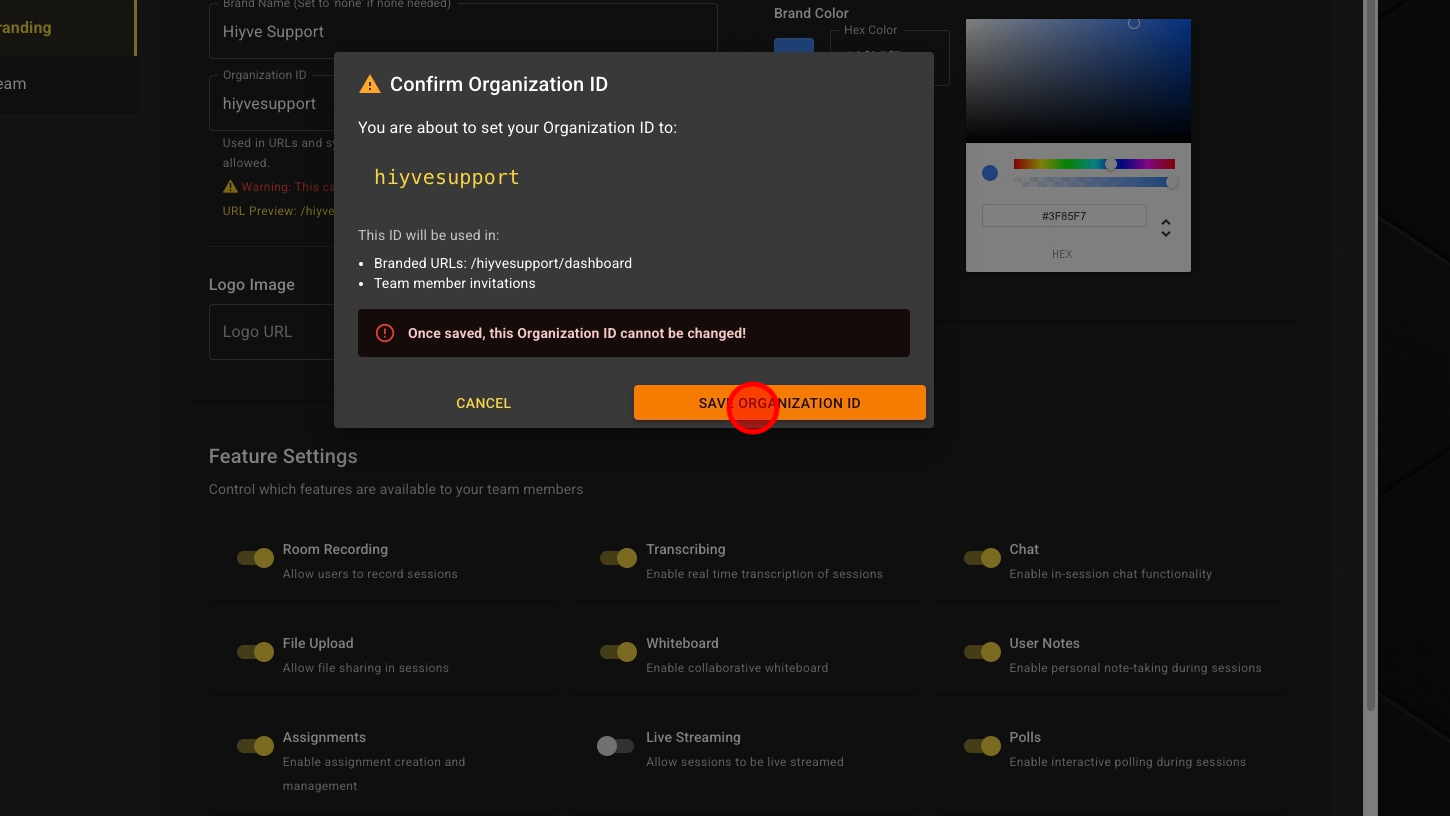
8. Click 'Save Organization ID' button