.png)
Why use Notes
The Notes tool gives you a dedicated space to capture ideas, action items, and key takeaways during a call. Notes are saved automatically and linked to each session, so nothing gets lost once the meeting ends.
Use Notes to:
-
Stay organized: Record important points without switching between apps.
-
Save context: Keep notes tied to their meeting, making follow-ups faster and more accurate.
-
Turn ideas into action: Reference your notes later to create tasks, assignments, or summaries.
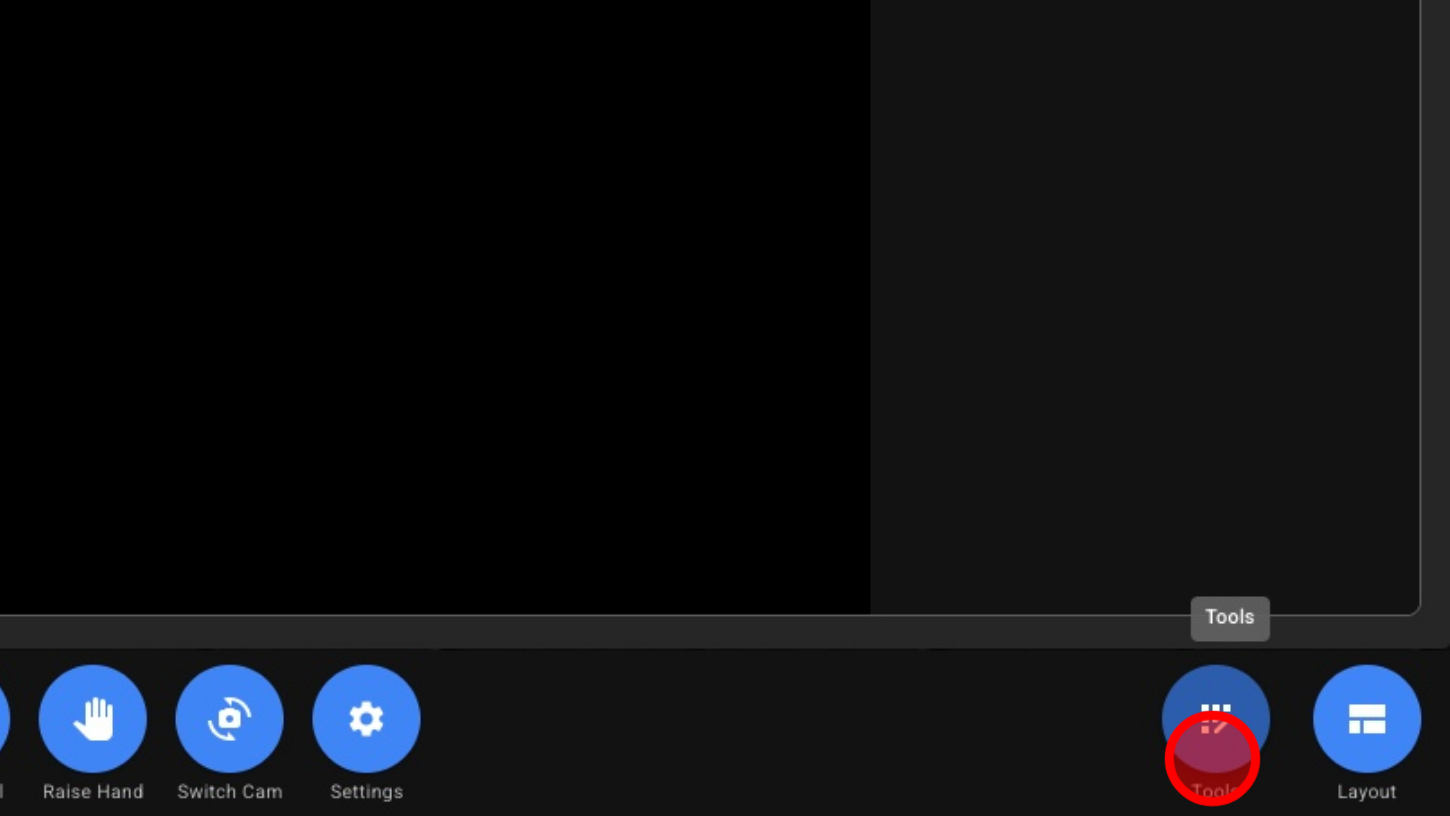
1. Open Tools
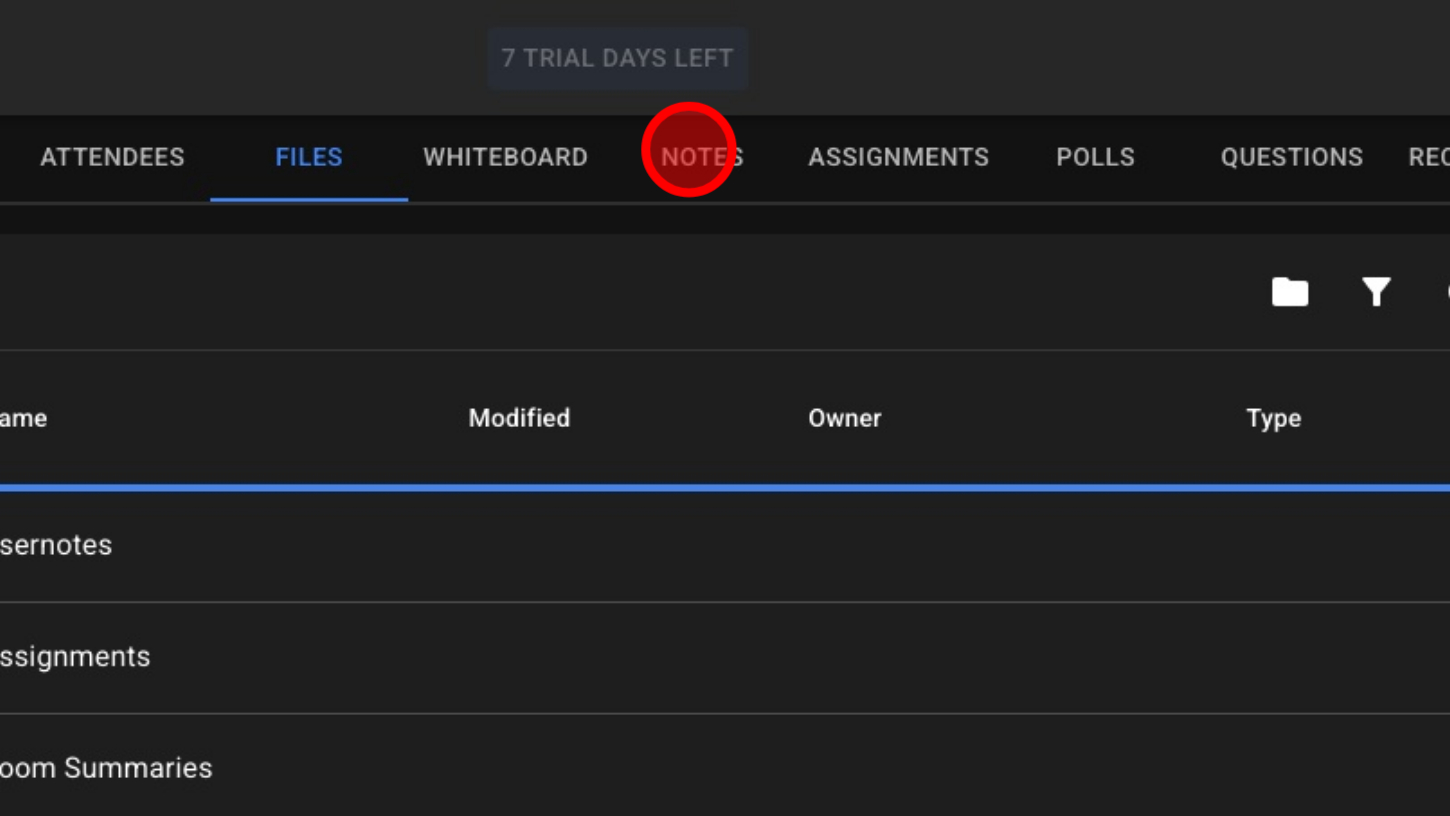
2. Click 'NOTES'
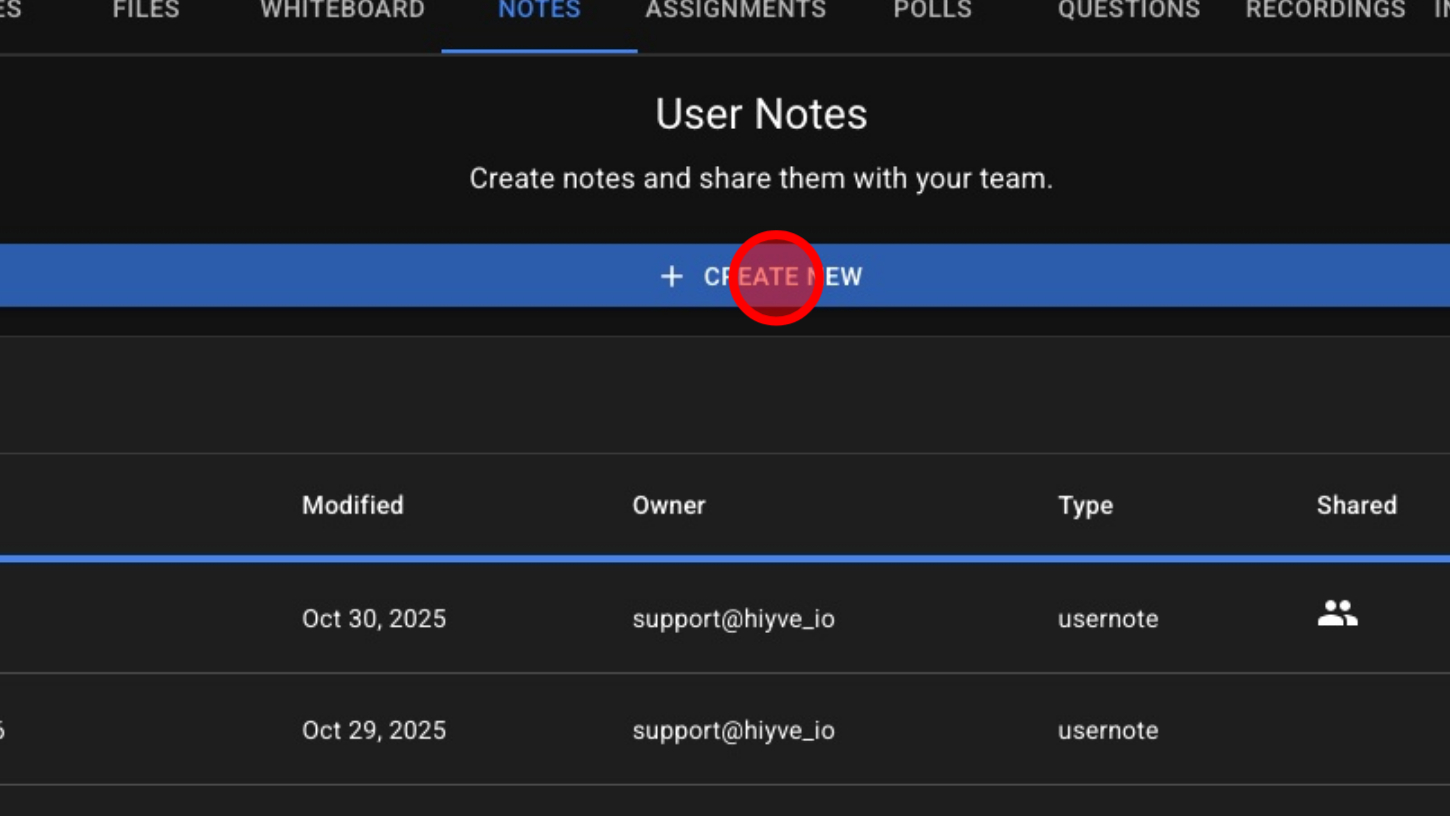
3. Click 'CREATE NEW' button
4. Name Your Note
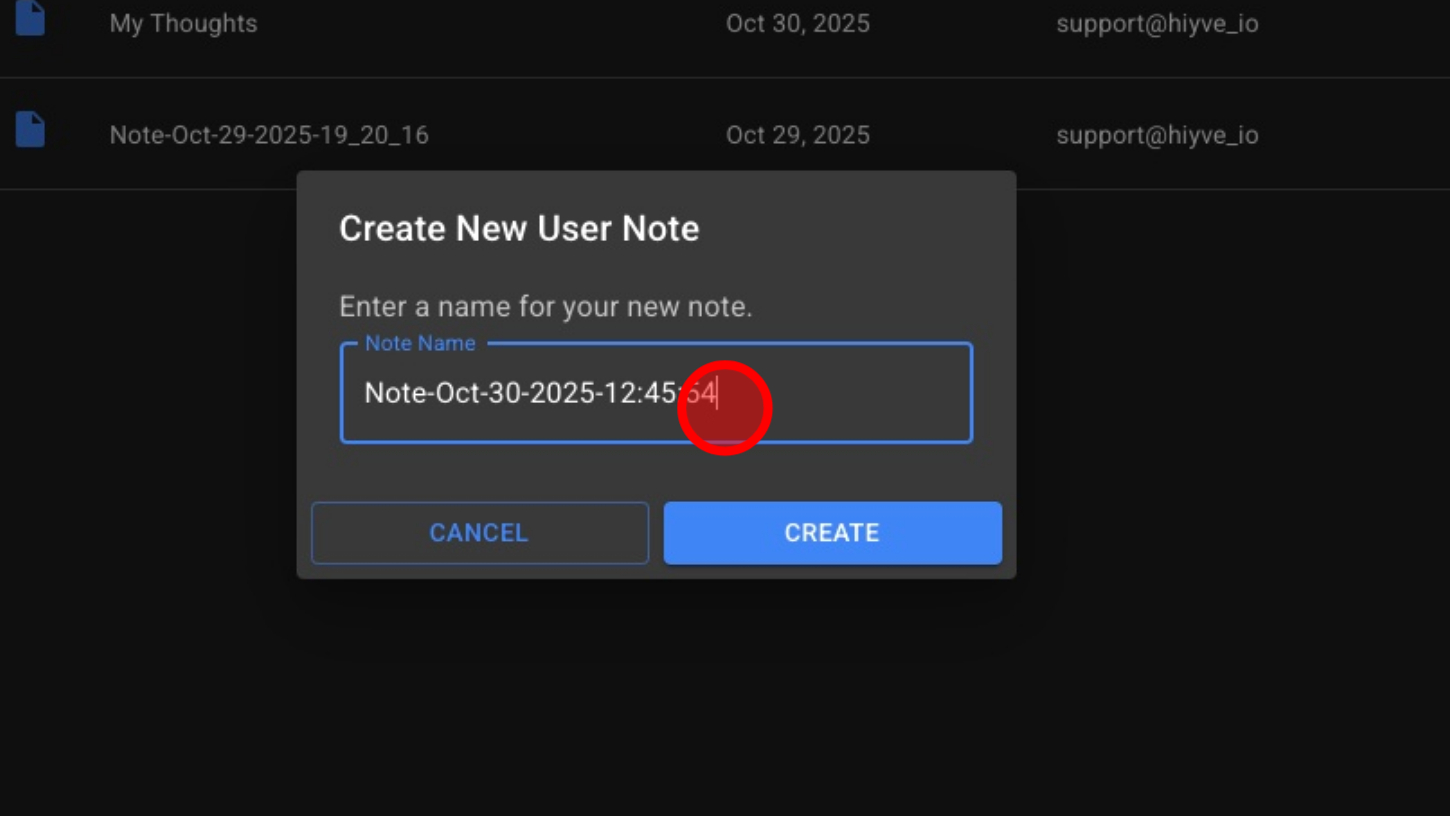
5. Click 'CREATE' button

6. Click In The Editor To Type Notes
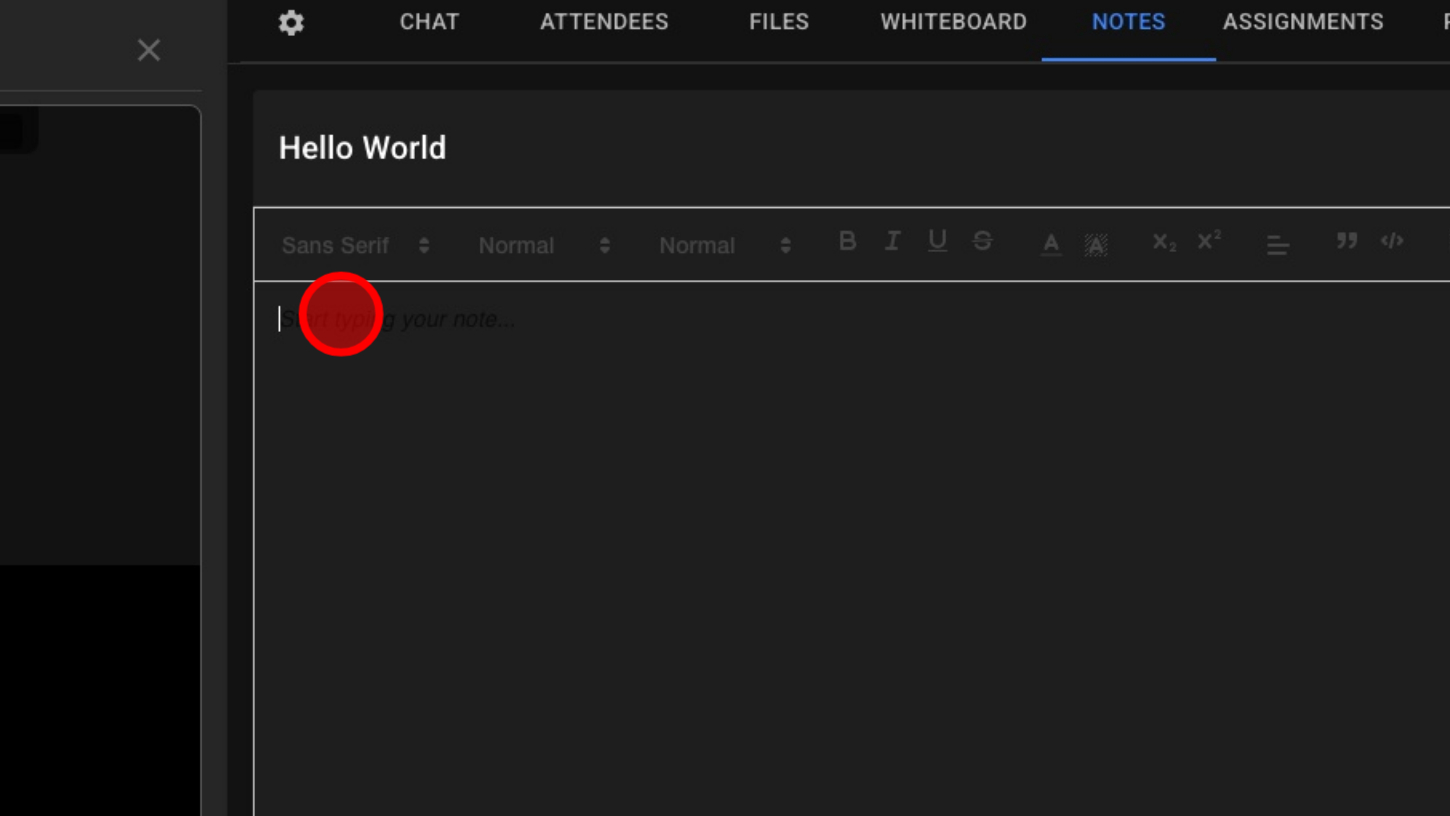
7. Select Font
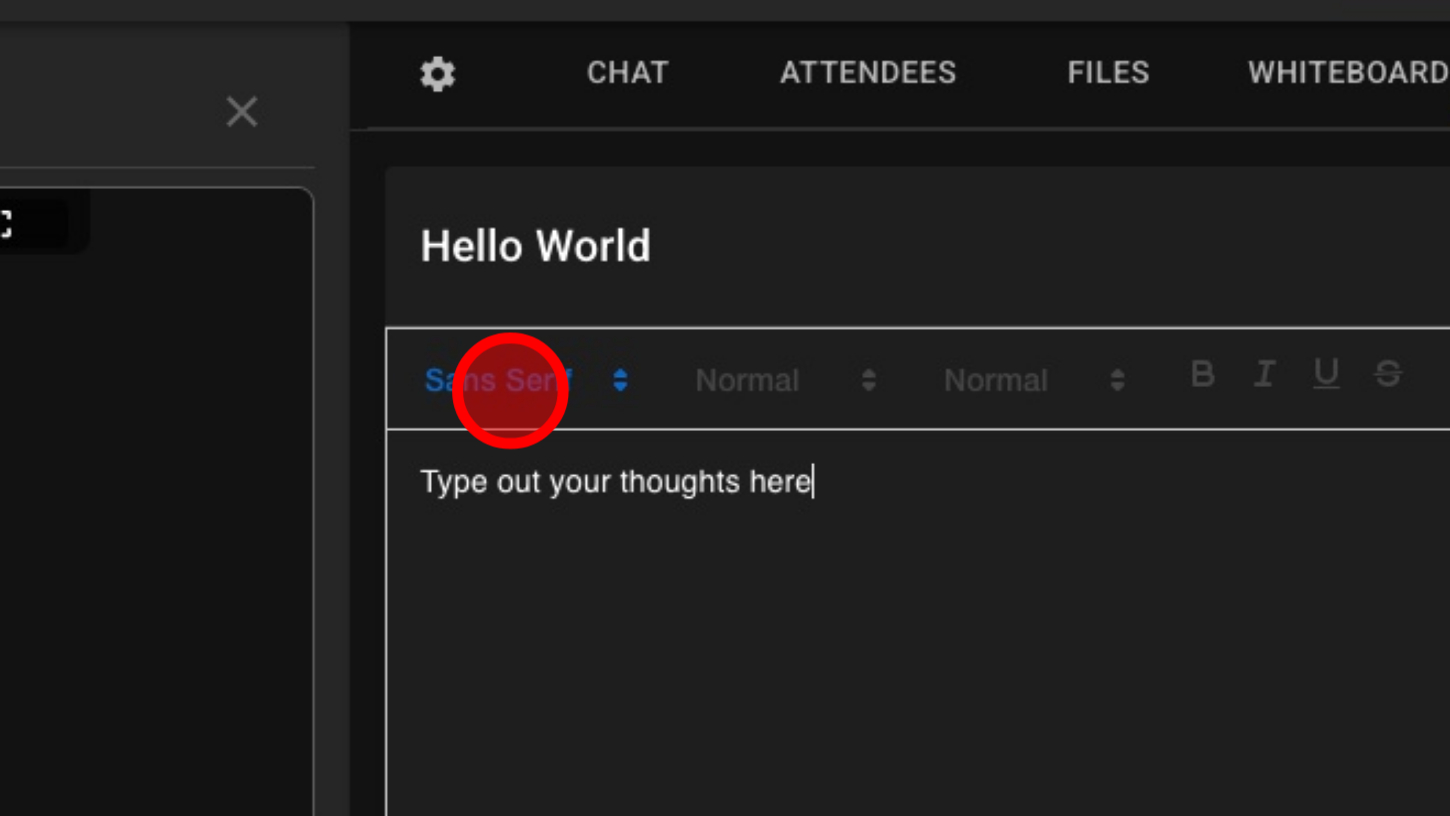
8. Text Style

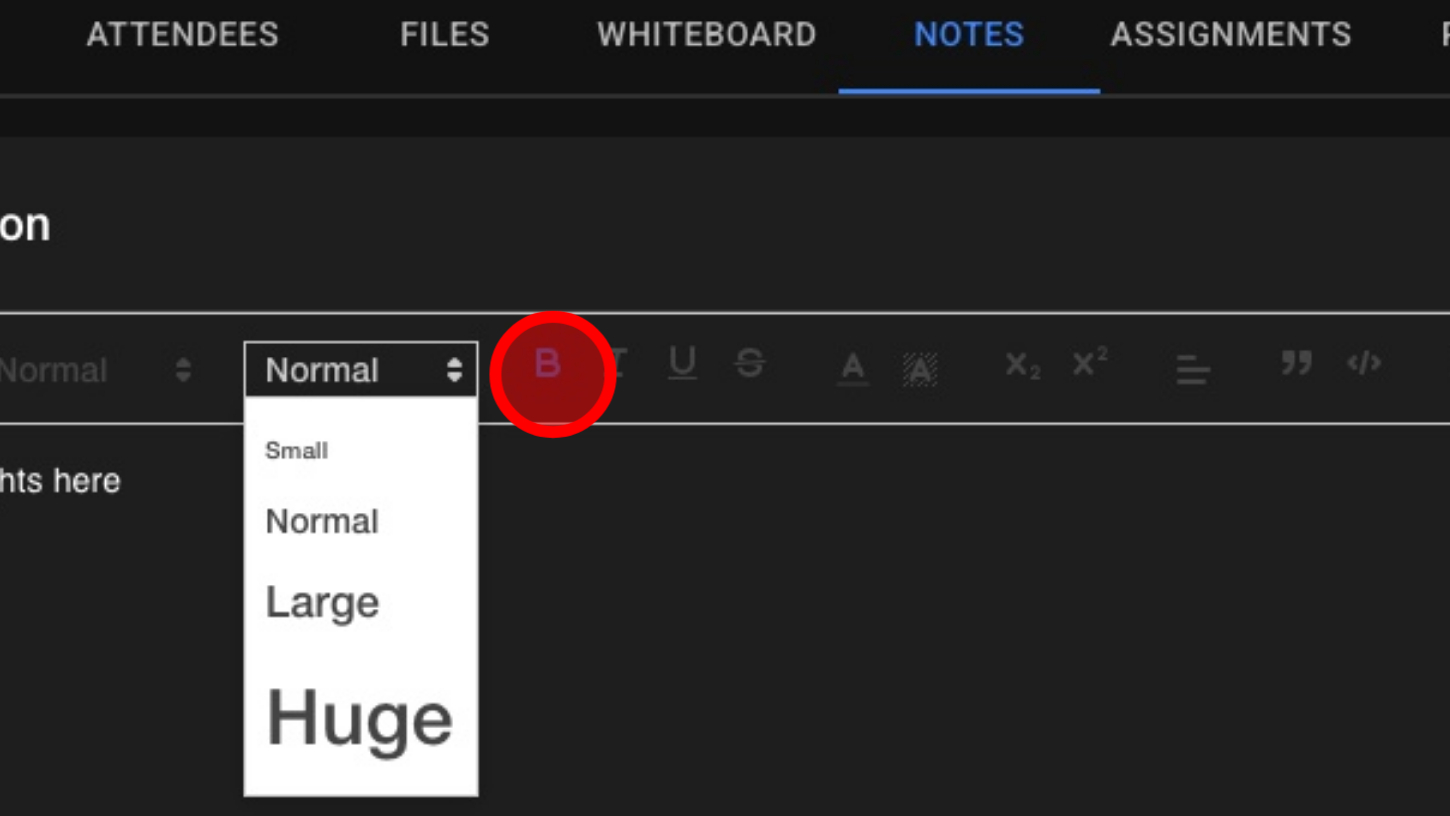
9. Font Size
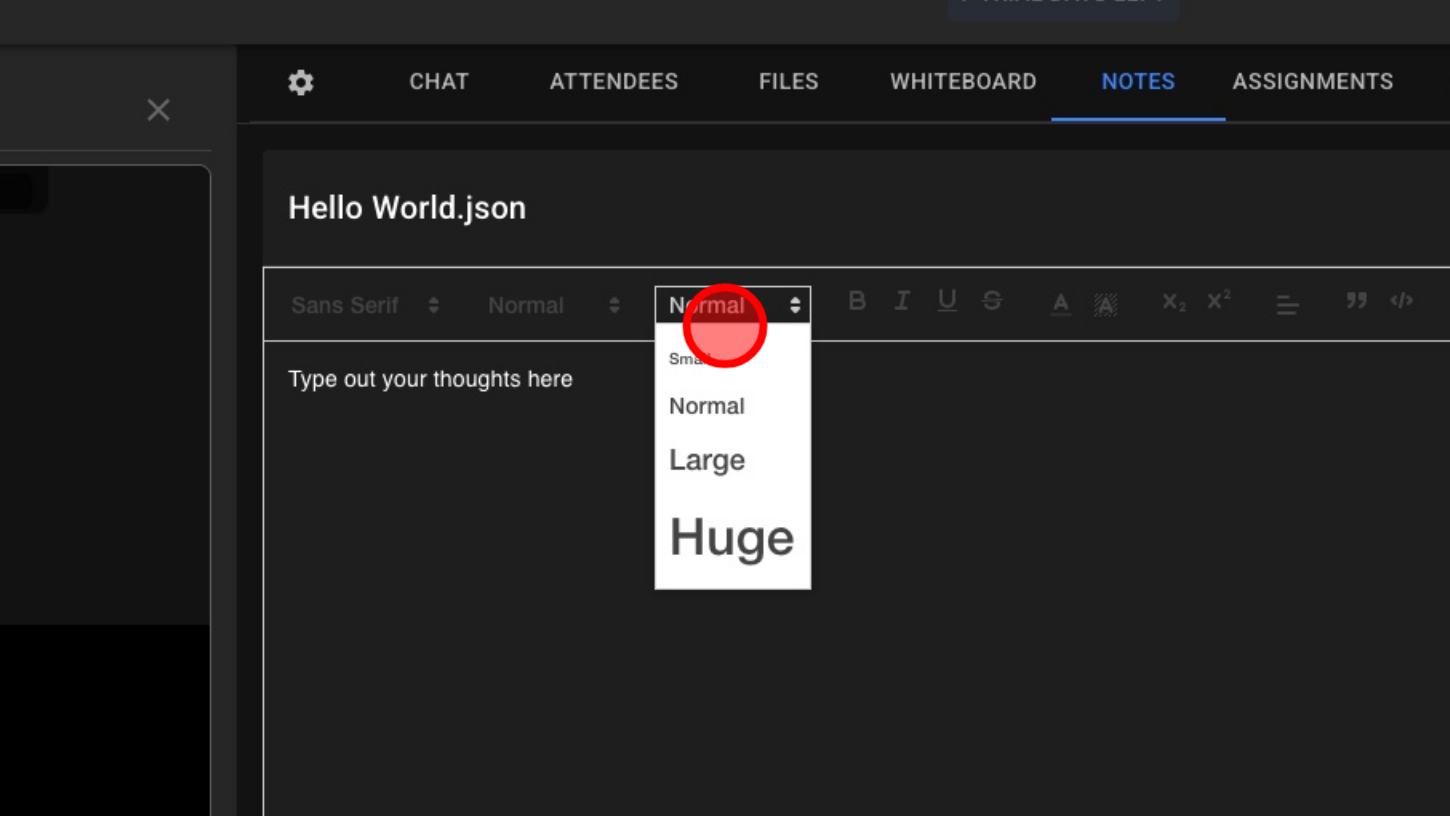
10. "B" Bold Font
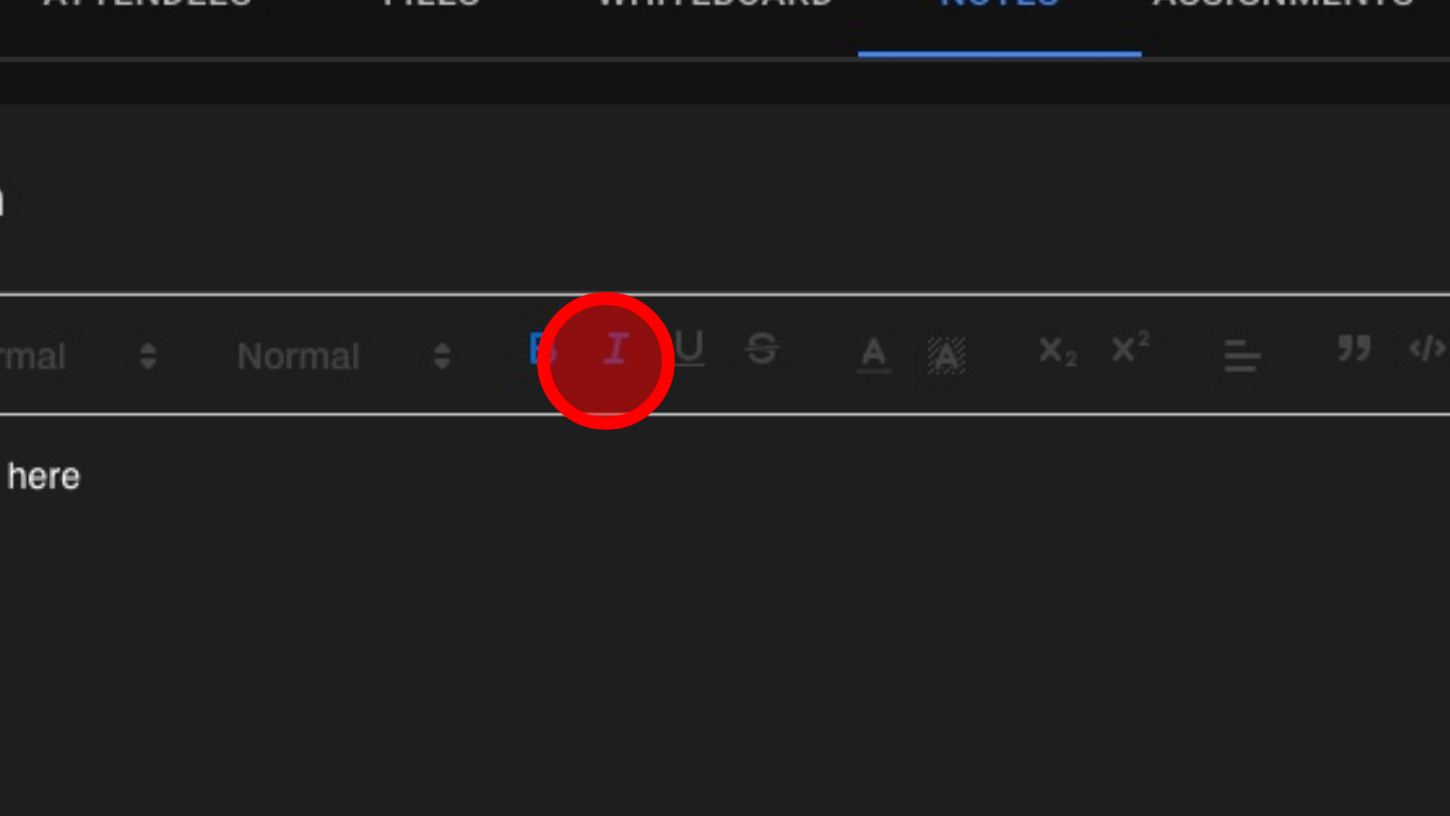
11. "I" Italics
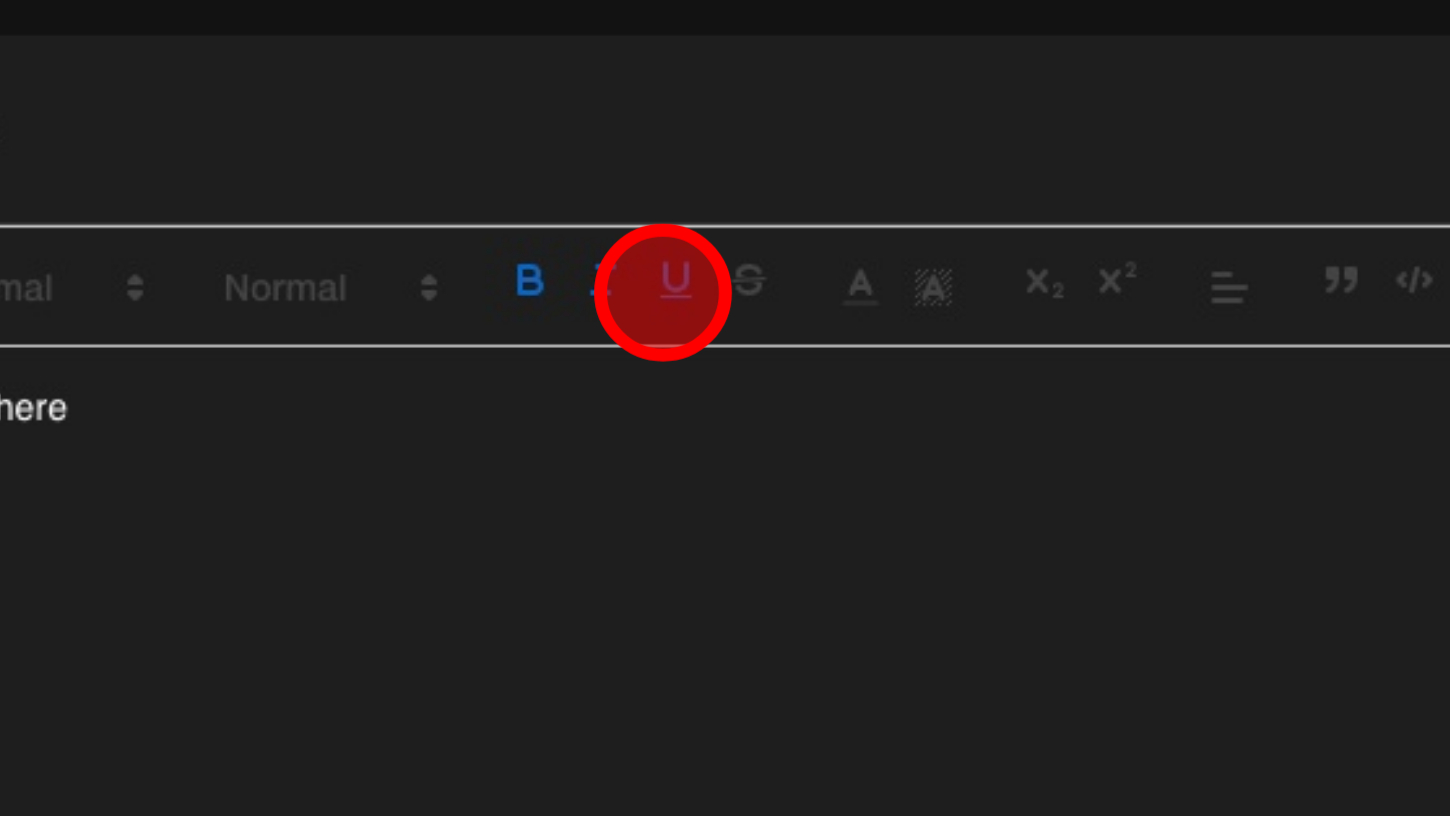
12. Underline Text
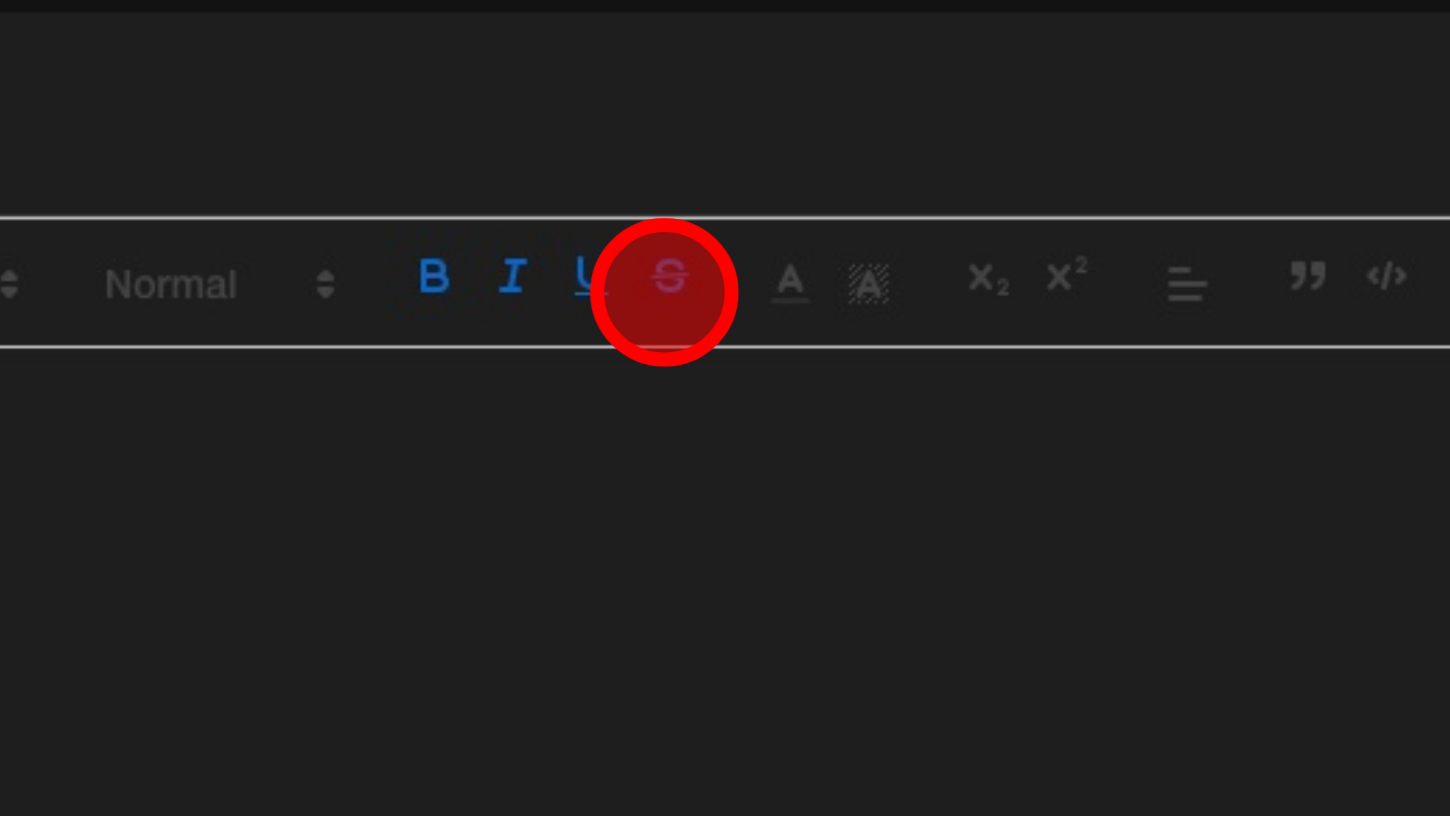
13. Strikethrough Text
14. Font Color
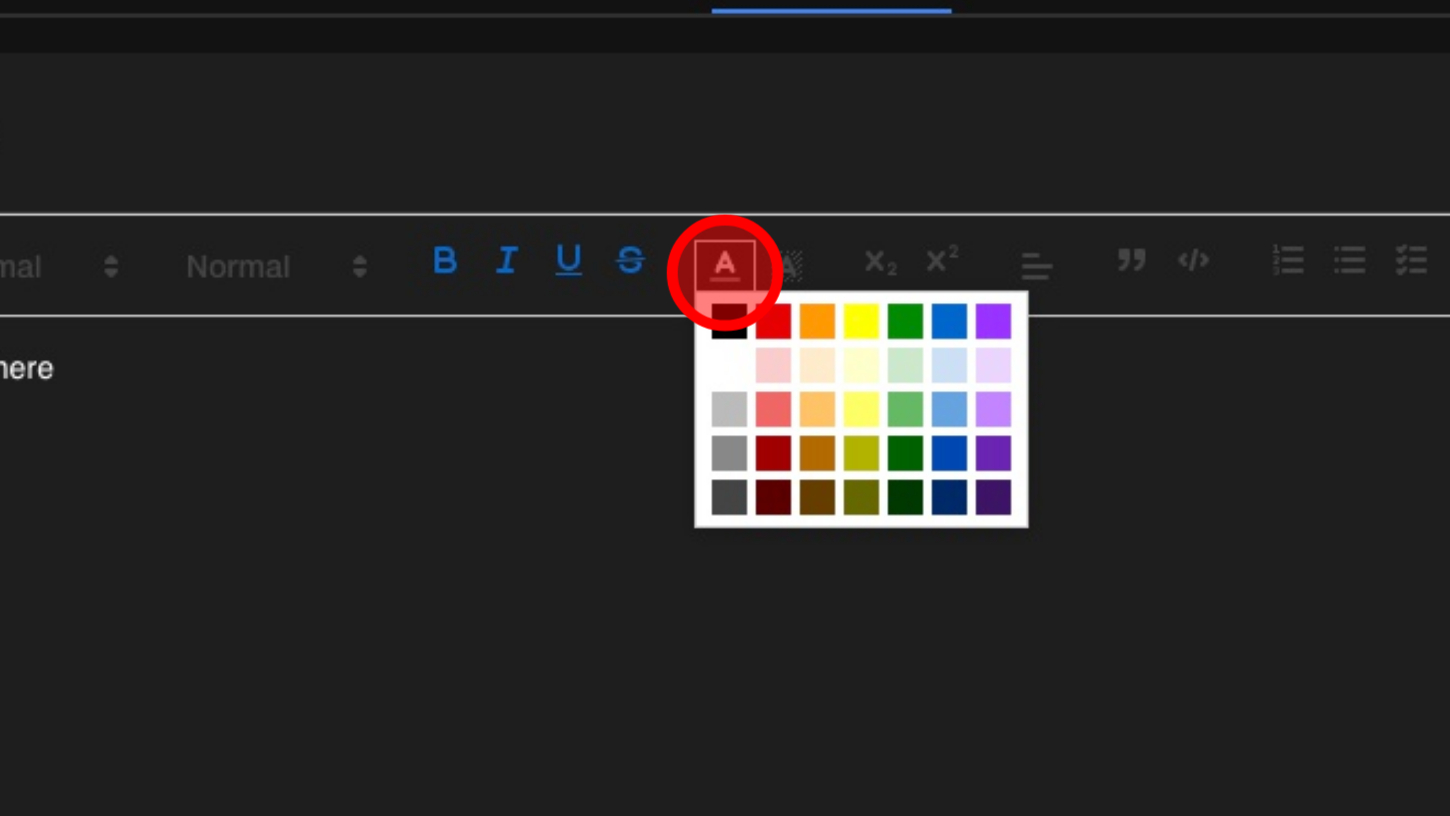
15. Text Highlight Color
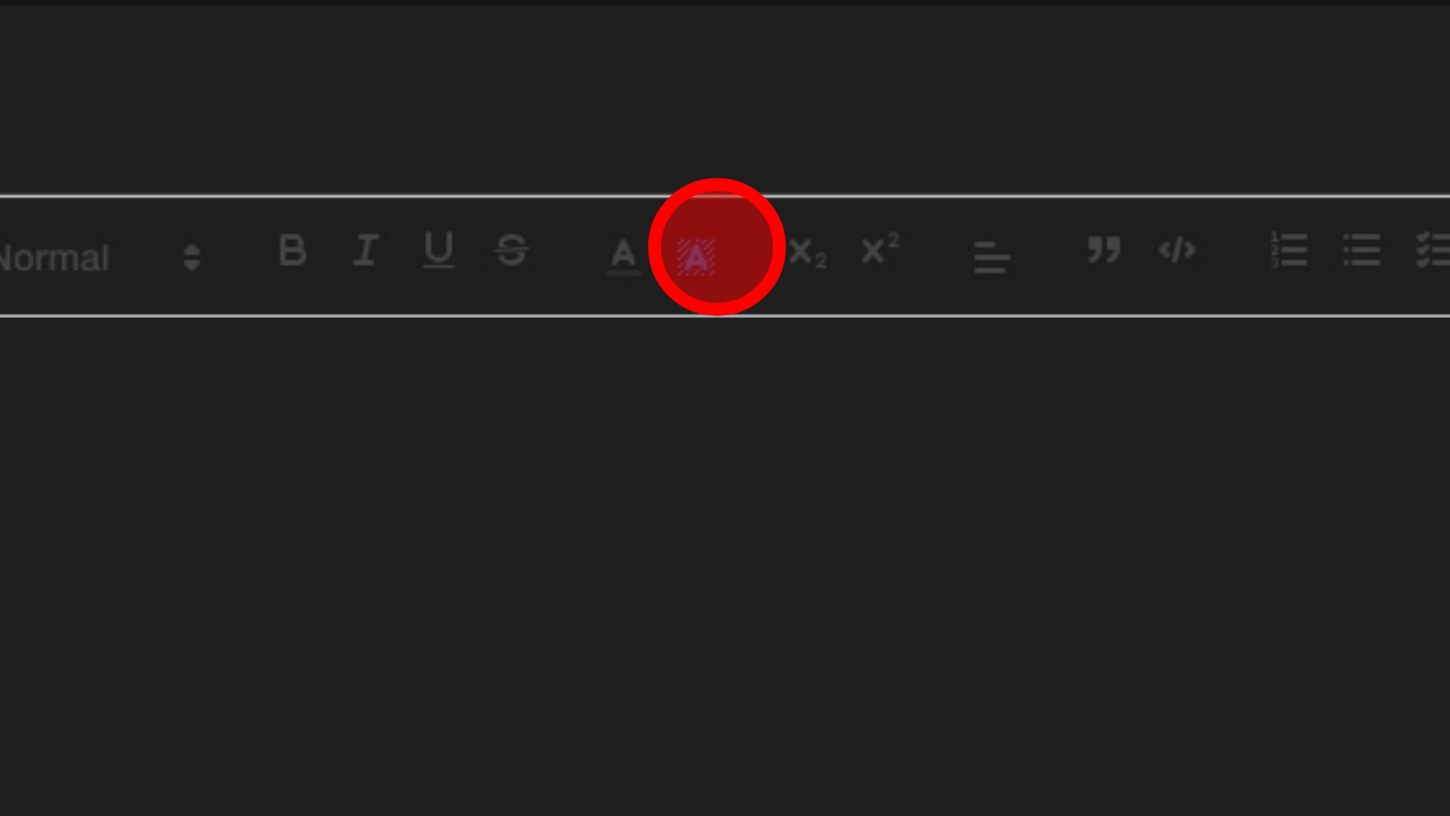
16. Subscript
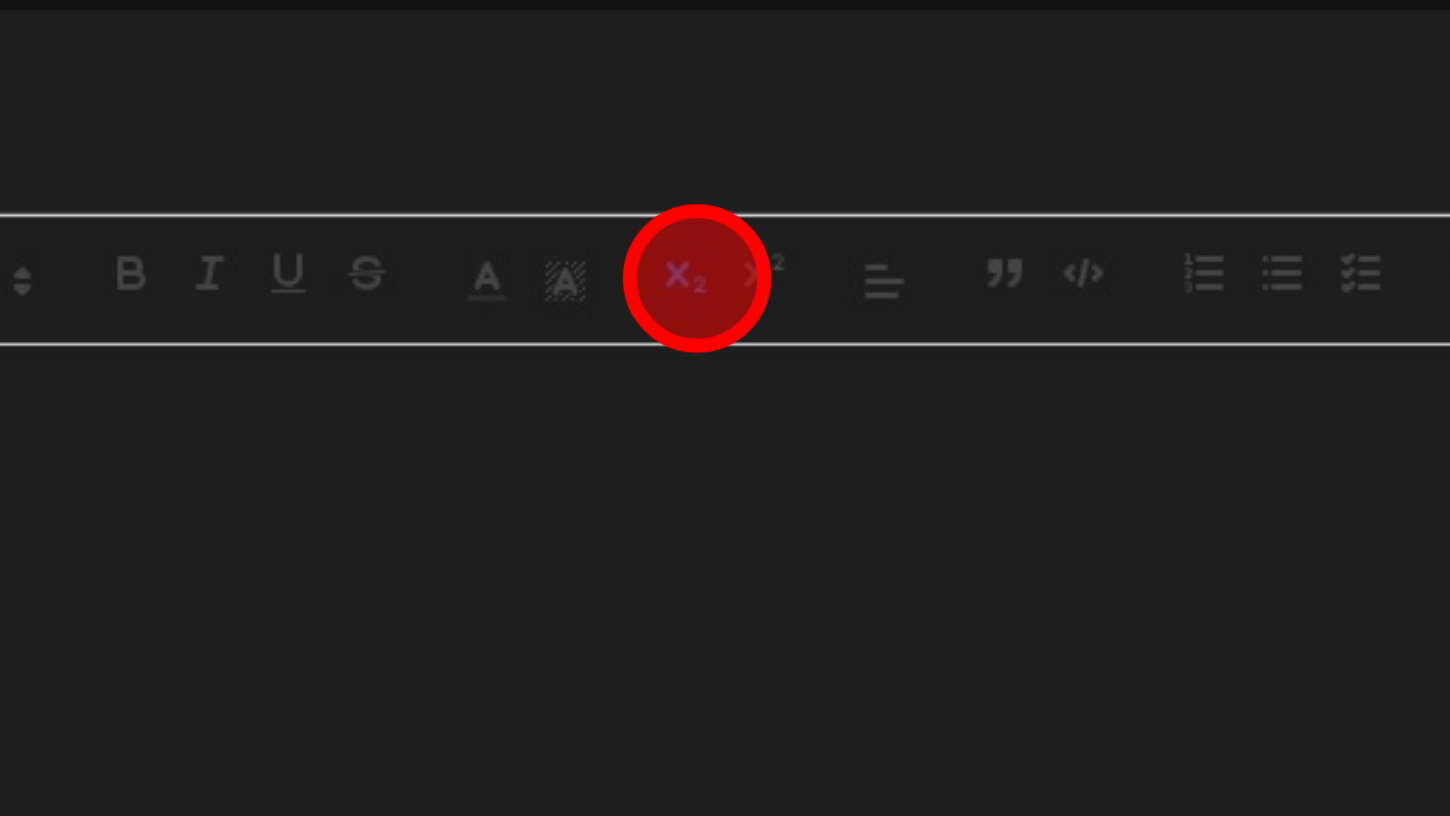
17. Superscript
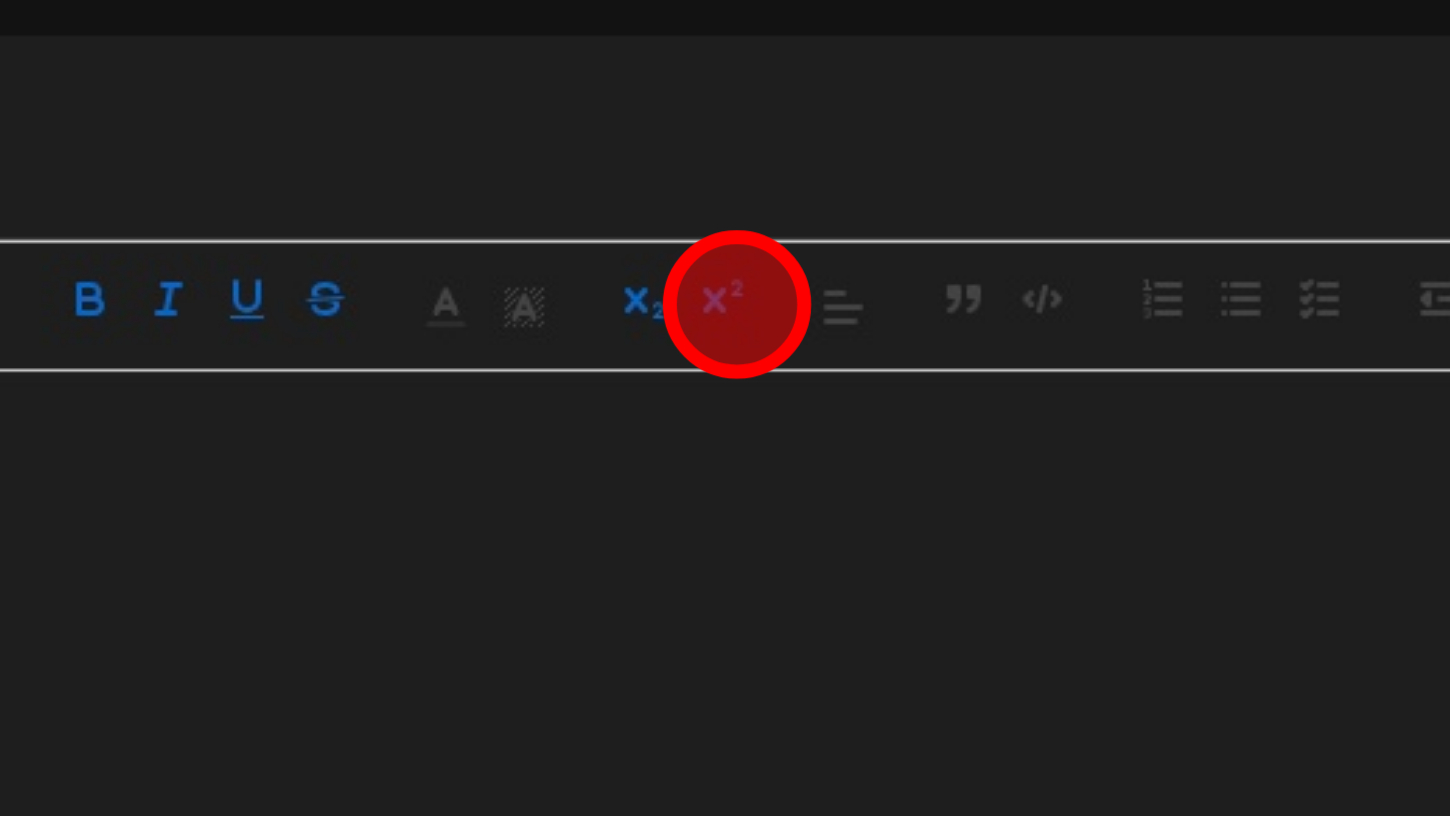
18. Text Alignment
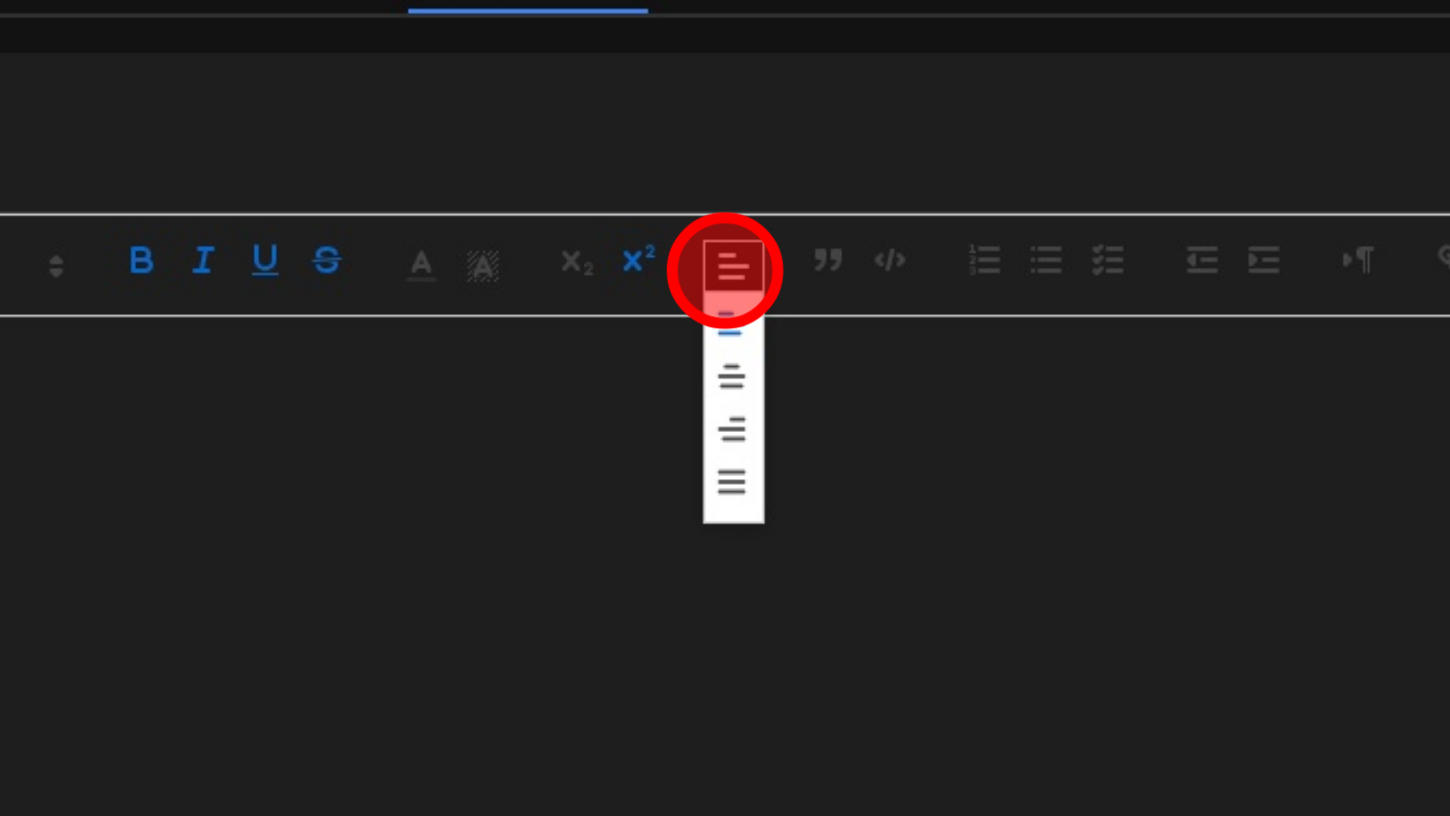
19. Create Quotes
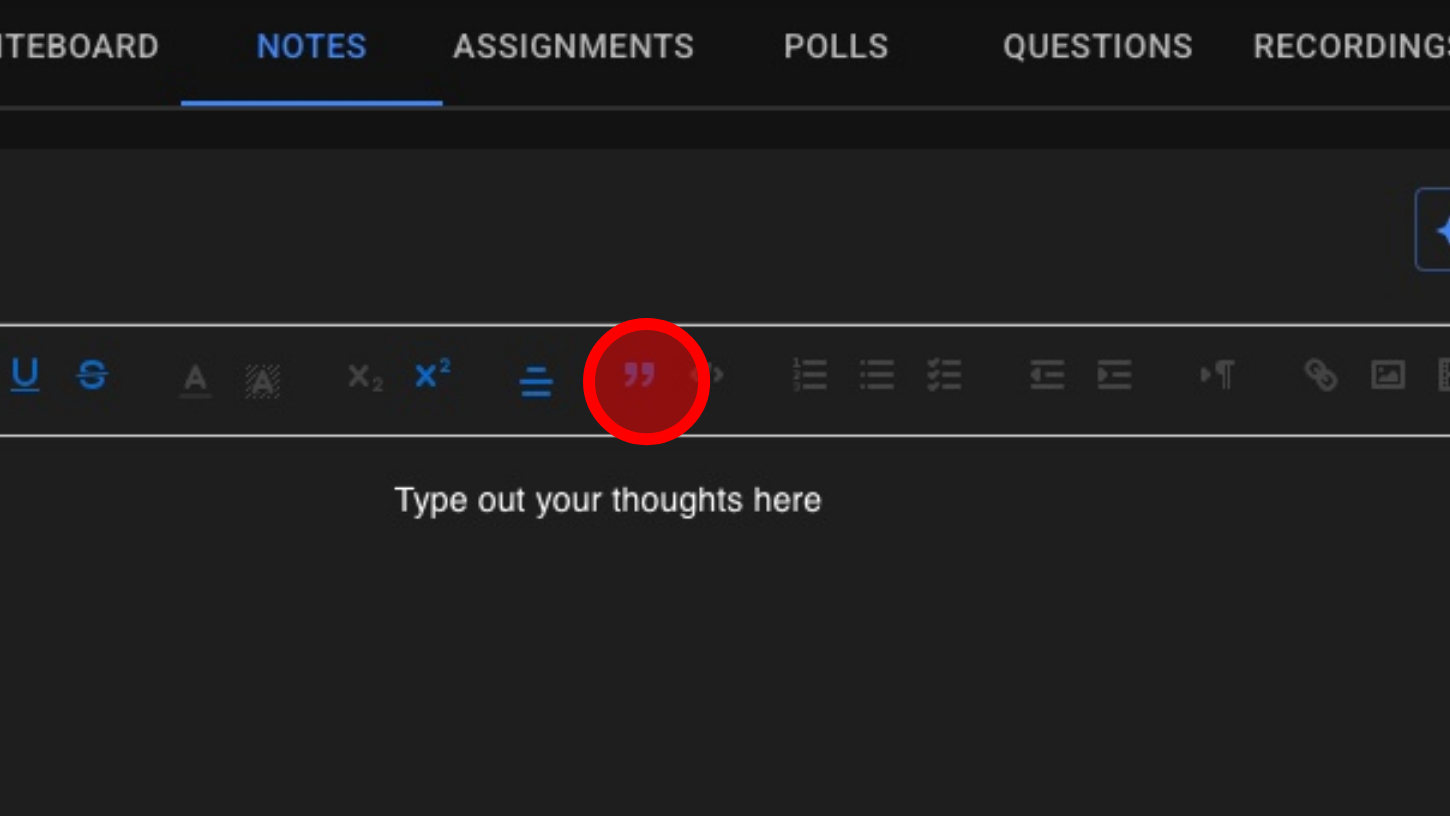
20. Format Code
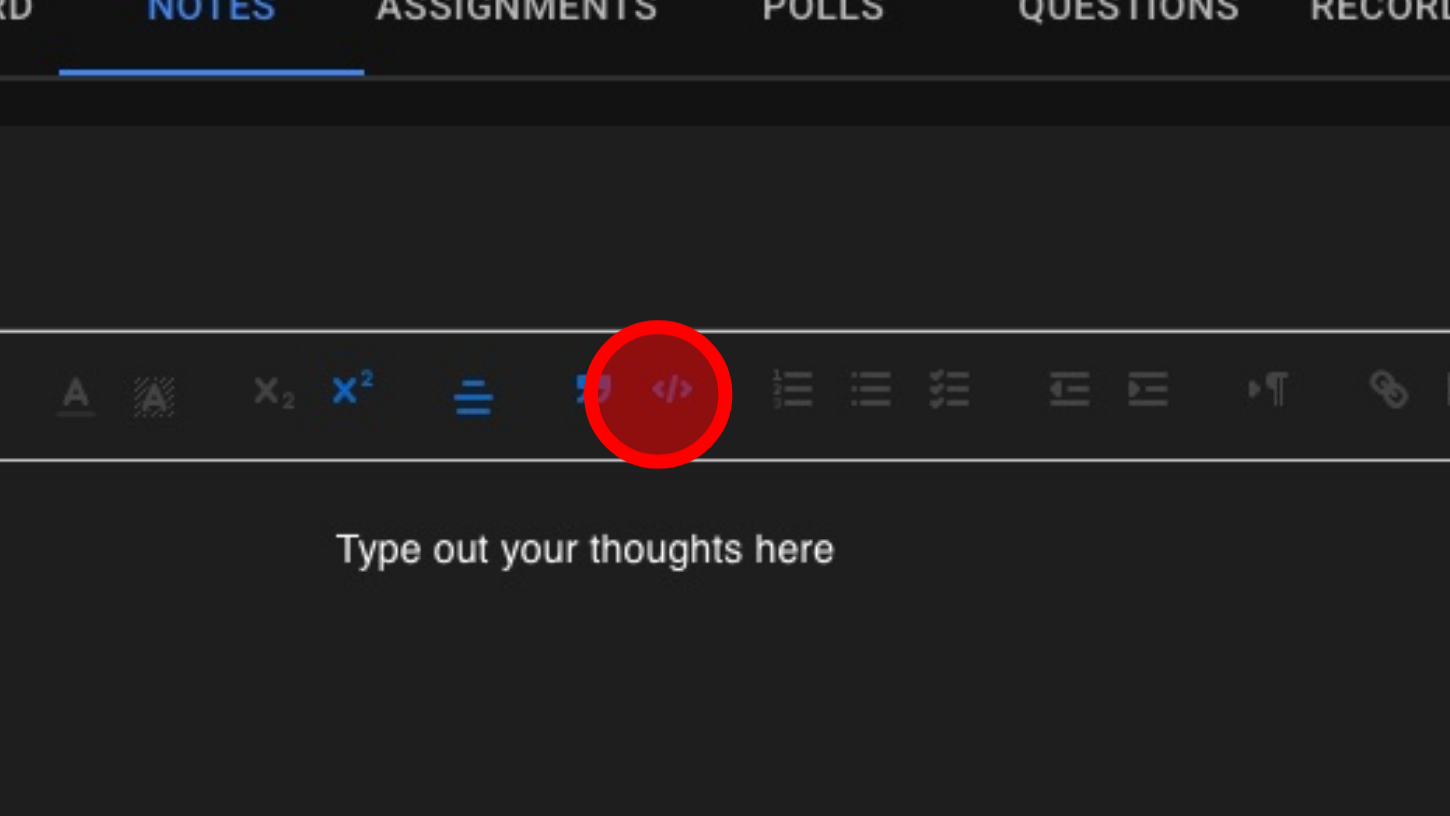
21. Numbered List
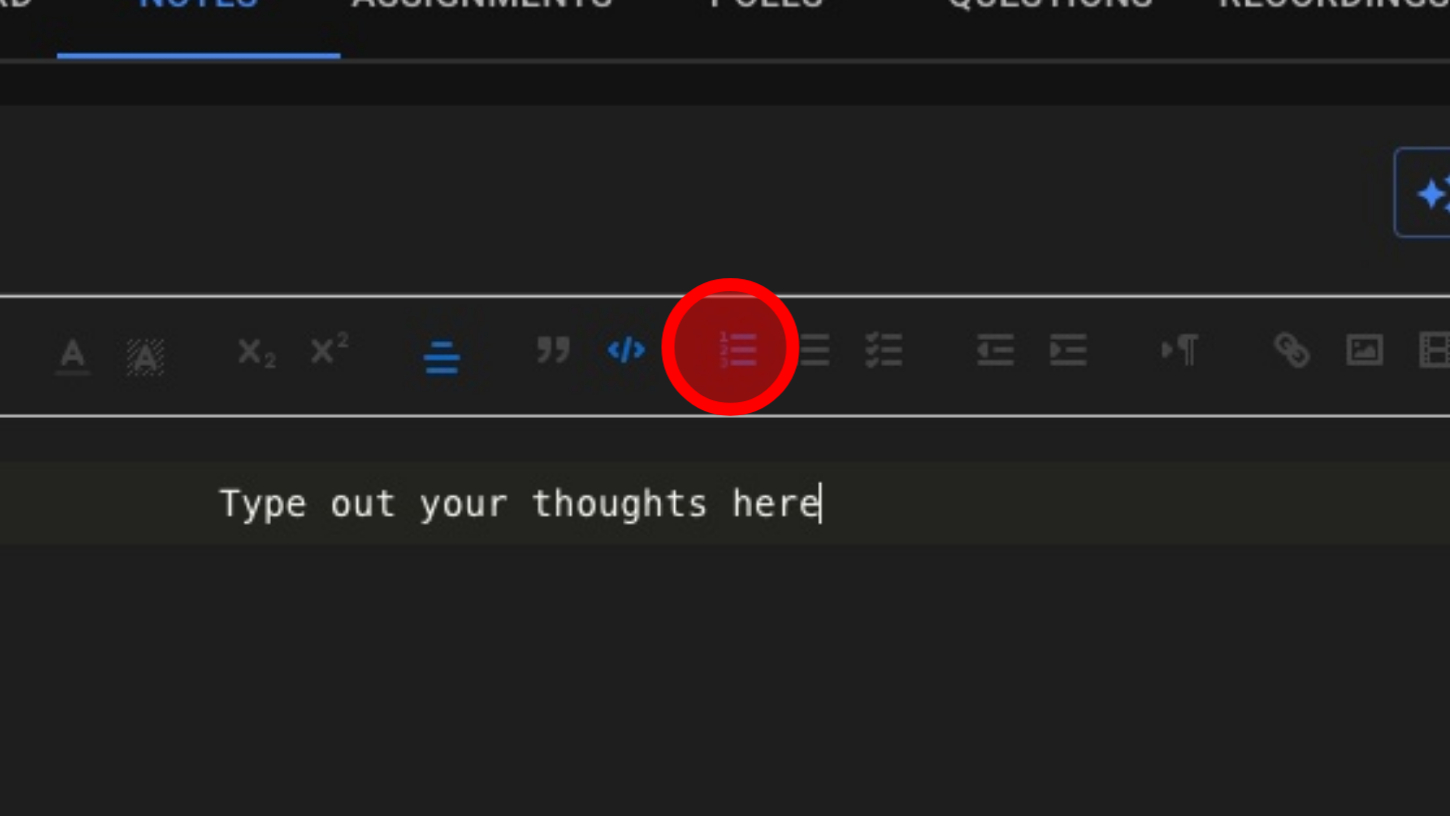
22. Bullet List
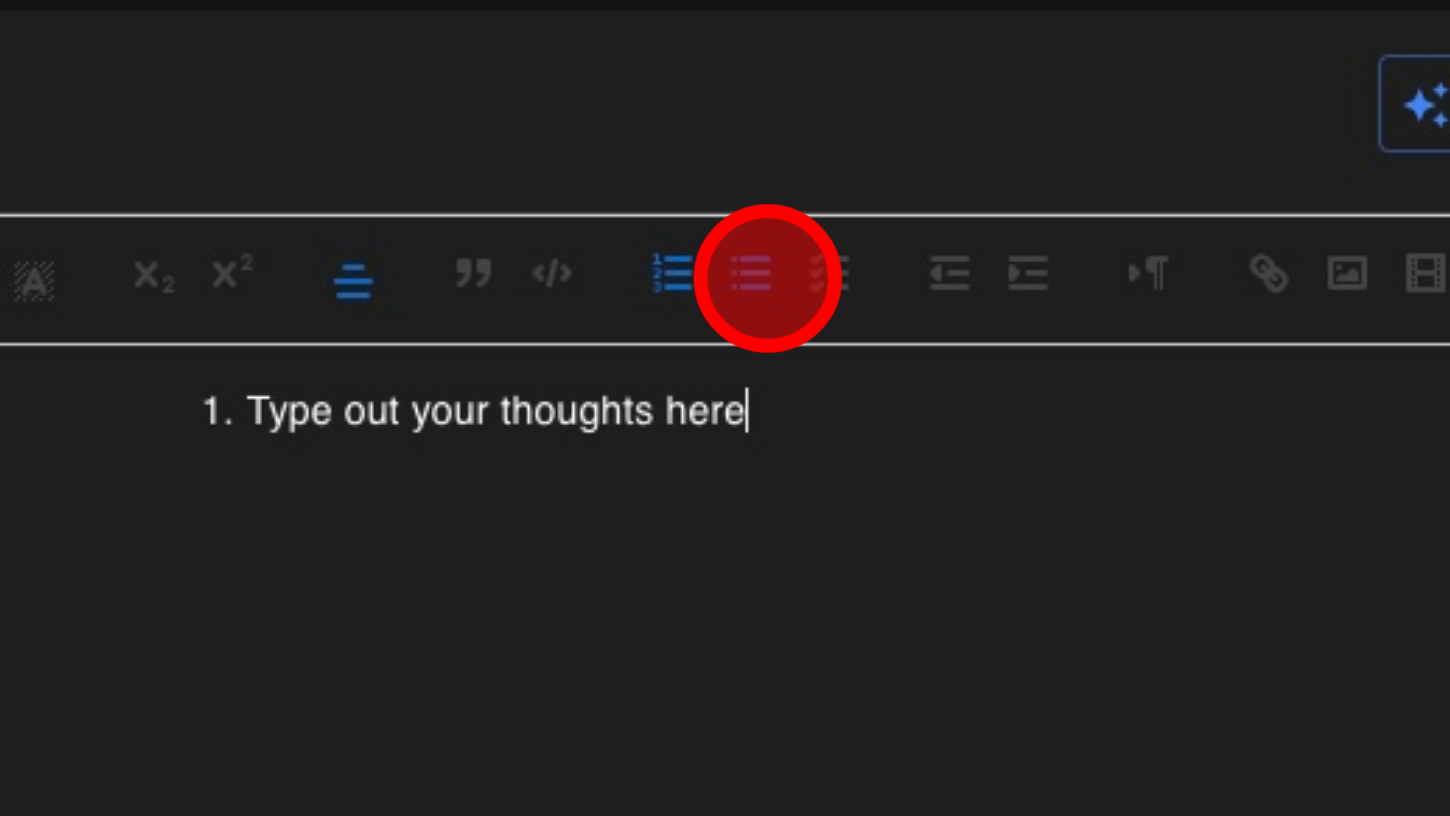
23. Check List
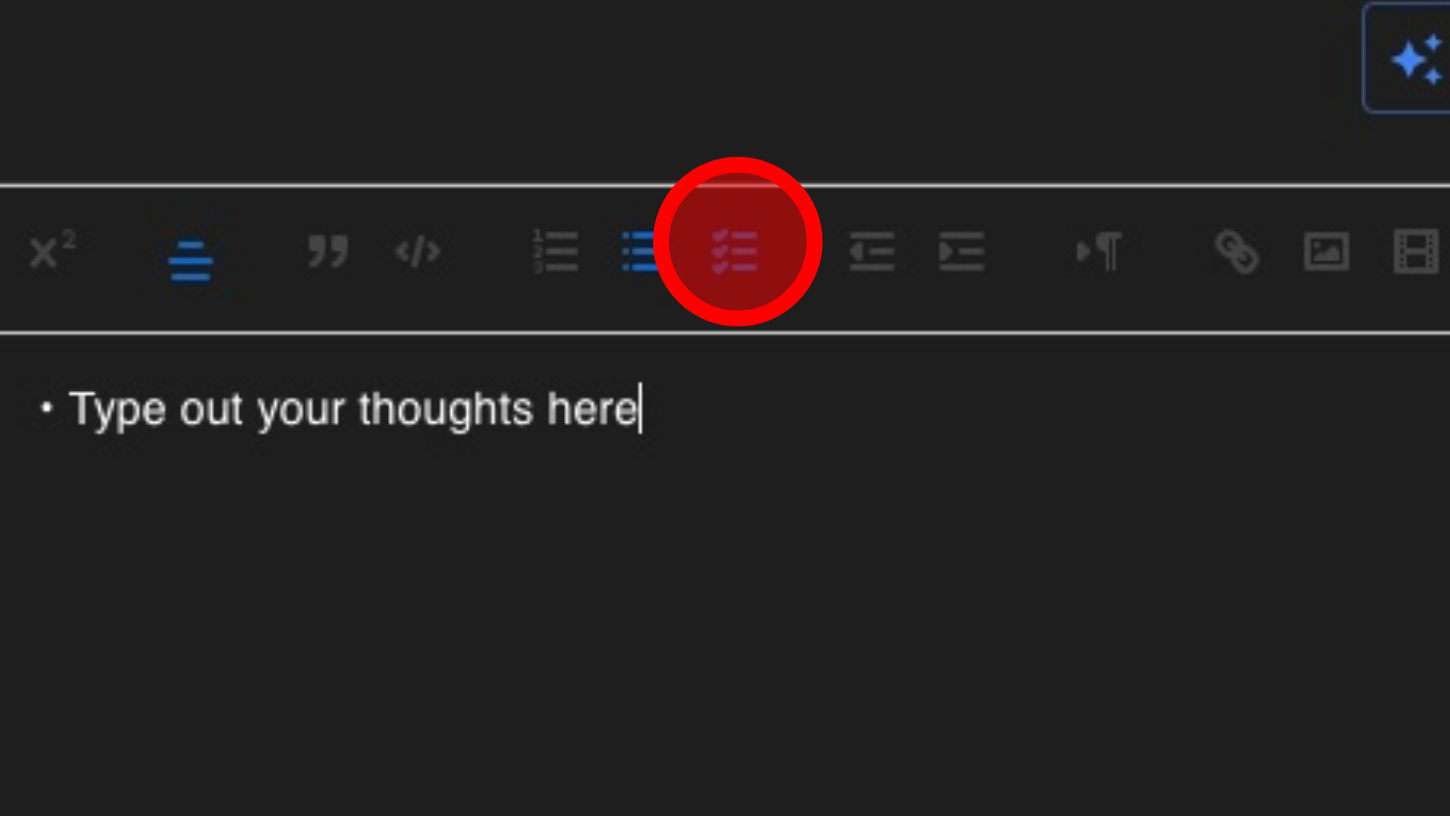
24. Indent Text Right
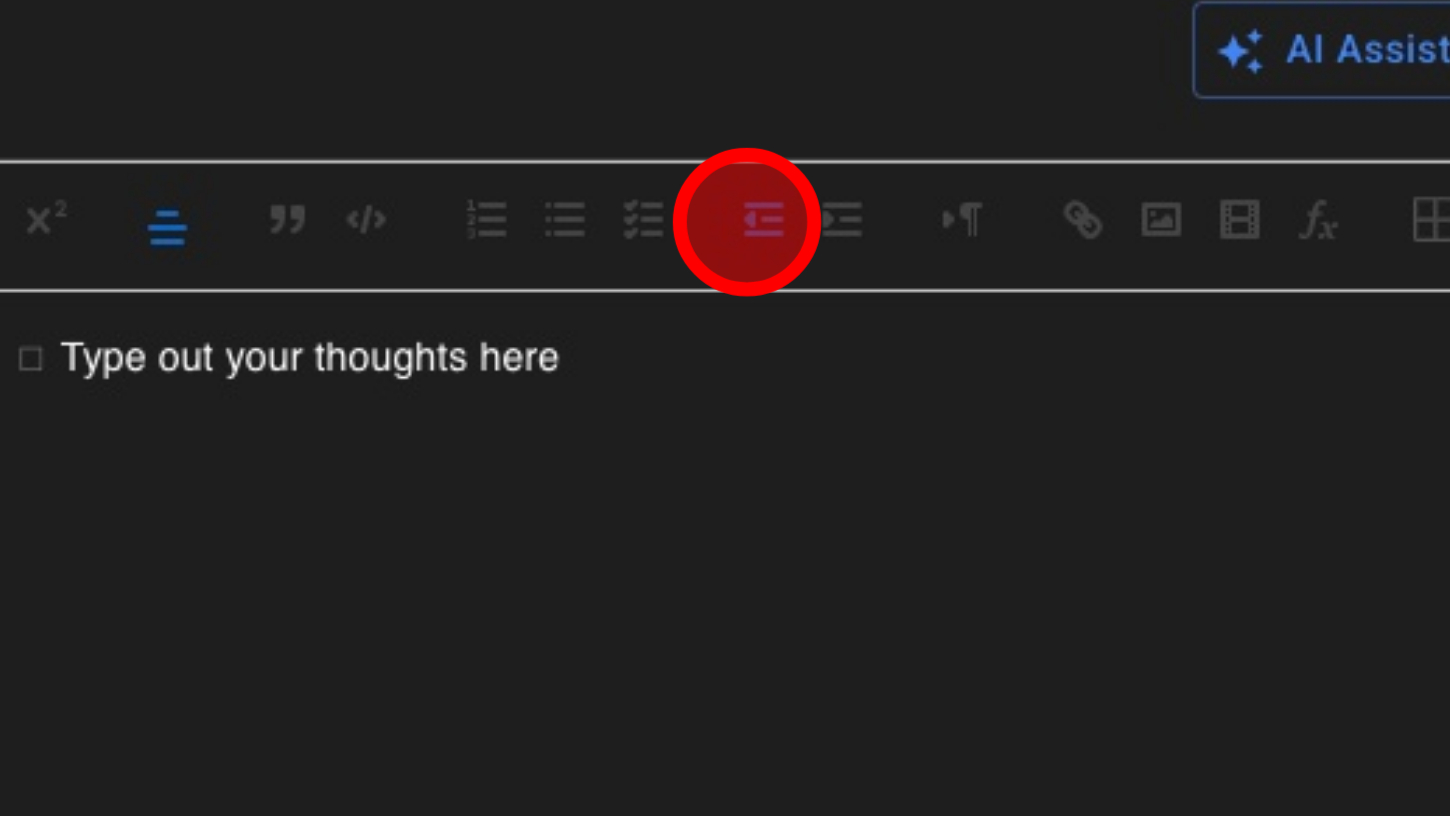
25. Indent Text Left
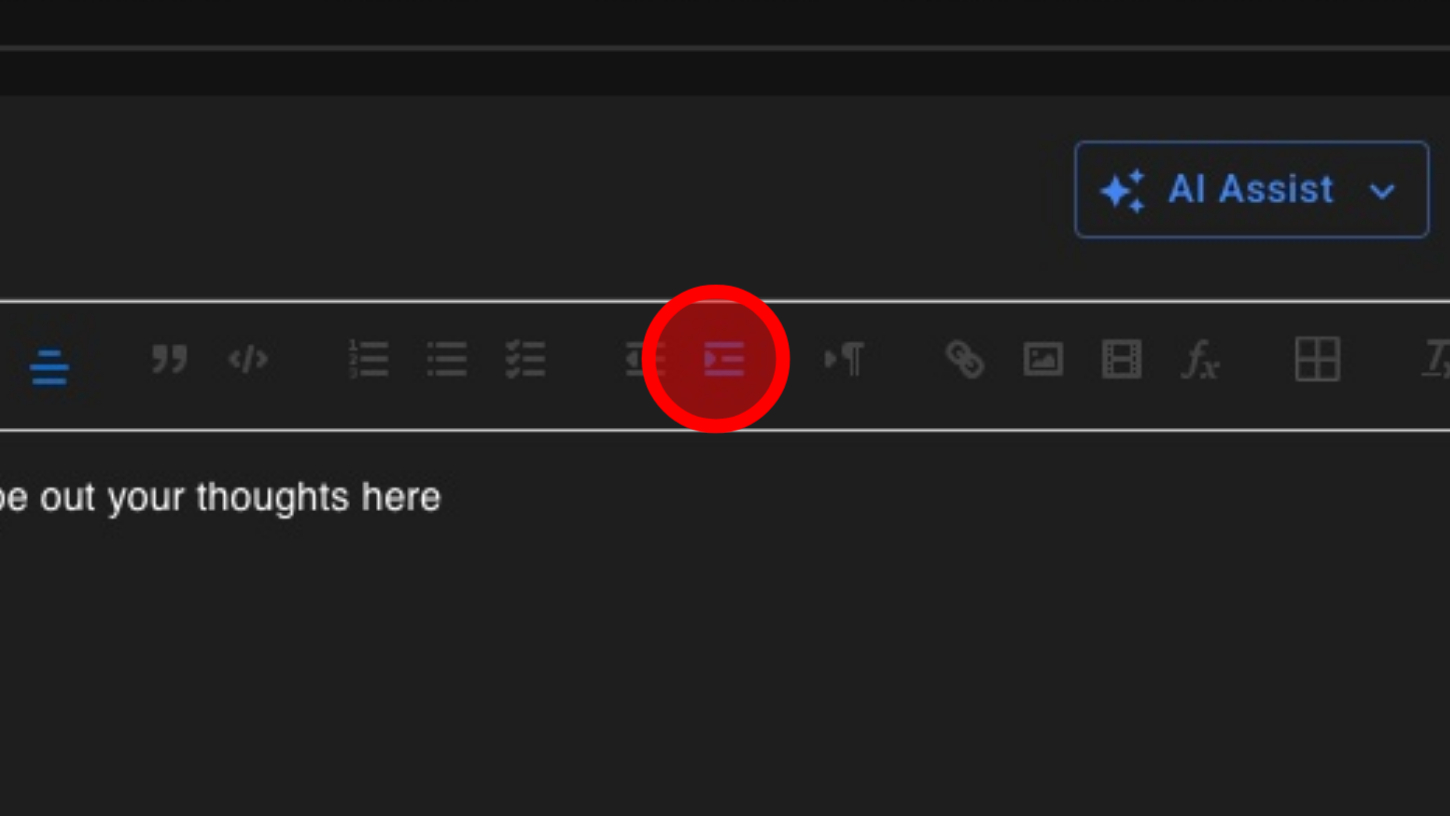
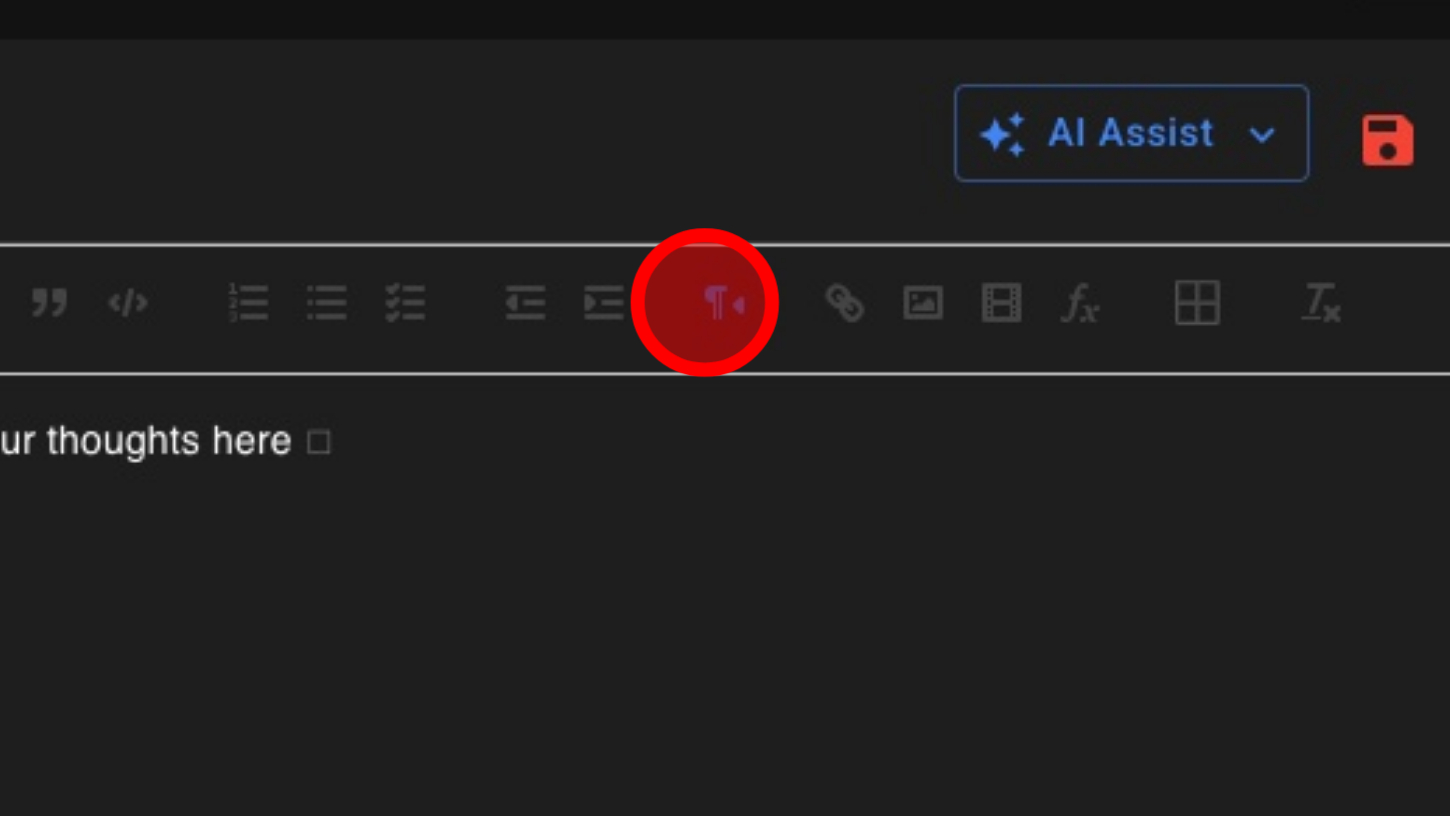
26. Typing Direction – Right to Left
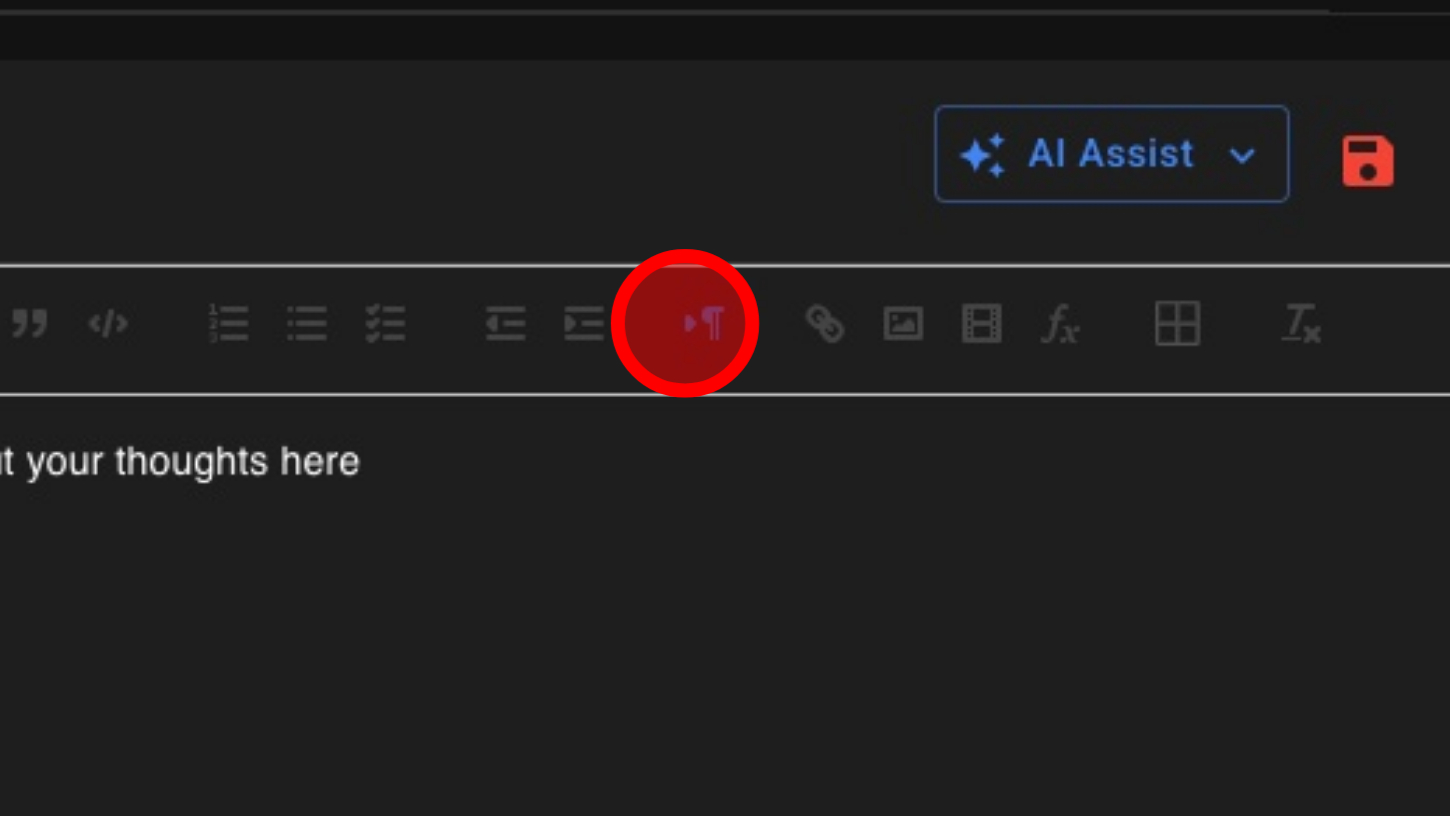
27. Typing Direction – Left to Right
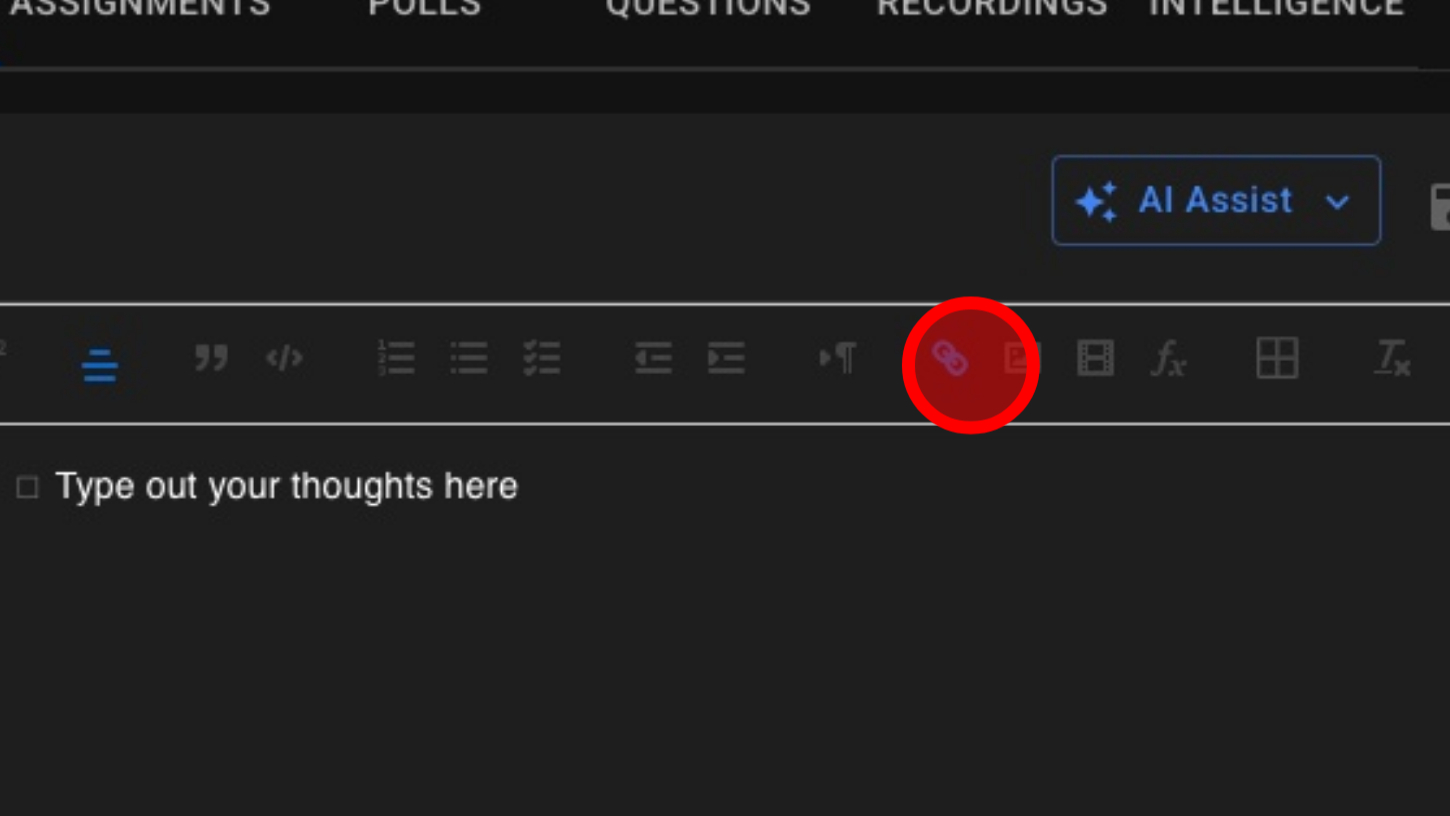
28. Insert Hyperlink
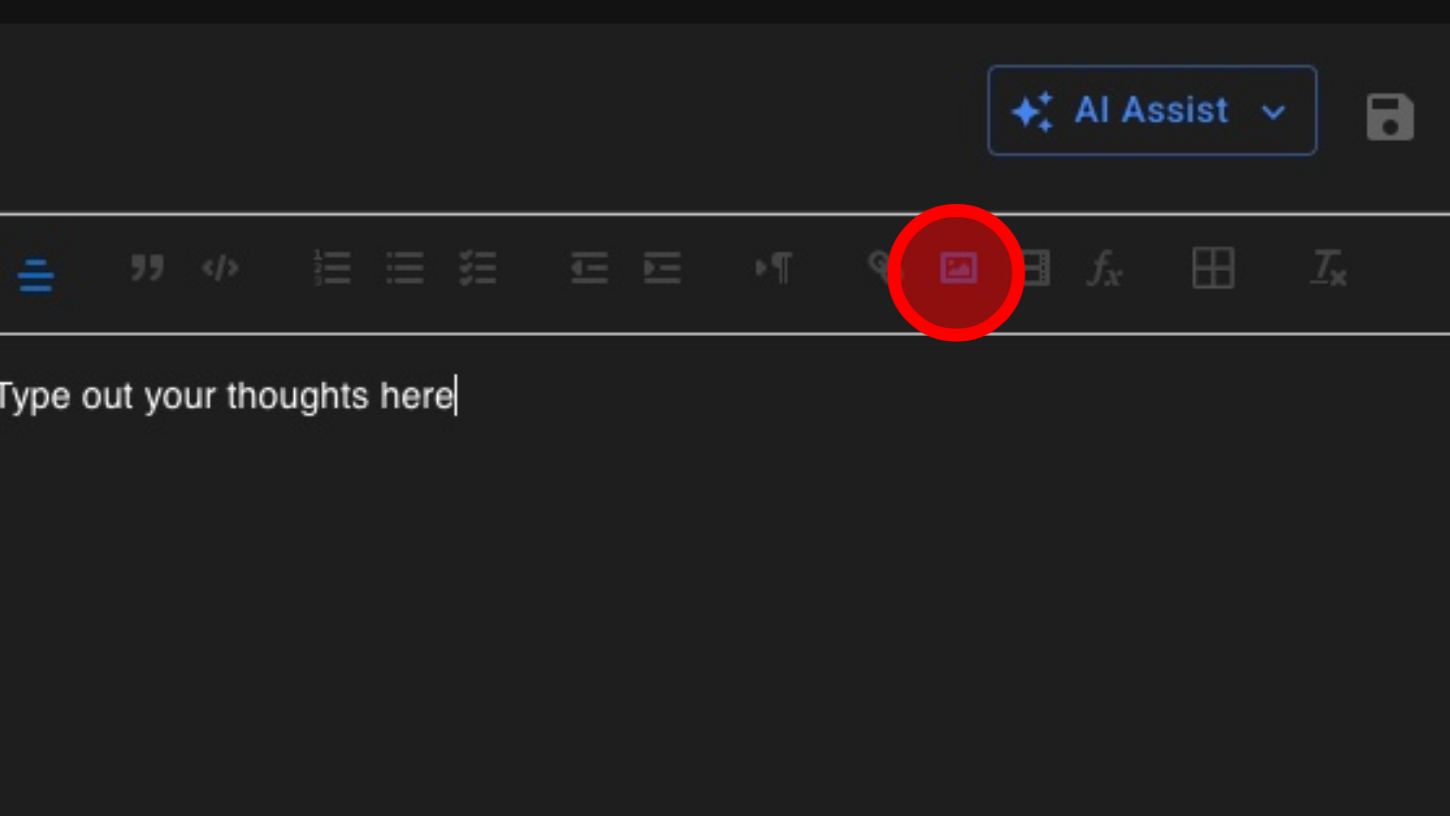
29. Insert Image
30. Embed Video
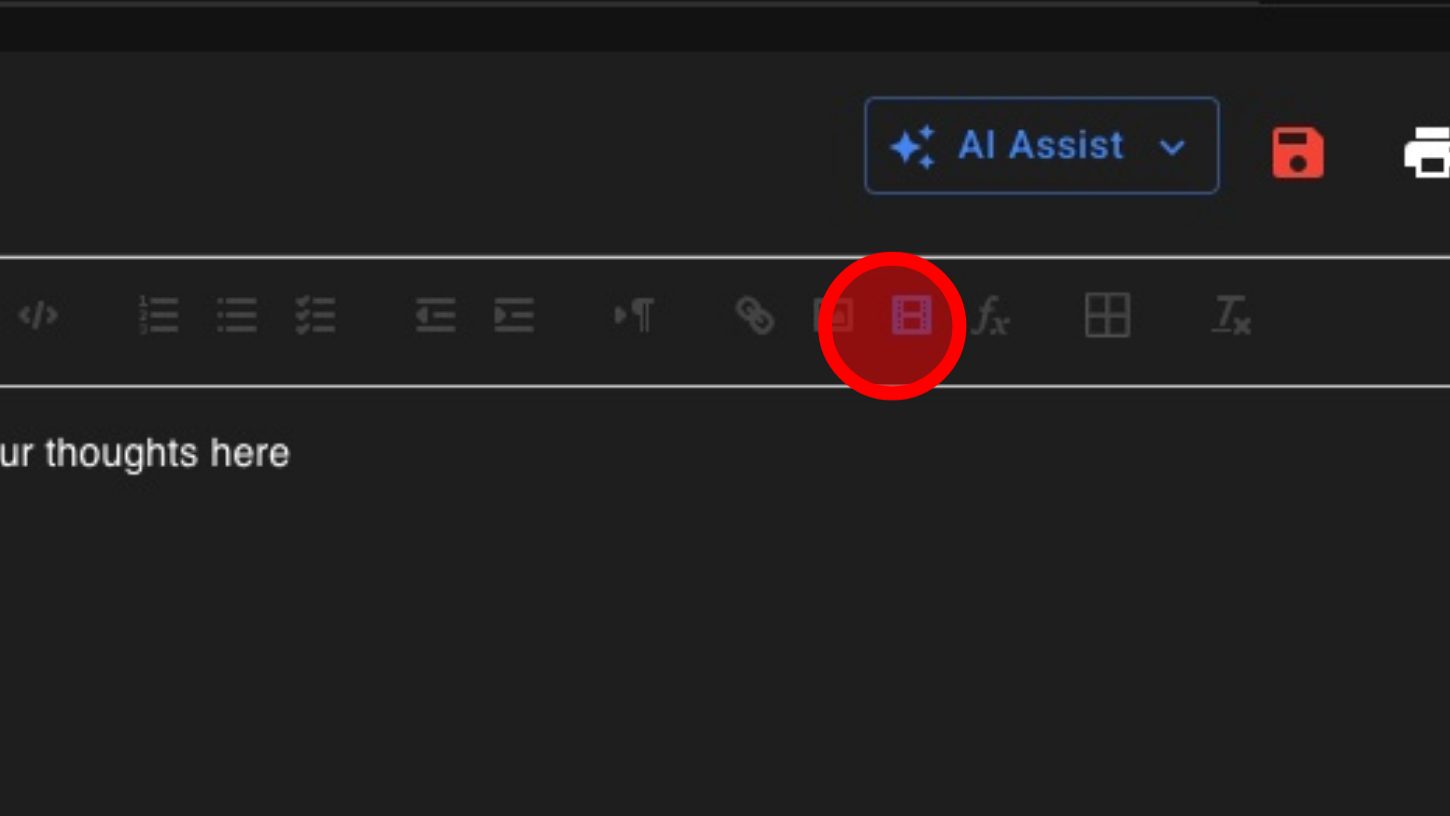
31. Insert Formula
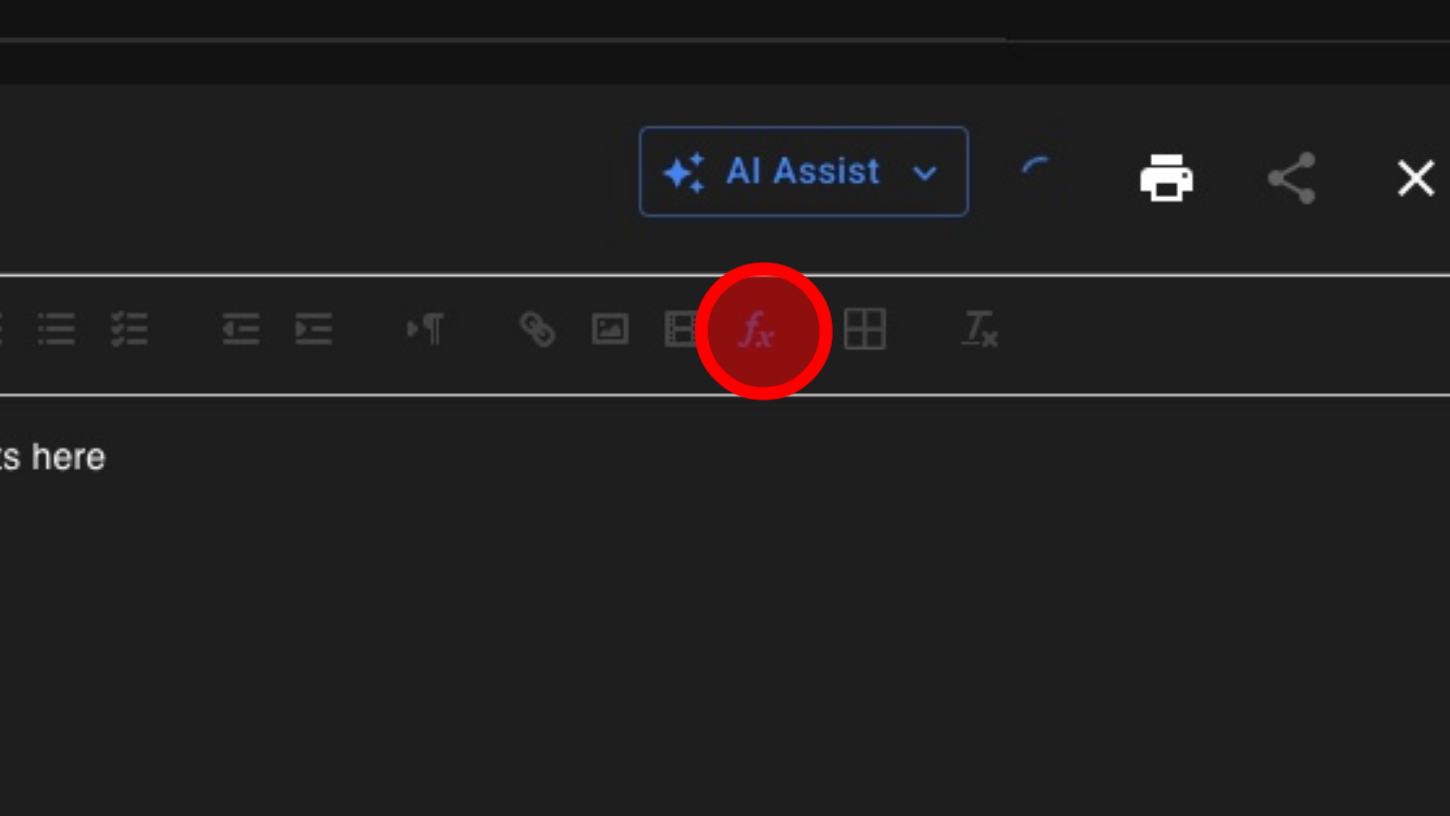
32. Insert Table
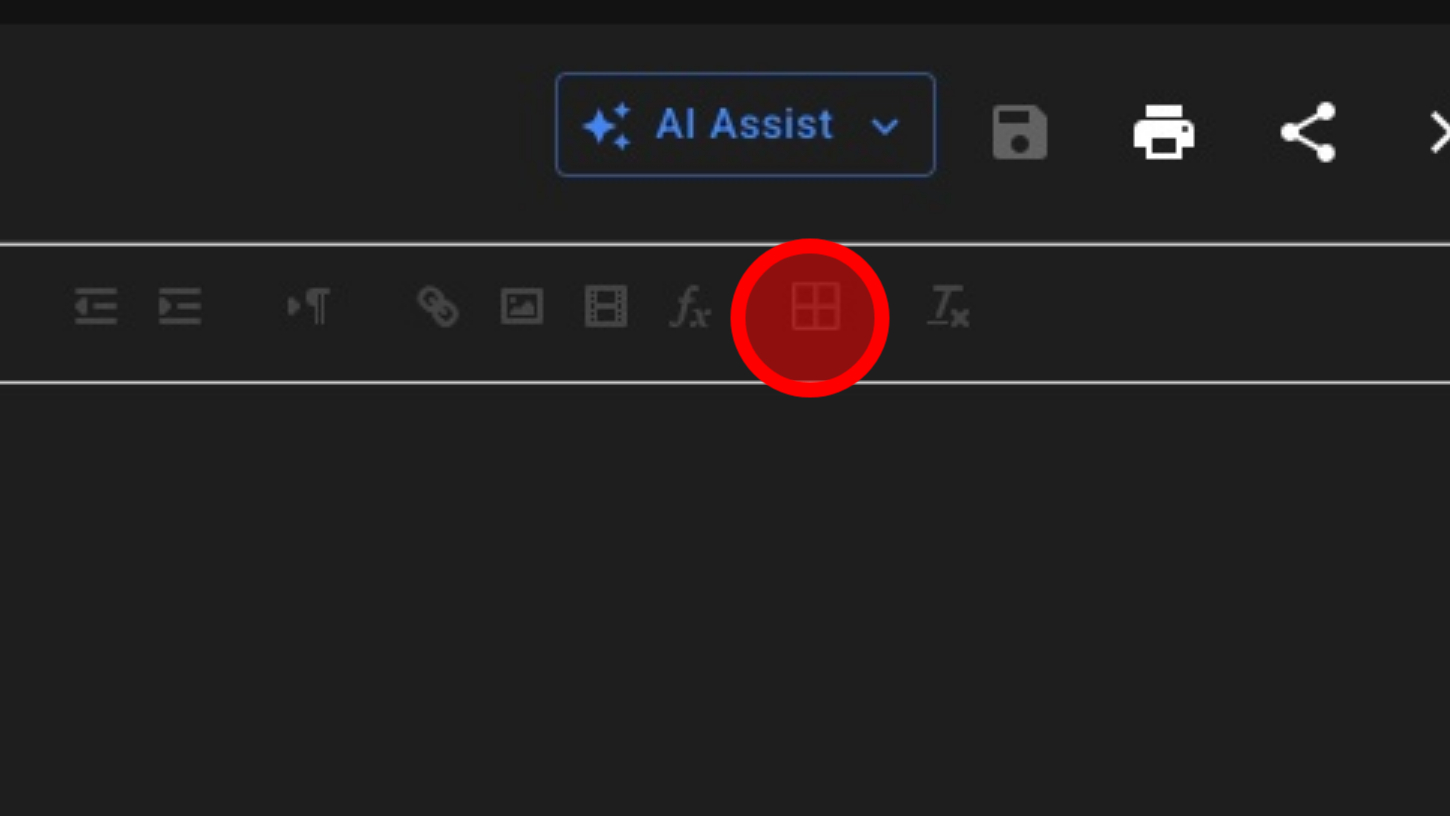
33. Choose Table Size
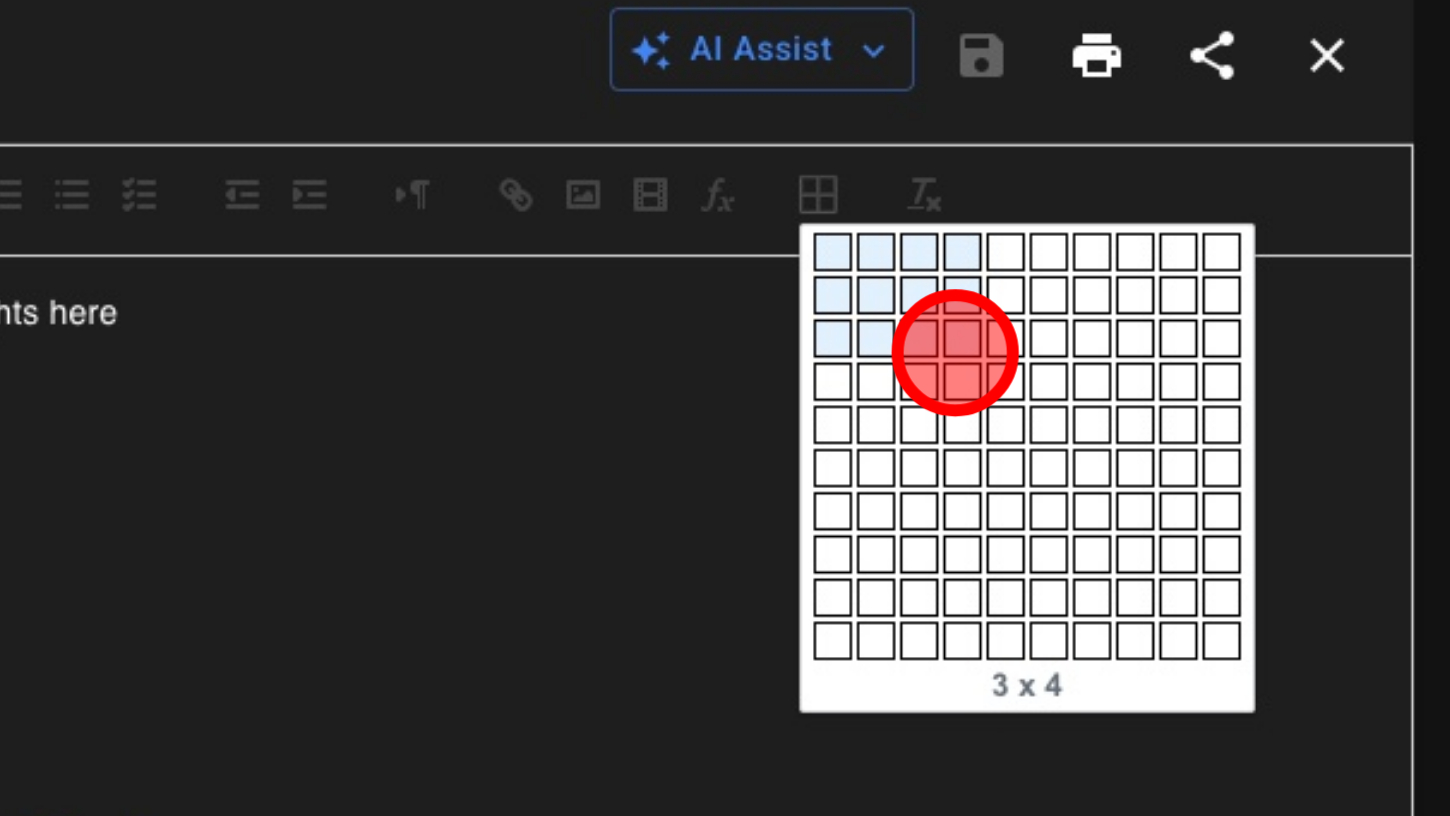
34. Clear Formatting
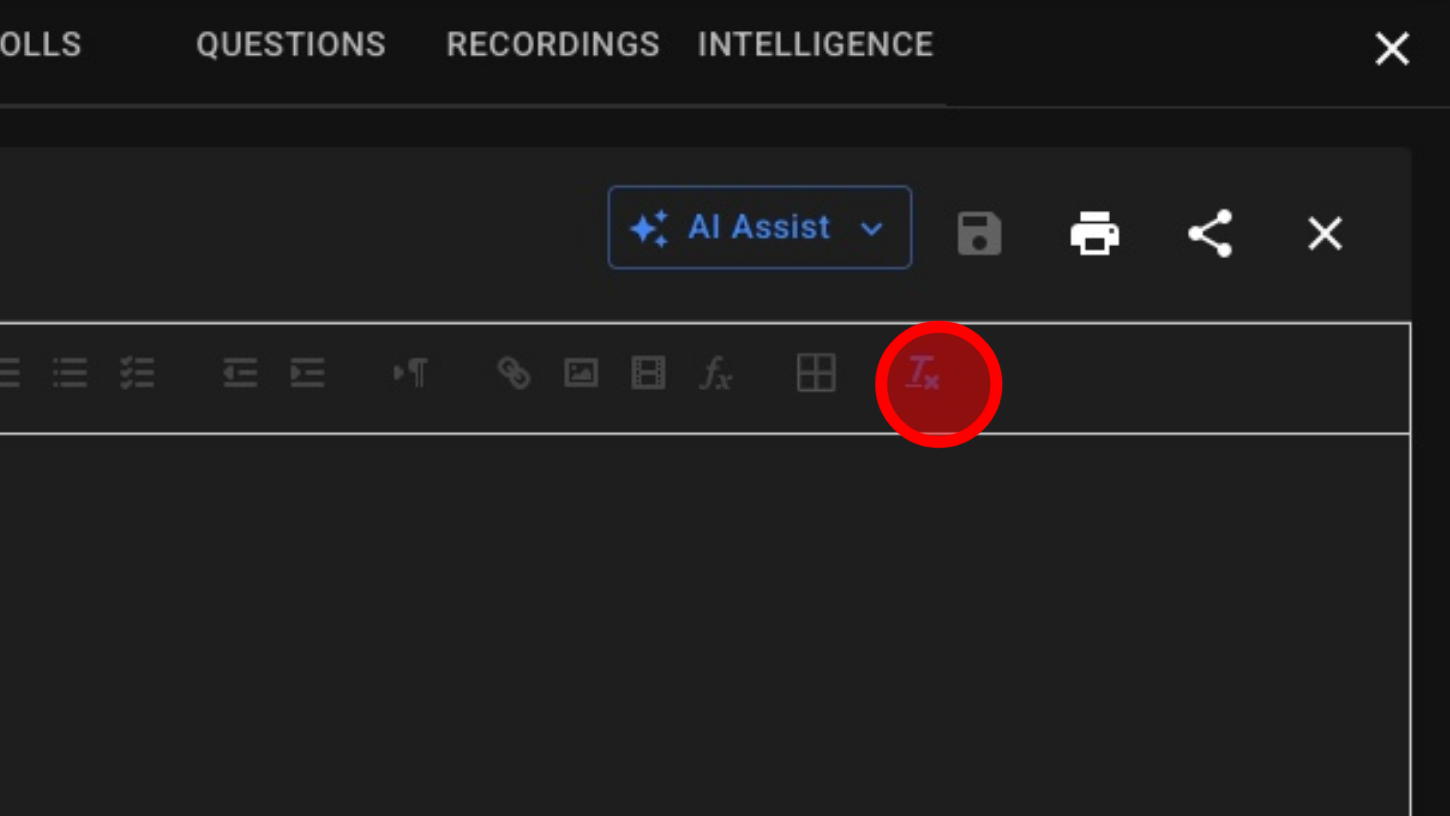
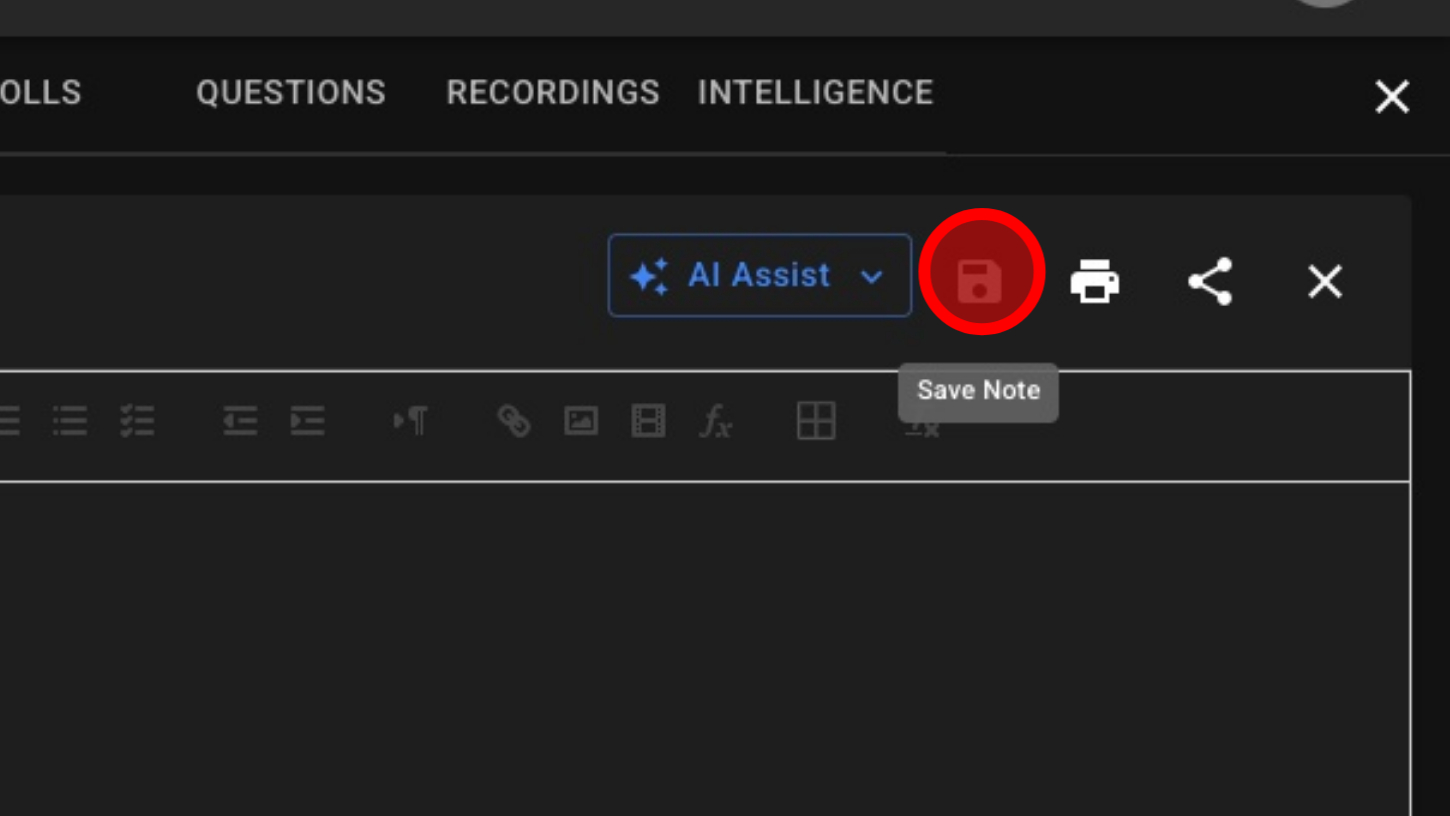
35. Save Note (Notes Autosave)
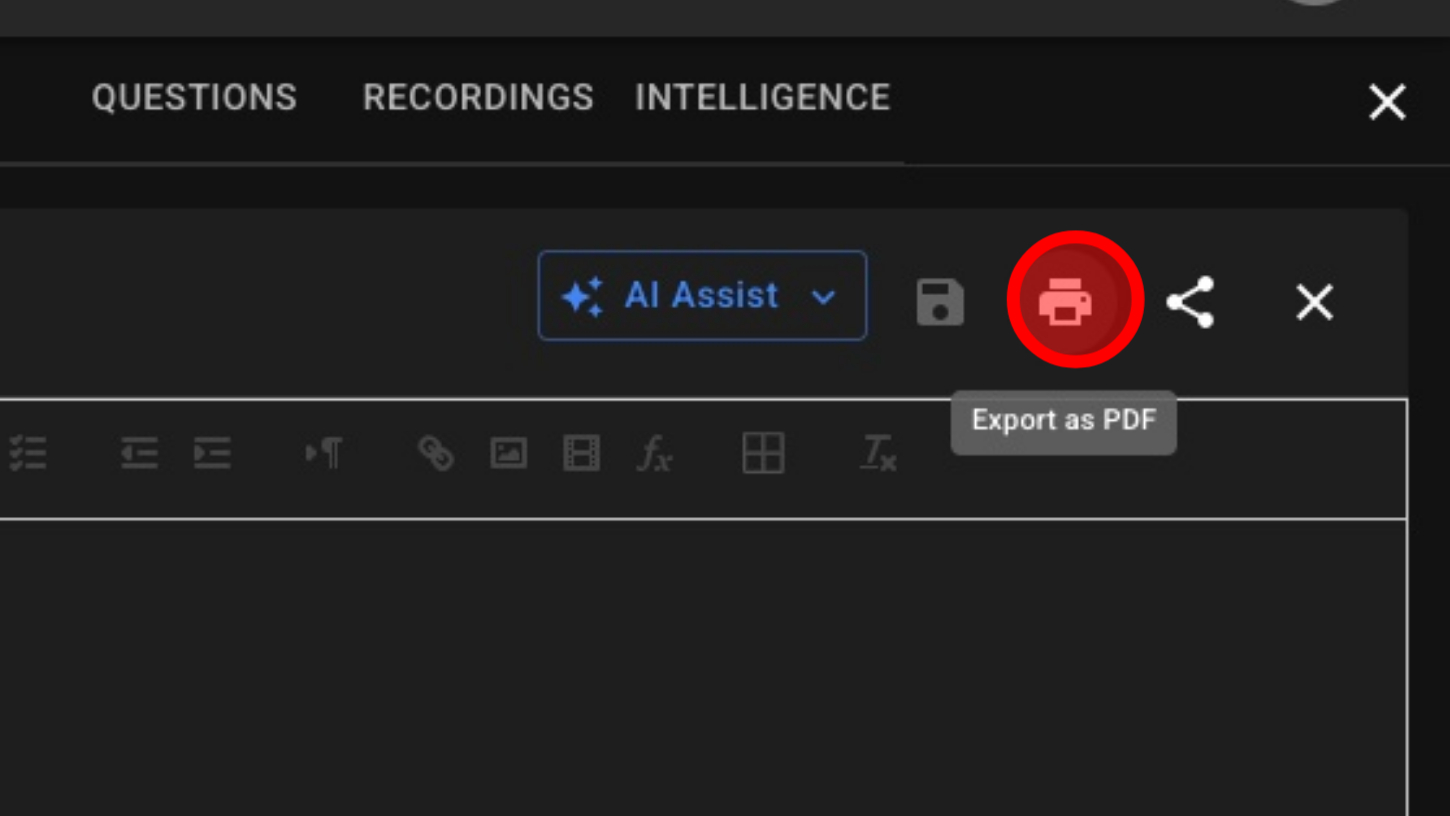
36. Export As PDF
37. Share Note With Guests (Shared Notes Are Currently Read Only For Guests)
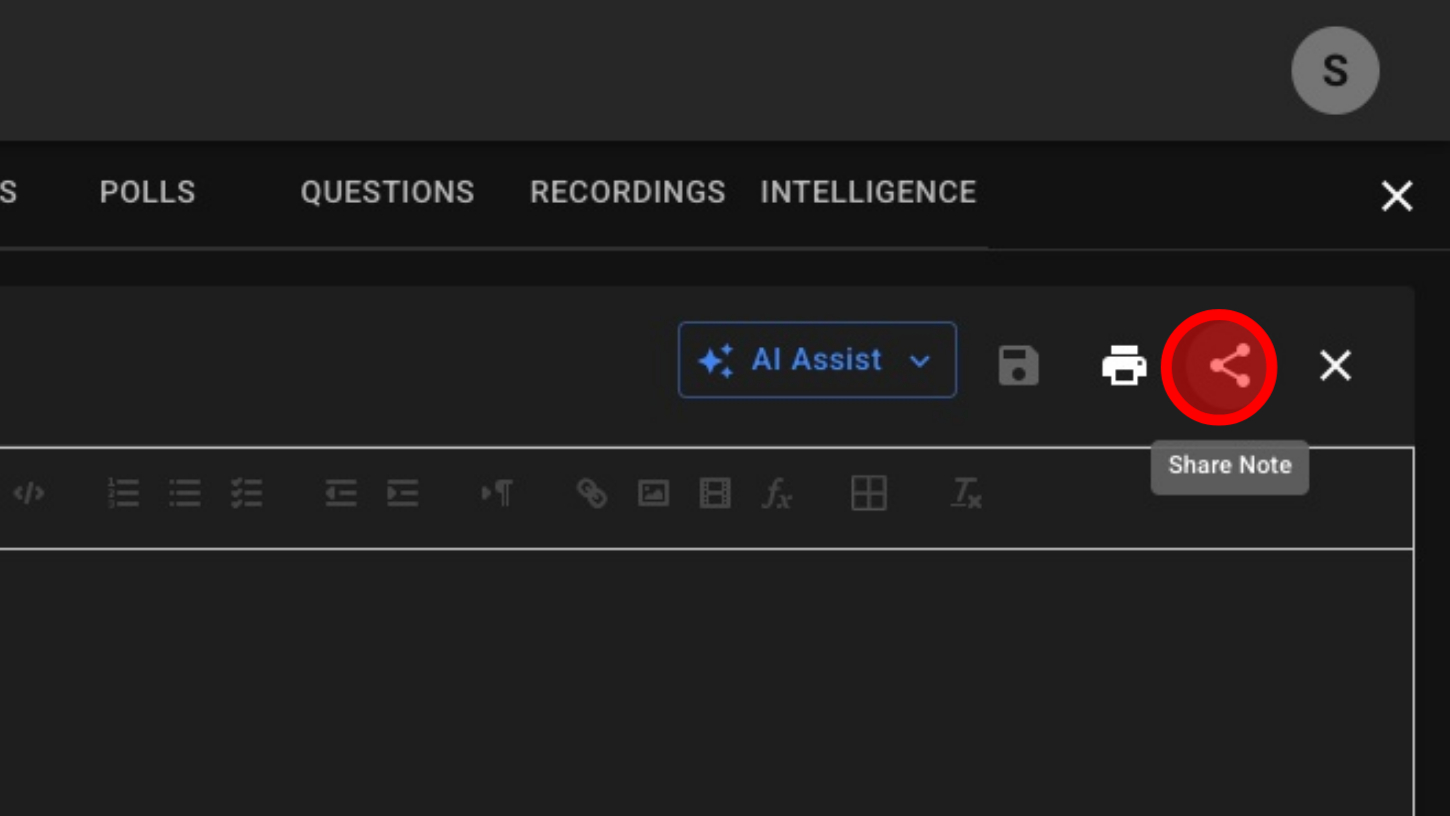
38. Click 'AI Assist' button
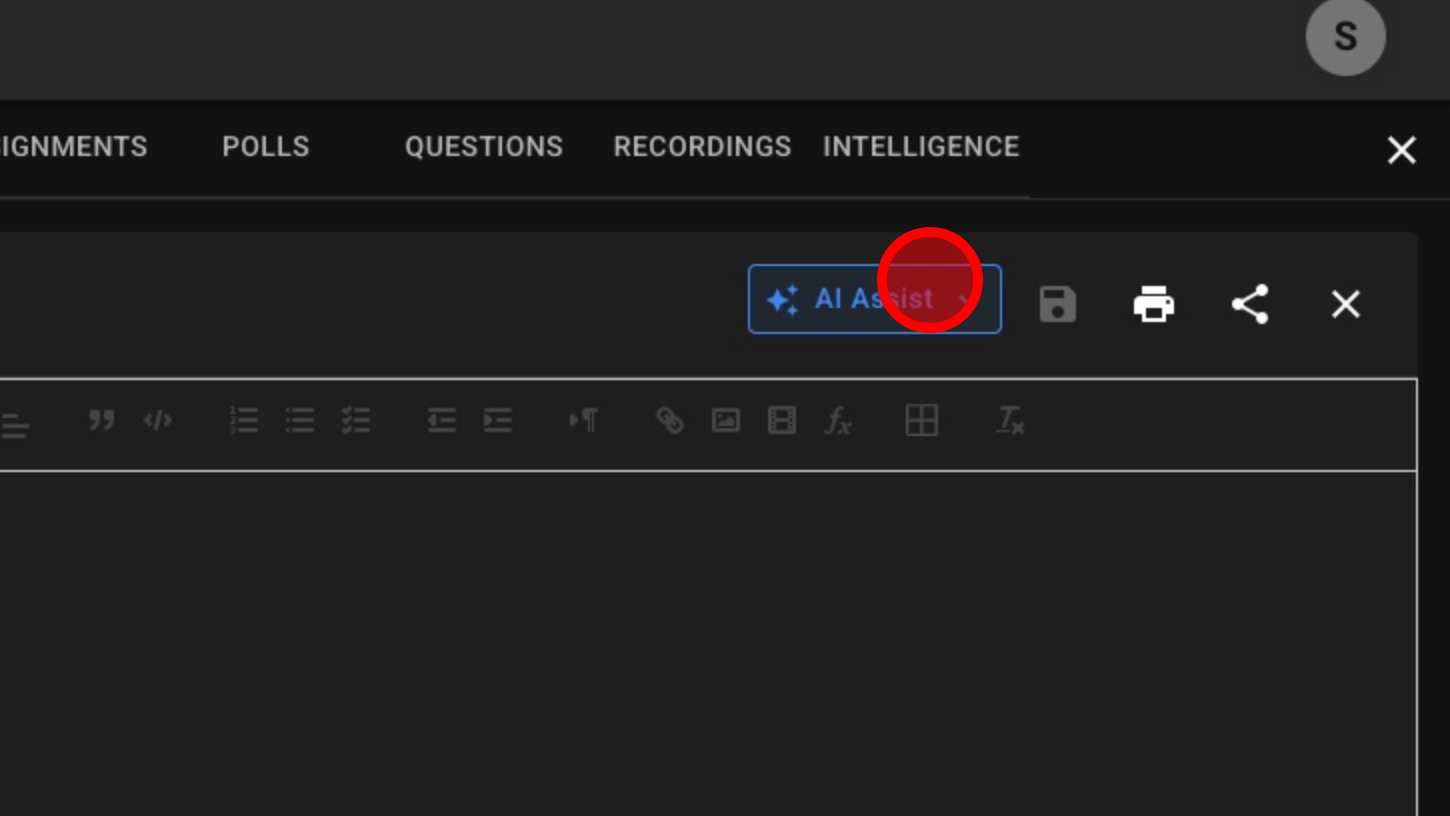
39. Choose AI Prompt To Analyze Note and Enhance
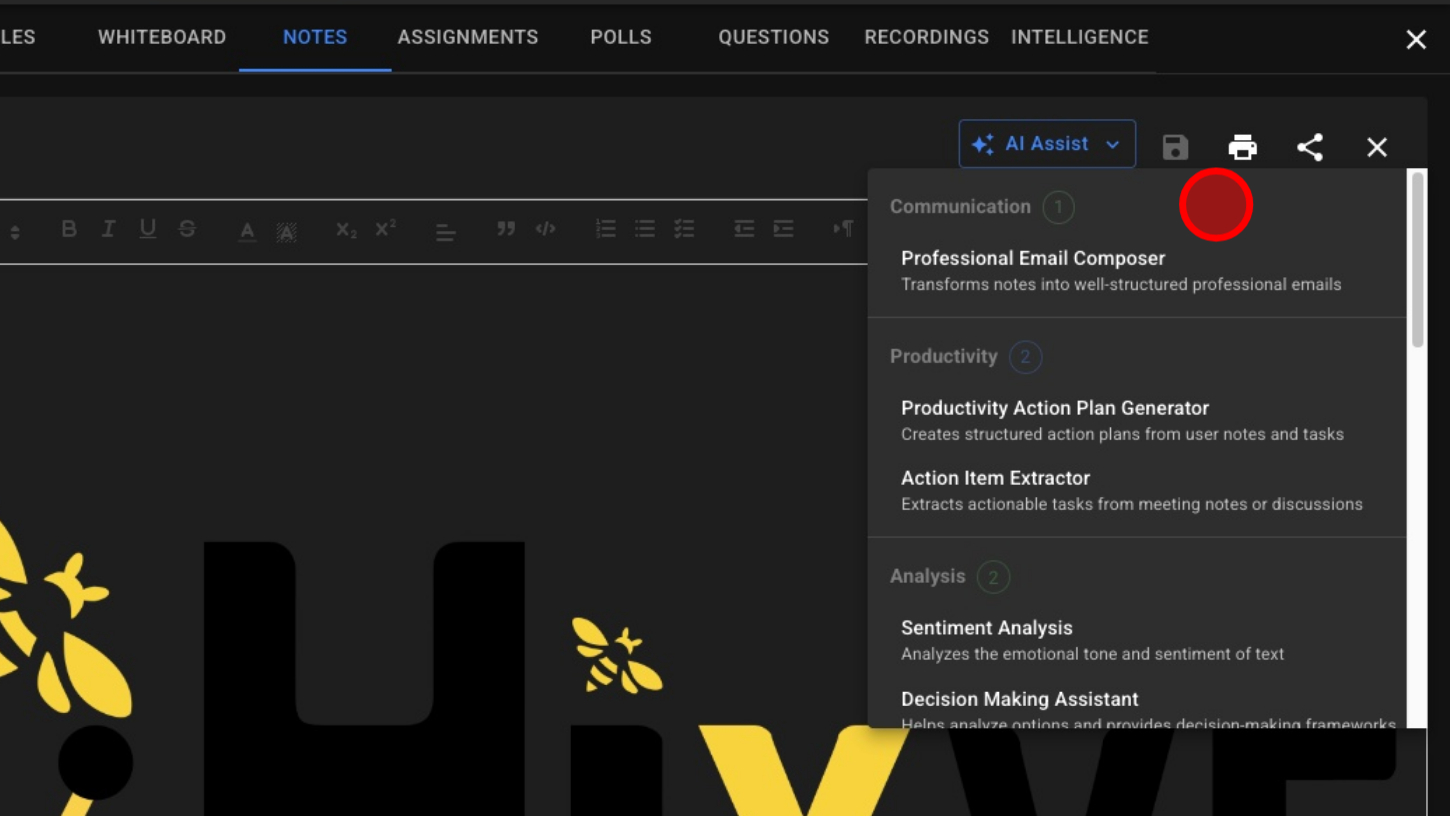
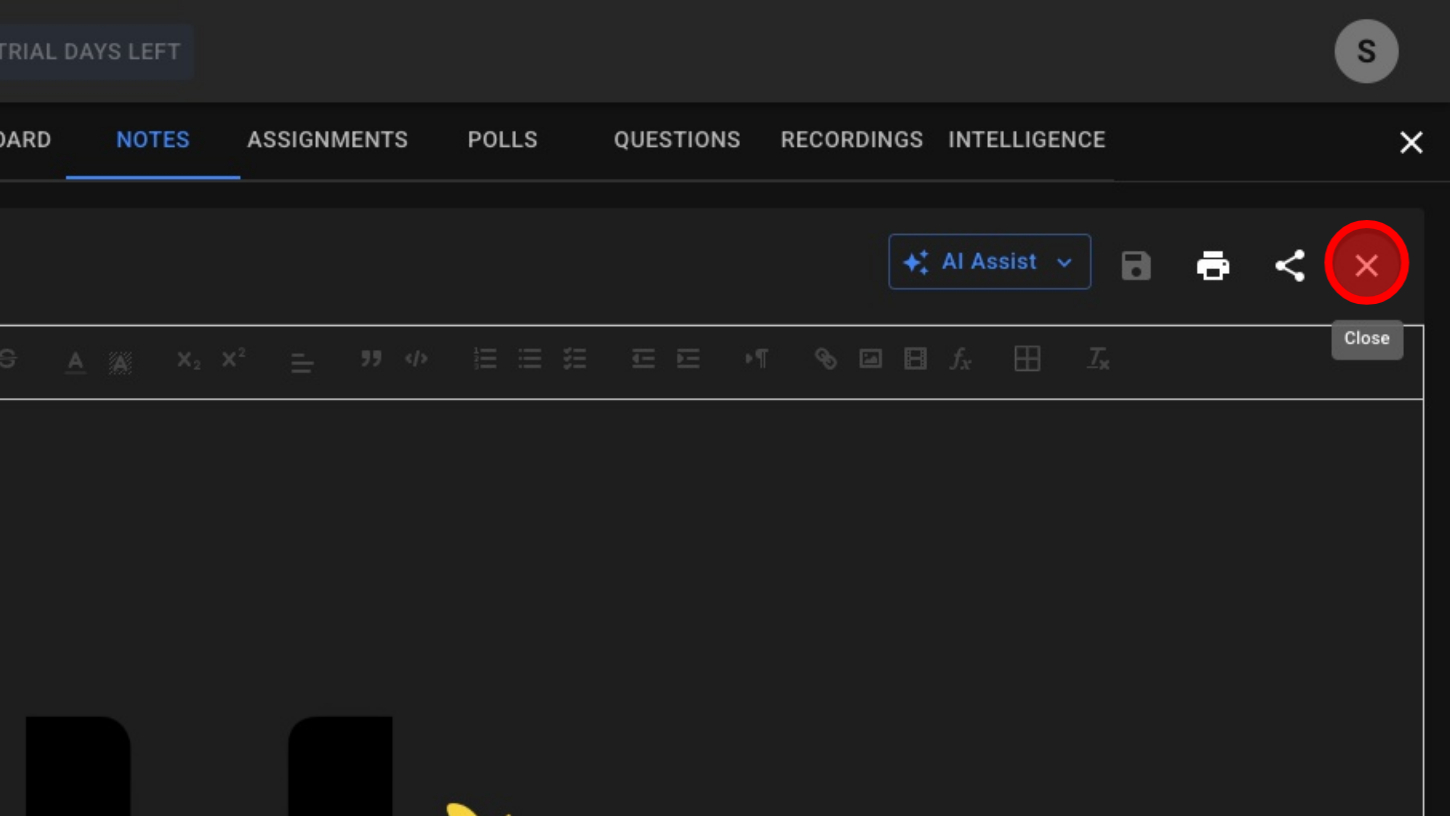
40. Close Notes