.png)
Why use Live Transcript Live
Transcript provides a real-time, speaker-labeled transcription of your meeting as it happens. It captures every word accurately, making it easy to stay engaged, reference details, and revisit key moments later.
Use Live Transcript to:
-
Stay focused: Follow along without needing to take notes manually.
-
Improve accessibility: Support participants who prefer to read or have hearing difficulties.
-
Search and review: Quickly find decisions or key discussion points after the meeting.
-
Create better follow-ups: Generate summaries, action items, and next steps automatically.
Why use Co-Pilot
Co-Pilot is your in-call AI assistant that listens, analyzes, and provides live insights during your meeting. It helps you stay on track, handle challenges in real time, and capture what matters most—all without leaving the conversation.
Use Co-Pilot to:
-
Handle objections confidently: Get instant prompts to respond more effectively.
-
Stay on track: Ask for meeting context or next steps without pausing the discussion.
-
Capture insights: Automatically flag key moments for review and follow-up.
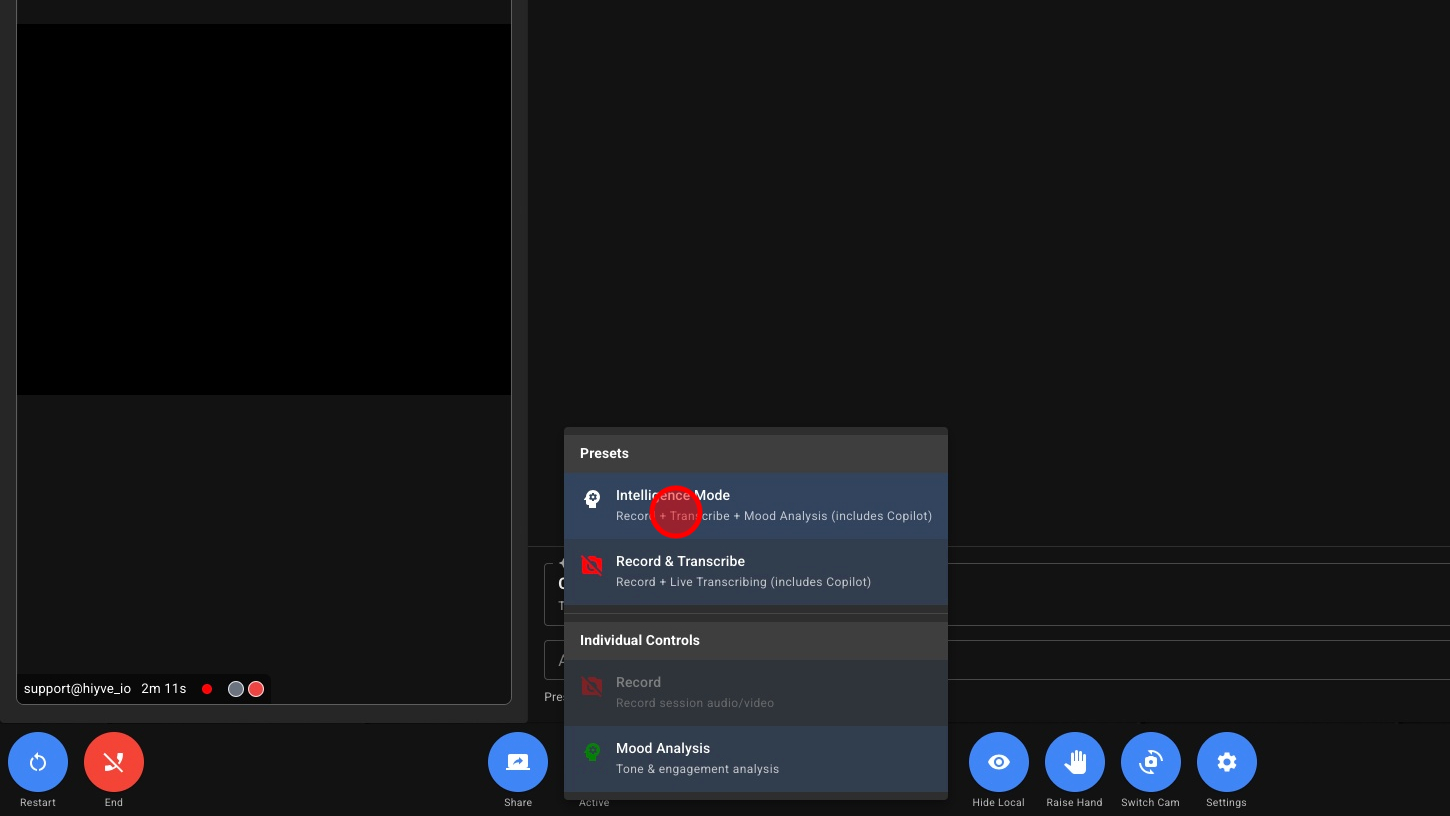
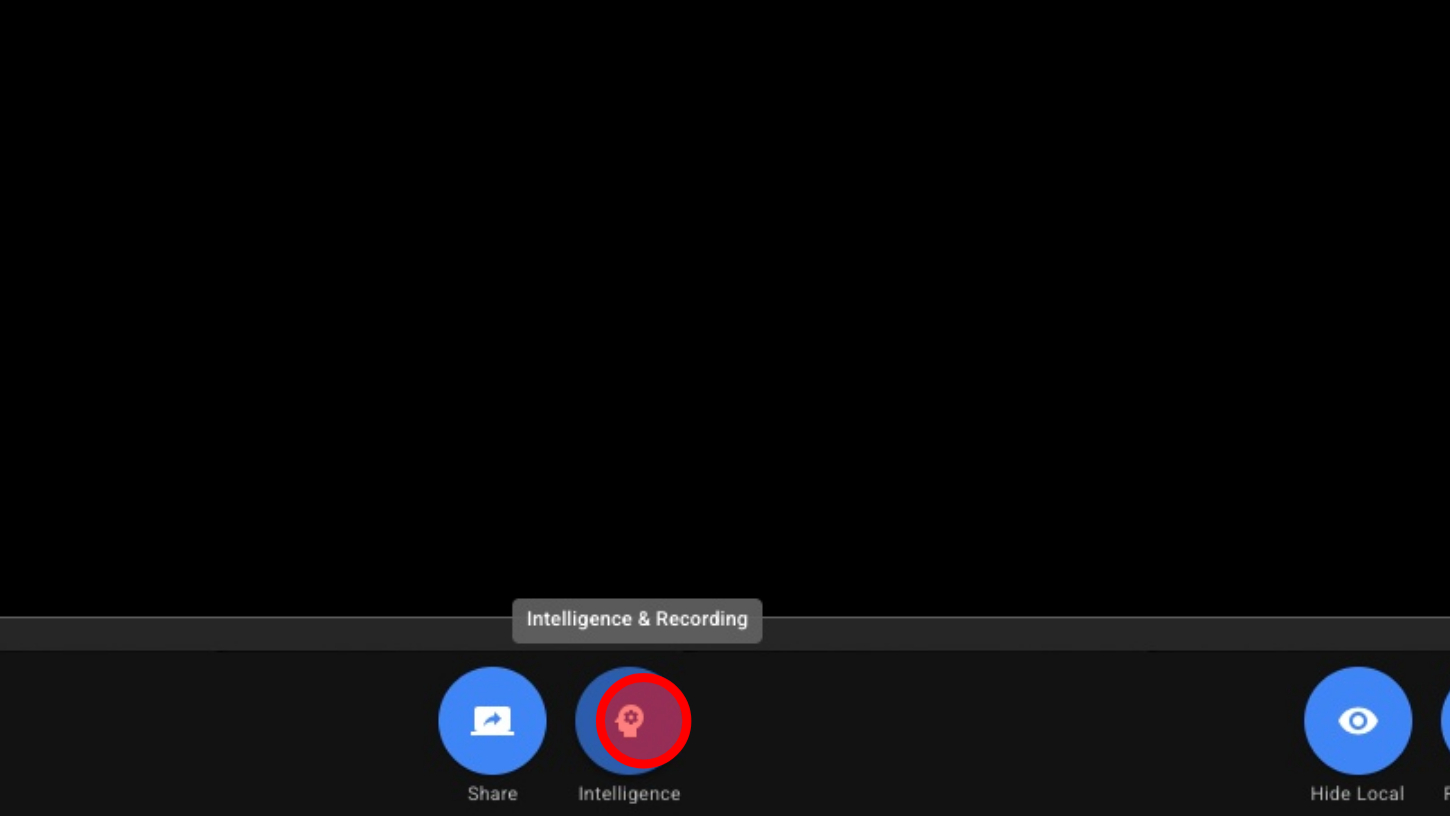
1. Click Intelligence
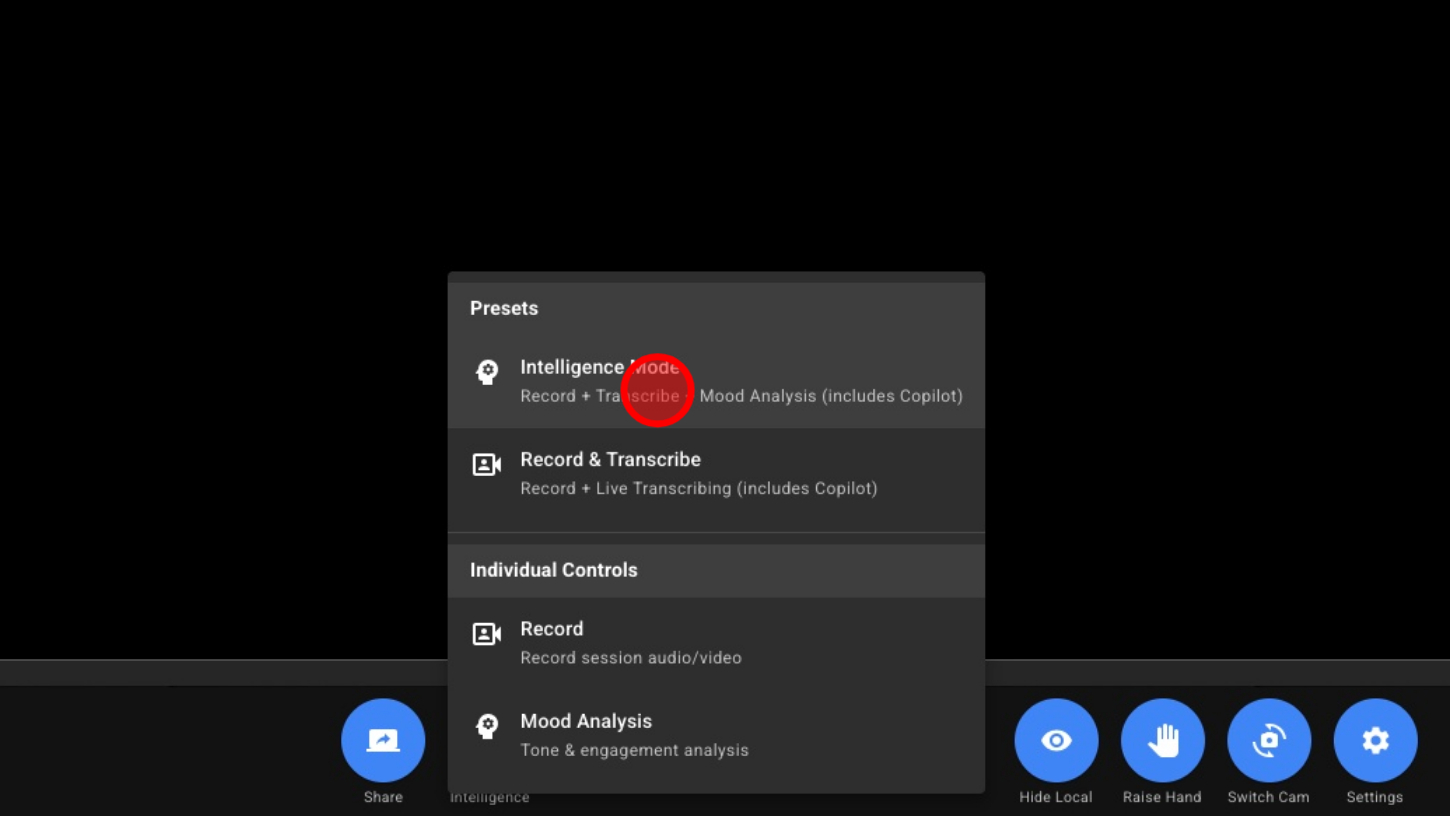
2. Click Intelligence Mode – This will record, transcribe, and provide mood analysis to the A.I. Co-Pilot
3. Open Tools
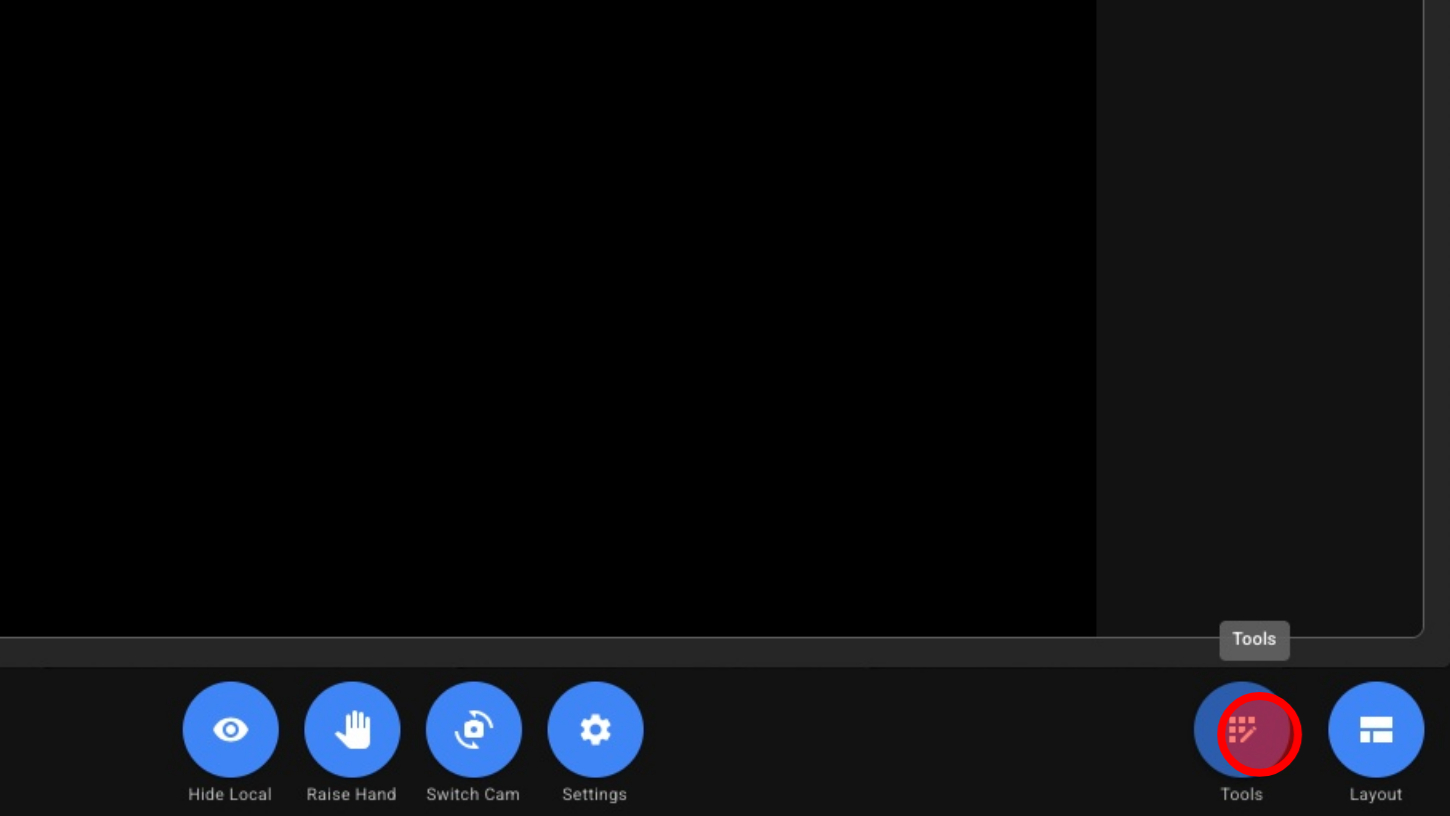
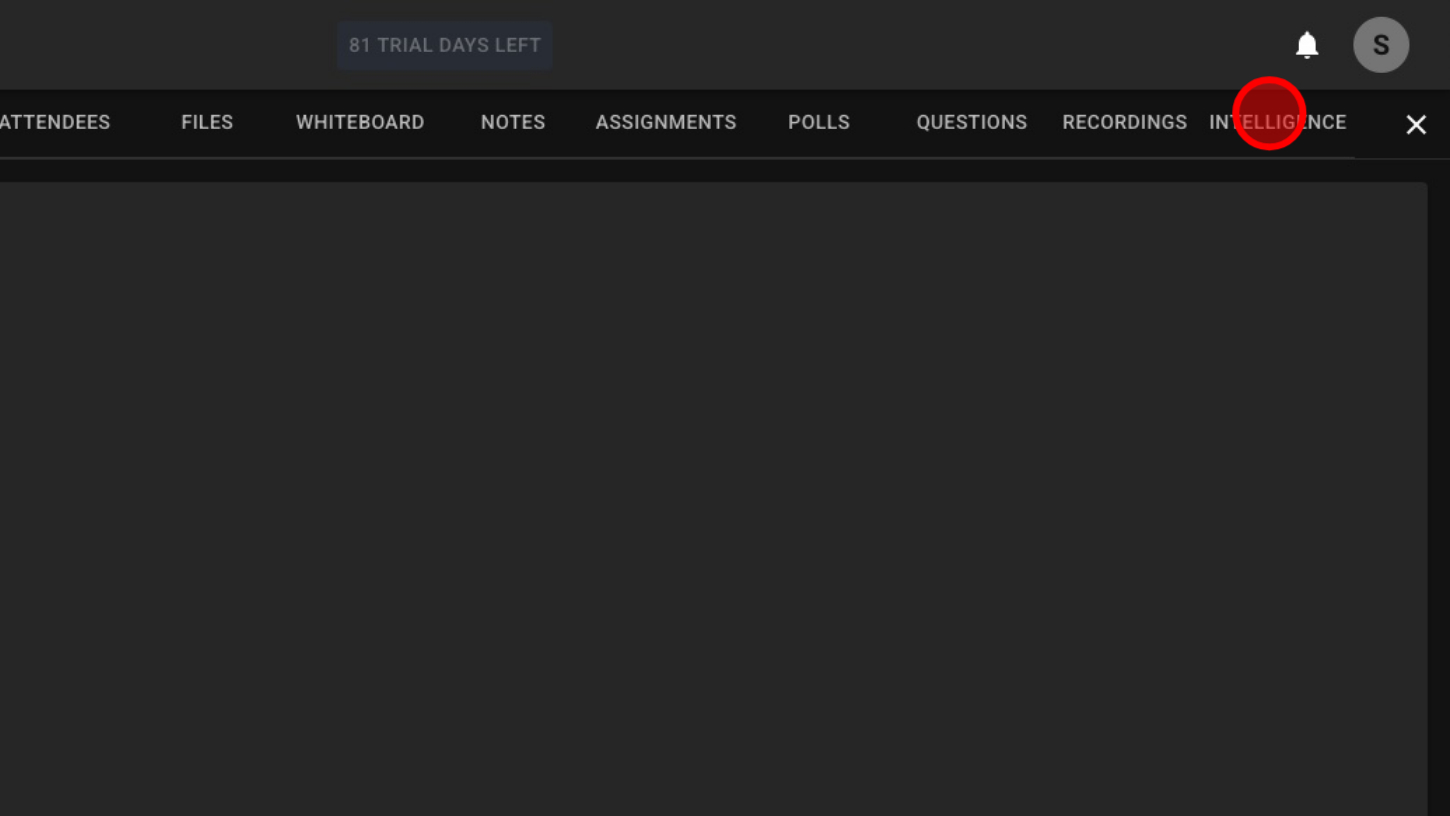
4. Click 'INTELLIGENCE'
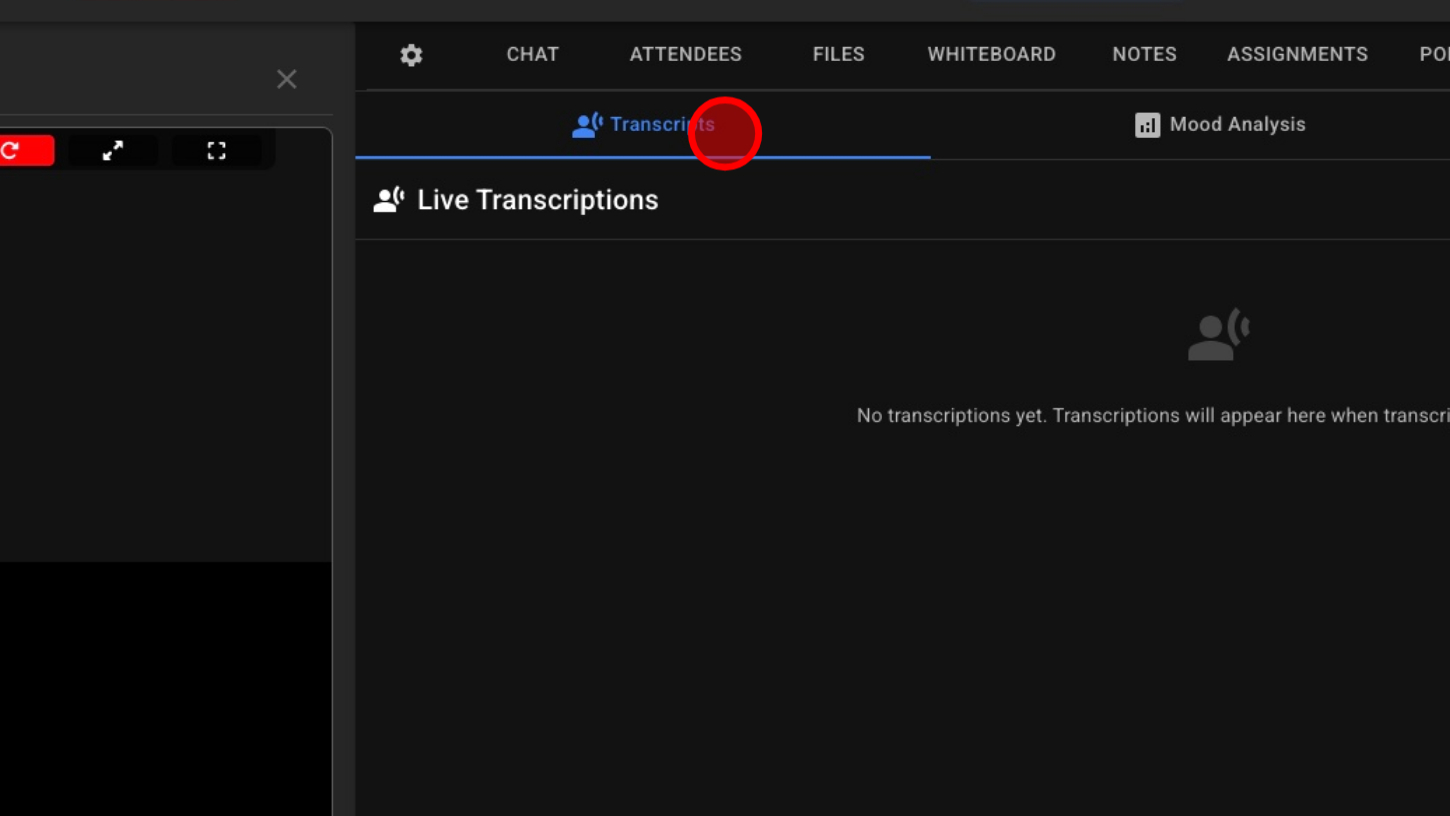
5. Click 'Transcripts'
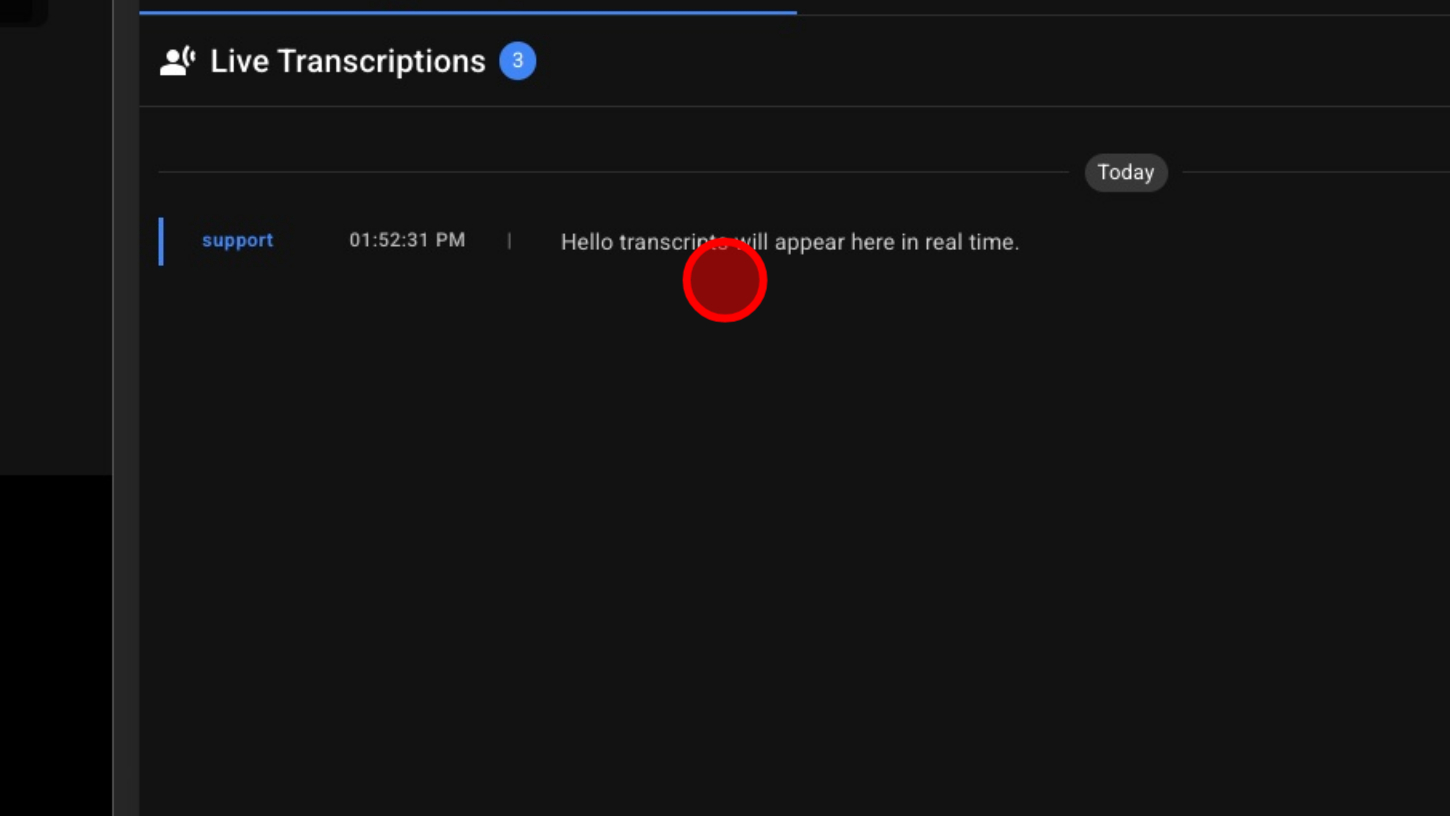
6. View Transcripts As They Appear In Real Time
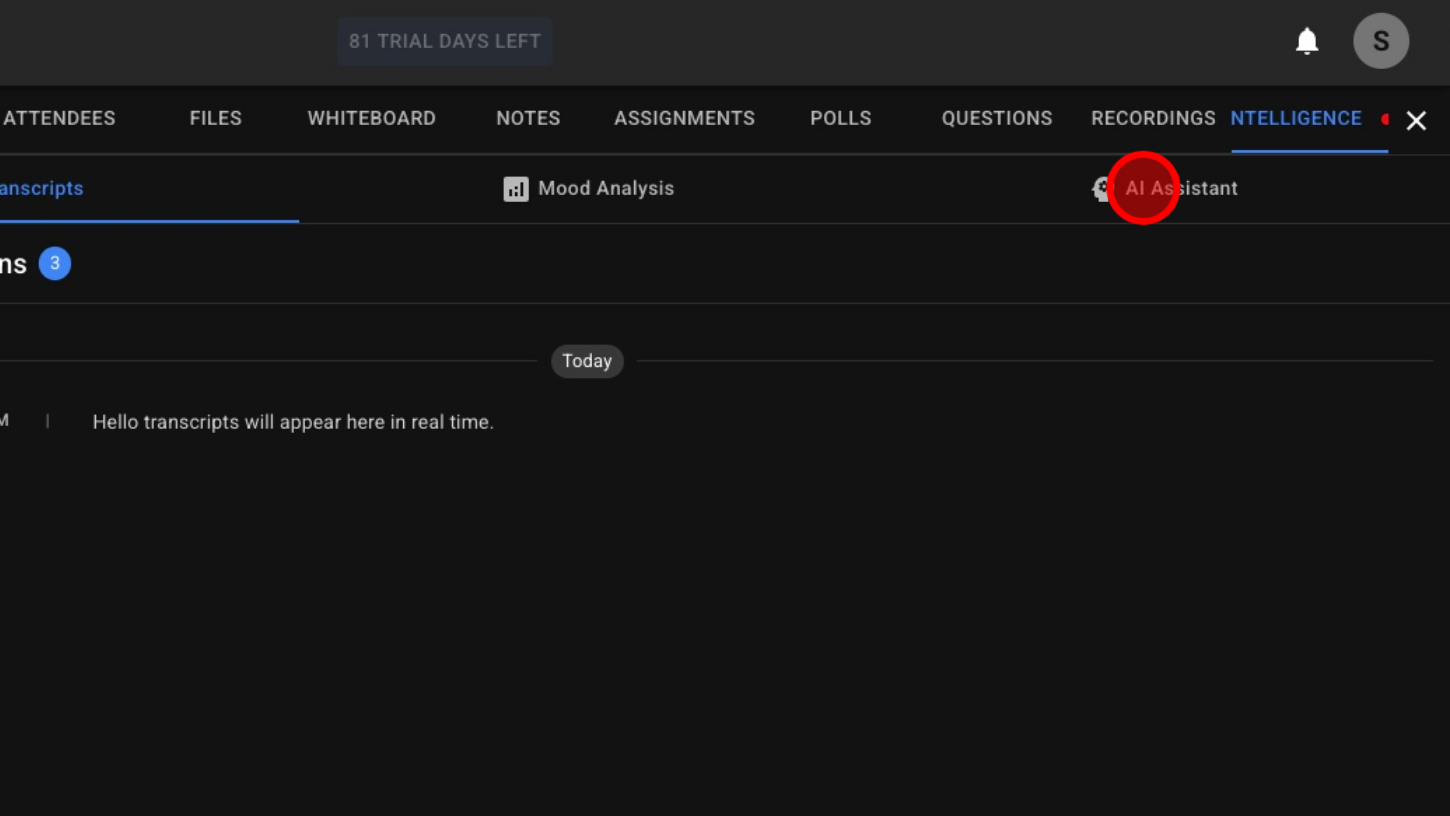
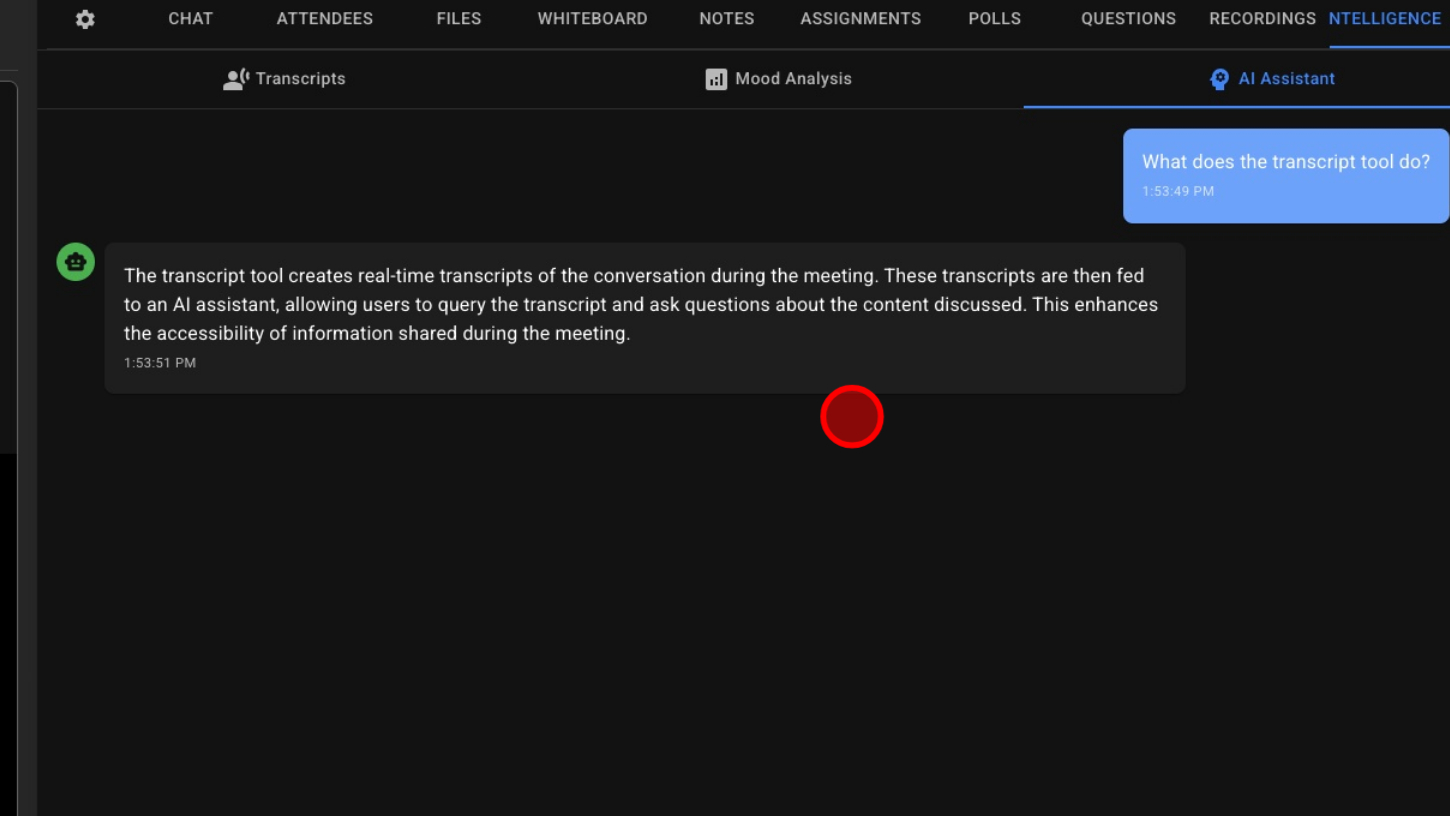
7. Click 'AI Assistant'
8. Select Your Prompt Type
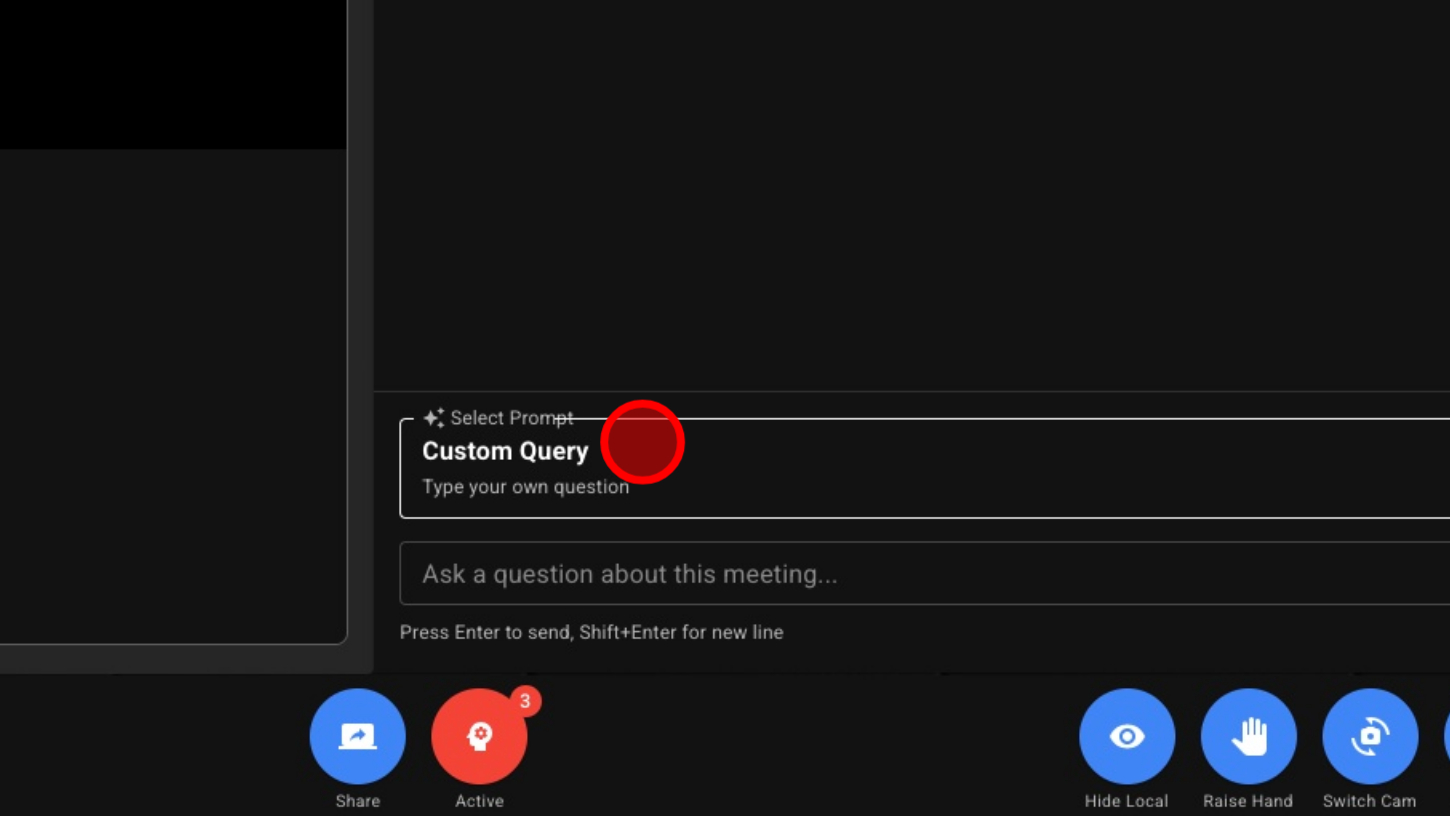
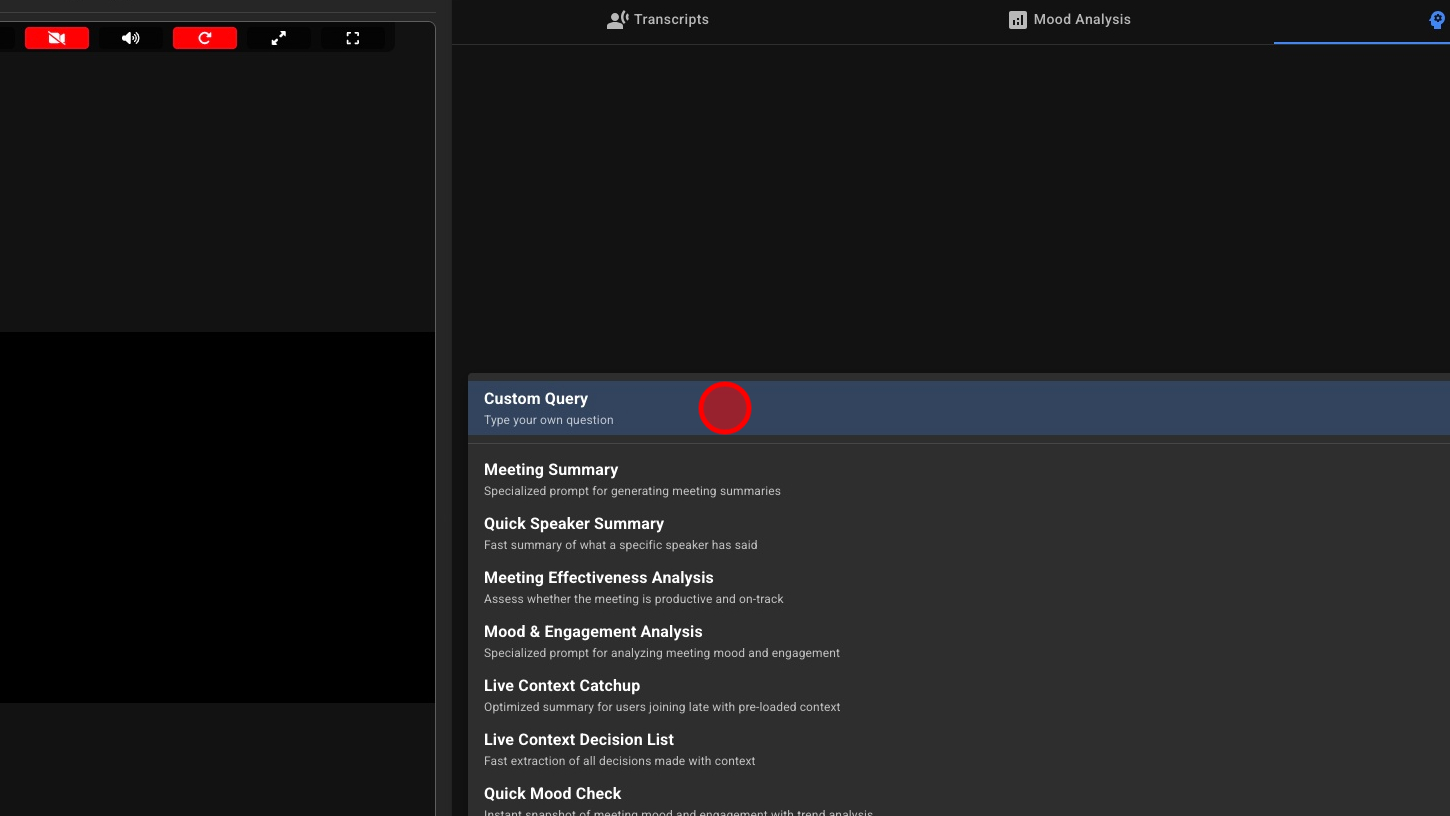
9. Choose Either a Custom Prompt or a Pre-Written Prompt
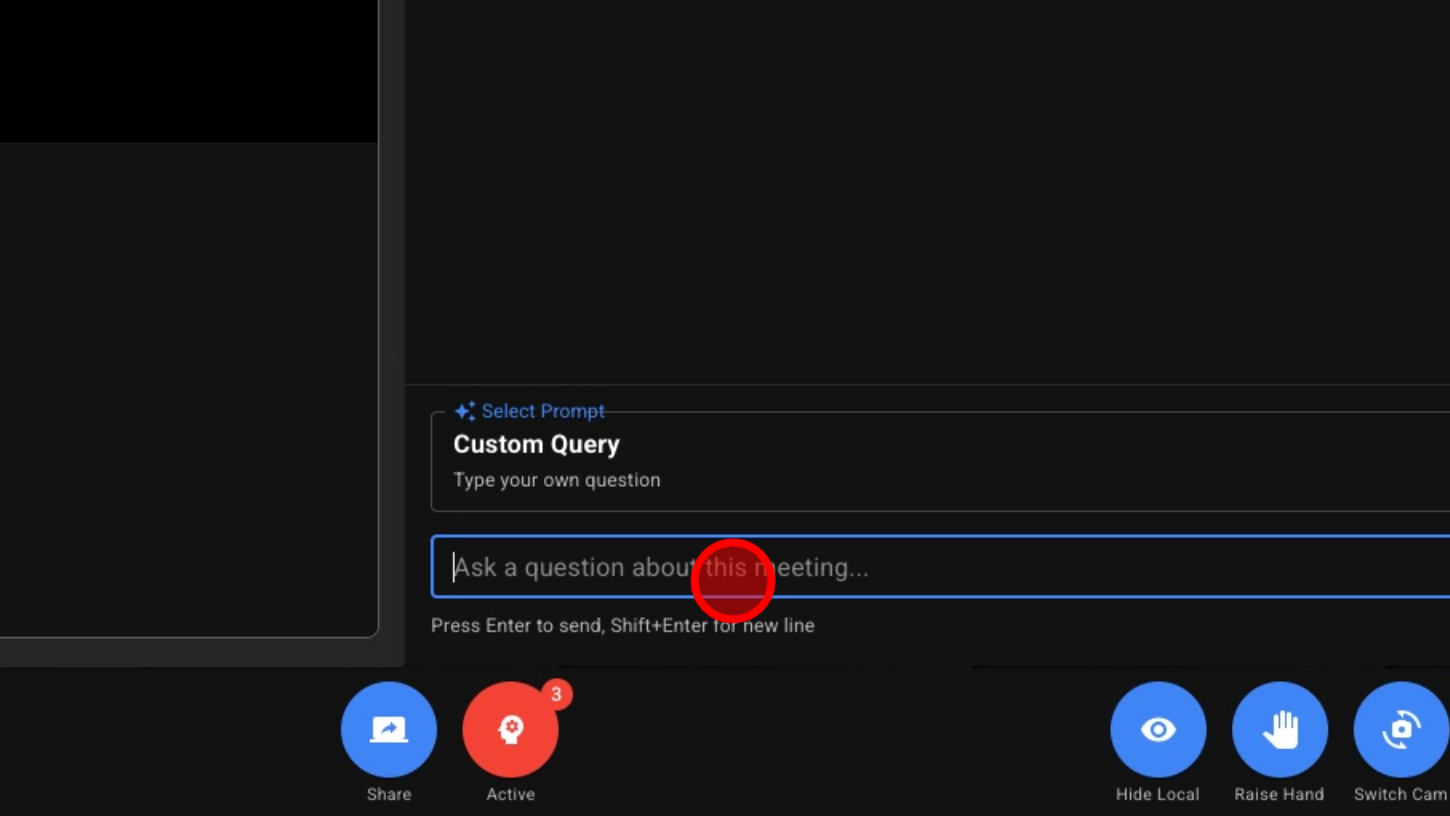
10. (If Custom) Type Out Your Prompt
11. Click "Enter" or the Send Icon
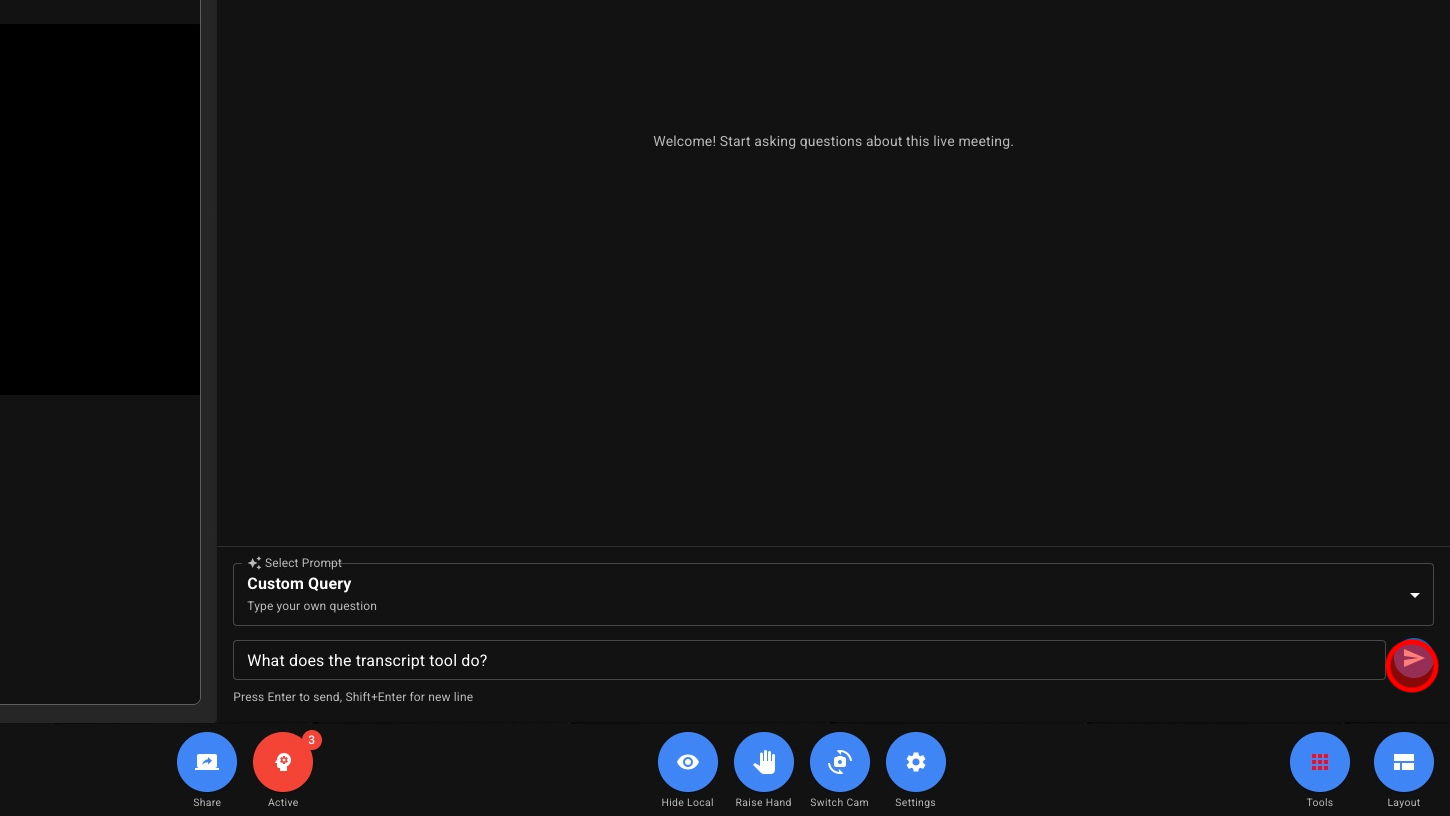
12. Review the A.I. Response
13. To Shut Off Intelligence Mode – Click the Icon Again
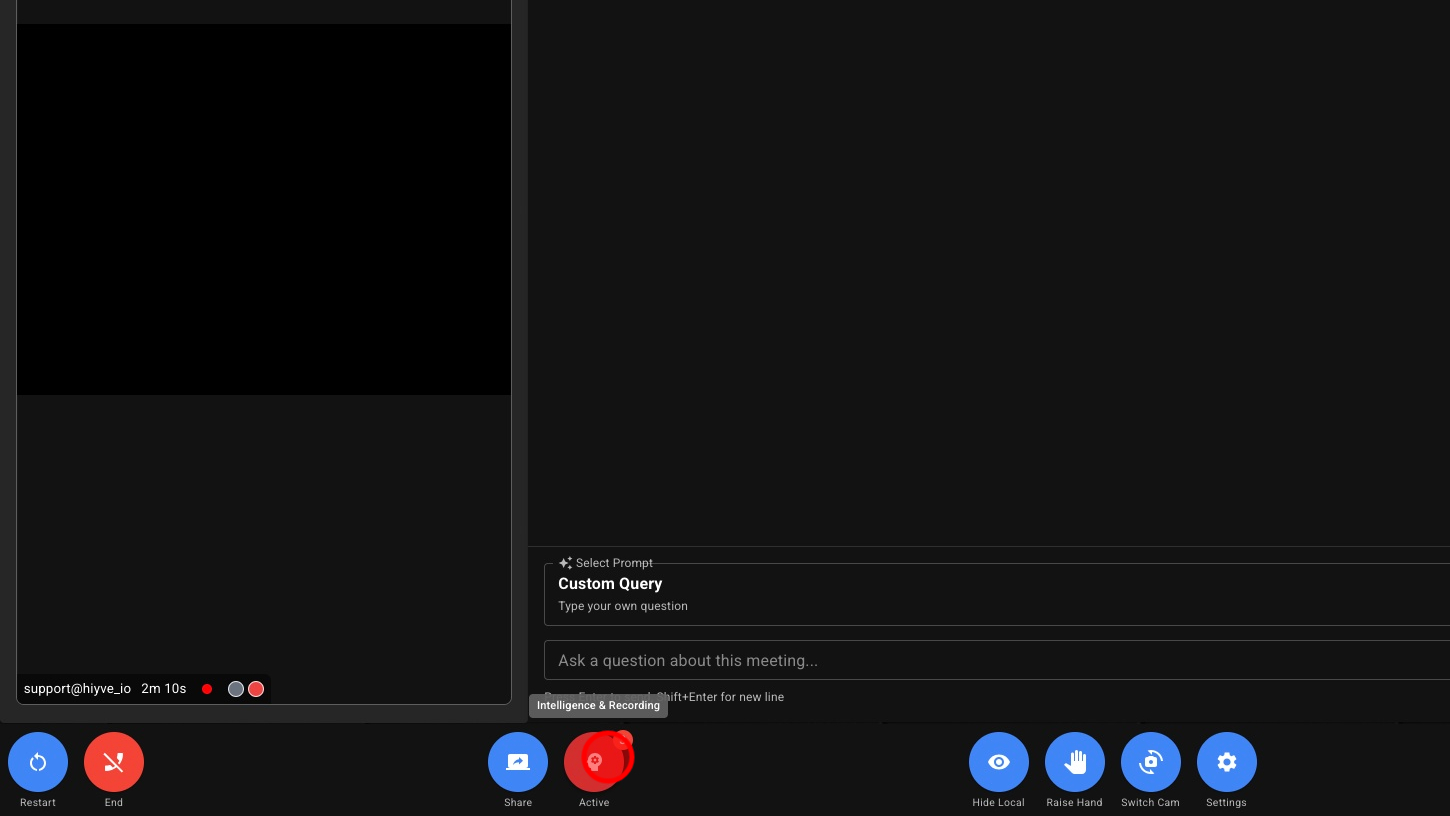
14. Select Which Functions You Would Like To Shut Off