.png)
Dashboard Overview
When you log in to Hiyve, your dashboard is your central hub—your home base for everything you need to run meetings, manage projects, and access AI-powered tools. From here, you can navigate to all core features with just a click.
Your dashboard gives you quick access to:
Rooms
Persistent workspaces for ongoing clients, teams, or projects. Each Room stores your notes, files, recordings, transcripts, and whiteboards so you can pick up where you left off.
Instant Meetings
Start a quick, one-time call with no setup required. Perfect for spontaneous check-ins or fast conversations.
Meeting Links
Create and share unique meeting links for scheduled or last-minute calls—no Room needed.
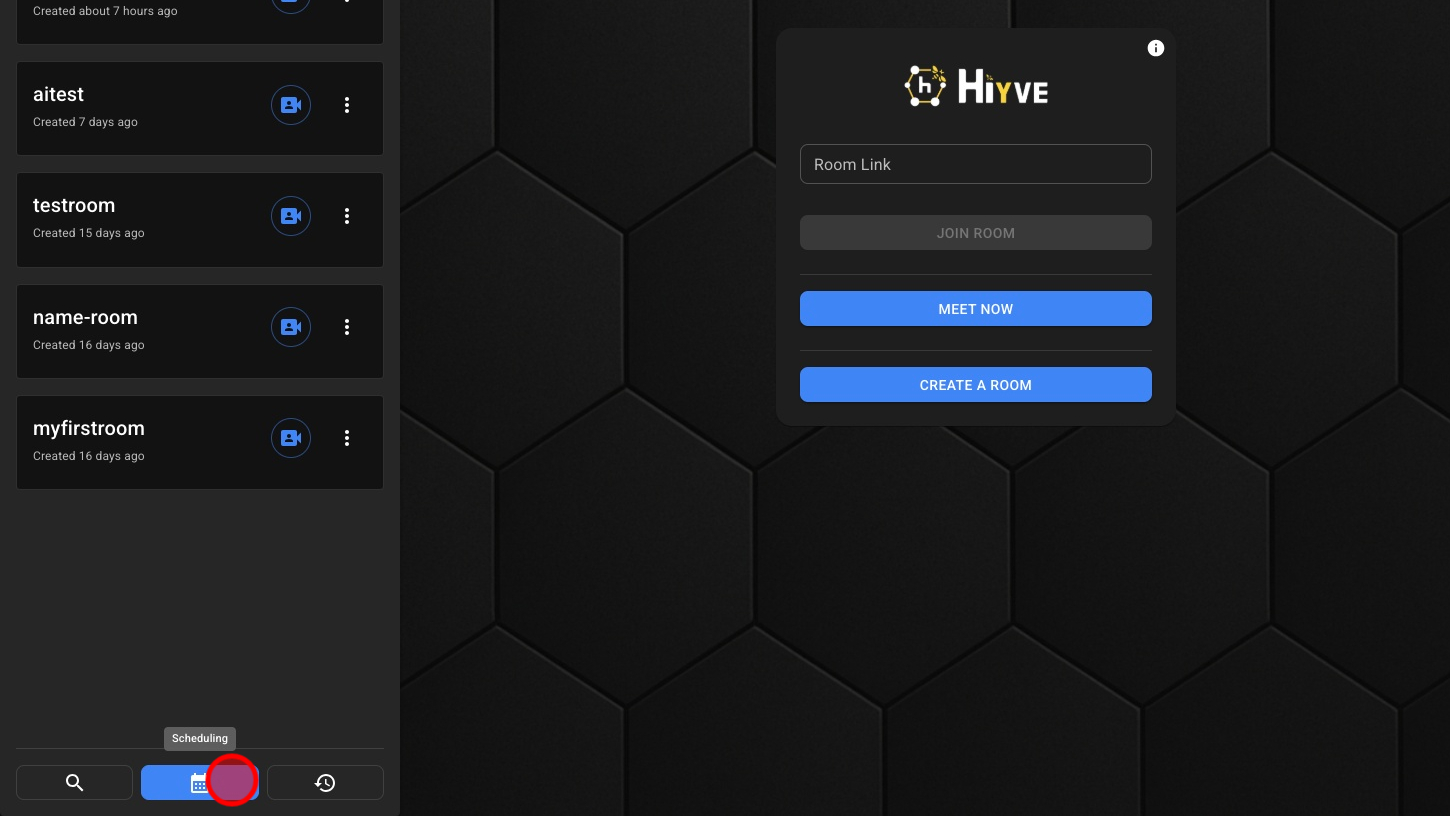
Schedules
View and manage your upcoming sessions, lessons, or calls in one organized place.
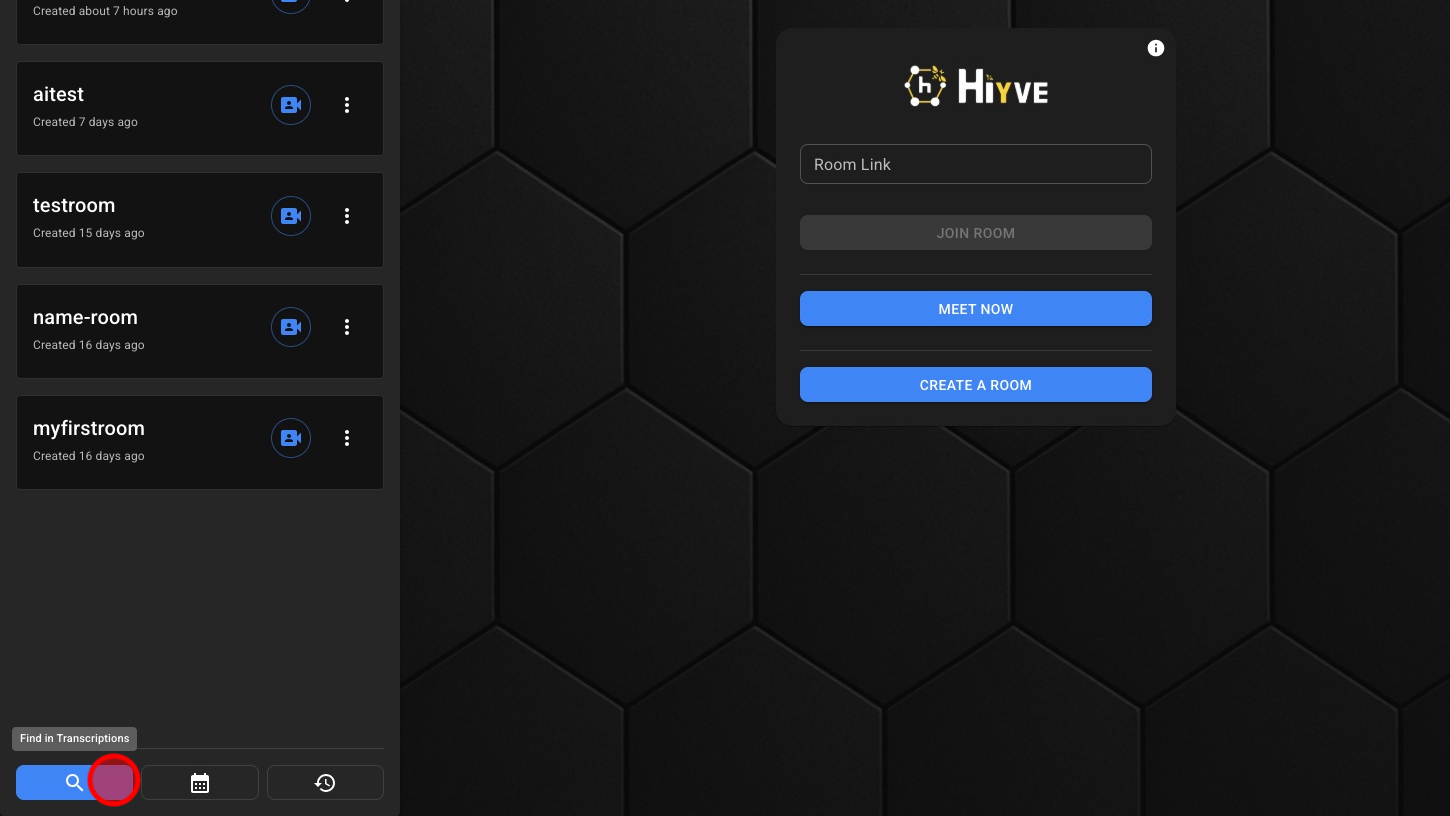
AI Search Tools
Use the AI-powered search to instantly find past discussions, decisions, action items, files, or transcripts across all your Rooms and meetings.
Settings & Account Setup
Customize your Hiyve experience with branding, preferences, notifications, integrations, and default Room configurations.
1. Join A Hiyve Call By Pasting The Link Here, And Clicking Join Room

2. Create An Instant Meeting
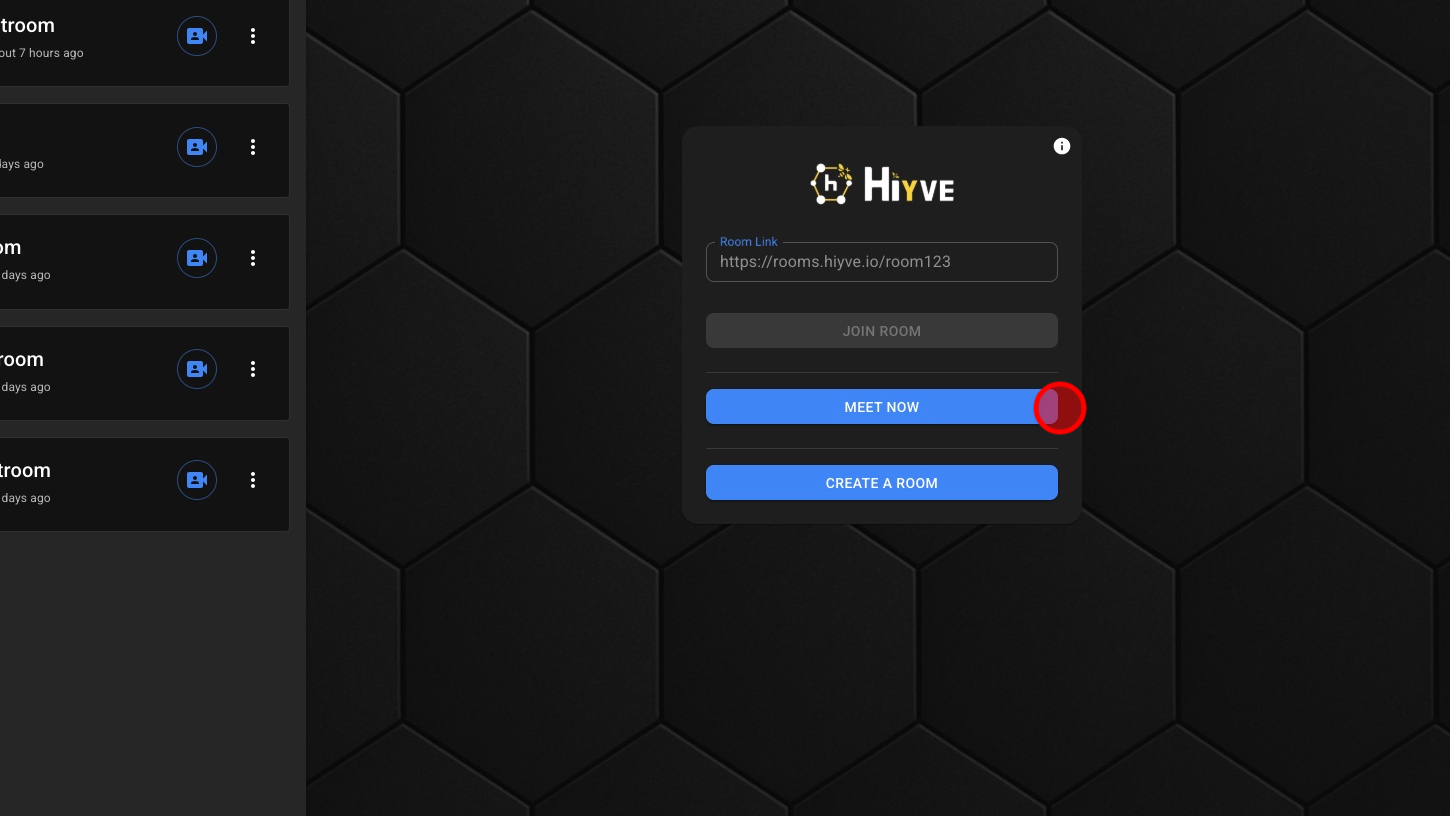
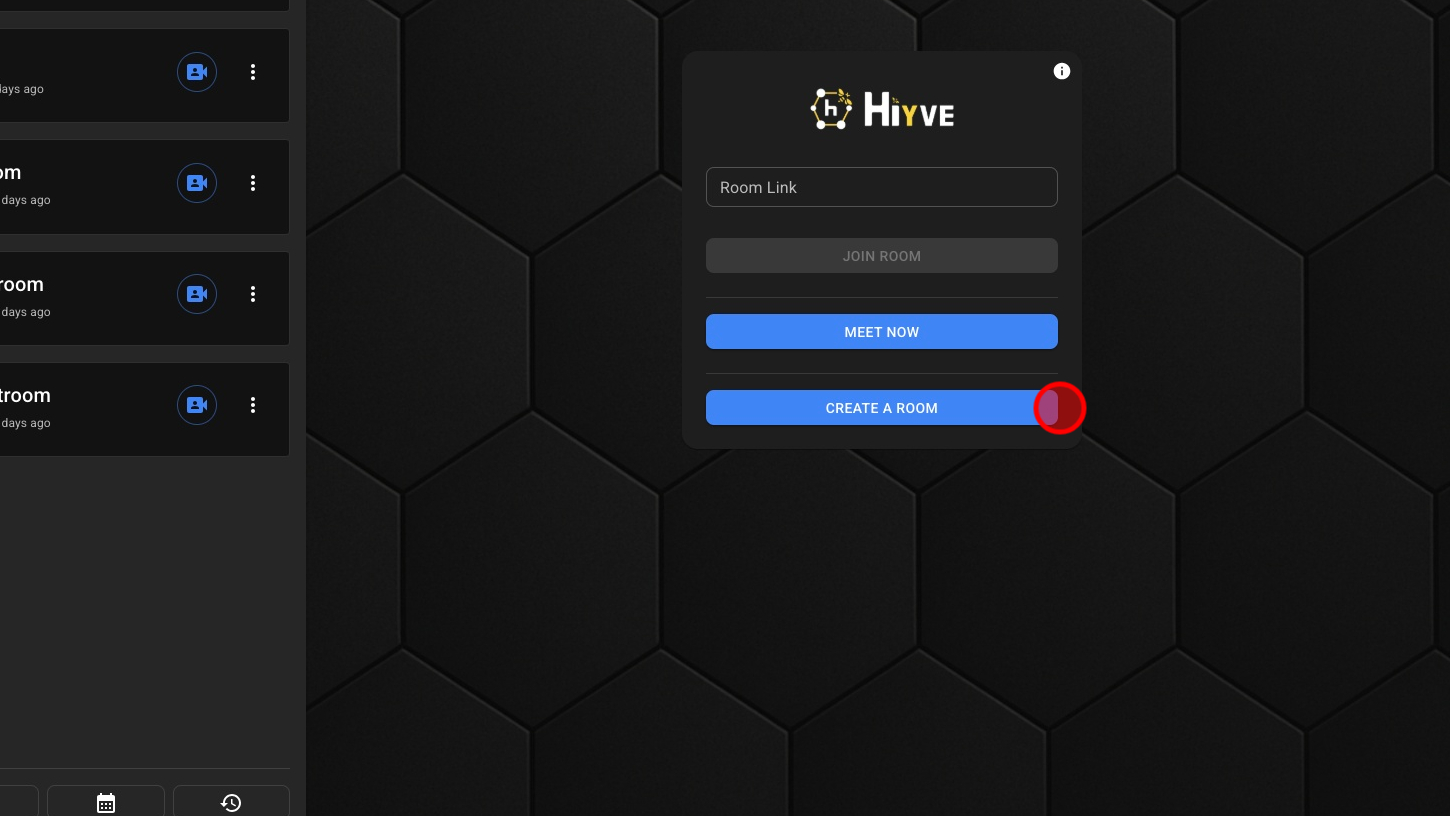
3. Create A Room
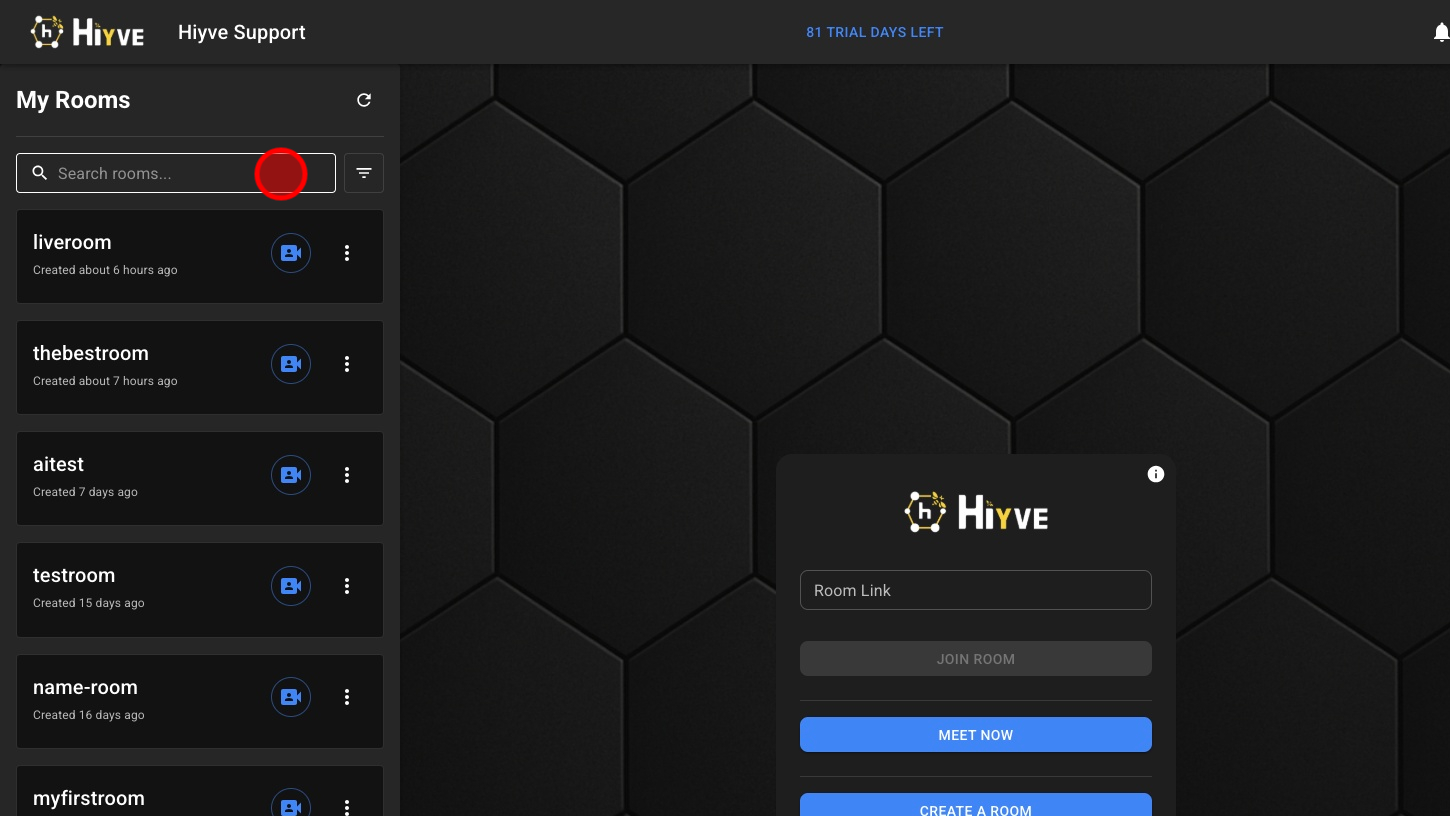
4. Search Room List
5. Show Room List Filters
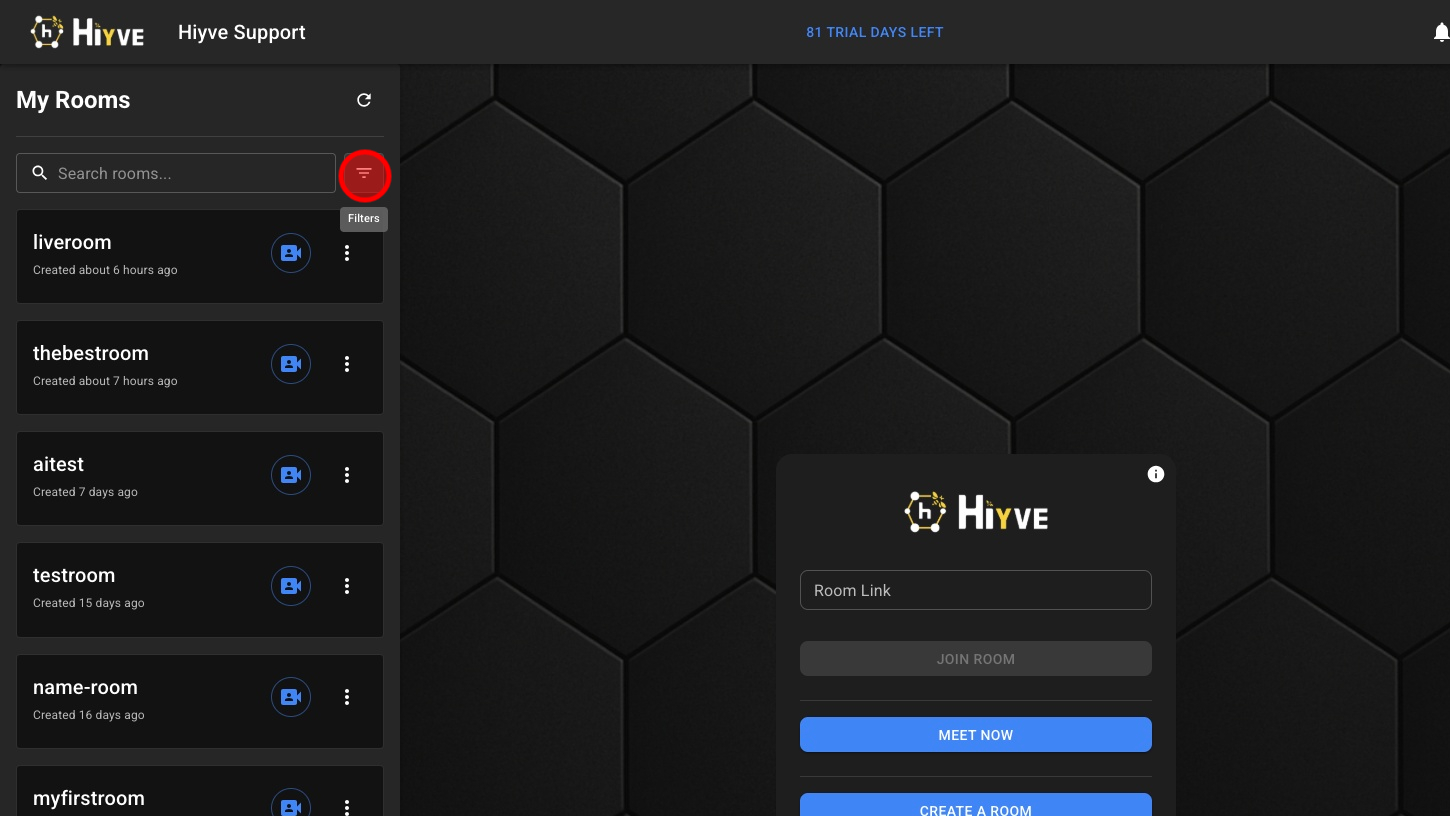
6. Sort By “Date Created or Name”
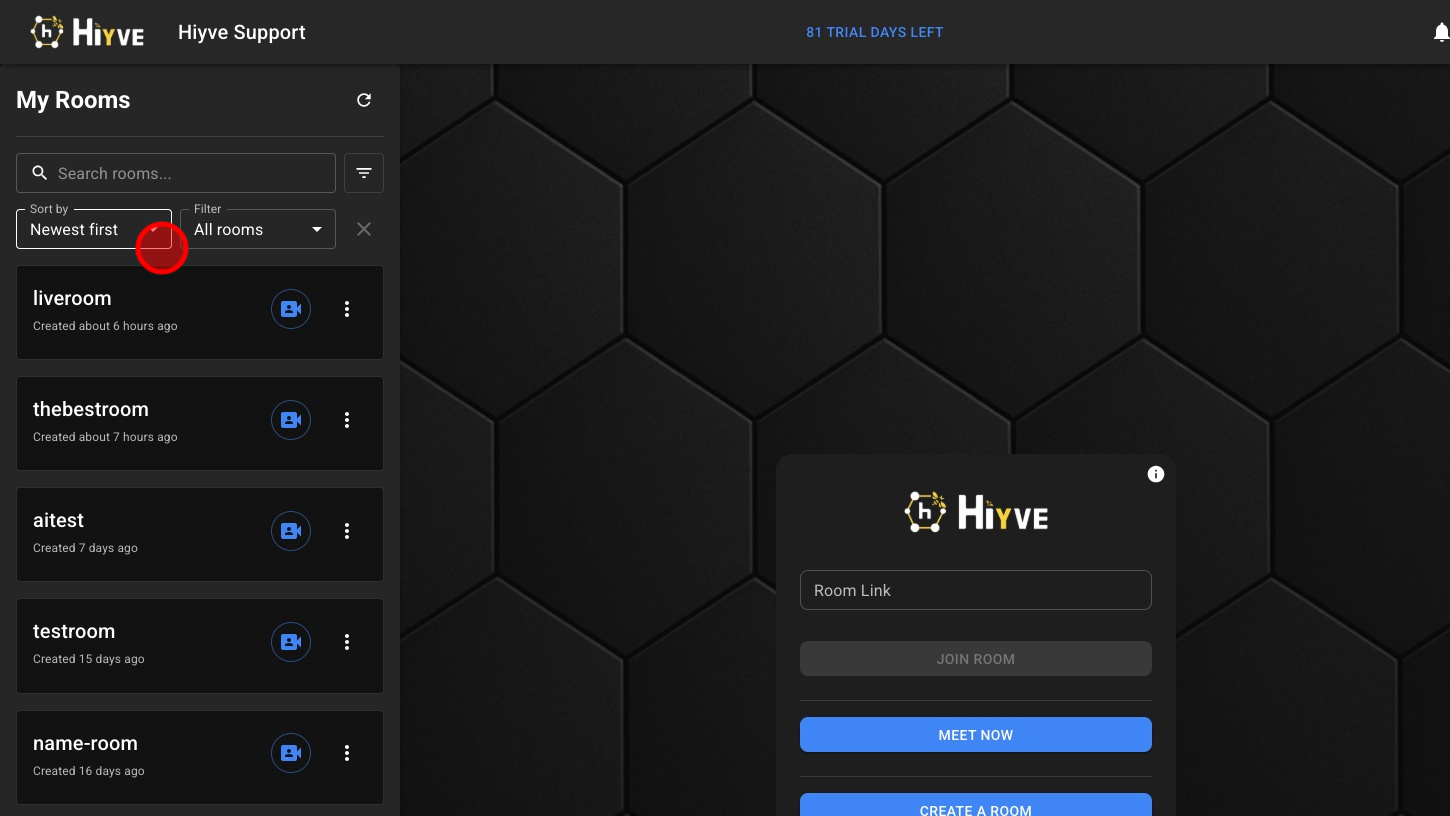
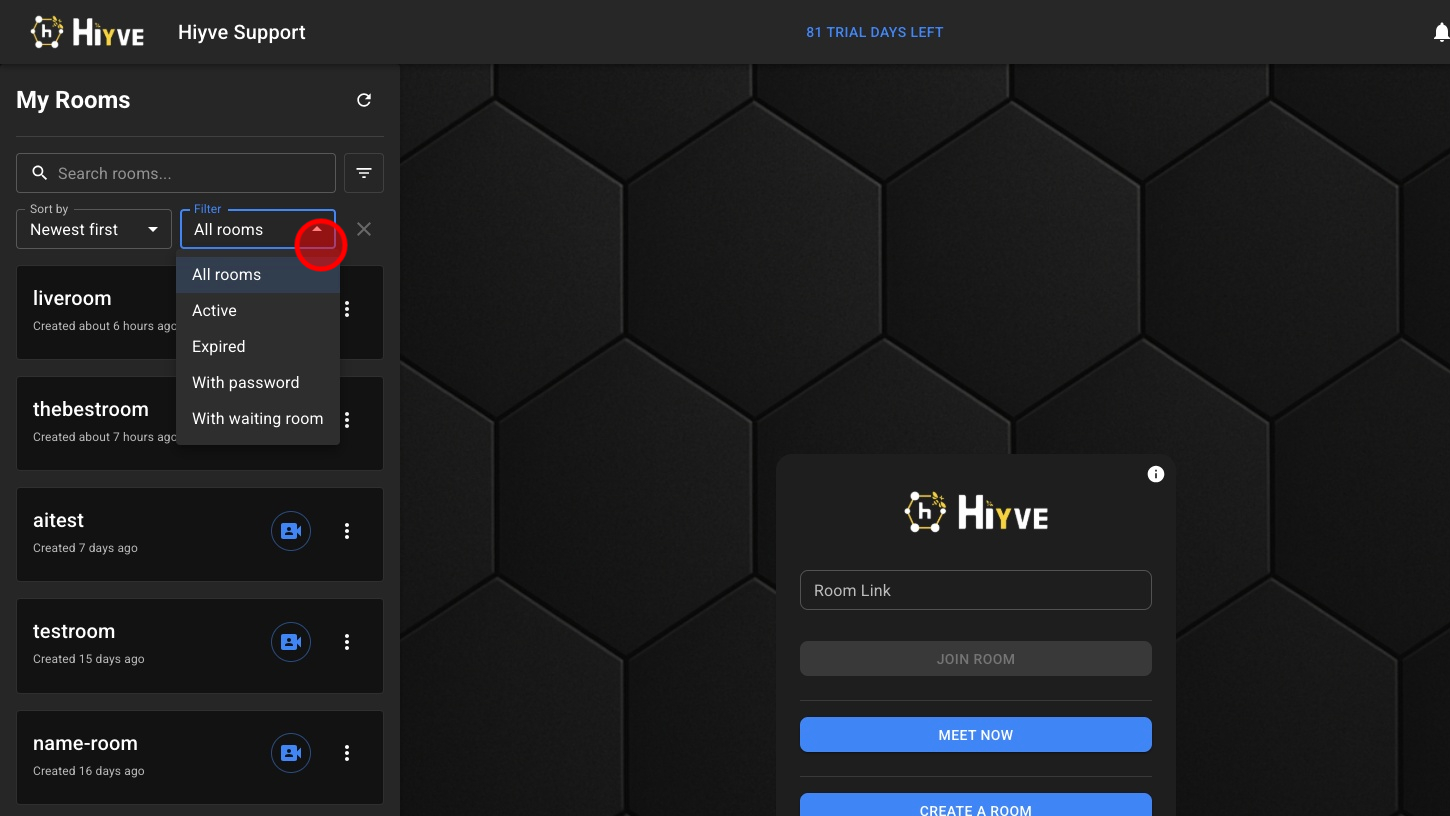
7. Filter Room List By “Active, Expired, Password or Waiting Room”
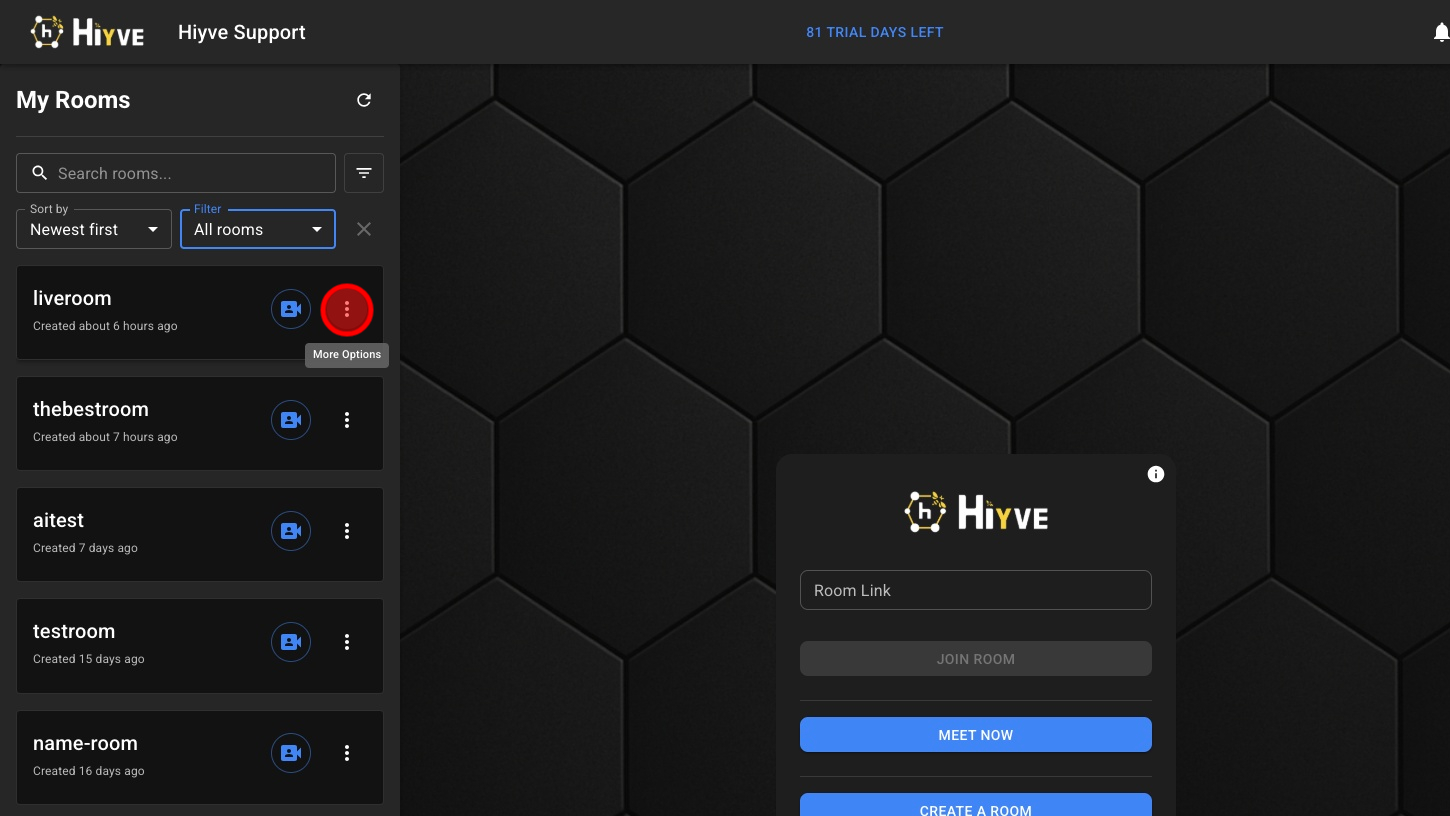
8. Show Room Options
9. Show Room Info
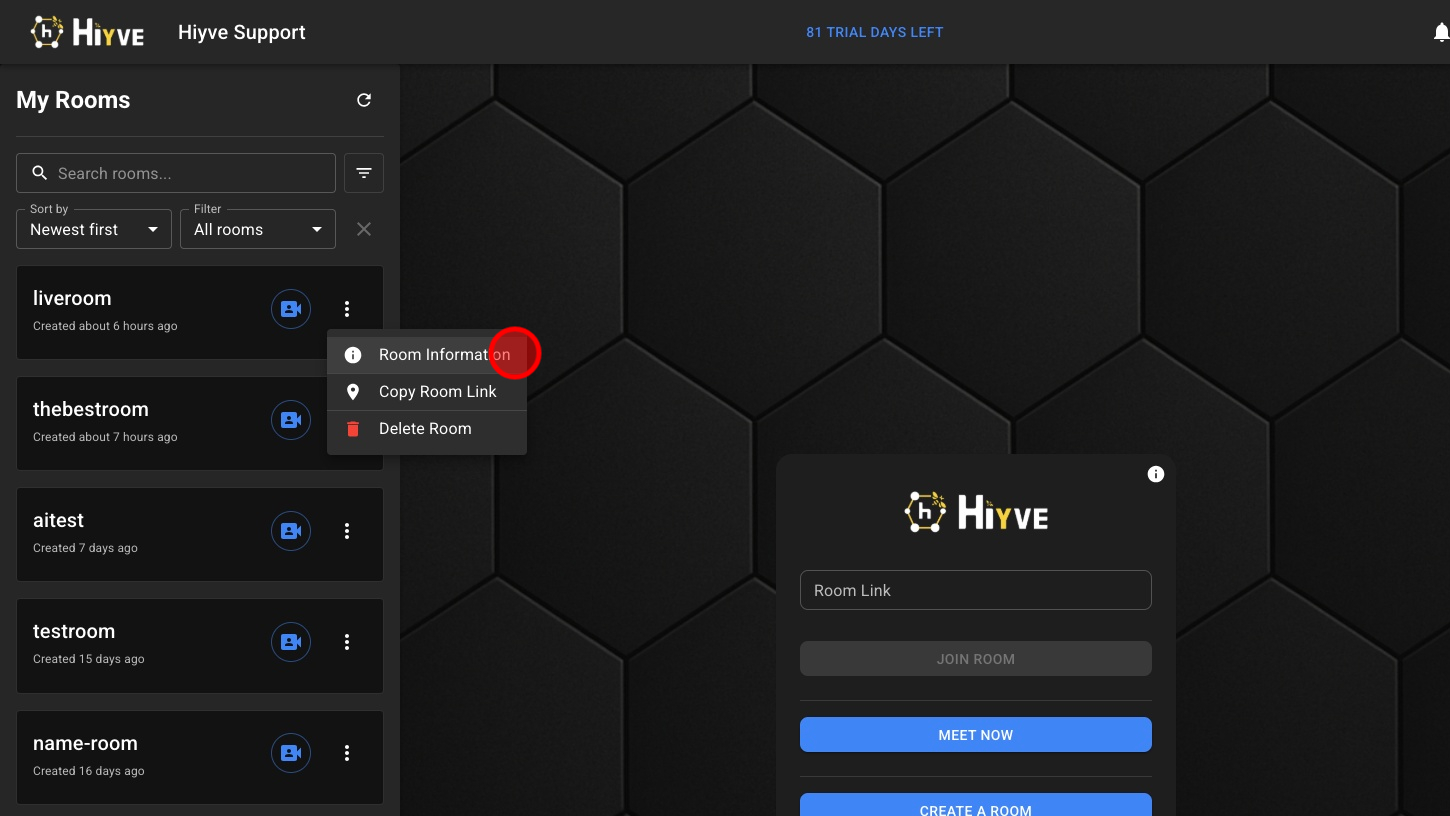
10. Close Room Info
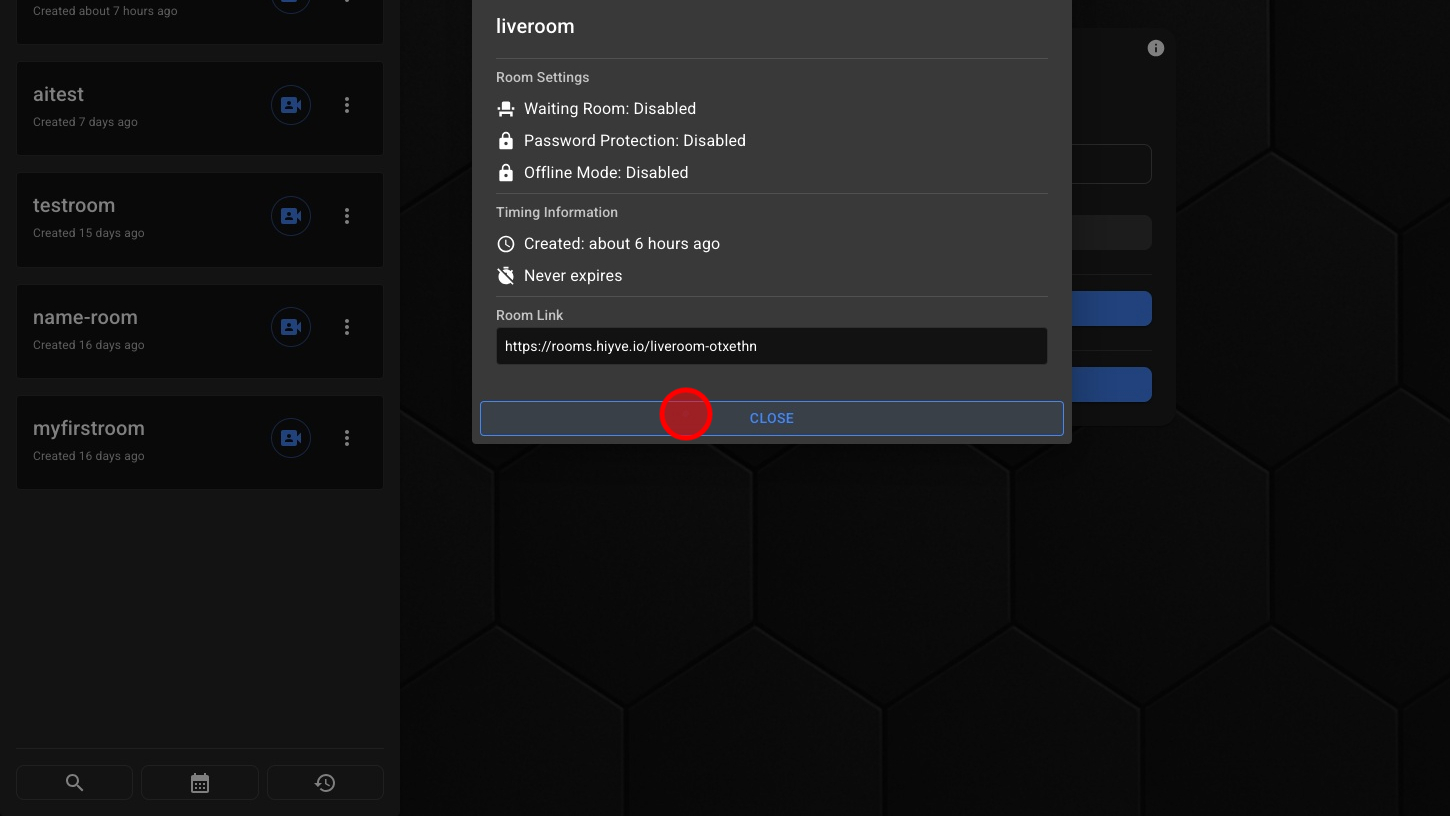
11. Copy Room Link
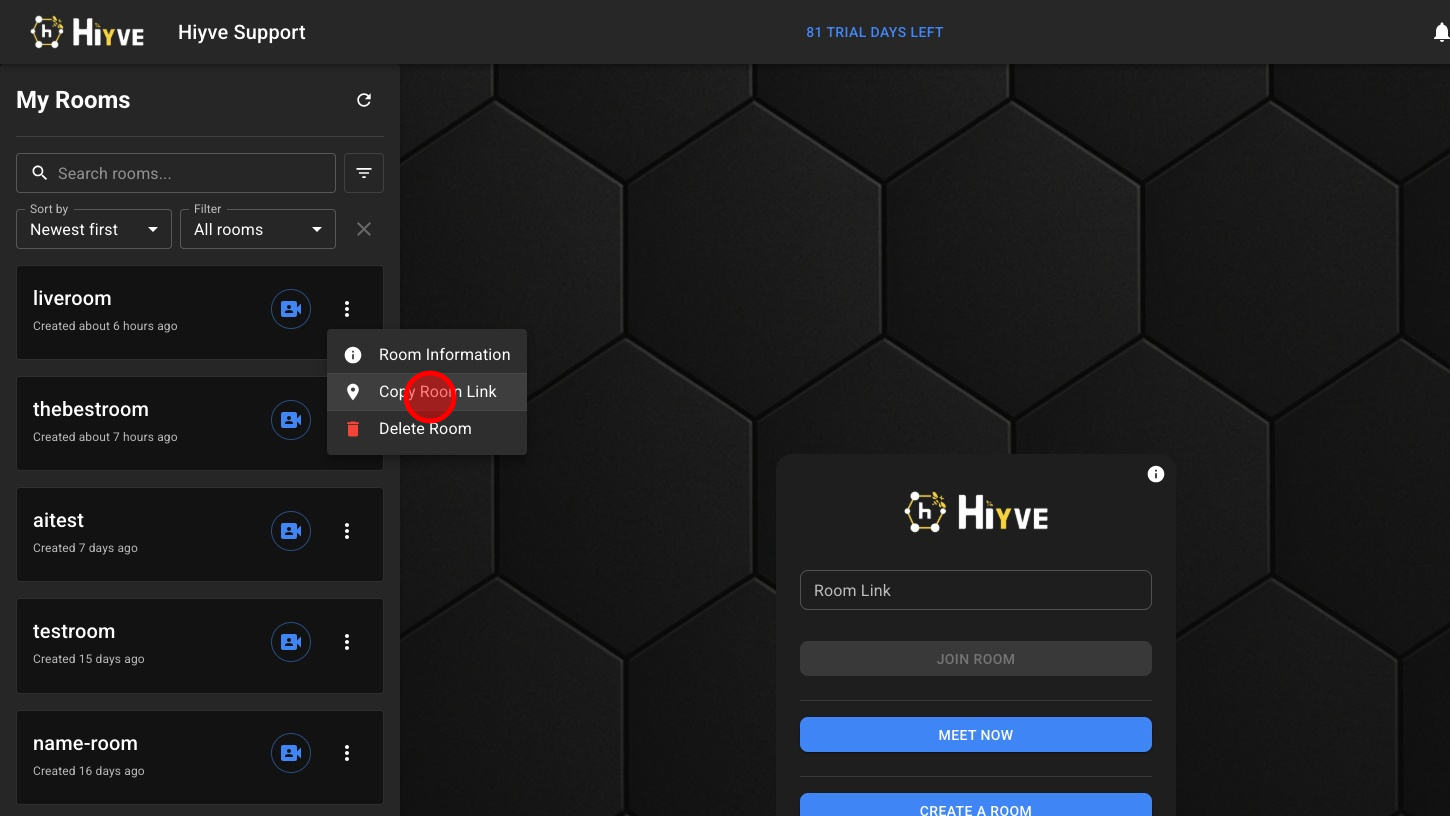
12. Delete Room
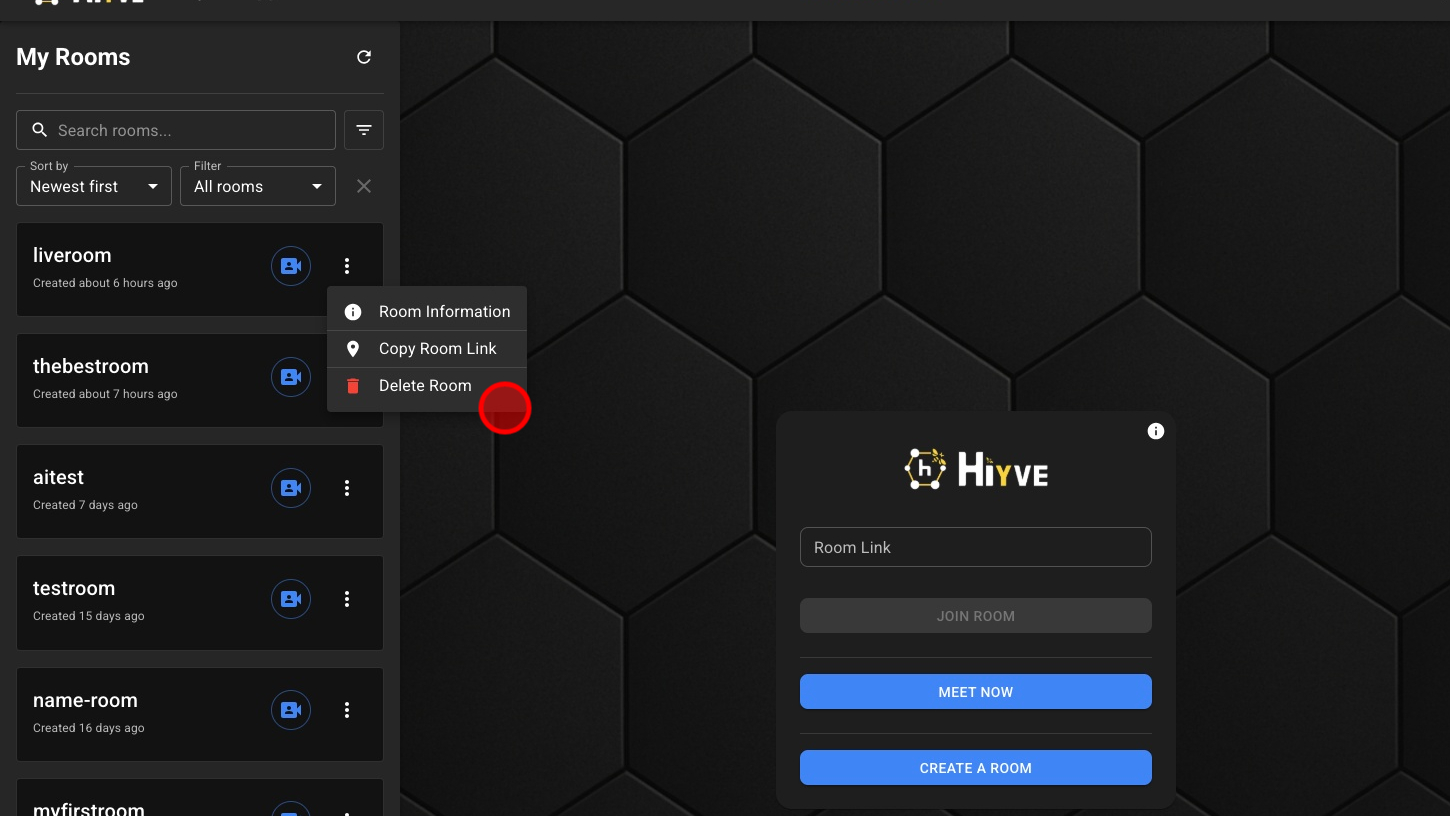
13. Show System Notifications

14. Open Account Settings
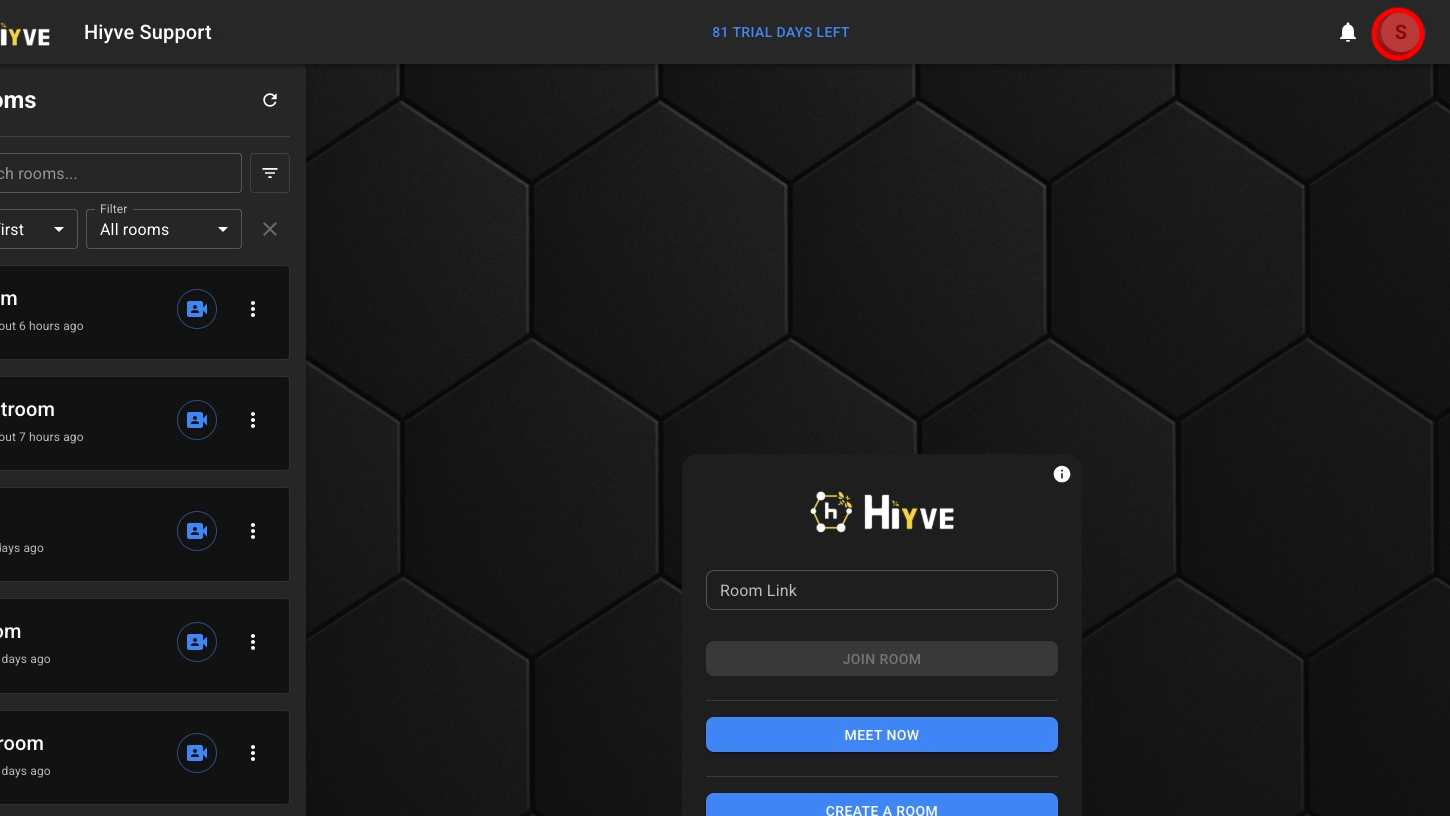
15. Setting, Getting Started Guide, Help Guides, Support, Log Out
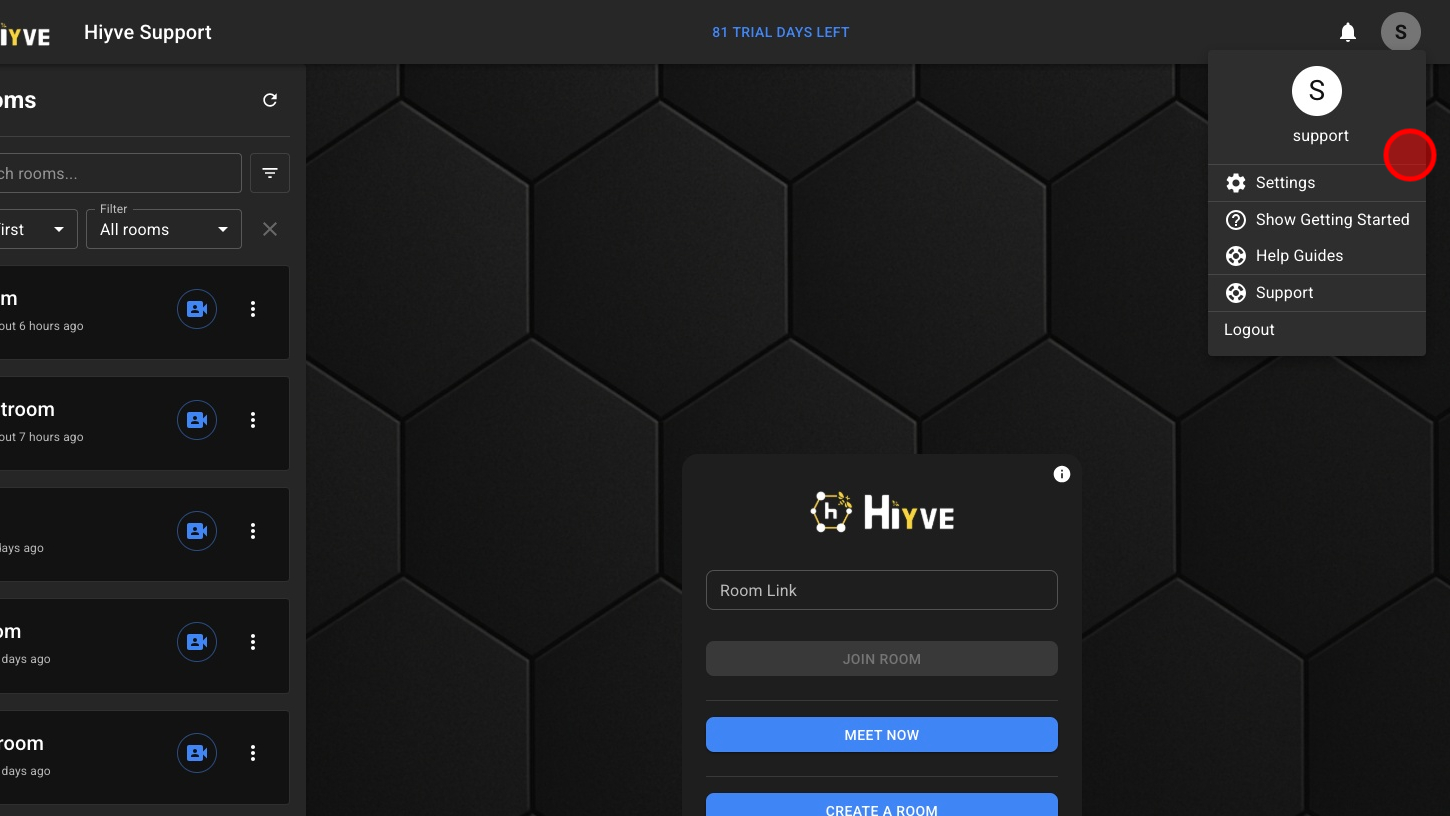
16. A.I. Search - Search Room Transcripts
17. Schedule Sessions
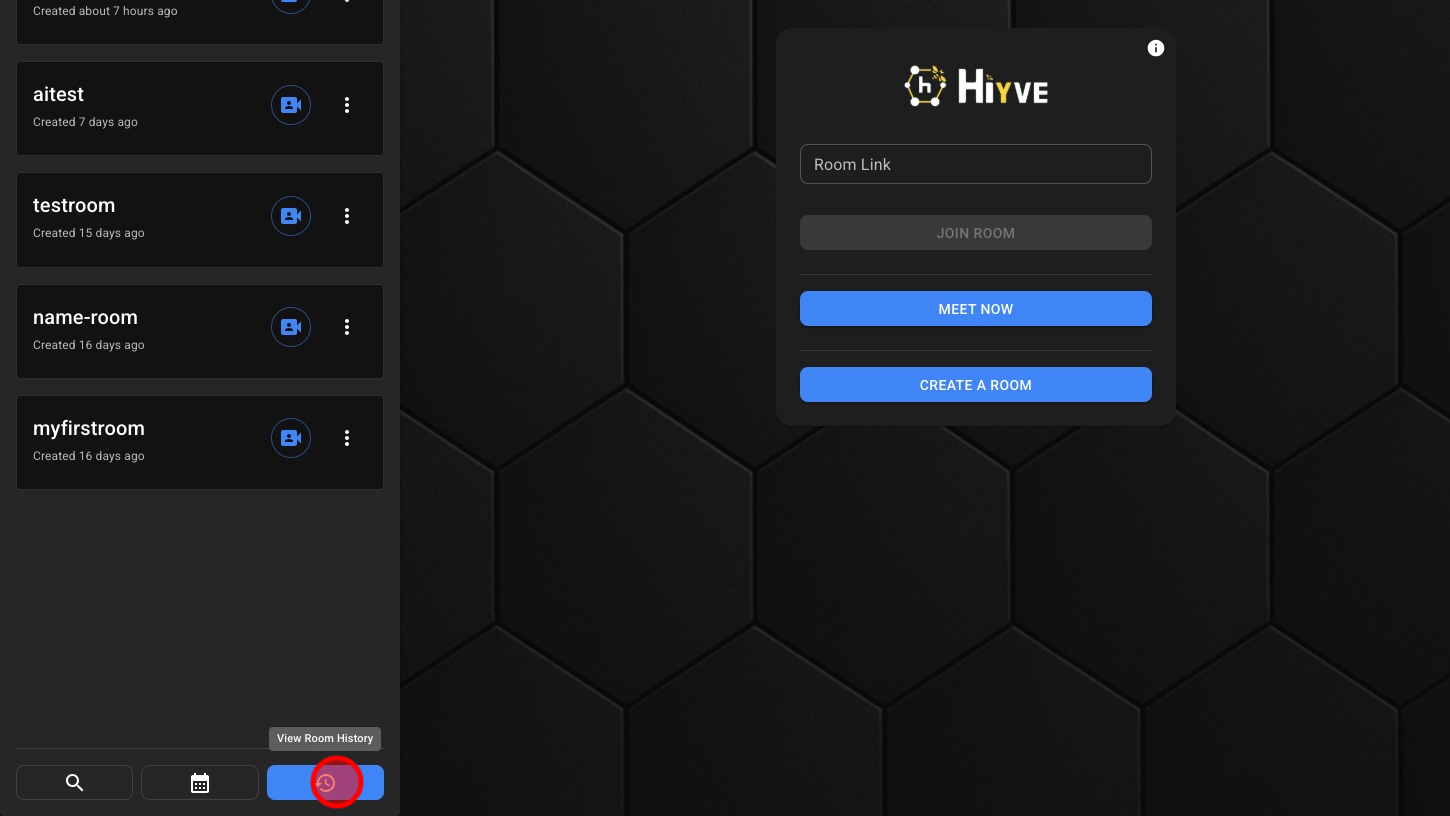
18. View Room History