.png)
Why use Recordings
Recordings let you capture your entire meeting—audio, video, and shared content—so nothing is lost after the call ends. Every recording is securely stored and linked to its session, making it easy to review, share, or analyze later.
Use Recordings to:
-
Review discussions: Revisit complex topics or confirm key decisions after the meeting.
-
Share with others: Send recordings to teammates or guests who couldn’t attend.
-
Document progress: Keep a complete record of sessions for training, compliance, or quality review.
-
Enhance learning: Replay lessons or demos to reinforce understanding.
Why use Transcripts & Summaries
Transcripts and Summaries automatically convert your recordings into organized, searchable text and insights. They include speaker labeling, key takeaways, and action items, helping you understand what happened and what needs to happen next.
Use Transcripts & Summaries to:
-
Save time: Instantly review the full conversation without rewatching the video.
-
Track action items: Identify tasks, next steps, and responsibilities automatically.
-
Improve accuracy: Ensure nothing is missed when documenting meetings or lessons.
-
Analyze outcomes: See sentiment, engagement, and decision points in context.
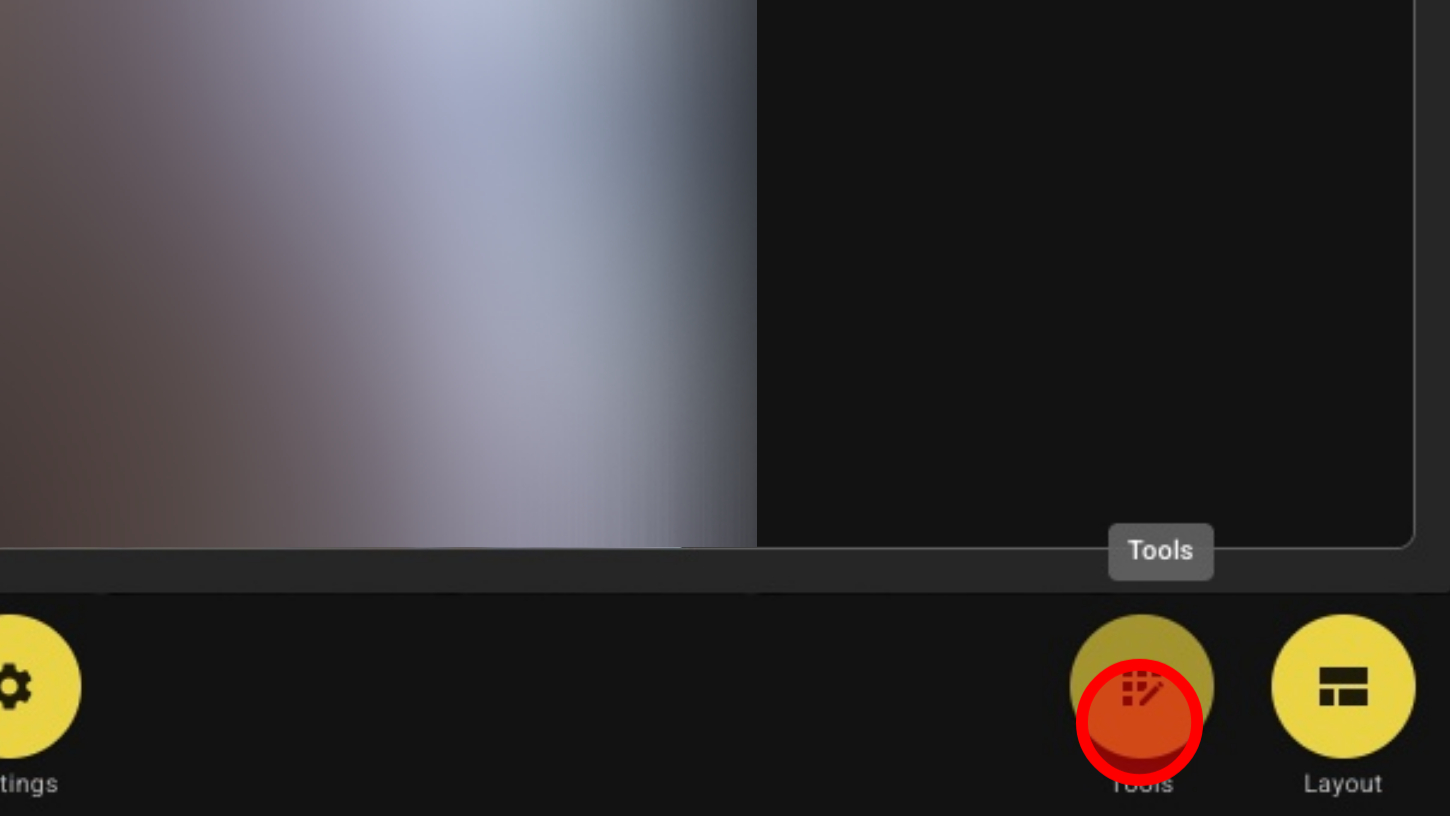
1. Open Tools
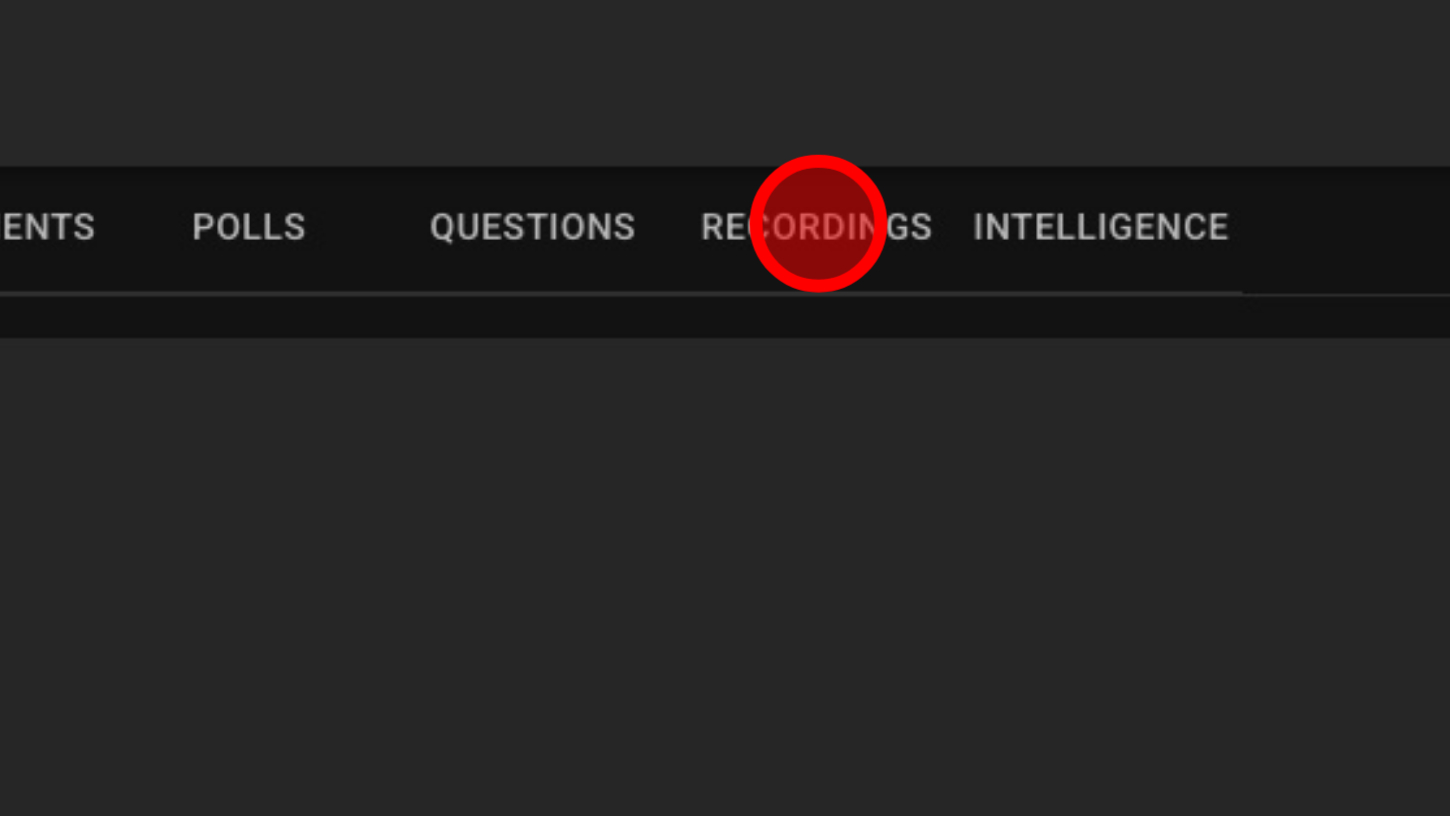
2. Click 'RECORDINGS'
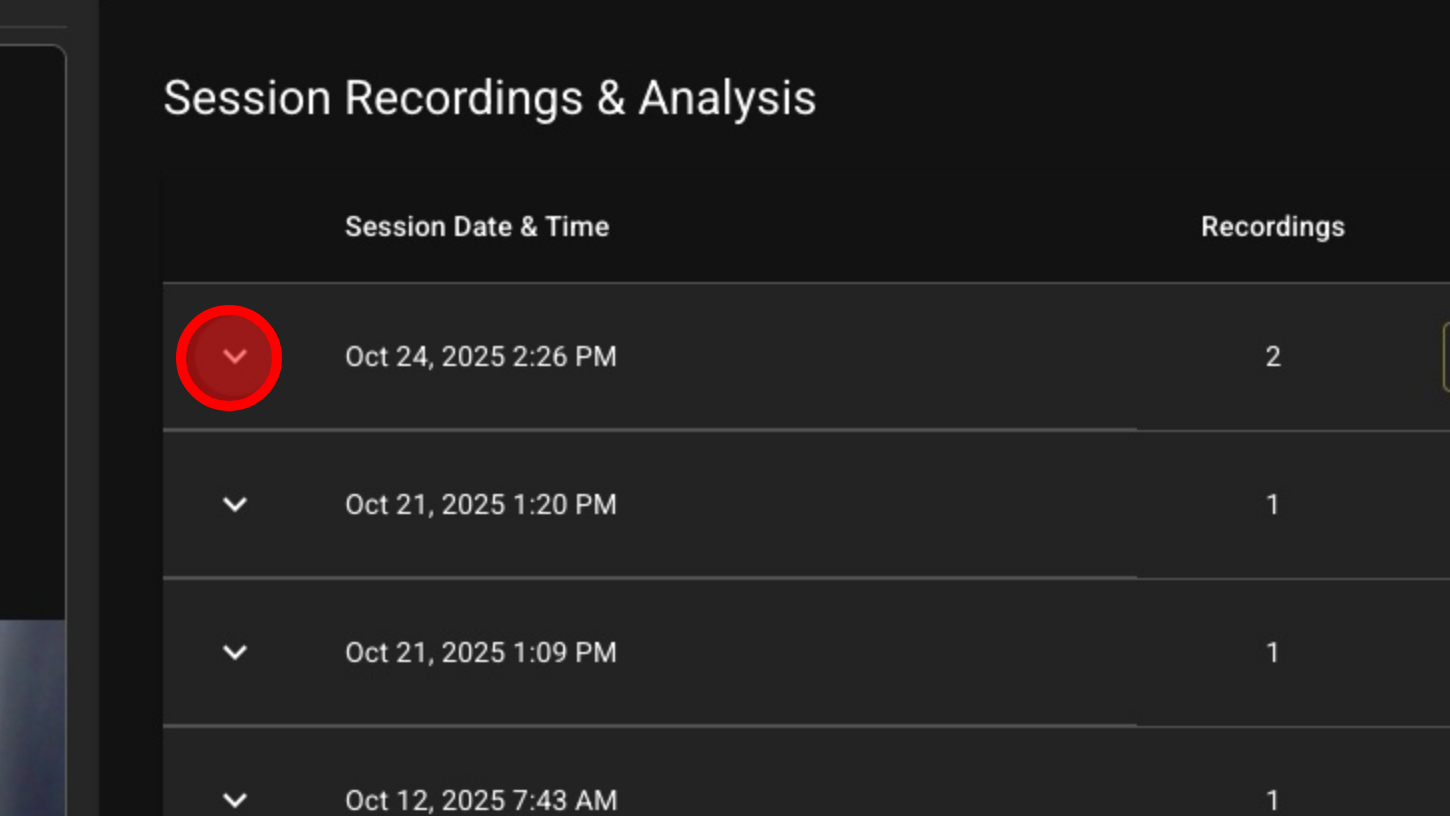
3. Click the Arrow To View Individual Recording Files
4. To Combine Session Recordings Into a Single File – Click Compose
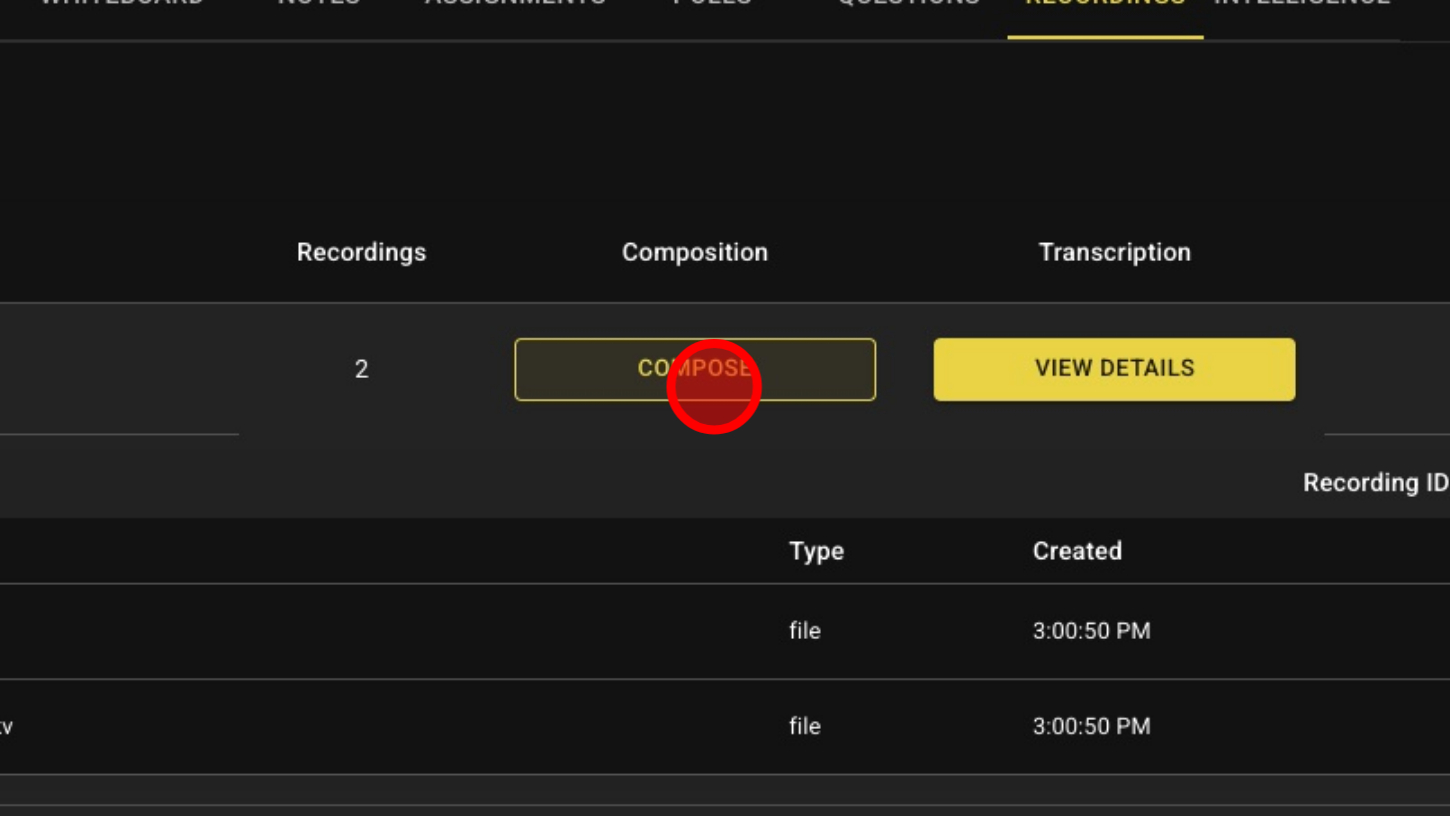
5. Click 'OK'
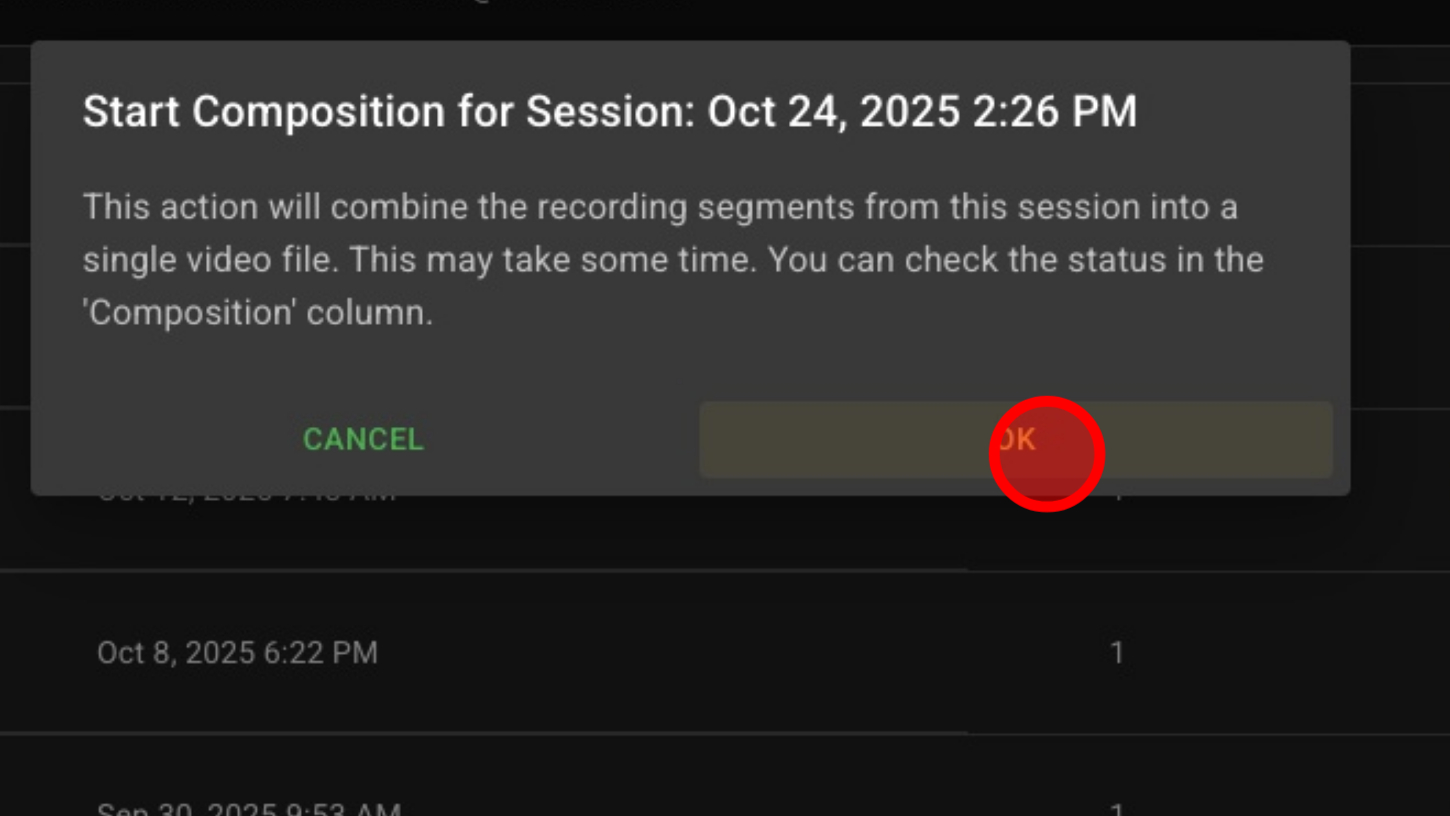
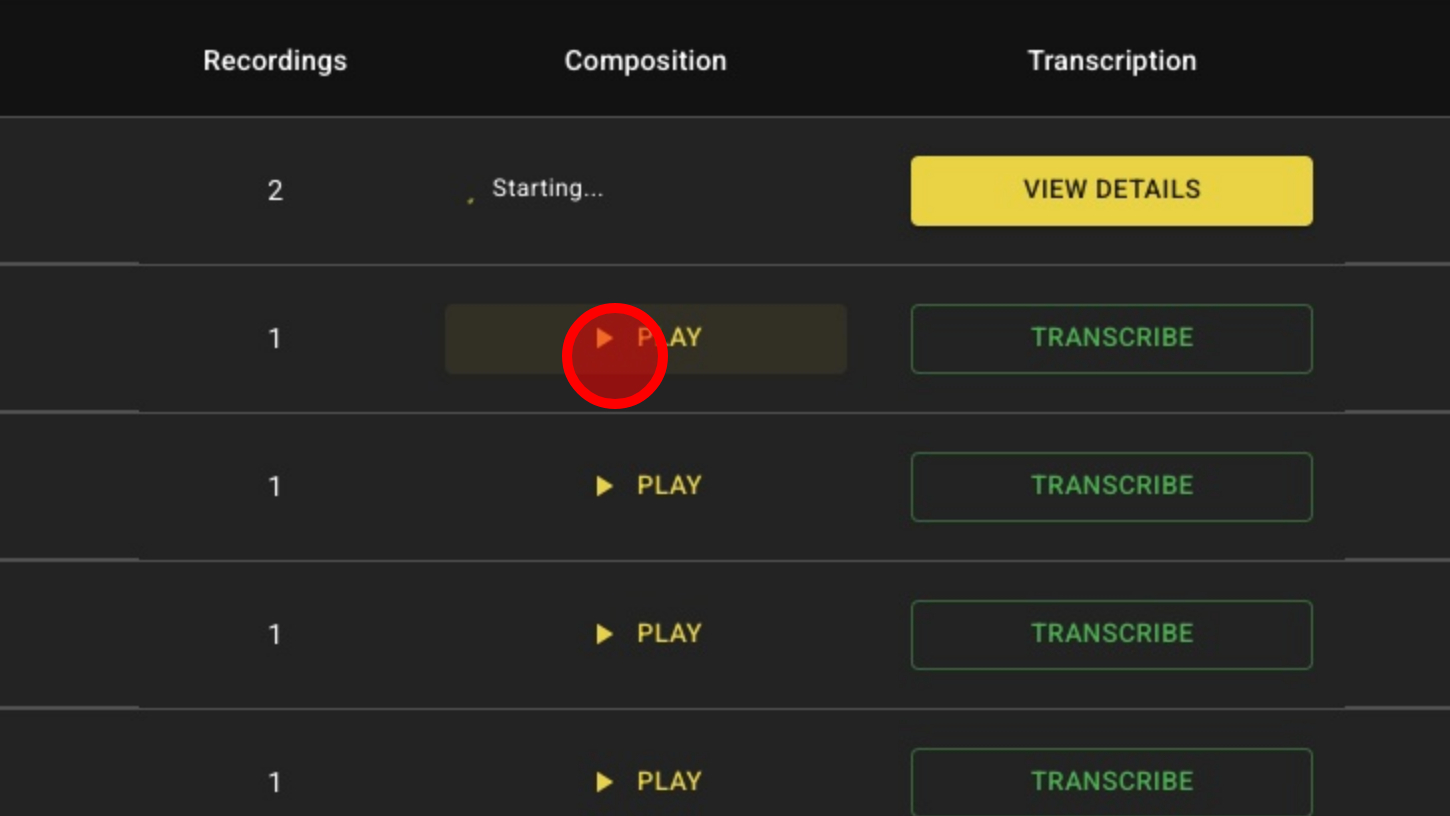
6. To Transcribe and Analyze Recordings – Click TRANSCRIBE
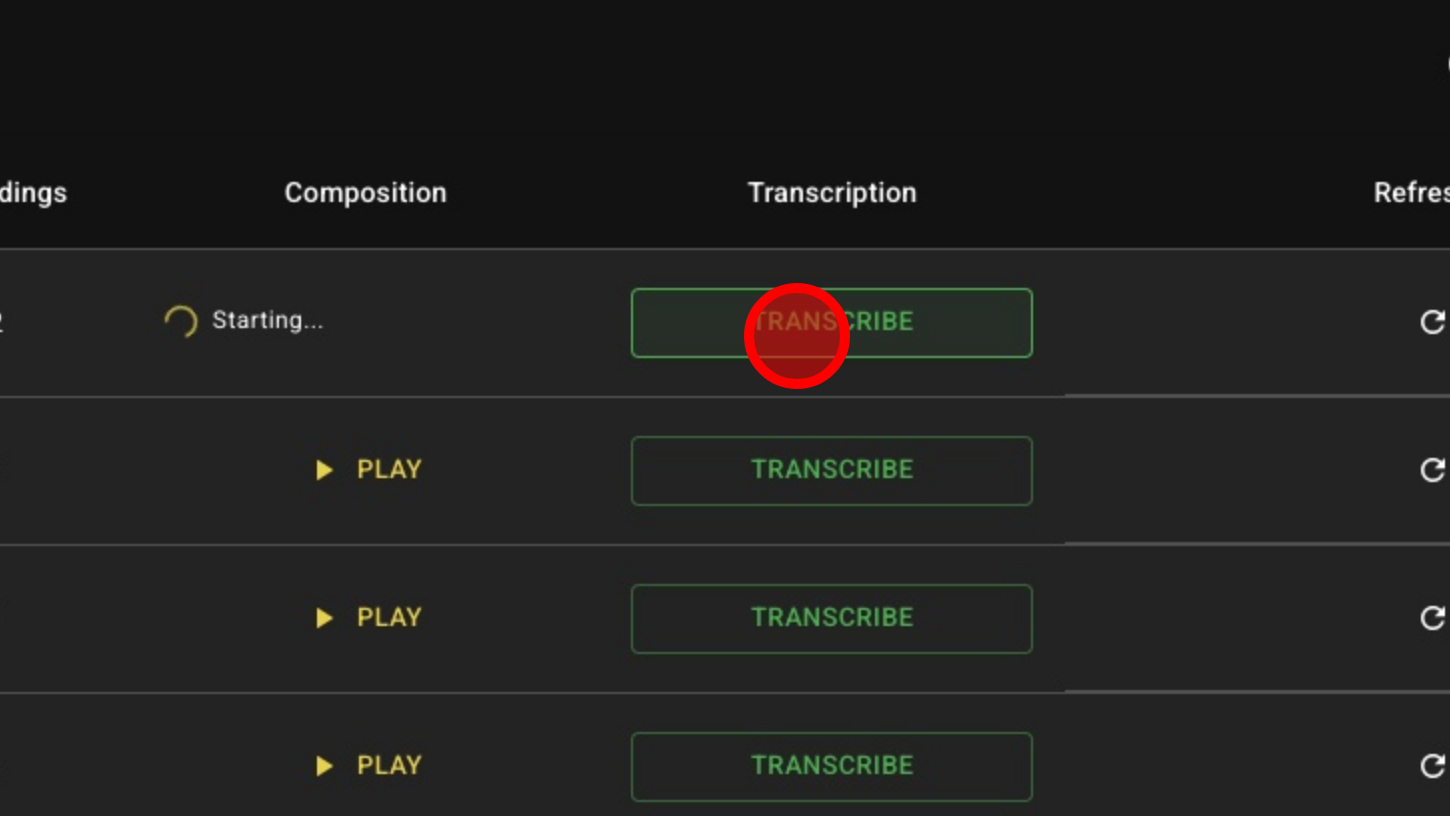
7. Click 'OK'
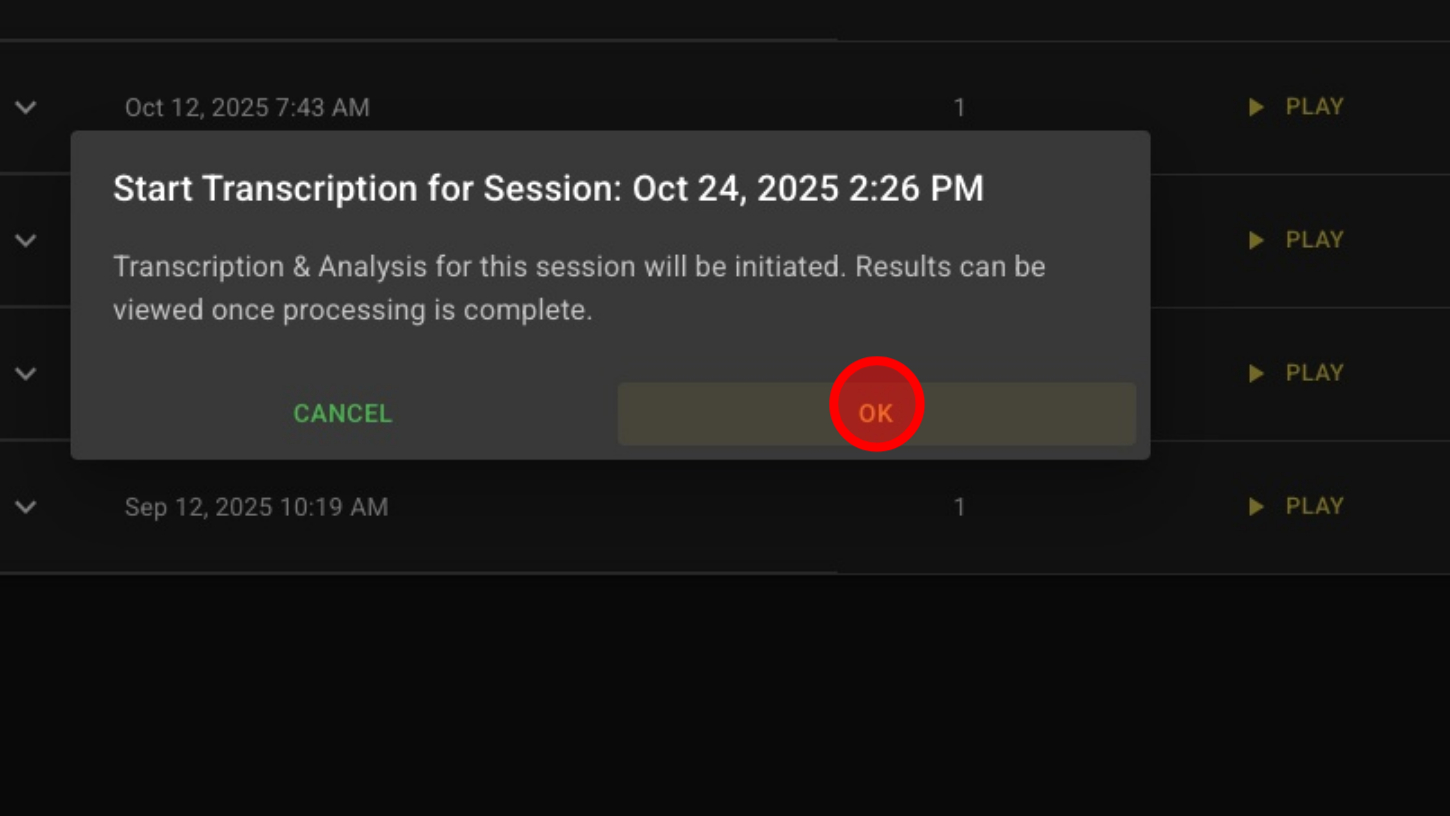
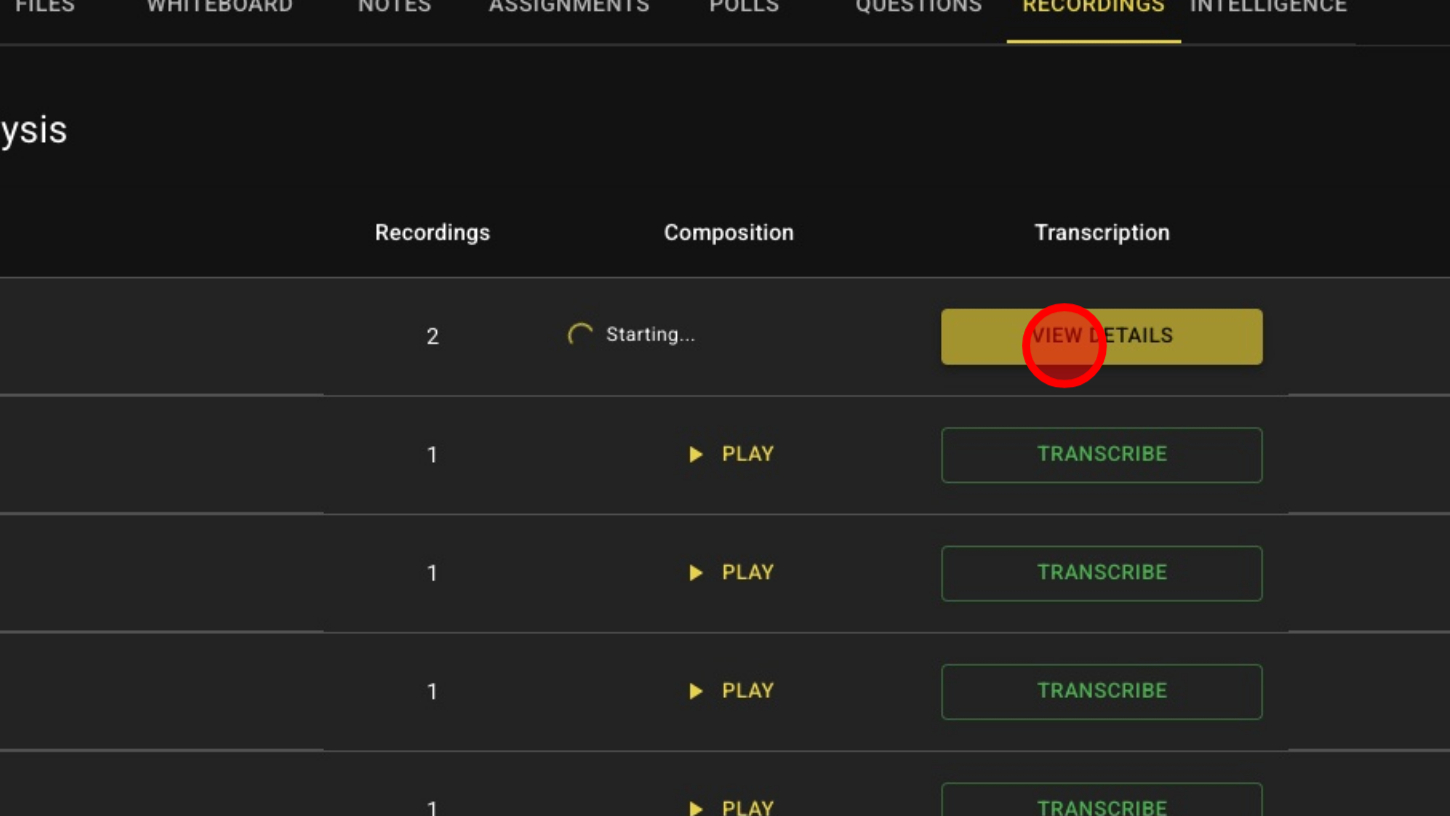
8. Click 'VIEW DETAILS'
9. View Session Summary

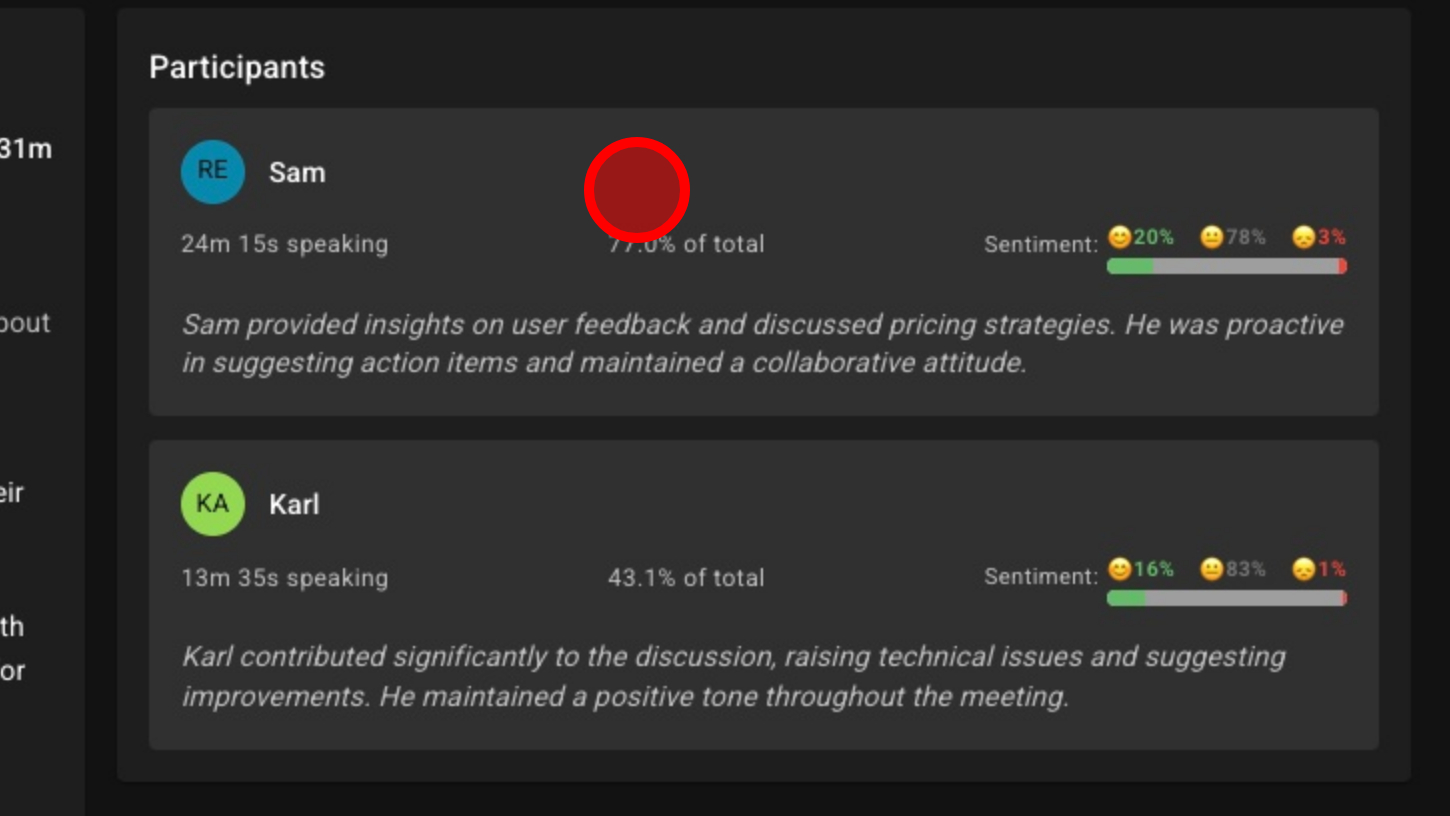
10. View Participant Involvement – Speaking Time, Sentiment & Summary
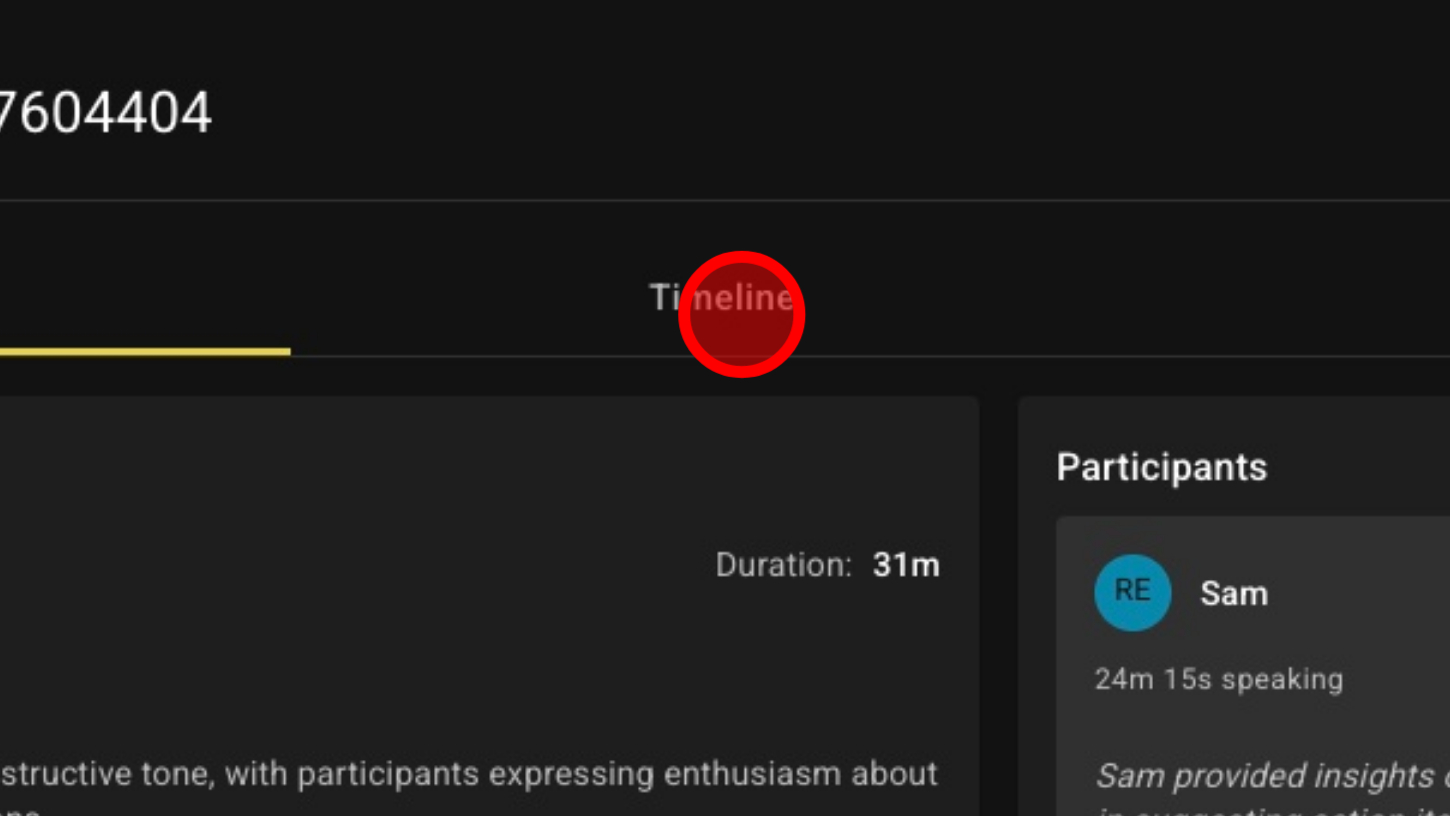
11. View Transcription
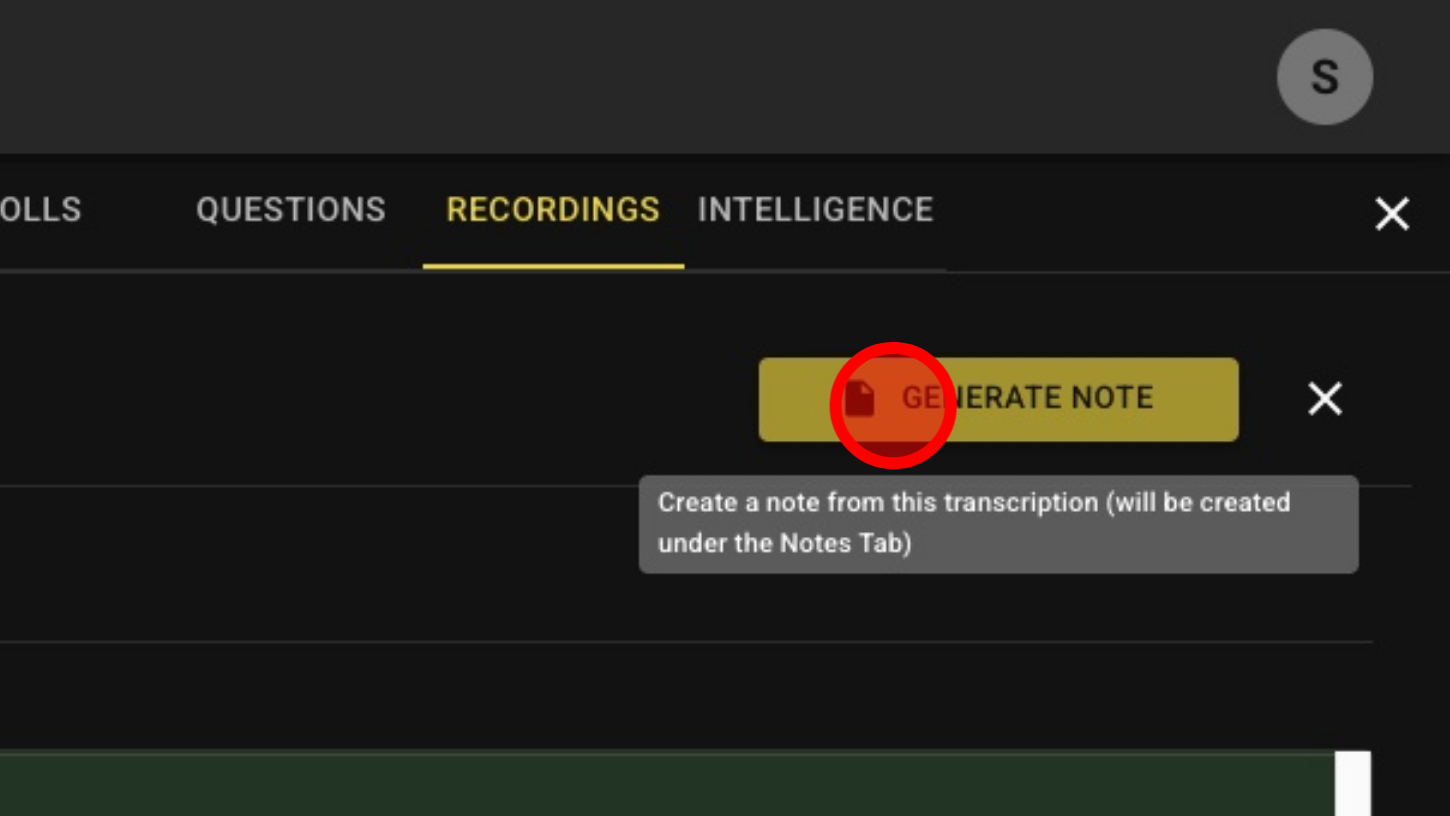
12. Create a Note File From Your Transcript
13. Name The Note
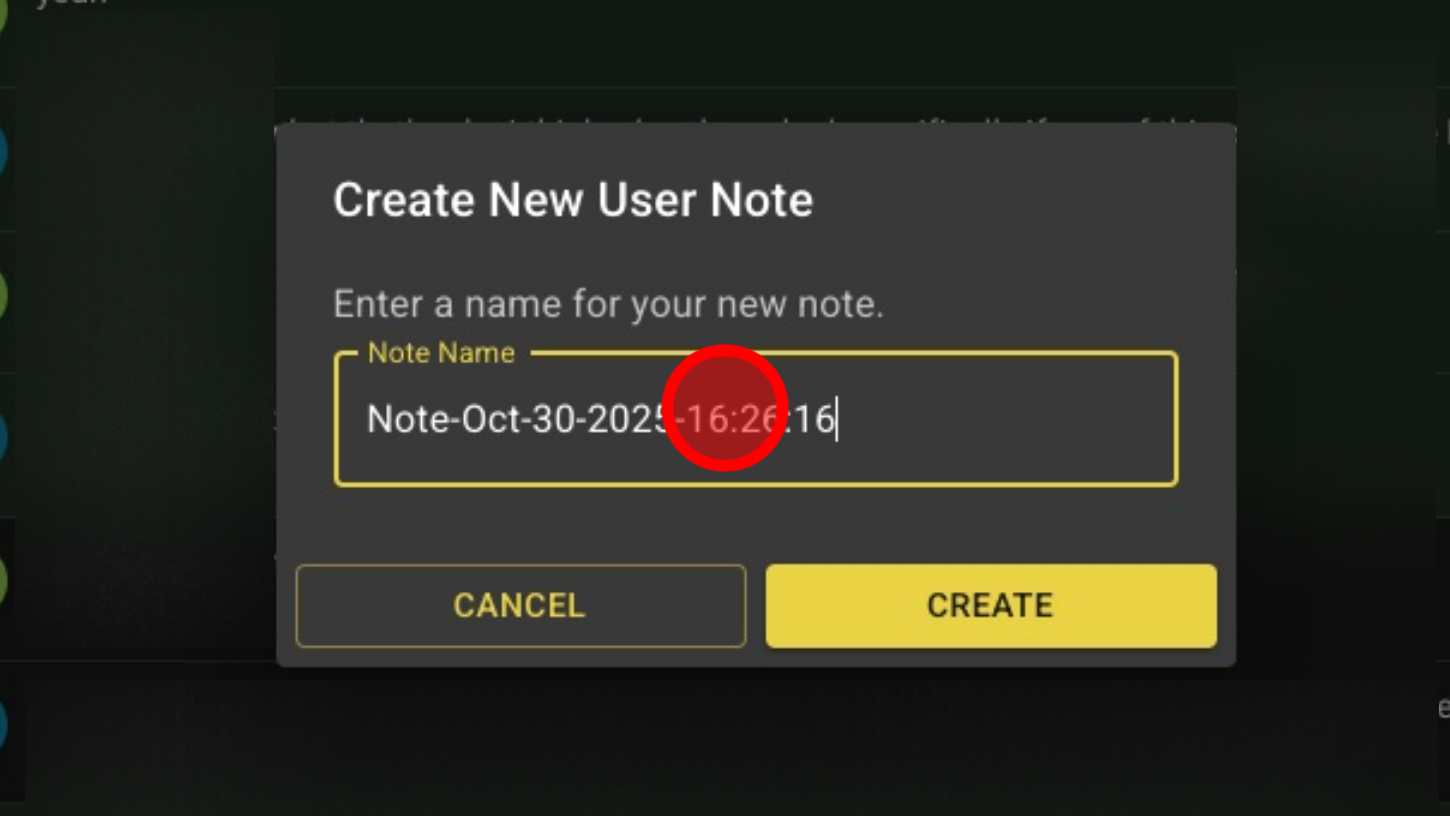
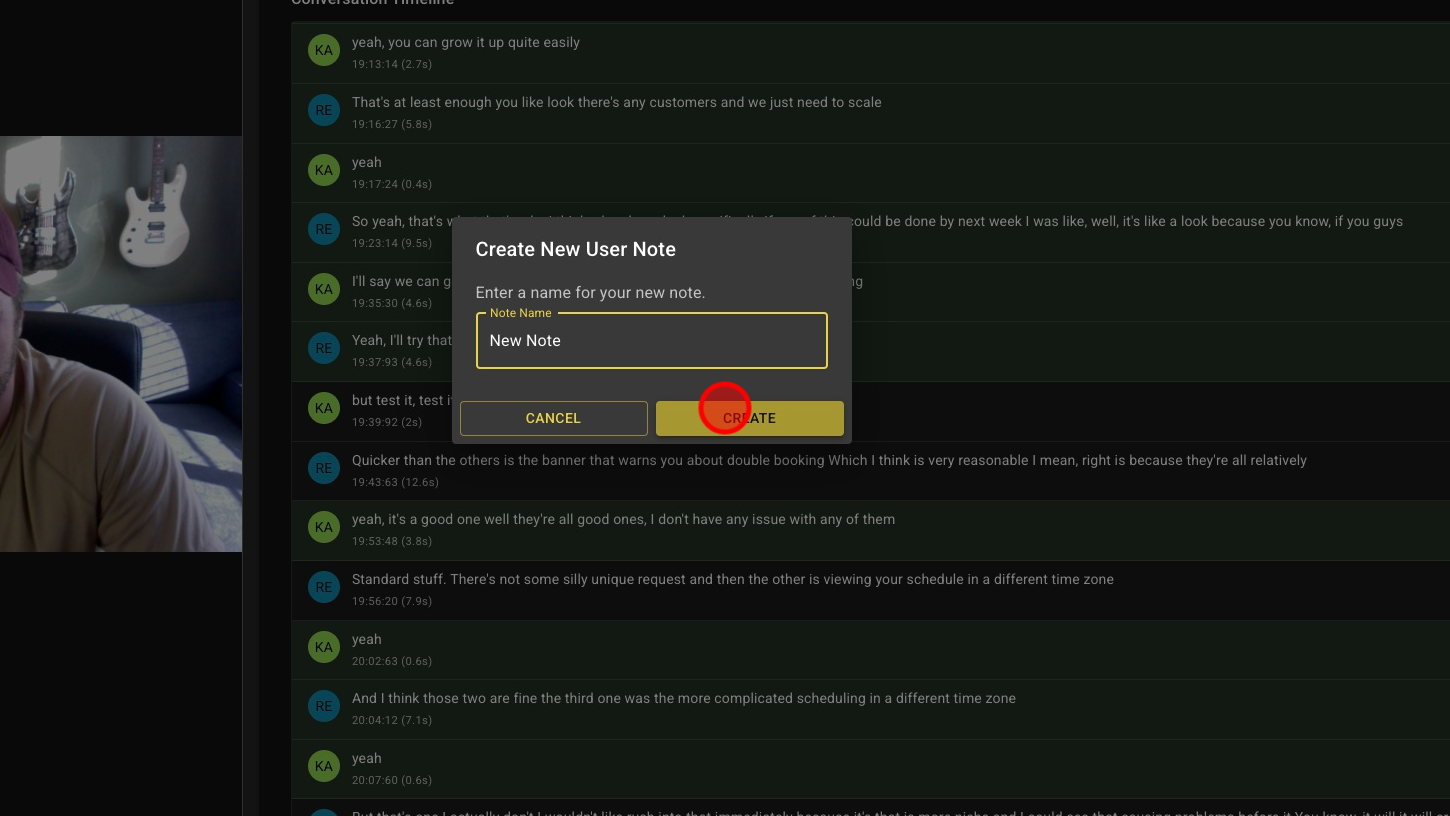
14. Click 'CREATE'
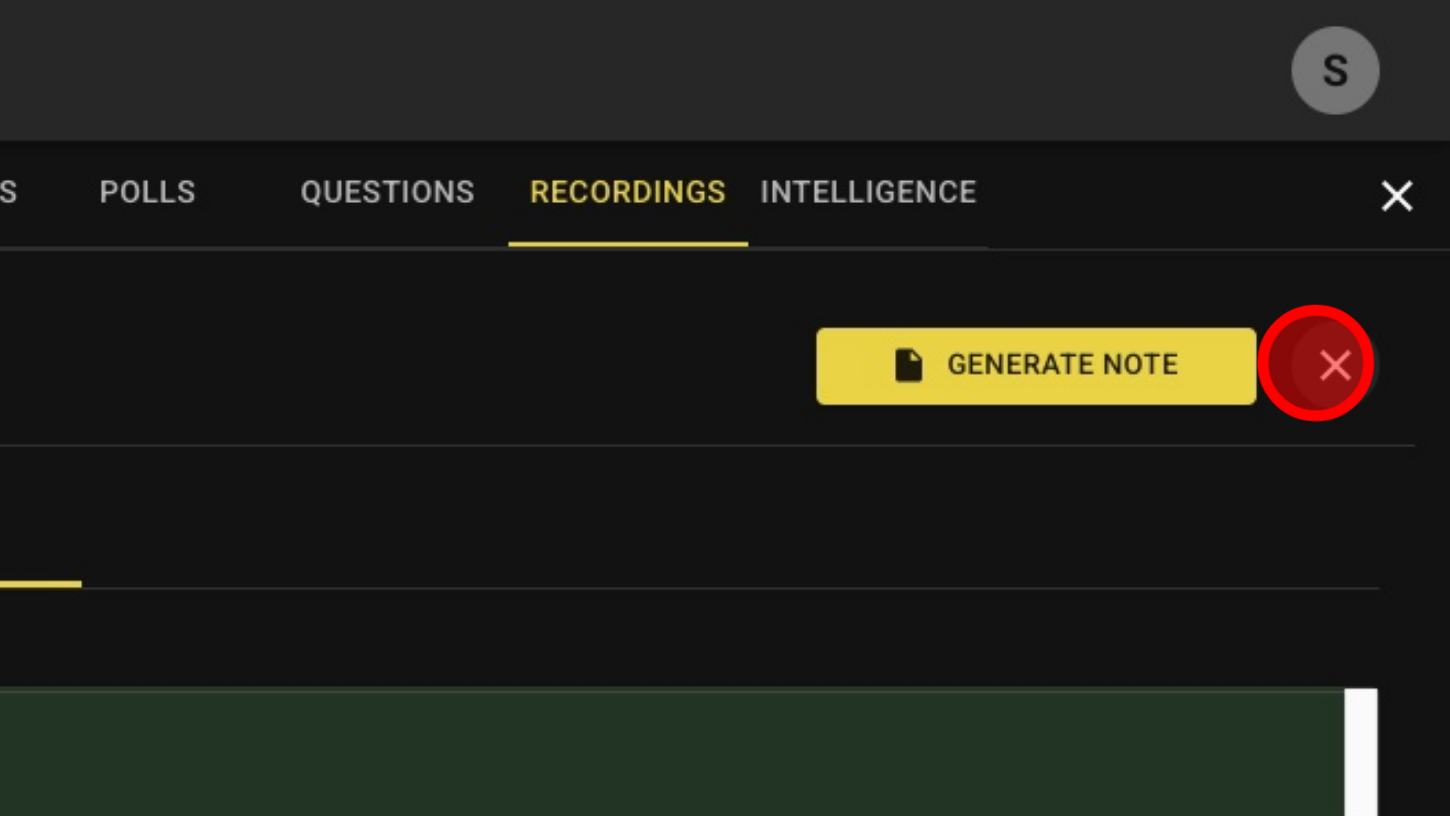
15. Close Transcript & Analysis
16. View Composition